
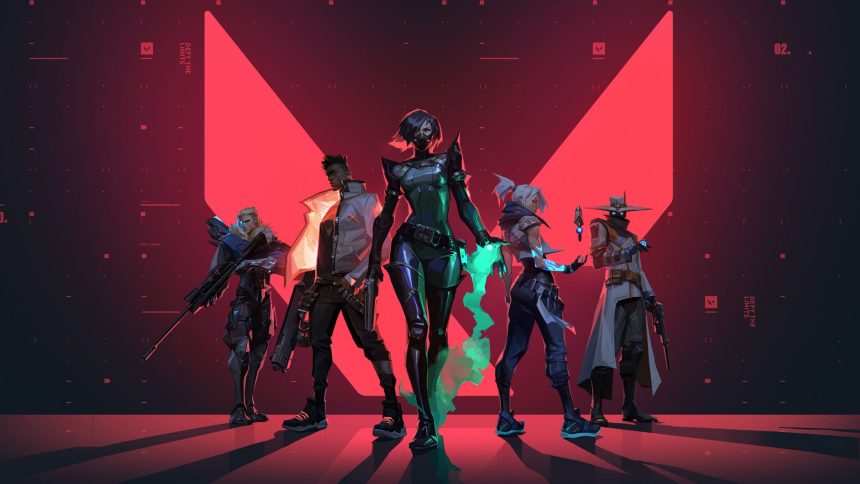
Valorant is one of the best First-person Hero Shooter video games released by Riot Games for PC only. Do you know? The Counter-Strike video game series heavily inspires Valorant, and it has borrowed several mechanics, including Spray Pattern, the Buy Menu, and Inaccuracy when moving. Besides, Valorant is a Team-based first-person shooter video game set in the near future, where players play as one of the agents to participate in the game and battle against the opposing team. There are several playable heroes; each belongs to a different country and culture across the land. In Valorant, agents have unique abilities; however, each requires charges through killing enemies.
Eager to learn how to make Small Crosshair in Valorant, here you go
Apart from that, many players worldwide have complained of facing issues when running the game on PC. Having said that, it means players can’t launch it properly on their Windows 10. It sometimes happens because of any glitch or bug that can be resolved by merely restarting the PC; however, sometimes you need to uninstall software and then install against to bring it back to life. If you are one of those players facing the Valorant Not Launching issues, we’ve compiled a guide to help you find the best solutions in 2026.
How to Fix Valorant, not Opening Issues?
If you are suffering from the same problem, there would surely be a question in your mind, “Why is my Valorant not opening?” Well, we searched, and no exact reason was found why it happens. But if we keep the Valorant release date (2 June 2020) in mind, it becomes a bit easier, as the game is in its early stages, which means the chances of having a few errors are high; therefore, you are facing issues. You don’t need to worry, as we have compiled a guide containing the best methods to solve the not-opening problems and will answer your question of “why is my Valorant not opening?”
Restart Valorant to fix Opening Issues on your PC
Sometimes, players can avoid launching issues by merely restarting the game on their PC. So, if you are facing the same problem, restart Valorant to remove the error, and if it persists, keep reading this guide to find the best solutions.
Check for Valorant Updates
Indeed, you might have experienced the app not opening issue whenever their updates are released. Similarly, if you haven’t updated your game for a long time, check out the store for updates, and if any are available, install them instantly. Doing as I said will help you sort out bugs or errors.
Change Your Computer Resolution
We suggest you launch Valorant after changing the computer resolution of your PC. To change the resolution, you have to follow the steps given below:
- Hit the right-click of your mouse and head to the “Display Settings.”
- Tap the “Display Resolution” under Scale and Layout and choose the Lower Resolution.
- Next, launch Valorant to see whether it works for you or not.
Update Graphics Card Drivers
It would help if you kept in mind that developers might have stopped working on their drivers for a few GPUs after a specific time; therefore, outdated graphics can cause the launch problem. Before heading to the complex steps, you must look at potential updates that may help you resolve the issue you are facing. If you don’t know how to update graphics drivers, using any tool might help you solve the problem.
Launch Valorant as Administrator
Launching Valorant as Administrator may help the game gain access to special permissions and directories and help the game run smoothly.
How to Run Valorant as Administrator
- First off, hit the right-click and click on “Run as Administrator.”
Open Valorant in Compatible Mode
To prevent the conflict between Valorant and Windows Update, we suggest trying the game in Compatibility Mode first.
- Right-click on the Valorant Icon on your Desktop and select “Properties.”
- Next, check the “Run this problem in compatible mode” box and hit the “OK” button to confirm.
- Restart your PC and check whether the problem has been resolved.
End All Riot-Associated Process
Players have often reported that they can’t run Valorant on Windows 10 because of other Riot Processes running in the background. If the same thing is happening to you, then we suggest you close all problems related to Riot, and it can be done within a few simple steps:
- Open the Task Manager by merely clicking on the Taskbar.
- Then, head to the Processes tab and discover the “Riot Processes.”
- Select the Riot Processes by clicking on it and hitting the “End Task” button at the bottom of the window to end the program.
Turn Off Antivirus
If you are suffering from an error displaying that your Valorant can’t be started correctly, then you should turn off your Anti-virus program for a while to check whether the problem is happening because of that. Later on, you can turn it on the back if no problem is detected. Here’s a guide on how to turn off your Anti-virus program in Windows 10.
- Head to your keyboard and press Win + I to open the settings, or visit the notification icon at the bottom-right corner of your screen and click on the settings tab.
- Next, click “Update and Security” and find the Windows Security option.
- Upon tapping the Windows Security Option, the game displays you a few options, wherein clicking the “Virus and Threat Protection” will help you open up the options you need to turn off the Virus Protection Shield.
- Now, select “Manage Settings” and turn off all Toggle Buttons under the Real-time Protection Section.
- After that, launch the game to test.
If the described method doesn’t work for you, turn the anti-virus system back on and continue to the following method mentioned below.;
Reinstall Valorant
In the end, the only solution to get rid of the not-launching problem is to uninstall the game and then install it again. Uninstalling the game is helpful when your system has inconsistent game files that sometimes cause a problem when you have an unstable network connection. Now, try to uninstall Valorant following the steps given below:
- Click on the “Start Menu” and type “Control Panel.” Besides, you can press the Windows Logo key and the “R” button simultaneously to invoke the Run box. Type control panel and hit the OK button.
- Now, you need to head to the “Programs” and click the option “Uninstall a Program” under the “Programs.”
- Select “Valorant” and Riot Vanguard and uninstall them step by step.
- Visit the official site and download the latest version that for sure comes without glitches and bugs.
Conclusion
We’ve covered many methods to help you detect a problem and remove it to experience smooth gameplay. Start fixing the problem with the most straightforward solution, like restarting the PC. After that, move on to the advanced methods like updating drivers, changing the screen resolution, ending the background processes, and lastly, uninstalling the game. Keep your game and graphics drivers updated to enjoy a smooth gaming experience.