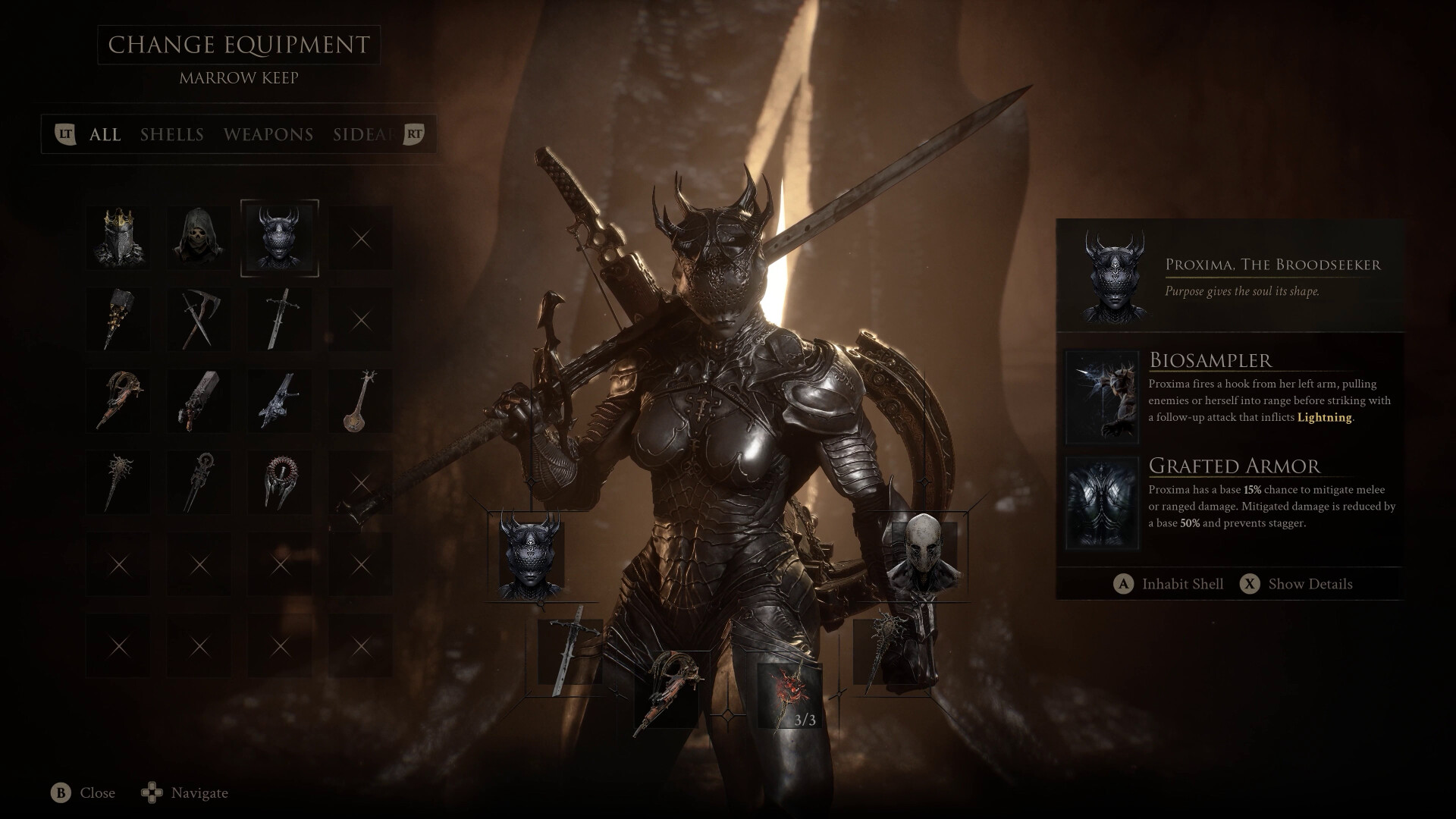
Mortal Shell II: Best PC Settings and Controls Guide
Mortal Shell II's November hotfix fixed audio settings and beacon-menu bugs. Here's every PC, controller and accessibility setting worth checking.
Mortal Shell II shipped on PC with a deliberately sparse options menu, and Cold Symmetry has been quietly rebuilding it patch by patch ever since launch. The November 16 hotfix is the latest pass: it fixes an audio-settings reset bug, a mouse-selection bug in the beacon menu, and a stability issue tied to lingering combat effects. None of that is explained in-game, so here is every setting worth checking after the update, plus the controller, accessibility and Photo Mode options Cold Symmetry has quietly built into the game since launch, and the two display changes most players never noticed.
01What changed in the November 16 hotfix
Hotfix 1.000.017 went live on Steam, PlayStation 5 and Xbox Series X|S on November 16, 2026. Most of it targets combat, bosses and dungeon bugs, but four changes affect the options menu directly:
- Audio settings now update correctly when you reset settings to default — previously a reset could leave sliders out of sync with what actually played back.
- The Boss Soundtrack toggle's name and default value were corrected, so it now reads and defaults the way it's supposed to.
- Option descriptions no longer overflow their text boxes in the settings menu, which had been clipping longer tooltips.
- Mether Pulse can now be selected with the mouse in the beacon menu, fixing a keyboard-only lockout some players hit when trying to use it with a mouse and keyboard.
On the performance side, the same patch improved frame pacing around coffin enemies and props, and fixed a crash that could occur when leaving an area while combat effects were still active. If you were getting hitches near coffin-type enemies, or random crashes on zone transitions, update first — it may solve the problem outright without touching a single slider.
02Minimum PC requirements
Cold Symmetry has only published a minimum spec on Steam; there is no official "recommended" tier listed for Mortal Shell II, which is unusual for a game this demanding. Treat the minimum as a baseline for getting the game running at 1080p, not a guarantee of a locked frame rate:
- OS: Windows 10 / 11
- Processor: Intel Core i7-10700K @ 3.8GHz or AMD Ryzen 5 3600 @ 3.6GHz or better
- Memory: 16GB RAM
- Graphics: NVIDIA GeForce RTX 2060 SUPER 8GB or AMD Radeon RX 6600 8GB
- DirectX: Version 12
- Storage: 70GB available space, SSD required
That SSD line isn't boilerplate. Mortal Shell II streams dungeon geometry and Shell data as you move through its open world, and Cold Symmetry's own October 30 patch notes call out "smoother entry fade, background checkpoint saves, less hitching and better memory handling" specifically for dungeon transitions — improvements that assume fast storage to begin with. If the game is currently installed on a mechanical drive, moving it to an SSD will do more for perceived stutter than any graphics setting below it.
03The Overkill setting, and pushing options above High
Two display changes from the October 30 "Rotten Autumn Hotfix 1" update are easy to miss because neither shipped as a headline feature, and neither is explained anywhere in the settings menu itself:
- Overkill graphics setting (PC only): a tier above the previous ceiling, selectable from the graphics menu since the October patch. It's the heaviest option available, so only turn it on if you're already hitting your target frame rate on High with real headroom to spare — this is a vanity setting for strong hardware, not a quality-of-life one.
- Above-High individual settings: before this patch, picking anything beyond the High preset forced every graphics option to jump together. Now you can push individual sliders — shadows, textures, view distance and similar categories — past High one at a time. That lets you spend your GPU budget on the settings that matter to you, like shadow quality inside dungeons or texture detail on Shell armor, without paying the frame-rate cost for ones you won't notice.
Neither change comes with a published benchmark from Cold Symmetry, so treat both as experiments: raise one slider, check your frame counter, and back off if the cost isn't worth the difference on your screen.
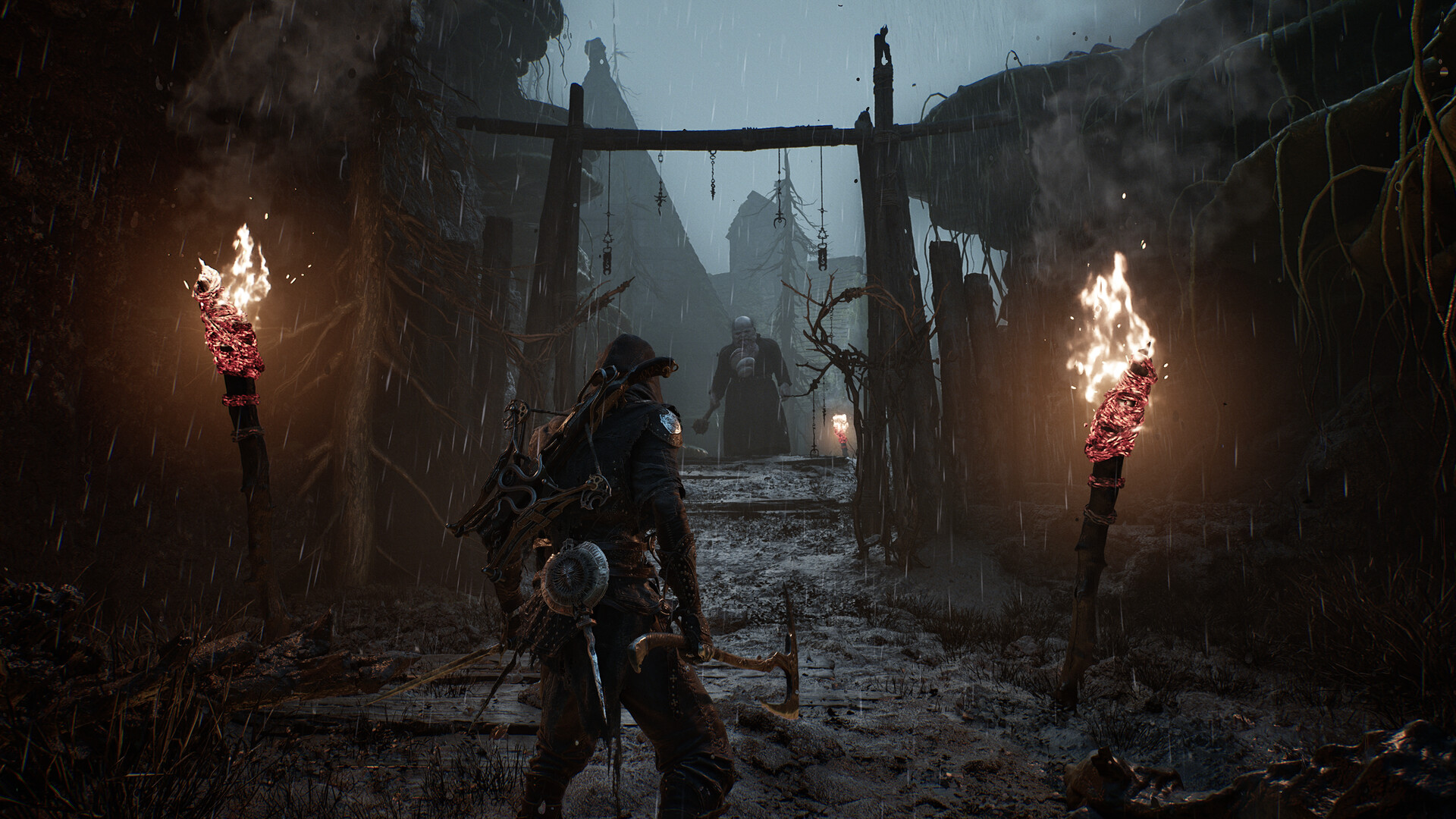
04Controller and accessibility options confirmed on Steam
Separately from anything in the patch notes above, Mortal Shell II's own Steam store listing confirms a specific set of supported features. These are the options verified to exist in the game right now, not third-party speculation:
- Full controller support, with explicit DualSense and DualShock controller support called out separately for PlayStation pads.
- Adjustable Text Size, useful on 4K displays or TVs where the default UI scale can be hard to read from a couch setup.
- Custom Volume Controls — separate sliders rather than one master bar, which is exactly what the Boss Soundtrack fix above now reads and resets correctly.
- Playable without Timed Input, an accessibility option that removes reaction-window requirements from prompts.
- Subtitle Options and Stereo Sound support.
If you're coming from the original Mortal Shell, "Playable without Timed Input" is the option to check first. The sequel's unrestricted, stamina-free combat system still leans on parry and dodge timing by default, and this is the official way to soften that requirement without reaching for a mod.
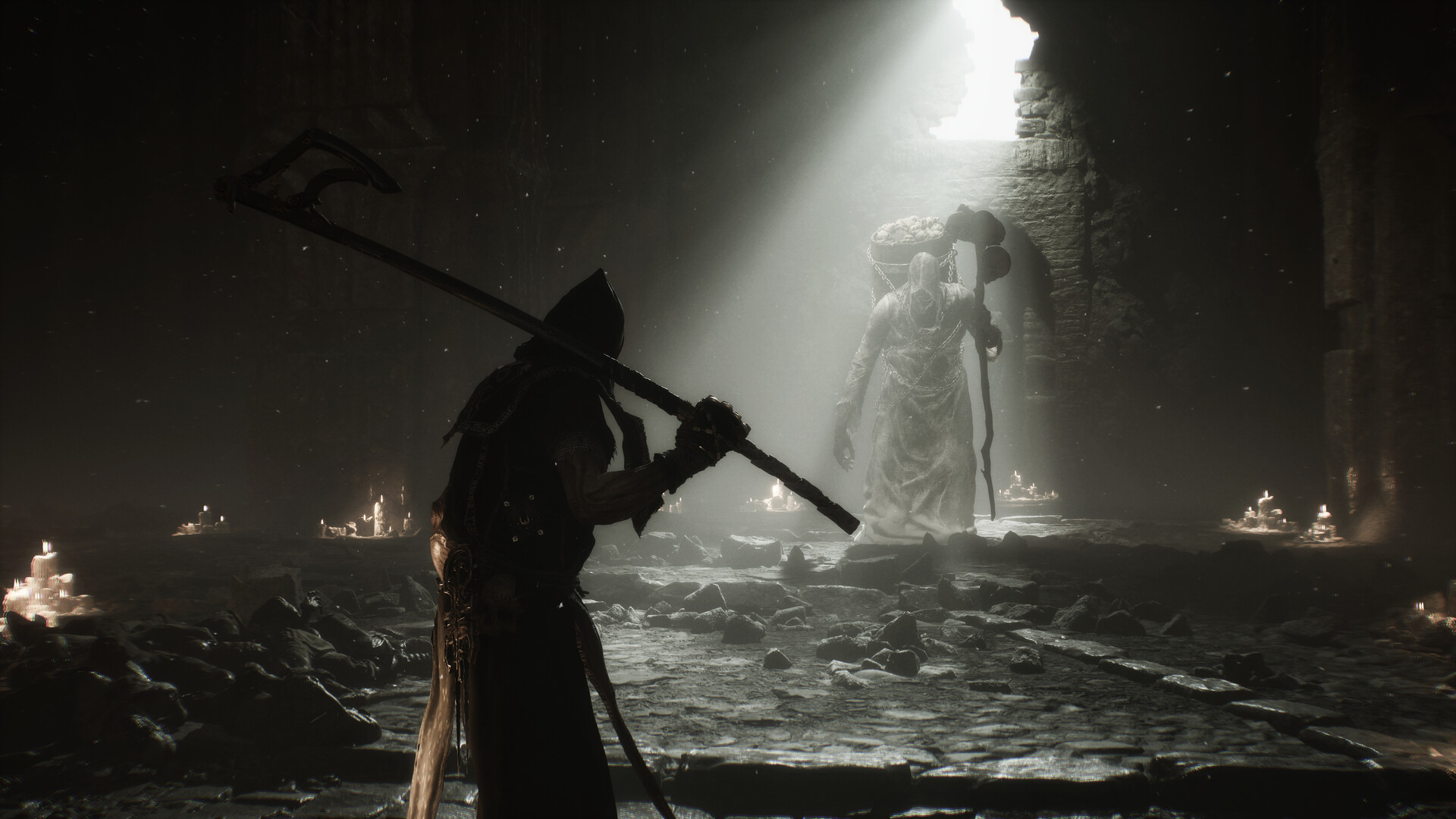
05Photo Mode settings worth adjusting
Photo Mode shipped with Mortal Shell II at launch and picked up two direct fixes in the October 30 update: camera sensitivity became more precise, and the scaling setting now actually applies when you change it — previously it didn't reliably take effect. A third fix in the same patch stopped weather effects like snow from persisting in the live game world after you exit Photo Mode; if you've ever walked out of a snowy screenshot into an interior level that was inexplicably snowing, that bug is what caused it. There's no in-game Photo Mode tutorial, so if you're using it for screenshots, open it, adjust scaling and camera sensitivity to taste, and confirm the framing looks right before committing — both of those settings are reported fixed as of the October patch, separate from the audio and menu fixes that landed in November.
06Step-by-step: setting up Mortal Shell II on PC
Setting Up Mortal Shell II on PC
- 1Launch Steam and let Mortal Shell II update before you touch any sliders. The November 16 hotfix fixes the audio-reset bug, the beacon menu's mouse input, and a crash tied to lingering combat effects — several problems below simply don't exist once you're current.2 min
- 2If Mortal Shell II is on a mechanical drive, relocate it. The 70GB minimum install explicitly requires an SSD, and Cold Symmetry's own patch notes tie dungeon-transition smoothness directly to fast storage.Varies
- 3Start on High and judge your frame rate before touching anything else. High is the highest preset that still applies every setting uniformly — everything past this step is manual tuning.3 min
- 4With a preset chosen, raise shadows, textures or view distance past High one at a time if you have frame-rate headroom. This only works since the October 30 patch; older saves' menus behave differently.5 min
- 5Only enable Overkill, the PC-only tier above High, if you're already comfortably hitting your target frame rate. It's the heaviest setting in the game with no official benchmark attached.2 min
- 6Check Playable without Timed Input, Adjustable Text Size, Subtitle Options and Custom Volume Controls in the menu — all four are confirmed on Steam's store listing and easy to miss since they're not grouped together.3 min
- 7Open Photo Mode and adjust camera sensitivity and scaling — both were fixed to actually apply correctly in the October 30 patch. Confirm snow or weather effects clear properly when you exit.2 min
07Fixing the audio and beacon menu bugs after you update
If you've updated to hotfix 1.000.017 and your audio still sounds wrong after a reset, back fully out of the settings menu and re-enter it — the fix applies to the reset action going forward, not retroactively to a profile that was already desynced before you patched. For the beacon menu, the Mether Pulse option is now mouse-selectable; if you're on keyboard and mouse and still can't click it, check the version number in the corner of the main menu to confirm you're actually running 1.000.017 and not a cached older build.
08Watch: the Official Accolades Trailer
Playstack's Accolades Trailer rounds up review reception from launch week and is a quick refresher on what the game is before you spend an evening tuning settings for the dozens of hours ahead of you.
If you skipped updates between launch and now, it's worth knowing which patch introduced which option so you're not hunting for a setting that didn't exist yet on your save. The Week 1 Update (August 29) focused on combat and economy changes rather than the options menu. The September 14 and September 24 updates were bug-fix passes with no settings changes. The October 13 hotfix (1.000.012) was a larger-than-usual stability pass but, again, didn't touch the options menu directly. The real settings work landed with the Rotten Autumn content update on October 23 and its October 30 hotfix: that's when Overkill, above-High individual sliders and both Photo Mode fixes arrived. The November 16 hotfix then cleaned up the audio-reset bug, the Boss Soundtrack toggle, overflowing option text and the beacon menu's mouse input.
In short: if your build predates October 30, you're missing Overkill and the Photo Mode fixes. If it predates November 16, you're missing the audio and beacon menu fixes described above. Steam updates Mortal Shell II automatically by default, so most players are already current — but if you've been offline for a few weeks, check the version number in the main menu before assuming a bug you're hitting hasn't already been fixed.
FAQ
What are the minimum PC requirements for Mortal Shell II?
Cold Symmetry's only published spec, via Steam, calls for an Intel Core i7-10700K or AMD Ryzen 5 3600, 16GB RAM, an RTX 2060 SUPER or RX 6600, DirectX 12, and 70GB of SSD storage. No recommended tier has been published.
What does the Overkill graphics setting do?
It's a PC-only tier above High, added in the October 30 Rotten Autumn Hotfix 1. Cold Symmetry hasn't published performance numbers for it, so treat it as the heaviest option in the menu rather than a recommended one.
How do I fix the audio settings reset bug?
Update to hotfix 1.000.017 (November 16, 2026), which corrected audio settings not updating properly on reset. If sliders still look wrong afterward, back fully out of the settings menu and re-enter it.
Does Mortal Shell II support DualSense and DualShock controllers?
Yes. Steam's store listing confirms full controller support with explicit DualSense and DualShock support, alongside Adjustable Text Size, Custom Volume Controls, Subtitle Options and Playable without Timed Input.
Is there an official recommended spec for Mortal Shell II?
No. Only a minimum specification is listed on Steam as of this hotfix; Cold Symmetry has not published a separate recommended tier.
Official resources

Ana writes the step-by-step tutorials: settings, controls, configs and the systems games never explain properly. Every tutorial is tested on the version named at the top of the page, with the official patch notes linked so you can check what changed.


