Overwatch Best Settings: Crosshair, Sensitivity and HUD Guide
Overwatch Season 5 settings guide: sensitivity, crosshair, HUD trackers and graphics picks for Taking Reign and the new Emre reticle options.
Overwatch's Season 5 midcycle update landed on November 3, 2026, and it quietly reshuffled more than just hero numbers. The Taking Reign event is now live through December 7, wrapping up the year-long Reign of Talon story at Rialto, and the full patch notes that shipped alongside it touched crosshair options, added new ability-tracking HUD elements, and rolled out a competitive queue change in a November 16 hotfix. If you haven't opened your options menu in a while, here's exactly what to check, in what order, and why it matters right now.
01Start With Sensitivity, FOV and Aim Assist
Open Options > Controls first. Overwatch separates sensitivity into a base multiplier and a per-hero scalar, so changing your main slider won't silently break your Widowmaker scope sensitivity or Ana's grenade arc. Set your base sensitivity and DPI once, then tune individual heroes only if a specific ability feels off, rather than adjusting the master slider every time you swap characters.
Field of view lives under Options > Video. A wider FOV (the slider tops out around 103 on most setups) shows more of the battlefield and helps with flanker awareness, but it also shrinks hitboxes on screen, which can hurt your hit-scan accuracy at range. Competitive players tend to land between 90 and 96; if you mainly queue Quick Play or Stadium modes, pushing it higher is a reasonable trade for visibility.
If you're on controller, check Aim Assist strength and Aim Smoothing separately under Controls > Console Controller (these settings exist on PC too if you've plugged in a controller). Heavy aim assist is good for consistency on slower heroes like Mauga or Reaper, but it fights you on precision picks like Vendetta or Hanzo — lower it a notch for those heroes if your crew swaps roles often.
02Set Up Your Crosshair and the New Emre Reticle Options
Crosshair settings sit under Options > Controls > Crosshair, and the November 3 patch specifically reworked how Emre's default reticle is configured. Blizzard added a new Rotation setting for Emre's crosshair and removed the old Thickness option, while also fixing a bug where crosshairs weren't respecting Outline Thickness and Outline Shift correctly. The in-game reticle itself didn't change — this was a settings-menu fix — but if you'd customized Emre's crosshair before November 3, it's worth opening his loadout again to confirm the preview now actually matches what you see in a match.

For most heroes, a small dot with a thin outline gives you the cleanest read on hit markers without covering enemy hitboxes. If you play a mix of hit-scan and projectile heroes, save two or three crosshair profiles rather than fighting with one universal setup — Overwatch lets you customize crosshairs per hero, and it's worth the five minutes it takes to set them up once.
03Customize the HUD and the New Ability Trackers
The same patch added dedicated HUD elements for two support-adjacent cooldowns: Junker Queen's Commanding Shout and Baptiste's Regenerative Burst. Both new UI elements track allies within range and show which allies are currently affected by the ability, which matters if you're playing around either hero's timing. You'll find toggles for ability and ultimate trackers, as well as the "Contextual" health bar display mode, under Options > Gameplay > HUD.
That health bar setting is worth a second look this patch too — Blizzard fixed a bug where allied health bars set to Contextual weren't displaying correctly for Sombra, so if you rely on Contextual mode to see HP only when it's relevant, that fix should make target prioritization noticeably more reliable during Taking Reign's higher-pop lobbies.
If you run a lot of Stadium matches, also check the Stadium-specific HUD scale options, since several Stadium hero numbers shifted this patch (Winston's Tesla Field, Cassidy's Barrage Blastin', Genji's Wyrm's Maw Swift Strike, Sojourn's Hard Stuck and Vendetta's Apex Bloodlust all received balance changes) and a cluttered HUD makes it harder to track those interactions mid-fight.
04Best Graphics and Performance Settings

Overwatch scales well, but the settings that actually matter for a competitive frame rate are Render Scale, Shadow Detail, and Local Fog Detail — in that order of impact. Dropping Render Scale below 100% sharpens performance fastest but costs clarity at range, so most players are better off leaving it at 100 and trimming Shadow Detail and Ambient Occlusion first. Texture Quality and Model Detail have a smaller performance cost on most modern GPUs and can usually stay on Ultra without hurting your frame rate.
If you're dropping frames specifically in Stadium Ranked or during Taking Reign's higher-player-count moments, also turn off Reduce Buffering unless you're already locked above your monitor's refresh rate — it trades a small amount of input latency reduction for a real frame rate cost on mid-range hardware.
Stadium mode specifically got several hero-power tweaks this patch, and Blizzard also removed a grouping restriction on Stadium Ranked that had accidentally been re-enabled in a previous update, so expect slightly different matchmaking pool sizes there through the rest of the season. If your frame rate is stable everywhere except Stadium's run-based combat scenarios, lowering Particle Quality specifically (rather than the broader Effects slider) tends to help most, since Stadium fights stack more simultaneous ability VFX than a standard 5v5 match.
05Audio, Communication and Keybinds
Positional audio is how you track flanks in Overwatch, so before touching your main volume sliders, open Options > Sound > Advanced and confirm your audio output is set correctly for your headset (stereo vs. surround changes how footsteps are mixed). Voice chat proximity and team settings are under Social, and it's worth enabling the Notification Hub's reporting confirmations — Blizzard added "Thank You" messages there this patch when you report a disruptive player, so you'll actually see that reports are being processed instead of wondering if they went through.
On keybinds, double check your interact and reload bindings don't collide with ability keys if you've rebound movement — the November 3 patch also fixed an issue where Wrecking Ball's Grappling Claw retract controls could abnormally increase his rolling speed, a reminder that movement-tech bugs do get hotfixed, so it's worth re-testing any keybind workaround you built around a known bug after each patch.
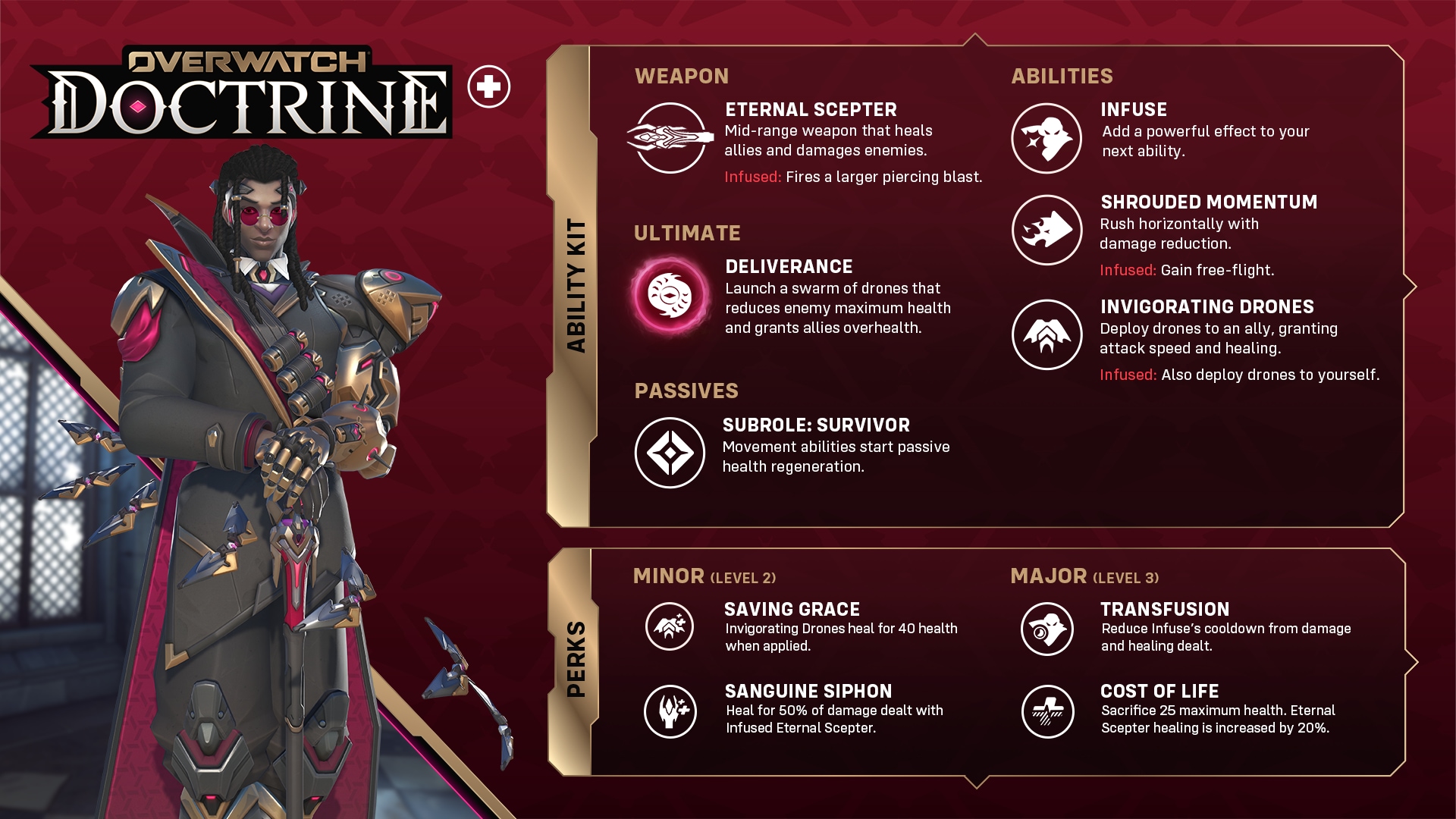
If you play a lot of flex support, it's also worth rebinding a quick-swap key for your secondary healer pick this patch. Ana's Biotic Grenade explosion damage dropped from 90 to 60, Illari's Solar Rifle charges faster but her Healing Pylon now heals for more per projectile, and Doctrine's Eternal Scepter saw slower primary fire recovery alongside reduced infused damage and healing — small shifts individually, but together they change which support feels strongest in a given fight, and a one-key swap is faster than digging through the hero select screen mid-round.
06Accessibility and Comfort Settings
Overwatch's accessibility menu, under Options > Gameplay > Accessibility, covers colorblind filters (Protanopia, Deuteranopia and Tritanopia modes), subtitle size and background opacity, and a toggle to reduce screen shake from abilities like Doomfist's Rocket Punch or Junker Queen's Carnage. None of these changed in the November patches, but they're easy to overlook if you haven't revisited settings since you first installed the game — and with Carnage's cooldown dropping from 9 to 7 seconds this patch, Junker Queen players will see that particular screen effect more often for the rest of Taking Reign.
How to Set Up Overwatch in 6 Steps
- 1Go to Options > Controls and set your base sensitivity and DPI once, then only adjust per-hero scalars for abilities that feel off.2 min
- 2Under Options > Video, pick a FOV between 90-96 for competitive clarity or push higher for Quick Play visibility.1 min
- 3In Options > Controls > Crosshair, check Emre's reticle specifically, since the Rotation setting replaced Thickness this patch, then save 2-3 profiles for your most-played heroes.5 min
- 4Under Options > Gameplay > HUD, enable ability and ultimate trackers to see the new Commanding Shout and Regenerative Burst indicators.1 min
- 5Lower Shadow Detail and Ambient Occlusion before touching Render Scale, and drop Particle Quality specifically if Stadium fights cause stutters.3 min
- 6Review colorblind filters, screen shake, and surround sound settings under Options > Gameplay > Accessibility and Options > Sound.2 min
07What's Changing Through the Rest of Taking Reign
Taking Reign runs through December 7, with the Excavation Initiative dig event and the Overwatch x EVE Protocol crossover skins running alongside it, and Junkrat's Loot Hunt double-XP weekend already live from November 19-23. Overwatch remains free to play on Steam as well as Battle.net, so returning players checking these settings for the first time in a while won't need to reinstall through a separate launcher. A November 16 hotfix also capped Champion-containing groups in 6v6 Open Queue at three players instead of four, which won't touch your settings menu but is worth knowing if your usual five-stack suddenly can't queue together. None of the remaining event content is expected to add new settings, but given how often Blizzard has touched crosshair and HUD options this cycle, it's worth a quick settings check again after the Competitive and Quick Play Drives open on December 3.
FAQ
What changed in Overwatch's November 2026 settings menu?
The November 3 patch added a Rotation setting to Emre's default crosshair (replacing Thickness), fixed crosshairs not respecting Outline Thickness and Outline Shift, and added new HUD trackers for Junker Queen's Commanding Shout and Baptiste's Regenerative Burst.
What's the best FOV for competitive Overwatch?
Most competitive players use a FOV between 90 and 96, which balances battlefield awareness against keeping hitboxes large enough for consistent hit-scan accuracy. Quick Play and Stadium players can push higher for visibility.
Which graphics settings matter most for frame rate in Overwatch?
Shadow Detail, Ambient Occlusion and Local Fog Detail have the biggest performance impact. Texture Quality and Model Detail can usually stay high on modern GPUs without hurting frame rate.
Is Overwatch still free to play during the Taking Reign event?
Yes. Overwatch remains free to play on both Steam and Battle.net, and the Taking Reign event's Free Pass track is available to everyone through December 7, 2026.
Did the November 16 hotfix change any settings?
No. The November 16 hotfix only reduced the maximum group size for Champion-containing groups in 6v6 Open Queue from four to three players; it did not touch the options menu.
Official resources

Ana writes the step-by-step tutorials: settings, controls, configs and the systems games never explain properly. Every tutorial is tested on the version named at the top of the page, with the official patch notes linked so you can check what changed.