Ace Combat 8: Best PC Settings and Controls at Launch
Ace Combat 8: Wings of Theve is out now. Here's how to set flight controls, pick a difficulty, and get the best PC graphics and performance.
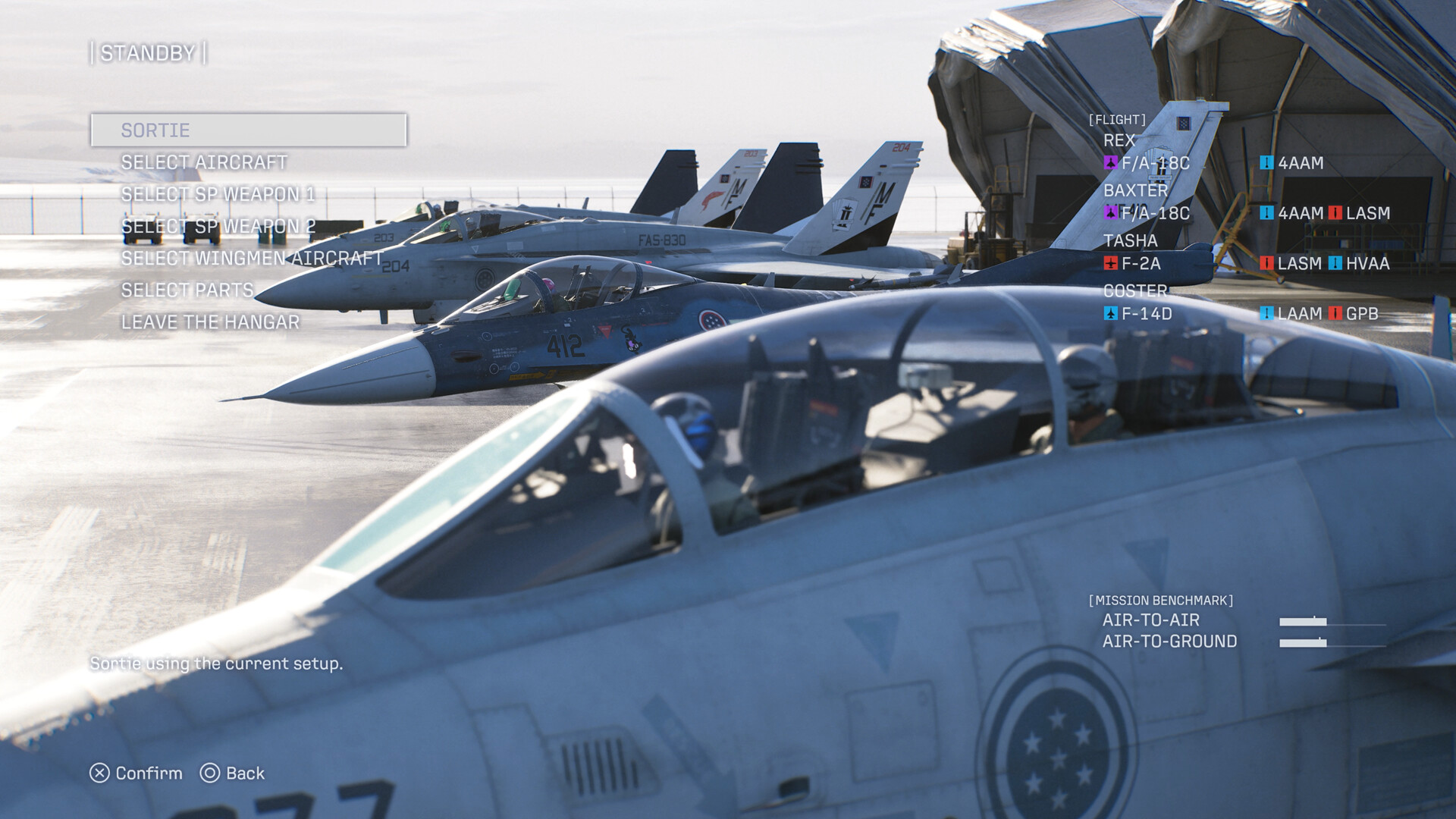
Ace Combat 8: Wings of Theve left early access for Deluxe Edition owners on September 29 and opened to everyone on October 2, and the PC version lands with a stricter spec sheet than the series has ever asked for. Before you queue up for your first mission as Joker Flight's newest pilot, it's worth spending five minutes in the options menu: this game grades you on flight control feel, not mouse-and-keyboard FPS habits, and its hardware floor is high enough to catch a few players off guard. Here's what to set, in what order, and what to do if something goes wrong at launch.
01Pick Your Flight Control Scheme First
Before anything else, open the controls menu and choose between Standard and Expert flight control. Bandai Namco lays out the difference on its own site: Standard mode turns your aircraft the moment you push the stick left or right, which feels closest to a normal third-person shooter and is the easier scheme to pick up cold. Expert mode makes you roll the plane with the stick first, then pitch up or down to actually turn — it's slower to learn, but it unlocks a wider range of aerial maneuvers once it clicks.
You can switch between the two every time you load into your aircraft, so there's no wrong first choice. If you've played earlier Ace Combat games on a flight stick, Expert will feel the most familiar; if this is your first time in the cockpit, start on Standard and switch once the basic dogfighting rhythm feels natural.
02Choose the Right Difficulty for Your First Flight
Difficulty is a separate setting from control scheme, and it's just as easy to change mid-campaign. The official breakdown lists four tiers: Rookie cuts collision damage from the ground and structures so you can focus on the story; Pilot is the default, balanced setting Bandai Namco recommends for newcomers or anyone who hasn't flown an Ace Combat game in a while; Veteran gives enemies more health and makes missile locks harder to shake; and Elite is built around split-second target prioritization, with few concessions for mistakes.
If you're not sure where you land, start on Pilot. It's the mode the developers tuned the campaign's pacing around, and you can always raise it later, mission by mission, once Expert controls and the game's weapon systems feel automatic.
03Confirm Your PC Meets Ace Combat 8's Requirements
Check these before you install, not after a crash. According to the Steam store page, Ace Combat 8 requires Windows 11, a 64-bit processor, and — unusually for the series — a graphics card with hardware-accelerated ray tracing support, since ray tracing is not optional here. You'll also need DirectX 12 with Shader Model 6.6 or higher and an SSD with 150 GB free; the game won't perform correctly on a mechanical hard drive.
- Minimum: Intel Core i7-10700K / AMD Ryzen 5 3600X, 16 GB RAM, RTX 2060 (6 GB) / RX 6600 XT (8 GB). Bandai Namco rates this for roughly 1080p upscaled at 30 fps on Low settings.
- Recommended: Intel Core i7-12700K / AMD Ryzen 5 5600X, 32 GB RAM, RTX 3070 (8 GB) / RX 6800 (16 GB). This targets 1080p upscaled at 60 fps on Medium settings.
Note the word "upscaled" in both tiers — even the recommended spec assumes you're running an upscaler, not native resolution, to hit 60 fps. Budget storage carefully, too: a Steam community post from the developers confirms the included Ace Combat Zero: The Belkan War pre-order bonus ships as a DLC executable that requires the full base game installed to run, so you can't trim space by removing Wings of Theve itself.
04Best Graphics Settings for Smooth Flight
With ray tracing mandatory and upscaling assumed at every performance tier, your realistic choices on PC are about managing frame pacing rather than disabling ray tracing outright. The store listing confirms the game ships with an upscaler and HDR support, but doesn't name which upscaling technology (DLSS, FSR, or XeSS) is active by default — treat any specific brand name you see elsewhere as unconfirmed until you check your own Graphics menu after install.
A practical first pass: match your preset to the GPU tier above rather than defaulting to the highest preset your card technically runs, since the "Low/30fps" and "Medium/60fps" baselines already assume upscaling is doing real work. If you have an HDR-capable display, turn it on in Windows first, then in-game — HDR is listed as an available feature on the store page. If you're flying in VR-adjacent setups or on an ultrawide monitor, test a short mission before committing to a campaign-length session, since neither is called out specifically in the official requirements.
05Other PC Features Worth Turning On
A few launch-day conveniences are easy to miss because they live outside the main video and control menus. The Steam store page lists full controller support along with dedicated DualSense and DualShock controller support, so if you'd rather play with a PlayStation pad than keyboard and mouse, that path is officially supported rather than a community workaround. Steam Cloud is also listed, which matters if you're splitting time between a desktop and a laptop during launch week — just give it a minute to sync before you assume your progress carried over.
If you want to compare notes with other pilots or check your own numbers against the Steam Achievements list, both are active from day one. None of these are performance settings, but they're the kind of thing worth confirming once up front instead of discovering mid-campaign that cloud saves weren't syncing the way you assumed.
06Fix HOTAS and Flight Stick Issues
If you fly with a HOTAS, read this before you spend an evening remapping axes. Bandai Namco posted a direct apology on Steam acknowledging that "some of the configuration options available for certain devices in Ace Combat 7 are not available in Ace Combat 8," and that the team is "carefully reviewing the situation" for flight stick users. In plain terms: if your stick or throttle isn't mapping the way it did in the previous game, that's a known, officially confirmed gap at launch, not something you're doing wrong.
Until an update lands, your best options are to rebind axes manually in the control settings rather than relying on auto-detection, and to check your device manufacturer's own configuration software for profile support. Thrustmaster has an official Ace Combat 8-branded HOTAS (the T.Flight HOTAS Neo), which is a reasonable signal that first-party stick support is still a priority for the platform holders even while PC-side options catch up.
Launch-Day Setup Checklist
- 1Open Controls and choose Standard for simpler turns or Expert for roll-then-pitch maneuvers. You can switch anytime between missions.1 min
- 2Start on Pilot unless you specifically want Rookie's reduced collision damage or a harder challenge from Veteran or Elite.1 min
- 3Confirm your GPU supports hardware ray tracing and Shader Model 6.6 — the game won't launch properly without it.2 min
- 4Use Low for the minimum spec's 30 fps target or Medium for the recommended spec's 60 fps target, both of which assume upscaling is on.2 min
- 5Enable HDR in Windows display settings first, then confirm it's on in-game; it's listed as a supported feature on Steam.1 min
- 6If you use a flight stick, set axes by hand in Controls rather than relying on auto-detect, since some Ace Combat 7 options aren't carried over yet.5 min
- 7Install your GPU vendor's latest recommended driver before your first session to avoid the crashes Bandai Namco has acknowledged.5 min
07Troubleshoot Crashes and Stability Problems
Bandai Namco's support team also published a product notice about unexpected crashes on the Steam version shortly after launch. Their own recommended first step is checking that you're on the graphics driver version Nvidia or AMD currently recommends for your card, since the notice specifically calls out driver mismatches as a likely factor while the team investigates further. If you're hitting a hard crash rather than a graphical glitch, update your driver before you touch any in-game setting.
Two more launch-specific notes worth knowing: online multiplayer has been reported as not functioning on SteamOS/Linux compatibility layers, so stick to native Windows if you want ACE COMBAT ONLINE to work, and the pre-order bonus distribution (the Belkan War remaster) has shifted format since launch — if yours isn't appearing in your library as a separate app, that's the expected behavior Bandai Namco has confirmed, not a missing entitlement.
08Watch the Official Systems Breakdown
For a visual walkthrough of customization and cockpit systems before you commit to a control scheme, Bandai Namco Entertainment America's own walkthrough trailer is still the clearest official source.
None of this replaces testing in your own missions — frame pacing on a ray-traced flight sim varies a lot between a packed furball and an empty sky — but starting from Pilot difficulty, Standard controls, and a GPU-matched preset gets Ace Combat 8 running the way Bandai Namco intended before you start tuning further.
FAQ
What's the difference between Standard and Expert controls in Ace Combat 8?
Standard turns your aircraft as soon as you push the stick left or right, like most third-person games. Expert has you roll the plane first, then pitch up or down to turn, which is harder to learn but allows more precise maneuvers. You can switch between them before any mission.
Which difficulty should I start on?
Bandai Namco recommends Pilot as the default, balanced setting for newcomers or players returning to the series. Rookie reduces collision damage for a story focus, while Veteran and Elite raise enemy aggression and punish mistakes more severely.
Does Ace Combat 8 require a ray tracing graphics card on PC?
Yes. The official system requirements make hardware-accelerated ray tracing mandatory, along with DirectX 12 Shader Model 6.6 and an SSD with 150 GB free — there's no way to run the game without a ray tracing-capable GPU.
Why doesn't my HOTAS work like it did in Ace Combat 7?
Bandai Namco has confirmed on Steam that some flight stick configuration options from Ace Combat 7 aren't available in Ace Combat 8 yet, and the team is reviewing fixes. Until then, rebind axes manually instead of relying on auto-detection.
How much storage does Ace Combat 8 need on PC?
Steam lists 150 GB for both minimum and recommended specs. That figure includes the Ace Combat Zero: The Belkan War bonus, which only runs as a DLC executable tied to the base game, so you can't free up space by removing it separately.
Official resources
- How to Choose Your Difficulty (Bandai Namco)en.bandainamcoent.eu
- Ace Combat 8: Wings of Theve on Steamstore.steampowered.com
- Flight Stick Support Update (Steam)steamcommunity.com
- Official Ace Combat Siteacecombat.com
- Bandai Namco: Ace Combat 8 Game Pagebandainamcoent.com
- Ace Combat 8: Wings of Theve – Wikipediaen.wikipedia.org

Ana writes the step-by-step tutorials: settings, controls, configs and the systems games never explain properly. Every tutorial is tested on the version named at the top of the page, with the official patch notes linked so you can check what changed.