VALORANT Replay Bookmarks: Full Settings Guide for Patch 13.10
VALORANT Patch 13.10 adds Replay Bookmarks. Here's the exact settings path to set the PC keybind, use it on console, and find the crosshair codes.
VALORANT's Patch 13.10 quietly added one of the most useful quality-of-life tools the game has gotten in years: Replay Bookmarking. It doesn't show up in a flashy trailer and it won't change how a single round plays out, but it changes how you review the rounds you already played. The feature shipped buried in a patch notes post that spends most of its space on Gauntlet: Glitched and a handful of Sentinel cooldown tweaks, and Riot never walked players through the exact settings path for it beyond a couple of bullet points. Here's how to actually turn it on, where the crosshair tools from earlier patches still hide in the same menu, and how to get real use out of the full Replay viewer once you're in there.
TL;DR: You can add bookmarks to your replays, Gauntlet: Glitched updates, assist changes, and bug fixes. HELLOOO everyone! Joy here to bring you the latest on patch 13.10. In this patch, you get a
— VALORANT (@VALORANT), Nov 10, 2026 on X
01What's New in Patch 13.10
Patch 13.10 went live on November 10, 2026. Alongside the settings changes below, Riot shipped a handful of small Sentinel tweaks: Cypher's Spycam and Killjoy's Turret both have their post-destruction cooldown cut from 60 seconds to 45, and Vyse's Arc Rose gets the same reduction. Cypher's Spycam reclaim cooldown goes up slightly, from 15 to 20 seconds, to bring it in line with the other two agents. Riot's own patch notes describe this as "a small, targeted change" while the team keeps watching Sentinel cooldowns more broadly. Sage's Healing Orb also got a targeting accuracy fix to match Miks' Harmonize, and your crosshair is now visible while you're aiming it at an ally.
Most of the rest of the patch is focused on Gauntlet: Glitched, the rotating gamemode, which picks up new agent abilities, two new "glitch" variants for Cypher's Spycam and Skye's Trailblazer, and a new ultimate for Hush. None of that touches your core settings menu, so if you only play Unrated, Competitive, or Premier, the patch's biggest system-level addition for you is Replay Bookmarking — and it's worth setting up correctly the first time.
02How to Set Up Replay Bookmarks on PC
Replay Bookmarking lets you mark a moment during a live match and jump straight to it later when you load that match's replay, instead of scrubbing through an entire round-by-round timeline to find the clip you wanted. According to Riot's patch notes, bookmarks are private: they're saved to your own client and won't show up for anyone else watching the same replay file, even a teammate from the same match.
On PC, the keybind is blank by default, so nothing happens if you just update and start playing. You have to assign it yourself.
How to Set Up and Use Replay Bookmarks
- 1Make sure your client has downloaded Patch 13.10 — Replay Bookmarking doesn't exist on earlier versions.1 min
- 2From the main menu or in a match, open Settings, go to the Controls tab, then the Interface sub-section.30 sec
- 3Find the Replay Bookmarking row — it's blank by default — click it, then press the key you want to use.30 sec
- 4Press your new keybind whenever something worth reviewing happens. A short on-screen cooldown stops you from spamming it every frame.Ongoing
- 5After the game, open the match from your Replays list.1 min
- 6Your bookmarked moments appear as markers on the replay timeline, so you can skip straight to them instead of scrubbing through the whole match.1 min

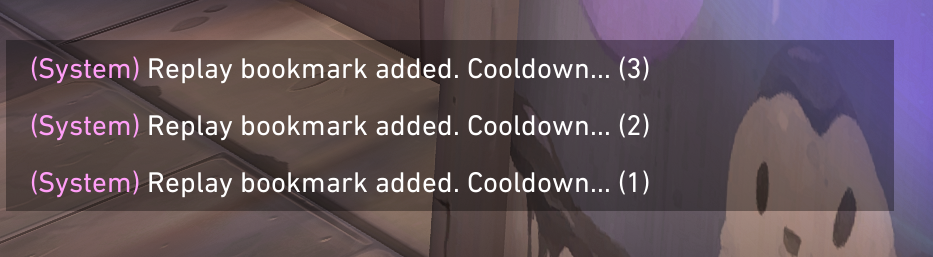
Once it's bound, pressing that key mid-match drops a bookmark instantly. In the official patch notes screenshot of this feature, pressing it repeatedly in quick succession triggers a short on-screen cooldown message ("Replay bookmark added. Cooldown... (3)," counting down) rather than letting you spam markers every frame, so treat it as a tool for flagging specific moments, not for machine-gunning the whole round.
03Bookmarking on Console
Console players don't get a keybind to configure at all. Instead, Patch 13.10 adds a dedicated button to the in-game Options Menu: open it mid-match and selecting that option drops a bookmark on the spot. There's nothing to set up in Settings beforehand, which makes this the simpler of the two versions, but it also means you can't rebind it to a different button if the default placement is inconvenient on your controller layout.
Either way, once you're done playing, open the match from your Replays list and your bookmarks will already be sitting on the timeline, exactly where you placed them.
04Getting the Most Out of the Replay Viewer
Bookmarks are only useful if you also know what the Replay viewer itself can do, and Riot's own developer write-up on the system lays out a toolset most players never fully explore. You can watch any match from the first-person perspective of any of the ten players in the lobby, not just your own, which is the fastest way to actually see what an enemy Sentinel setup or an ally's entry read looked like from their side. A third-person free camera is also available if you'd rather float around the map than lock to a player's POV.
From there, you can toggle enemy and friendly outlines on or off, turn on projectile tracking to watch utility travel in flight, and show or hide the minimap and HUD depending on whether you want a clean cinematic view or full tactical information. Playback itself runs from 0.1x up to 8x speed, you can jump straight to any round instead of playing through the whole match, and the timeline marks kills, deaths, and ultimate activations so you can spot the moment you're looking for without needing a bookmark for everything. The combat report is also available at any point during playback, not just at the end of a round.
A couple of limitations are worth knowing before you rely on the viewer to judge your own decision-making: the minimap still shows enemy positions even when you've turned outlines off, so it doesn't fully recreate what you could or couldn't see in the moment, and an ability's placement preview and targeting reticle aren't visible while a player is placing it — only once it's actually deployed. Keep both of those in mind if you're reviewing a read you made on enemy utility.
05What Bookmarks Still Can't Do
It's worth being clear about what this feature is and isn't, so you don't go looking for options that aren't there. Both the patch notes and Riot's developer write-up on the Replay system describe bookmarks purely as markers on your own replay's timeline — neither mentions a way to export a bookmarked moment as a standalone clip file the way a dedicated recording tool would. A bookmark gets you to the right second inside your own replay faster; it doesn't, on its own, turn that second into something you can drop into a Discord server or a highlight reel.
The same goes for sharing a setup with teammates: there's no option to push a crosshair or a bookmark to someone else's client directly. Riot's solution for crosshairs specifically is the auto-generated code covered below — the team said it heard players asking for crosshair sharing and answered with codes rather than a live sync feature, so a code you paste into chat is still the only officially supported way to pass a crosshair along, and there's no equivalent shortcut for bookmarks at all.
06Crosshair Profiles and Import/Export Codes
While you're already in Settings setting up your bookmark key, it's worth checking the Crosshair tab too, since several of its most useful features are easy to miss. VALORANT lets you save and switch between multiple crosshair profiles, so you can keep a tighter dot for rifles and a different setup for a sniper-heavy session without rebuilding it from scratch each time.
You can also import and export crosshair settings using auto-generated codes. To export, open the Crosshair tab and click the up-arrow icon next to Crosshair Profile — your code is copied straight to your clipboard. To bring in someone else's crosshair, click the down-arrow icon next to the same field, paste their code into the box, and hit Import. The crosshair preview at the top of the Settings menu updates immediately to reflect whatever you just imported, so you can confirm it looks right before you queue up. If you're testing a few different codes from teammates or pros, give each imported profile its own name so you don't lose track of which is which.
07Advanced Crosshair Options and Other Settings Worth Checking
Turning on "Use Advanced Options" in the Crosshair tab unlocks a separate set of controls for your ADS (aim-down-sights) crosshair and your sniper scope's center dot, letting you customize how your crosshair behaves specifically while aiming rather than only in hip-fire. The same tab also includes a setting for a minimum firing error across all weapons, and a toggle to use your primary crosshair with shotguns instead of the default shotgun reticle — both easy to walk right past if you're only ever opening Settings to change sensitivity.
None of these are new this patch, but they sit in the same menu you're already visiting to bind your Replay Bookmark key, so it's a good moment to make sure your crosshair setup actually matches how you play before you start saving bookmarked clips of rounds you want to study later.
FAQ
Do I need to set a keybind on console too?
No. Console players add a bookmark through a new button in the in-game Options Menu instead of a keybind — there's nothing to configure in Settings beforehand.
Can other players see my bookmarks when they watch the same replay?
No. Riot's patch notes confirm bookmarks are private and only visible to the player who set them.
Can I export a bookmarked clip to share it?
Not directly. Bookmarks only move you to a point on your own replay's timeline faster — Riot hasn't added a way to export that moment as a standalone clip.
What changed with Sage's Healing Orb in this patch?
Patch 13.10 improved its targeting accuracy against allies to match Miks' Harmonize, and your crosshair now stays visible while you're aiming it.
Where do I find crosshair import/export codes?
Open Settings, then the Crosshair tab, and use the up-arrow icon next to Crosshair Profile to export a code or the down-arrow icon to import one.
Official resources

Ana writes the step-by-step tutorials: settings, controls, configs and the systems games never explain properly. Every tutorial is tested on the version named at the top of the page, with the official patch notes linked so you can check what changed.