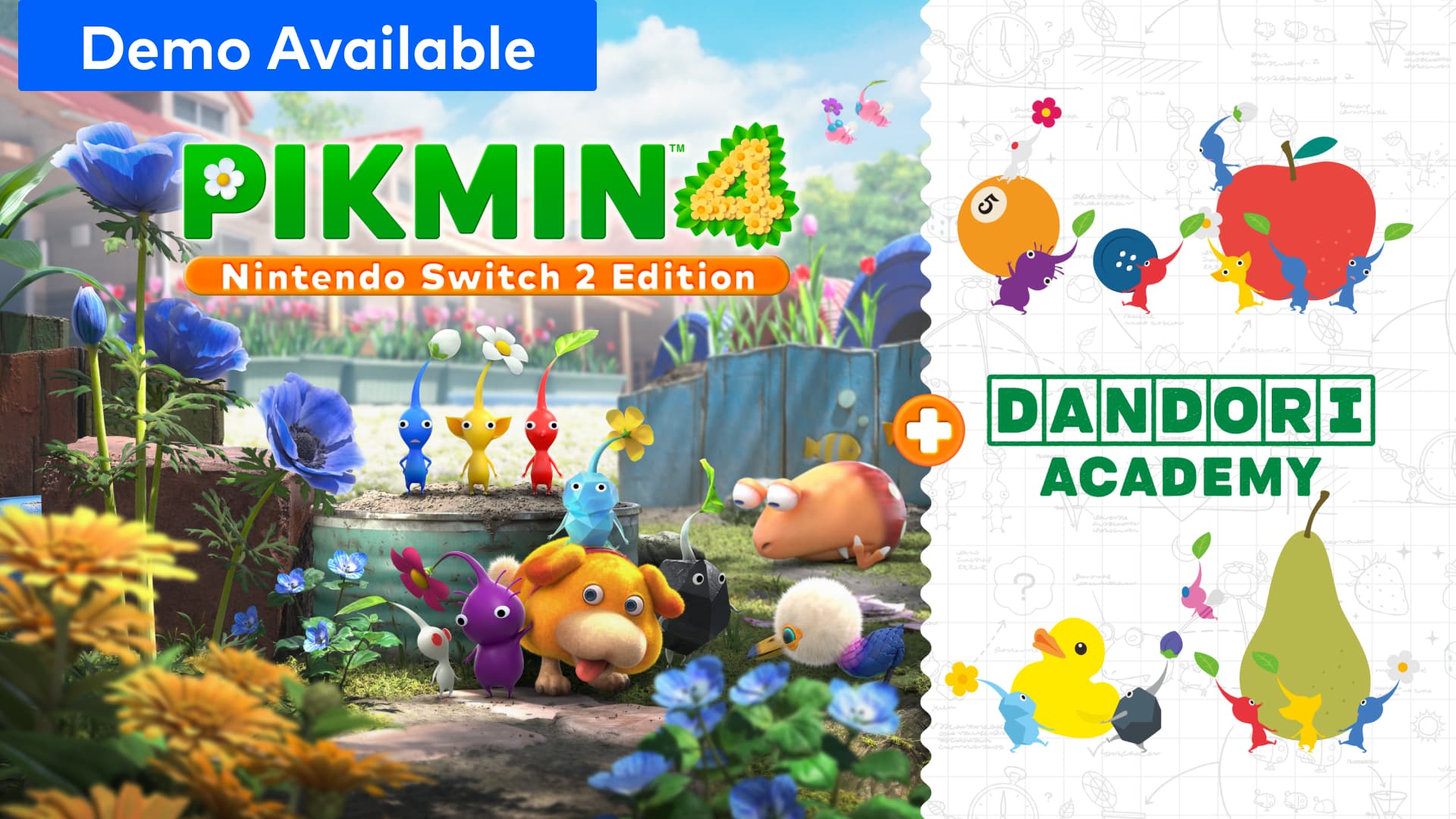
Pikmin 4 Switch 2 Edition: Settings, Controls and Voice Guide
Turn on Oatchi's voice commands, pick the best control setup for Dandori Academy, and find every settings menu in Pikmin 4's Switch 2 Edition.
Pikmin 4 – Nintendo Switch 2 Edition + Dandori Academy launched on November 12, carrying over the entire 2023 original while bolting on a handful of Switch 2-only features: voice commands for your canine partner Oatchi, sharper visuals in TV mode, and a new exam mode called Dandori Academy. None of that turns itself on, and the options menu barely changed from the original Switch release, so the new settings are easy to miss if you don't know where to look. Here's exactly where to find them, which control setup actually works for Dandori Academy's timed stages, and how to get Oatchi listening to you instead of wandering off.
01What's Actually New in the Switch 2 Edition
Owners of the original Nintendo Switch version of Pikmin 4 can move up to this release by buying the Dandori Academy Upgrade Pack separately rather than rebuying the full game. According to Nintendo's own listing, the package adds four confirmed pieces: voice commands for Oatchi through the Switch 2's built-in microphone, enhanced resolutions up to 4K in TV mode, GameShare support so a friend can drop into a Dandori Battle without owning a copy, and the Dandori Academy mode itself, which Nintendo says will roll out 72 exam stages over time. The full install is a modest 12.7GB, and everything else from the base campaign, side content and the original multiplayer carries over untouched. Nintendo's listing also confirms Save Data Cloud backup and Family Group Lending support, so progress you've already banked on the original cartridge or download isn't at risk when you upgrade.
02Finding the Settings Nintendo Didn't Redesign
Before touching anything new, it helps to know where the old settings still live, because Nintendo didn't rebuild the options menu for this edition. Nintendo's own beginner's guide confirms that the entire options menu opens with a single press of the - (Minus) Button at any point during play, no pausing cutscene or loading screen required. From there you'll find four tools worth knowing before you ever touch Dandori Academy: Shortcut Settings, Co-Op Mode, Rewind Time, and the Gameplay Guide, which itself contains a dedicated Control Guide sub-section if you forget a mapping mid-run. Rewind Time in particular is worth binding to memory for Dandori Academy, since a single bad throw can cost you a weekly exam attempt — winding back a few seconds costs you nothing but real-world time.
03How to Turn On Oatchi's Voice Commands
Voice commands are opt-in, not automatic, and they only work because the Switch 2 has a built-in microphone the original console never had. Nintendo's product page describes the feature simply: Oatchi "can now listen for your voice commands via the Nintendo Switch 2 system microphone as you play." In practice that means a short setup pass before it does anything useful.
Turning On Oatchi's Voice Commands
- 1Press the minus (-) button at any point during play to bring up the Options menu, which works identically to the original Switch release.10 sec
- 2Select Gameplay Guide from the Options menu, then the Control Guide sub-section, to confirm the Switch 2 Edition hasn't moved any existing bindings.20 sec
- 3When prompted on first launch (or from the Switch 2 system settings if you skipped it), allow Pikmin 4 to access the console's built-in microphone.30 sec
- 4With Oatchi nearby, say a short, direct command — Nintendo's listing describes this simply as Oatchi listening for your voice commands as you play.5 sec
- 5Oatchi reacts within a second or two if the command registered. If he doesn't react, move closer to the console's microphone and try a shorter phrase before assuming it's broken.10 sec
If the toggle above doesn't get a response right away, getting the voice commands actually working often comes down to microphone permissions and exact phrasing worth checking separately, since the in-game menu doesn't explain either one.
04Picking the Right Control Scheme for Dandori Challenges
Dandori Academy's exam stages are graded on speed, which makes your control setup matter more here than it ever did in the base campaign. The underlying inputs don't change between editions: Nintendo's guide confirms that ZR toggles between Auto Target Lock and Manual Target Lock, and tapping it again while Manual is active either swaps your lock to a different target or clears it entirely — knowing which mode you're in matters a lot when a Dandori exam only gives you one graded attempt per week. While riding Oatchi with a squad of Pikmin loaded up, X charges at the nearest enemy and has your Pikmin leap off onto it, which is faster than dismounting and throwing manually when you're racing a clock. You call up the Oatchi command wheel by holding Y and tilting the left stick toward the option you want, and the same wheel is how you hop on his back in the first place.
A Pro Controller or Joy-Con in the grip stays the most reliable option for the right-stick aiming these lock-on and throw mechanics rely on. There's no confirmed pointer or mouse-style aiming mode for this edition — unlike some other Switch 2 ports, Nintendo hasn't announced mouse support for Pikmin 4, so treat any claim otherwise as unconfirmed. Handheld play with the Joy-Con attached works fine for the campaign but makes fine reticle adjustments harder during the faster Dandori exams, so if you're chasing a medal rather than just finishing a stage, dock the console and use a controller with proper analog sticks. If you want a second person helping in real time rather than over GameShare, the options menu's Co-Op Mode hands them a reticle of their own to aim and throw Pebbles or items while you keep driving the squad.
“In the early stages of development, we prioritized ease of play and experimented with making the controls easy enough for those who aren't used to playing games.”Kando, Chief Director, Pikmin 4
That same ease-of-access goal shows up in how forgiving the base controls remain: you can still clear every story mission with the default stick-and-button layout, and nothing about the Switch 2 Edition raises that floor. The difficulty only shows up once you're optimizing for Dandori medals instead of just progress.
05Dialing In Display Settings
The only confirmed visual change is resolution: Nintendo's listing states the Switch 2 Edition supports enhanced resolutions up to 4K when docked in TV mode. Nintendo hasn't published a separate performance-mode toggle or frame-rate target for this edition, so there's nothing to manually switch between — the game simply renders at a higher resolution on the bigger screen and scales back down for handheld play. If your TV supports 4K, docking the console is the only thing you need to do to see the difference; there's no menu setting to hunt for, and claims of an HDR toggle or a separate performance mode aren't confirmed by Nintendo's own materials, so don't go looking for one.
06Setting Up GameShare and GameChat for Dandori Battles
Dandori Battles, the head-to-head mode where you and an opponent race to out-collect each other, now supports GameShare. According to Nintendo, a friend can join your Dandori Battle locally or online through GameChat even if they don't own Pikmin 4 themselves — only your console needs to own the game, since GameShare starts the session from your Switch 2 and streams it out for the session's length. Online GameChat sessions have stricter requirements than local ones: every participant needs their own Nintendo Switch 2, a paid Nintendo Switch Online membership, and GameChat enabled on their account, which requires phone number verification and parental approval for anyone under 16. If you're just handing a second set of Joy-Con to someone on your couch, none of that applies — local GameShare and the options menu's own Co-Op Mode both skip the online requirements entirely.
07Getting Ready for Dandori Academy's Weekly Exams
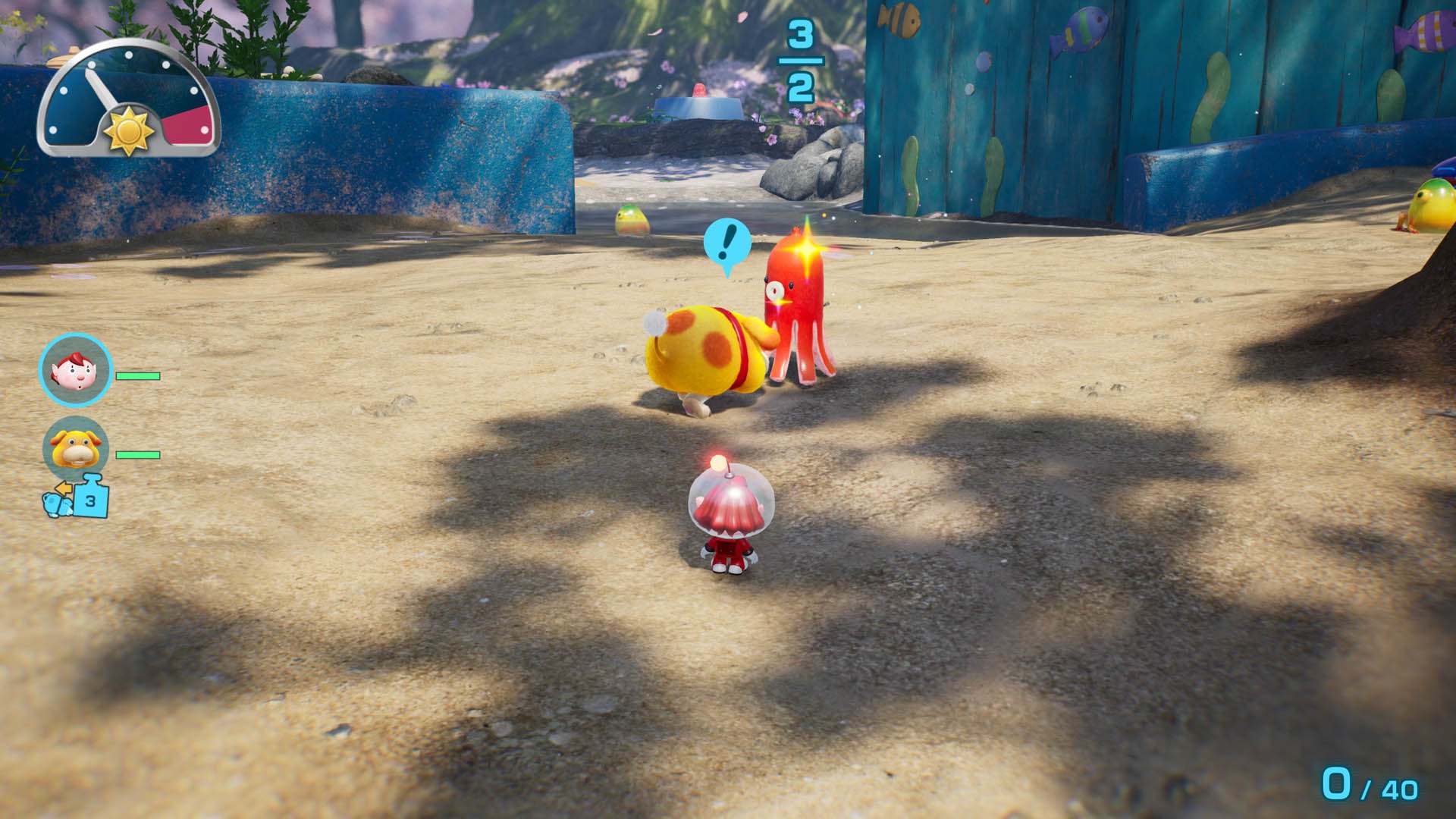
Dandori Academy isn't a normal unlock-and-replay mode. Nintendo's own description frames it as a series of timed exams where you collect treasure as quickly as possible, and the exams themselves only run on Fridays, Saturdays and Sundays — you can practice a stage freely any day of the week, but you only get one graded attempt at the actual exam per week. That's worth planning around: burn your practice runs early using Rewind Time to iron out your route, and only load into the real exam once you're confident you won't need it.
With 72 stages scheduled to arrive over time rather than all at once, treat Dandori Academy the way you'd treat a seasonal mode — check back for new exams on the weekend rather than expecting the full roster on day one. None of the setup here requires rebuying anything beyond the upgrade pack if you already own the base game, and all of it works whether you picked up Pikmin 4 back in 2023 or are starting fresh this week.
FAQ
Do I need to buy Pikmin 4 again for the Switch 2 Edition?
No. Owners of the original Switch version can buy just the Dandori Academy Upgrade Pack separately and keep their existing save data via Save Data Cloud.
Does Pikmin 4 on Switch 2 support 4K in handheld mode?
No. Nintendo's listing only confirms enhanced resolutions up to 4K when the console is docked in TV mode.
Can a friend play Dandori Battles without owning Pikmin 4?
Yes, through GameShare. They need a Nintendo Switch 2, and for online sessions, GameChat plus a Nintendo Switch Online membership.
How often can I attempt a Dandori Academy exam?
Only once per week. Exams run Friday through Sunday, though you can practice each stage freely any other day.
Does the Switch 2 Edition support mouse controls?
Nintendo hasn't confirmed mouse support for Pikmin 4, so treat that as unconfirmed until Nintendo states otherwise.
Official resources

Ana writes the step-by-step tutorials: settings, controls, configs and the systems games never explain properly. Every tutorial is tested on the version named at the top of the page, with the official patch notes linked so you can check what changed.