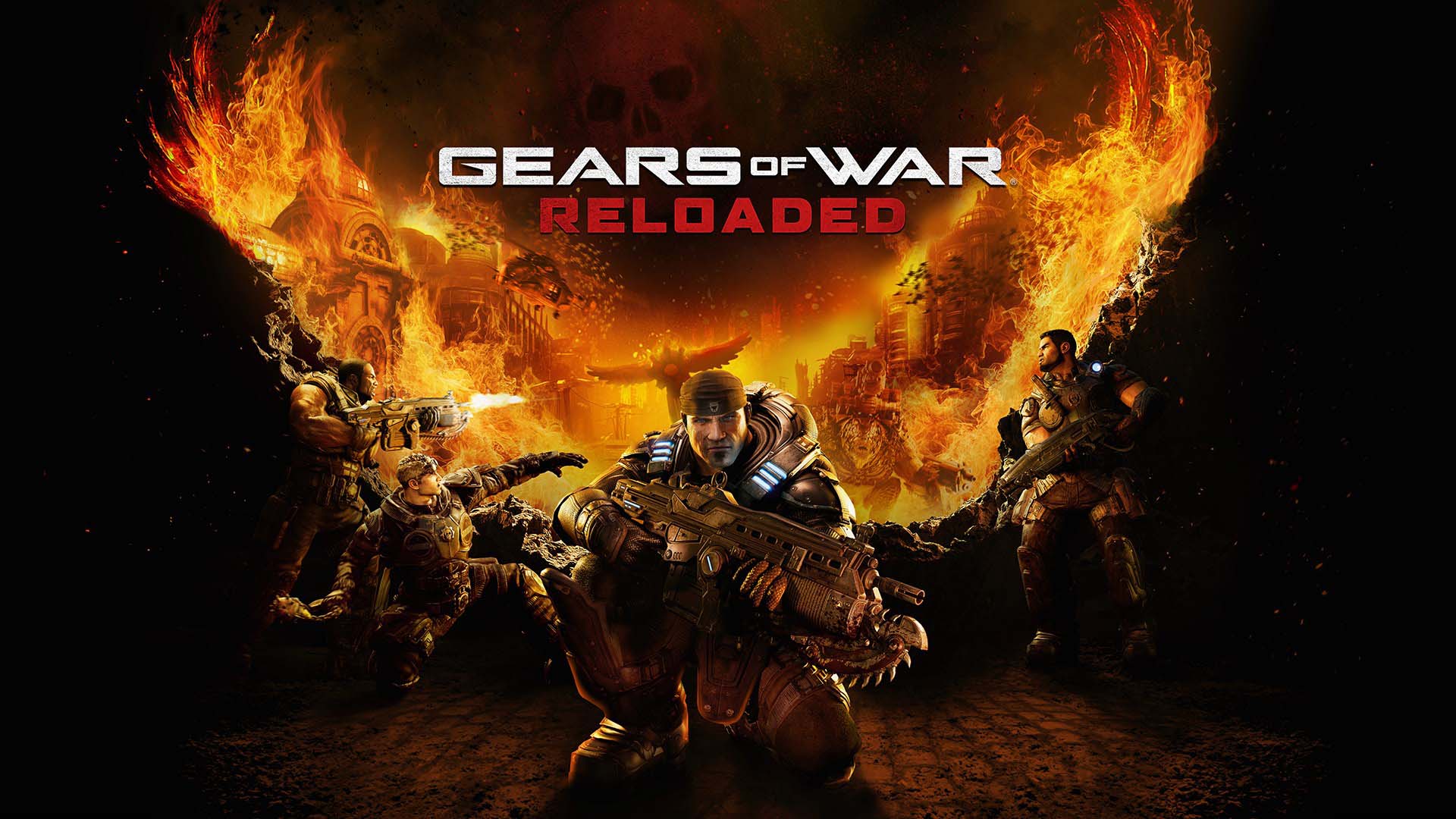
Gears of War: Reloaded PC Settings: Best Graphics and AMD Fix
AMD's new Adrenalin 26.11.1 driver fixes a Gears of War: Reloaded black-screen bug. Here's every graphics, upscaling and control setting worth checking.
Gears of War: Reloaded shipped with a genuinely deep PC settings menu, and AMD just gave PC players a real reason to revisit it. The AMD Software: Adrenalin Edition 26.11.1 driver, released November 12, fixes a launch-day black-screen bug tied to this game and tweaks how its upscaling options behave on newer Radeon cards. Here is every setting worth checking, in the order that actually matters for frame rate and image quality.
01Fix the Black-Screen Bug With AMD's New 26.11.1 Driver
AMD's own release notes for Adrenalin 26.11.1 list a specific, confirmed issue: a black screen can appear when launching Gears of War: Reloaded on systems built around AMD Ryzen AI 9 400 Series processors. AMD's documented workaround is simple — switch the in-game display mode to Windowed, then switch it straight back to Fullscreen. That forces the game to re-initialize its render target instead of hanging on the broken first frame.
The same driver also quietly fixes two long-running annoyances unrelated to this game: excessive writes to the system drive while idle, and the same issue while dragging or resizing application windows, both affecting Radeon RX 7000 series cards and newer. If you update for the Gears fix, you get those corrections for free.
Gears of War: Reloaded wasn't the only game named in that known-issues list. If you also run Cyberpunk 2077 or War Thunder on Radeon hardware, it's worth keeping a wider rundown of this driver's other game fixes open in a second tab before you install it, since the recommended workarounds differ by title and GPU generation.
02Minimum vs Recommended PC Specs for Reloaded
Before you touch a single slider, it helps to know which bracket your rig sits in, since the two official spec tiers are further apart than they look. Per the game's Steam page, the minimum tier asks for a four-core AMD Ryzen 3 or Intel i5 Skylake CPU, 8GB of RAM, and a Radeon RX 480, RX 5300, GeForce GTX 1650/1050 Ti, or Intel Arc A380 GPU, on Windows 10 (19H2) or newer with DirectX 12 and 70GB free.
The recommended tier steps up to a six-core Ryzen 5 or Intel i5 Coffee Lake CPU and a Radeon RX 5600, GeForce GTX 1070/1660 Ti/RTX 2070, or Intel A580 GPU, still on 8GB of RAM but running Windows 10 22H2 or Windows 11 24H2. That RAM figure not changing between tiers is the real tell: Gears of War: Reloaded leans far harder on GPU and driver stability than on system memory, which is exactly why a bad driver build — like the black-screen bug above — can wreck performance that specs alone say should be fine.
If you're sitting right on the minimum line, start every settings pass from the Low preset and use the benchmark mode below before raising anything, rather than jumping straight to Medium or High and judging frame pacing by feel.
03Best Upscaling and Anti-Aliasing Settings: DLSS 3.5 vs FSR 3.1
According to the game's own Steam listing, the PC build of Gears of War: Reloaded was built with PC-first upscaling support: AMD FSR 3.1 and NVIDIA DLSS 3.5 Super Resolution, on top of the remastered 4K assets, textures, lighting and shadows. That gives you three real choices in the graphics menu instead of one compromise.
- If your GPU can hold 60fps natively at your target resolution, leave upscaling off and use Native AA (or DLAA on NVIDIA cards) for the cleanest, sharpest image. This remaster's geometry and lighting hold up well enough that native rendering is the best-looking option whenever you can afford it.
- If you're short on headroom, DLSS 3.5 Quality (NVIDIA) or FSR 3.1 Quality (AMD and everyone else) is the next best step. Both upscalers are tuned for this engine and recover most of the sharpness you'd lose from a straight resolution cut.
- Avoid Performance-tier upscaling except on genuinely low-end hardware or handhelds — Gears of War: Reloaded's character models and weapon detail start to smear noticeably below Quality mode.
If you're on a Radeon RX 9000 series card and running FSR upscaling together with Radeon Anti-Lag and in-game frame generation, AMD's 26.11.1 notes flag a separate, narrower issue: an intermittent crash or driver timeout specifically when video plays on a second monitor at the same time. AMD's own fix is to disable in-game frame generation if you hit it — it's not a reason to avoid FSR on its own.
04Resolution, HDR, Ultrawide and Frame Rate Settings
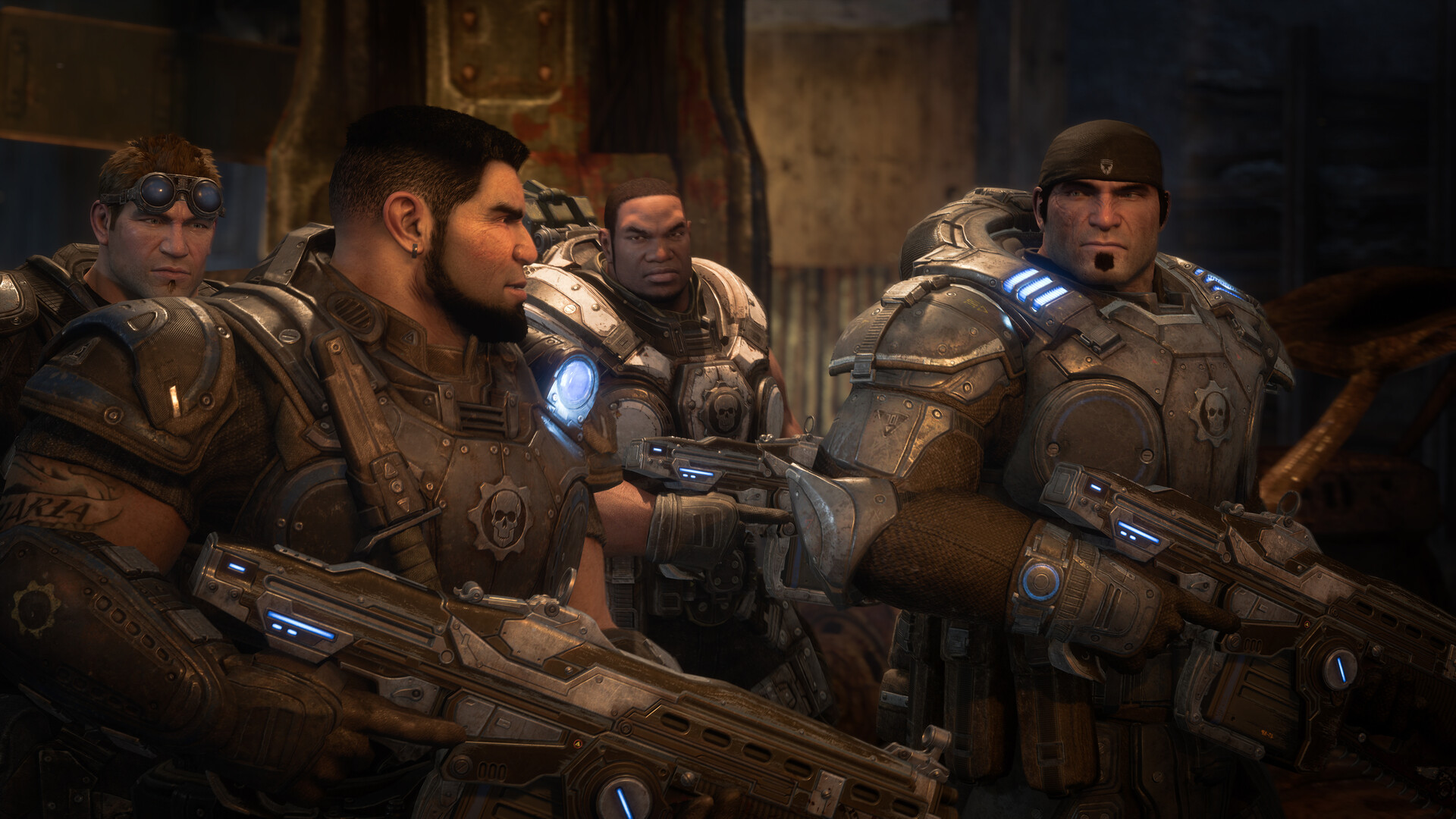
The settings menu also exposes display options that the original 2006 release never had. Per the Steam store page, Gears of War: Reloaded supports ultrawide aspect ratios, HDR and Dolby Vision, 7.1 surround sound, variable refresh rate, and multiplayer frame rates of up to 144fps, provided your display can actually handle them.
- HDR / Dolby Vision: turn this on only if your monitor or TV is HDR-certified — on an SDR panel it will just wash out highlights. Use the in-game calibration slider rather than your Windows HDR defaults for an accurate result.
- Variable refresh rate: enable it alongside G-Sync or FreeSync in your GPU control panel, not just in-game, or you'll still see tearing during the campaign's bigger firefights.
- Frame rate cap: 144fps is a multiplayer-only ceiling; the campaign is tuned and capped lower, so don't expect the same number solo.
- Ultrawide: the remaster renders a true wider field of view rather than stretching or pillarboxing, which is worth confirming in the settings preview before you start a long session.
05Controls: Modern Layout, Classic Layout and Full Remapping
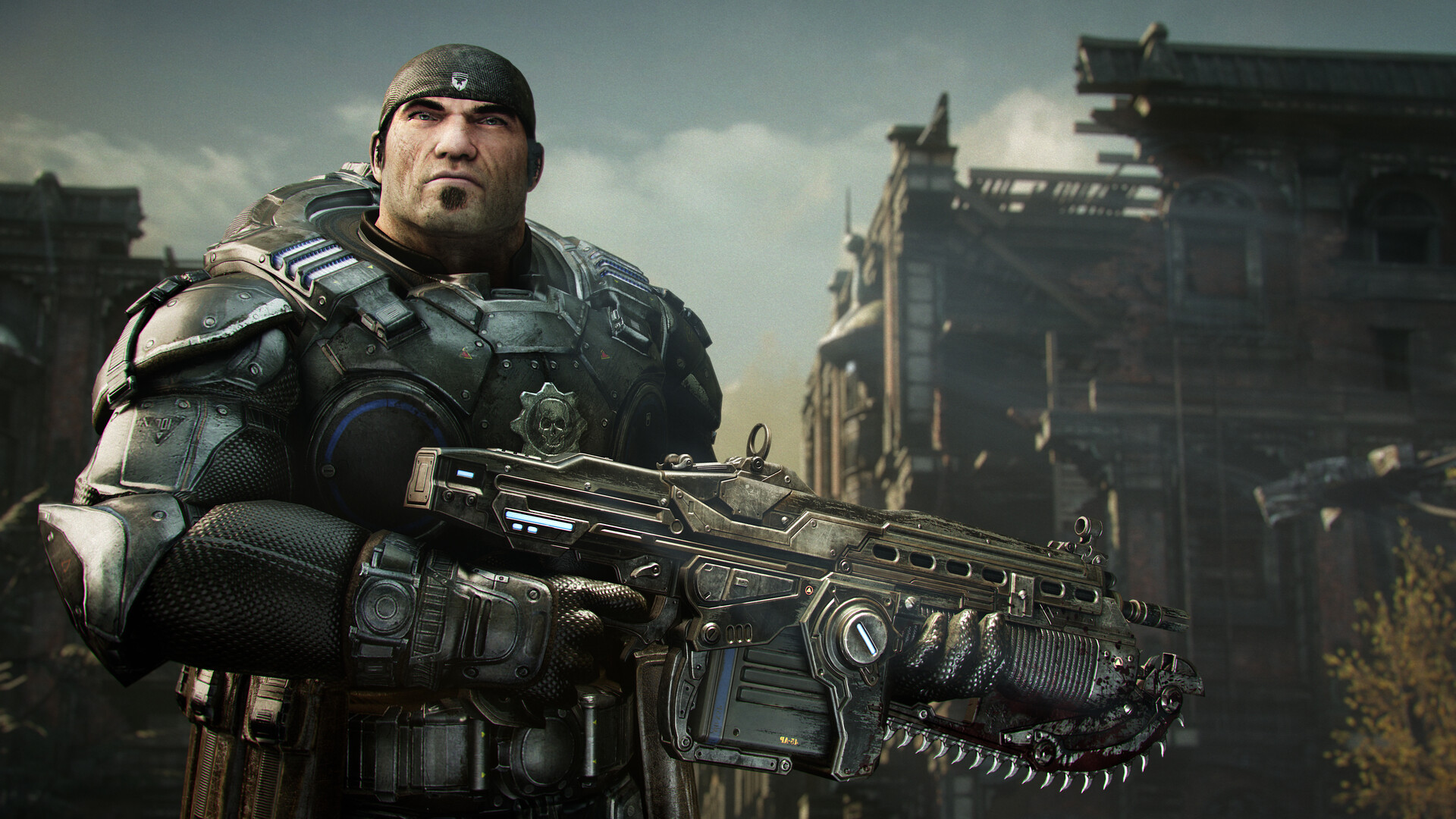
Gears of War: Reloaded's control scheme is built around a choice the original game didn't offer. The Steam listing describes it as "Refined Controls": newcomers can pick a modern, streamlined layout, while series veterans can switch back to the classic button mapping from the Xbox 360 era. Both are available from the first options screen, and you can swap between them at any time without restarting a campaign save.
On top of that base choice, the PC version adds full controller remapping and native mouse-and-keyboard support, so cover-shooter habits from other games carry over cleanly — rebinding roadie run, the active reload timing window, and weapon swap are the three changes most players end up making first.
How to Set Up Gears of War: Reloaded on PC
- 1Grab AMD's November 12 driver before anything else if you're on Radeon hardware — it fixes the Gears of War: Reloaded black-screen bug on Ryzen AI 9 400 Series systems plus two background disk-write issues.3 min
- 2Use Native AA or DLAA if your GPU holds 60fps unaided; otherwise set DLSS 3.5 or FSR 3.1 to Quality rather than Performance to protect character and weapon detail.1 min
- 3Enable HDR/Dolby Vision only on a certified display, match variable refresh rate in your GPU control panel, and confirm ultrawide renders a wider view rather than stretching in the settings preview.2 min
- 4Pick the streamlined Modern control layout or the Classic Xbox 360-era mapping from the first options screen, then remap roadie run, active reload and weapon swap to taste.2 min
- 5Log in with your Microsoft Account before grinding Versus unlocks if you ever plan to play on another platform — progress earned while signed out won't retroactively sync.1 min
- 6Use the built-in benchmark tool after every change, especially upscaler or frame-generation toggles, instead of judging performance from a few minutes of the campaign.3 min
06Cross-Play, Cross-Progression and Microsoft Account Setup
Two multiplayer-adjacent settings catch new PC players off guard, and neither lives in the graphics menu. Gears of War: Reloaded's own Steam description confirms cross-play across every supported platform is on by default, letting you squad up with friends on Xbox or PlayStation without changing a setting — but cross-progression, which carries your campaign save and multiplayer unlocks between platforms, requires signing in with a Microsoft Account first.
If you installed through Steam and skipped that sign-in prompt at first launch, open the in-game account menu before you put serious hours into Versus progression — unlocks earned while signed out don't retroactively sync once you add the account later. The same sign-in also gates access to the bonus campaign act and the extra multiplayer maps, characters and cosmetics the remaster bundles in from the original game's post-launch content, all included at no extra cost per the official listing.
If you only play solo and never plan to touch another platform, you can safely leave cross-progression off and ignore the prompt entirely — it changes nothing about performance or the settings covered above.
07Use the Built-In Benchmark Mode Before You Commit
Unlike the original release, Gears of War: Reloaded ships with its own built-in benchmark tool, listed as a PC-first feature on its Steam page alongside ultrawide and controller remapping support. Run it after any setting change, especially upscaler or frame-generation toggles, instead of judging performance from a few minutes of the campaign. The benchmark replays a fixed, repeatable in-engine sequence, so it isolates GPU and driver changes far better than eyeballing a firefight.
A practical order to work through the menu: update your driver first, set your upscaler and resolution, run the benchmark, then adjust ray-traced reflections and shadow quality — the two settings with the widest swing in cost relative to how much they change what you actually see during combat.
FAQ
Does Gears of War: Reloaded support DLSS and FSR?
Yes. The Steam listing confirms PC-first support for AMD FSR 3.1 and NVIDIA DLSS 3.5 Super Resolution, alongside Native AA and DLAA options for players who don't need upscaling.
What is the AMD Adrenalin 26.11.1 black-screen bug?
AMD's official release notes for the November 12 driver list a black screen on launch specifically on systems with AMD Ryzen AI 9 400 Series processors. The documented workaround is switching the in-game display mode to Windowed and then back to Fullscreen.
Should I use upscaling or Native AA?
If your GPU holds 60fps at native resolution, Native AA or DLAA looks sharper. If you need the extra headroom, DLSS 3.5 or FSR 3.1 set to Quality is the next best option — avoid Performance-tier upscaling unless you're on a handheld or very low-end GPU.
Does the PC version support 144fps and ultrawide?
Yes, both are official PC-first features per the Steam store page, though 144fps applies to multiplayer and both require a capable display to actually hit those numbers.
Official resources

Ana writes the step-by-step tutorials: settings, controls, configs and the systems games never explain properly. Every tutorial is tested on the version named at the top of the page, with the official patch notes linked so you can check what changed.