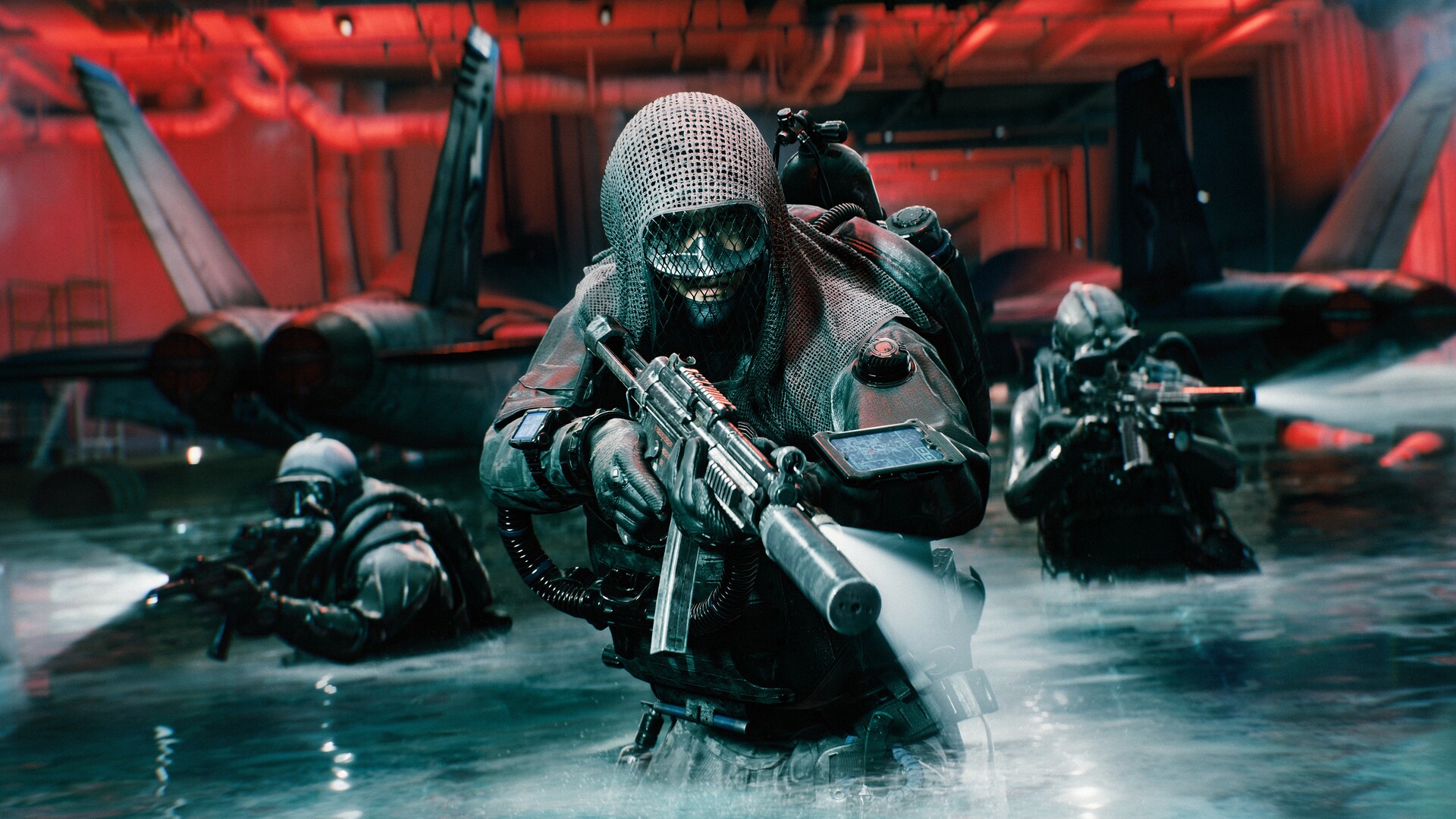
Battlefield 6: Best PC Settings and Controls for Tidal Strike
Battlefield 6's Tidal Strike update is live — here are EA's own recommended graphics, FOV, mouse sensitivity and audio settings for the best PC experience.
Battlefield 6 just closed out Season 4 with the Tidal Strike update (Game Update 1.4.3.0), and if you haven't touched your settings since launch on the long-running military shooter series' latest entry, now is a good time. The patch didn't just add Proximity Chat and the Deep Six collection event — it also landed right as most players start layering extra visual noise onto a PC experience that runs best stripped down. This guide walks through the exact settings menus EA recommends, plus the values worth changing the moment you open them.
01Start With the Right Graphics Preset
Open Settings → Graphics → Modify next to Graphics Quality. Battlefield 6 ships with Low, Medium, High, Ultra, Overkill and Custom presets, plus two automated options — Auto (Balanced) and Auto (Performance) — that scan your hardware and pick values for you. Those auto presets are a fine starting point on a laptop or an unfamiliar rig, but Custom is where you actually gain frames, because several of the sliders inside it barely change how the game looks while quietly eating performance.
For the full technical rundown straight from the source, EA's own PC and controller settings guide lays out every menu in the options screen, and it's worth bookmarking before you start tweaking anything below.
02The FPS Settings Worth Lowering First
According to EA's own recommendations, these are the settings least likely to change what you actually see in a firefight, which makes them the first candidates for Low:
- Undergrowth Quality
- Effects Quality
- Volumetric Quality
- Lighting Quality
- Local Light & Shadow Quality
- Sun Shadow Quality
- Post Process Quality
If your frame rate still isn't where you want it after that, EA's guidance is blunt: set everything to Low. It's not glamorous, but it's the fastest route to a stable frame rate on mid-range hardware. One stylistic option worth knowing about separately: turning Screen Space Reflections off makes it noticeably easier to spot players hiding in buildings or crouched in water, since reflective surfaces stop throwing up visual clutter.
03Upscaling: DLSS, FSR 4, XeSS 2 and Frame Generation
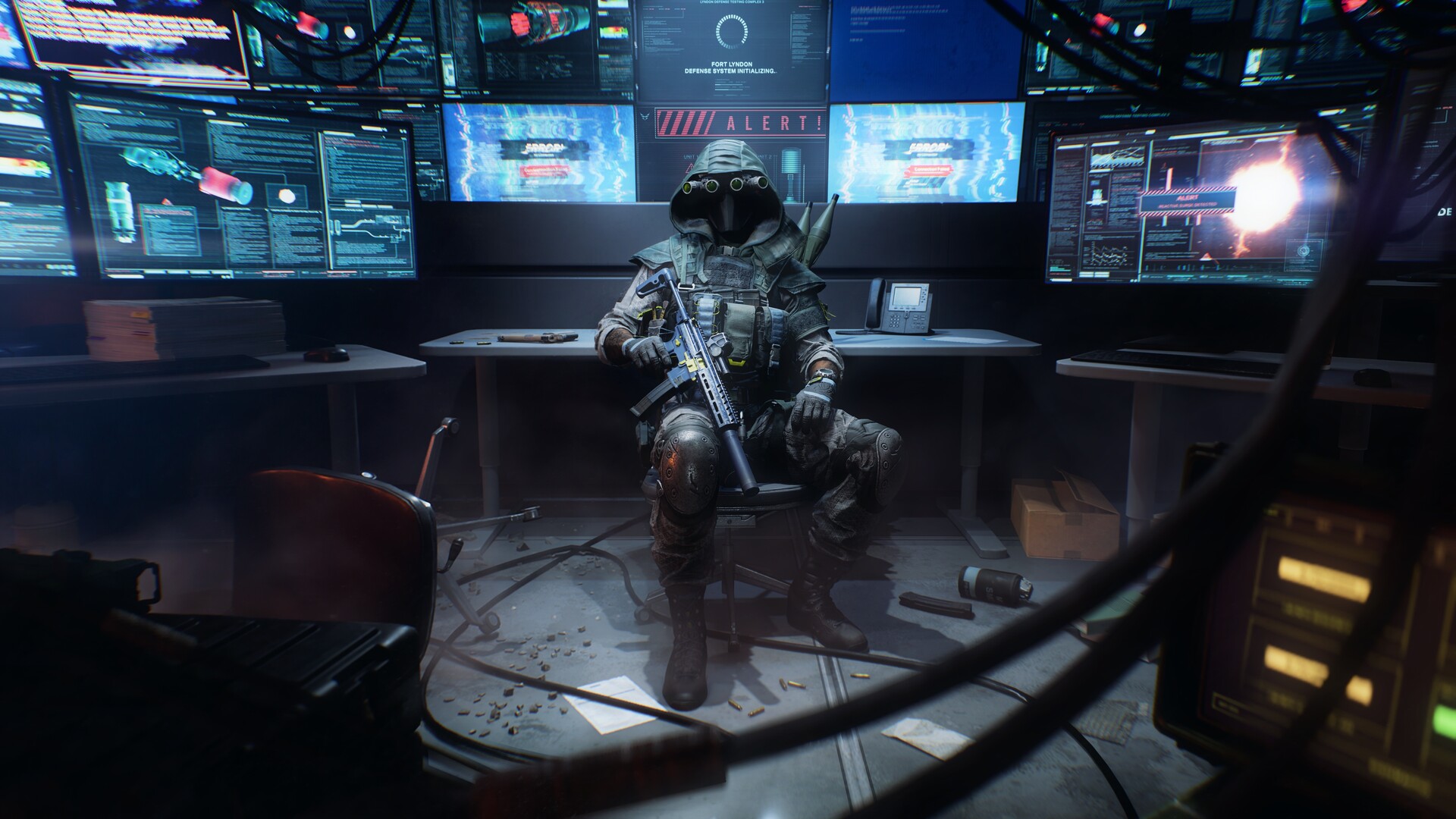
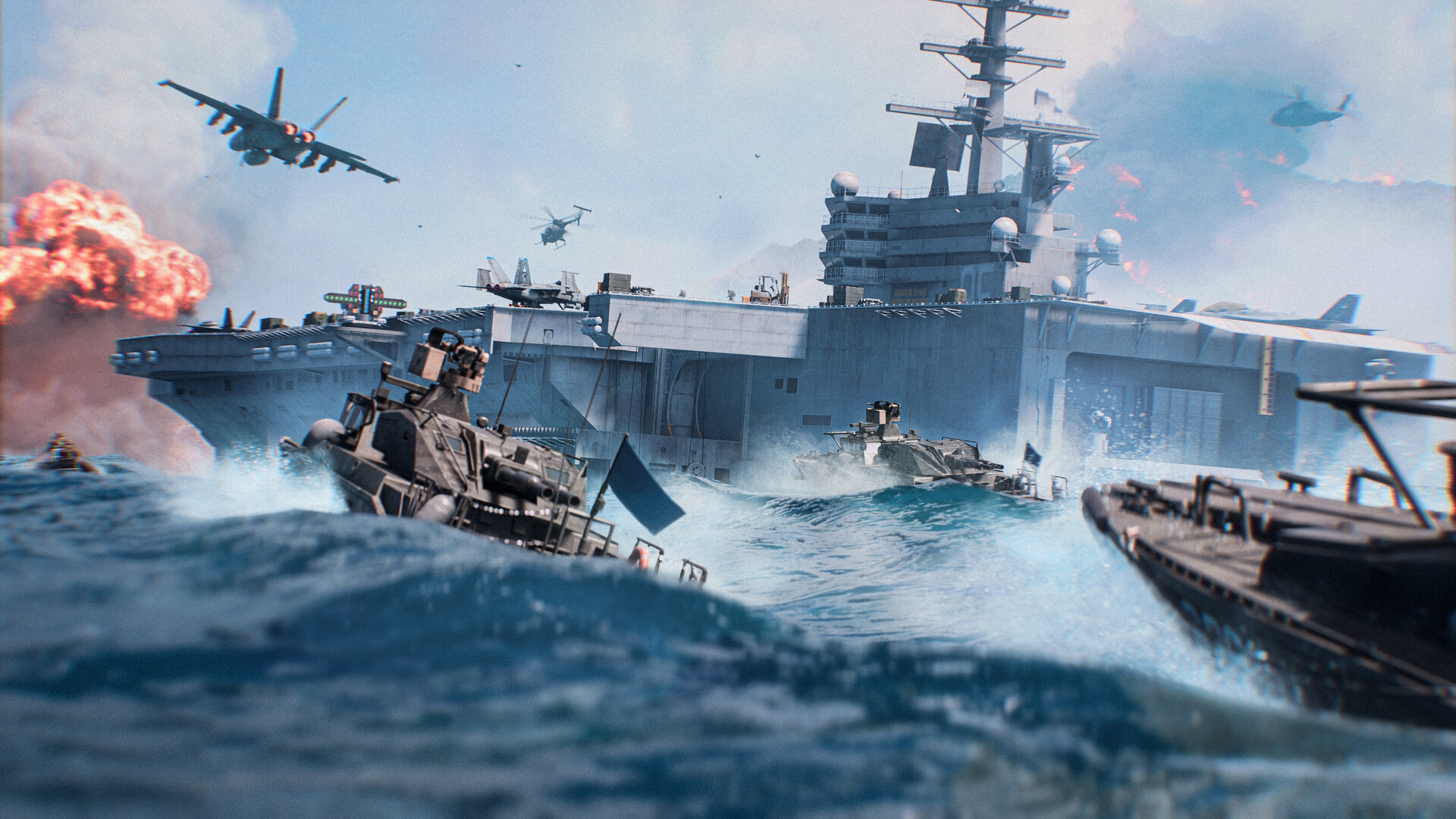
Battlefield 6 supports a full stack of upscaling tech: NVIDIA DLSS 4 with Super Resolution, DLAA and Multi Frame Generation, AMD FSR 4, and Intel XeSS 2. You'll find the toggle under the Advanced tab in Graphics, where you can also pick your preferred anti-aliasing method if you'd rather run native resolution instead. For a balance of frame rate and visual clarity, enable DLSS on Nvidia cards or FSR on AMD cards, and leave Frame Generation off unless you're already hitting a stable base frame rate — generated frames add latency, and that matters more on a fast, vehicle-heavy map like Tsuru Reef than it would in a slower game. RTX 40-series and newer cards unlock Frame Generation, and RTX 50-series cards get Multi Frame Generation, with the higher 5x and 6x modes available to compatible hardware since the Tidal Strike update.
04Dial In Field of View and Camera Settings
Scroll down to Camera Settings inside the Graphics menu for three separate FOV sliders: Field of View, Vehicle 3rd Person Field of View, and Weapon Field of View. EA recommends starting at 110 for your base FOV and testing from there in the Firing Range — higher values show more of your surroundings but shrink distant enemies, so there's a genuine trade-off rather than one correct number. Set Weapon Field of View to Wide so your gun doesn't eat into your peripheral vision during close-range fights.
While you're in this menu, turn World Motion Blur, Weapon Motion Blur and Camera Shake Amount as low as you can tolerate, since all three interfere with target tracking in a firefight. Switching off Chromatic Aberration, Vignette and Film Grain also keeps the image cleaner, which matters more on Tsuru Reef's open water sections than it does on tighter interior maps.
05Display, HUD and Crosshair Settings
A few settings outside the main Graphics quality sliders are worth a pass too. Under Display, toggle Vertical Sync off to avoid input lag, and make sure Fullscreen Resolution and Refresh Rate actually match what your monitor supports — a mismatch here is a common, invisible source of stutter that has nothing to do with your GPU. If the image looks stretched or cropped, check Aspect Ratio next, though changing it will also change your effective resolution.
Under Interface and HUD, switch Soldier HUD Motion and Vehicle HUD Motion off. Both settings make your on-screen info panels drift and bob as you move, which looks cinematic in a trailer but adds distraction in an actual firefight. For your crosshair, open Icons & Indicators and select Modify next to Crosshairs and Indicators — you can raise the opacity, intensity and thickness of your reticle and hit markers independently, which matters more on Tidal Strike's brighter naval maps where a thin default crosshair can disappear against open water or sky.
06Mouse Sensitivity and Keybinds
Head to Settings → Mouse & Keyboard to set separate sensitivity values for infantry and vehicles. EA's suggested starting point is an Infantry Mouse Aim Sensitivity of 20, a Zoom Sensitivity Coefficient of 178, and a Vehicle Mouse Aim Sensitivity between 20 and 40 depending on whether you spend more time on the ground or in Tidal Strike's expanded naval and aircraft roster. Test every change in the Firing Range before taking it into a live match — sensitivity that feels fine standing still often falls apart the moment you're tracking a jet mid Fighter Sweep pass.
07Audio, Proximity Chat and Communication Settings
Under Settings → Audio, EA recommends pulling down Music Volume so it doesn't bury footsteps, while pushing Sound Effects Volume, Commander VO Volume and UI SFX Volume toward the top so you don't miss an enemy flanking you. Turning on the Hit Indicator is a small change that makes a real difference in a chaotic 64-player Conquest match.
Tidal Strike's biggest audio addition is Proximity Chat, now exposed as a toggle under the connectivity menu alongside quick channel switching between squad, team and proximity. It's new, and it has been rocky — Battlefield's official support account posted this status update shortly after launch.
1.4.3.1 Known Issues and Status Roundup - September 18 Today, we wanted to follow up on our previous update as we head into the weekend. Here’s a status update on what we’re currently investigating as of September 18. - Proximity Chat Status: Proximity Chat will remain disabled
— Battlefield Comms (@BattlefieldComm), Sept 18, 2026 on X
Treat Proximity Chat as unconfirmed-stable for now. If it's missing from your menu or drops out mid-match, that's most likely a known server-side issue rather than anything wrong with your own settings, and EA has been patching around it through September. Check the official Game Update 1.4.3.0 patch notes before assuming your setup is at fault.
Quick Setup Steps
- 1Open Settings → Graphics → Modify and start from Auto (Balanced), Auto (Performance) or Custom depending on your hardware.1 min
- 2Set Undergrowth, Effects, Volumetric, Lighting, Local Light & Shadow, Sun Shadow and Post Process Quality to Low.2 min
- 3Enable DLSS, FSR 4 or XeSS 2 under the Advanced tab, and leave Frame Generation off unless your base frame rate is already stable.1 min
- 4Set Field of View to 110, Weapon Field of View to Wide, and turn Motion Blur, Chromatic Aberration, Vignette and Film Grain off or down.2 min
- 5Turn Vertical Sync off, match your Fullscreen Resolution and Refresh Rate to your monitor, and disable Soldier and Vehicle HUD Motion.1 min
- 6Start with Infantry Mouse Aim Sensitivity 20, Zoom Sensitivity Coefficient 178 and Vehicle Mouse Aim Sensitivity 20-40, then test in the Firing Range.2 min
- 7Lower Music Volume, raise Sound Effects and Commander VO Volume, turn on the Hit Indicator, and set your Proximity Chat toggle under the connectivity menu.1 min
08Controller Settings If You're on a Gamepad
Battlefield 6 ships with separate controller presets for Soldier, Vehicles, Aircraft, Gunner, Transport and Helicopters, each adjustable under Settings → Controller. If you tweak one category, EA recommends mirroring the change across the others so your inputs stay consistent between a firefight and jumping into a tank. A reasonable starting spread, per EA's own guide, is an Infantry Aim Sensitivity of 30-40, a Field of View of 110, a Zoom Sensitivity Coefficient of 178, Aim Assist, Slowdown and Zoom Snap all around 100, Aiming Left/Right Acceleration between 50 and 70, and a Vertical Aim Ratio of 56.
If your pad has no stick drift, set your deadzones under Controller Tuning to somewhere between 0 and 5 — tighter deadzones make small aim adjustments register sooner. Console players have aim assist locked on, but PC controller users can tune Infantry Aim Assist, Slowdown and Zoom Snap manually to taste.
One thing no settings menu can fix: Battlefield 6 doesn't support split-screen on any platform, so if you're setting up for local co-op, you'll need a second machine rather than a second controller on one screen. Check EA's Steam store page for current platform and system requirement details before committing to a settings baseline on an older rig.
FAQ
What's the best FOV for Battlefield 6 on PC?
EA recommends starting at 110 for your base Field of View and Wide for Weapon Field of View, then adjusting in the Firing Range based on whether you want more peripheral awareness or larger, easier-to-hit distant targets.
Should I use DLSS, FSR 4, or XeSS 2 in Battlefield 6?
Use whichever matches your GPU — DLSS for Nvidia, FSR 4 for AMD, XeSS 2 for Intel Arc or as a fallback on other cards — and leave Frame Generation off unless your base frame rate is already stable, since generated frames add input latency.
Why is Proximity Chat missing or not working in Battlefield 6?
Proximity Chat shipped with the Tidal Strike update and has had server-side outages since launch, confirmed by Battlefield's official support account. If the toggle is missing or it drops mid-match, check the latest patch notes before changing your own settings.
What mouse sensitivity does EA recommend for Battlefield 6?
EA's suggested starting point is an Infantry Mouse Aim Sensitivity of 20 and a Zoom Sensitivity Coefficient of 178, testing adjustments in the Firing Range before taking them into a live match.
Does Battlefield 6 support split-screen?
No. Battlefield 6 doesn't support split-screen on any platform, so local co-op requires a second PC or console rather than a second controller on one screen.
Official resources

Ana writes the step-by-step tutorials: settings, controls, configs and the systems games never explain properly. Every tutorial is tested on the version named at the top of the page, with the official patch notes linked so you can check what changed.

&w=1920)