Mycopunk: Best PC Settings and Controls Before the 1.0 Launch
Mycopunk's best PC settings, controls and accessibility options to use before it leaves Early Access for its 1.0 launch on October 20, 2026.
Mycopunk has been sitting in Steam Early Access since July 2025, and its options menu has mostly flown under the radar. That changes on October 20, 2026, when Pigeons at Play and Devolver Digital pull the game out of Early Access for a 1.0 launch on PC and PlayStation 5, add a new playable character, new weapons and a batch of fixes, and raise the price from its current Early Access rate. If you already own it, or you're about to grab it before the price goes up, a few minutes in the settings menu will make a bigger difference than anything the 1.0 patch adds.
None of this is guesswork pulled from a changelog. The settings below come from the game's own Options menu, Steam's official system requirements for Mycopunk, and hands-on handheld testing that mapped out exactly which sliders help and which ones quietly reset themselves. Here's what to change before you drop back into the New Atlas Hazard Crew's dropship.
Worth knowing before you even open the settings menu: Mycopunk first launched into Steam Early Access on July 10, 2025, and it's stayed there for a little over a year while Pigeons at Play shipped a string of content updates — an Enemy Update, an Oxythane Breach update, a World Update, and a Freeze and Fester update among them. Each of those updates had the potential to quietly add, rename or rebalance an options-menu entry, which is part of why it's worth re-checking your settings now rather than trusting whatever you set months ago.
01Why Your Settings Matter Before 1.0
Mycopunk is a four-player co-op shooter about exterminators clearing a planet-wide fungal outbreak with a grid-based weapon upgrade system — you're juggling builds, callouts and incoming enemies at the same time, so frame pacing and input response matter more here than in a slower single-player game. The 1.0 update is expected to add a new crew member, new guns and grenades, new maps and modes, and balance changes, on top of whatever performance work shipped with it. None of that has public patch notes yet, so treat any specific claim about what changes in the options menu on day one as unconfirmed until Pigeons at Play publishes it.
What is confirmed, straight from Mycopunk's Steam page, is what your PC needs to run it well. The minimum spec is a GeForce GTX 960, Radeon R9 380 or Intel Arc A380 with 8GB of RAM, targeting roughly 1080p at 30 FPS on low settings. The recommended spec jumps to a GeForce RTX 2080, Radeon RX 5700 XT or Arc A750, aimed at 1080p at 60 FPS on high settings. If your hardware sits closer to the minimum end, the graphics settings below matter a lot more than they would on a recommended-spec rig.
02The Graphics Settings Worth Touching
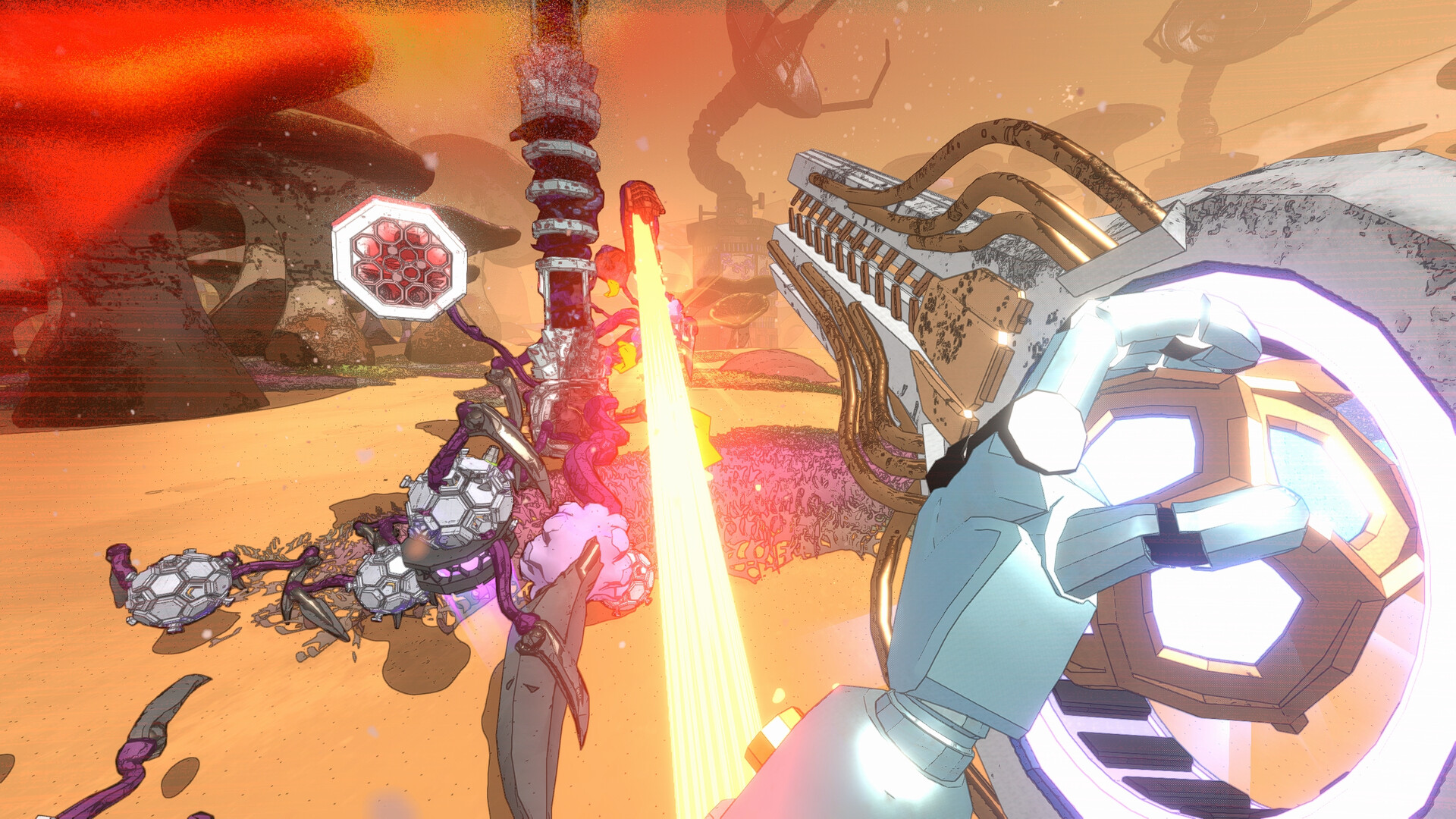
Mycopunk's Video tab doesn't have a huge number of options, but a handful of them do most of the work. Testing on Steam Deck — which runs the PC version of the game — found that the game offers an Upscale Filter set to AMD's FidelityFX, a Render Scale slider, plus separate sliders for Texture Quality, Particle Quality, Ambient Occlusion, Grass Distance and Grass Density. There's no listed DLSS or ray-tracing option, so if you were hoping to toggle either one, that testing didn't find a way to do it.
- Upscale Filter: Leave it on FidelityFX. The same testing called it noticeably clearer than running without an upscaler active.
- Render Scale: On weaker hardware, drop this to around 50%. It's the single biggest frame rate lever in the menu.
- Texture Quality: Keep this one high even when you're cutting everything else — it costs little extra GPU time and makes the fungal enemy designs read clearly at a distance.
- Particle Quality and Ambient Occlusion: Drop these first if you're chasing frames. Mycopunk throws a lot of spore and explosion effects on screen in a full co-op lobby, and particle density is one of the heavier costs.
- Grass Distance and Grass Density: Lower both on outdoor maps if you're struggling to hold a steady frame rate; they add up fast in overgrown areas without changing how fights actually play.
03Picking a Frame Rate Target
Match your Framerate Limit to what your hardware can actually sustain rather than leaving it uncapped. On weaker systems, a 30 FPS cap with Render Scale around 50%, Textures on High and everything else turned down held a stable frame rate with only brief dips during intense fights, such as boss encounters. If you're on or above the recommended spec, there's no reason to cap below 60 — Mycopunk's co-op combat reads much better with a responsive, consistent frame rate than with a few extra graphical flourishes.
A frame rate cap also matters for a reason that has nothing to do with raw performance: the controller sensitivity issue covered below is tied to your frame rate, not just your settings. Locking in a stable, predictable number — rather than letting your frame rate swing between 40 and 70 depending on how many enemies are on screen — makes it much easier to tune a sensitivity value that feels consistent for an entire mission instead of drifting fight to fight.
04Fixing Mycopunk's Sluggish Controller Sensitivity
If you're playing with a controller, the default look sensitivity is low enough that most players end up raising it well past the starting value — handheld testing specifically called it out as "very low" out of the box. There's a separate wrinkle worth knowing about before you spend time fine-tuning it: a community-made fix on Thunderstore notes that Mycopunk's controller look input scales with frame time using a fixed reference of 60 FPS, so your effective turn speed can shift depending on how high your frame rate actually runs. Mouse input isn't affected by this, since it reads pixel deltas directly.
Two more things to know about the Controls tab: bindings for both keyboard/mouse and controller are fully rebindable, and the Auto Sprint and Sprint Toggle options have been reported to reset back to their defaults every time you relaunch the game. If sprint behavior feels off at the start of a session, check those two settings again before assuming something's broken.
How to Lock In Mycopunk's Best Settings
- 1From the main menu or your dropship, open Options and head to the Video tab first.1 min
- 2Leave Upscale Filter on FidelityFX. Drop Render Scale toward 50% if you're on or near the minimum spec; leave it higher on recommended-spec hardware or better.2 min
- 3Keep Texture Quality high. Lower Particle Quality and Ambient Occlusion first if you need more frame rate, since co-op fights generate a lot of particle effects.2 min
- 4On outdoor maps, these two sliders add up fast. Reduce them if you're still short on frame rate after the steps above.1 min
- 5Set a Framerate Limit that matches what your hardware can hold steady — 30 on weaker systems, 60 or higher on recommended-spec and above.1 min
- 6Controller look sensitivity defaults low. Raise it in the Controls tab, and recheck it after changing your Framerate Limit since look speed is tied to frame rate.2 min
- 7These two settings have been reported to reset to default on relaunch. Reset them at the start of each session rather than assuming they held.1 min
- 8Disable screen shake and head bobbing in the Controls/Options menu if the game's fast movement causes motion sickness.1 min
05Turning On Comfort and Accessibility Options
Mycopunk's menu includes dedicated toggles for screen shake and head bobbing, both of which can be switched off independently if the game's fast movement and explosions trigger motion sickness. These sit alongside the standard control-remapping options, so there's no need to dig through a separate accessibility menu — they're part of the same Controls/Options flow as everything else above. If you're introducing a squadmate to the game for the first time, it's worth walking through these with them before your first mission rather than mid-fight.
06Is Mycopunk Officially Supported on Steam Deck or Linux?
Steam's own storefront listing marks Mycopunk as Windows-only — there's no official Mac or Linux build, and no Steam Deck compatibility badge from Valve at the time of writing. That doesn't mean it won't launch on a Deck or through Proton on a Linux desktop; it means any Deck or Linux experience you get right now is running through compatibility layers the game wasn't built for, not through anything Pigeons at Play has shipped or certified. If you're on Steam Deck specifically, treat the FidelityFX-plus-50%-Render Scale combination above as a starting point rather than a guaranteed fix, and expect occasional frame drops during the busiest boss fights regardless of how low you push the sliders.
07What Actually Changes on October 20
Mycopunk's 1.0 release is confirmed for October 20, 2026, bringing the game to PlayStation 5 for the first time — including a day-one spot in the PlayStation Plus Game Catalog — alongside its existing PC release on Steam. Pigeons at Play and Devolver Digital have confirmed a new playable crew member, new weapons and grenades, new maps and modes, and cosmetic hats as part of the 1.0 content, along with the usual expectation that the price rises once Early Access ends. A full, itemized changelog for 1.0 — including whether it touches the options menu, the sprint-reset issue, or adds anything like DLSS support — hadn't been published as of this writing, so treat any specific claim about day-one patch contents beyond what's listed here as unconfirmed.
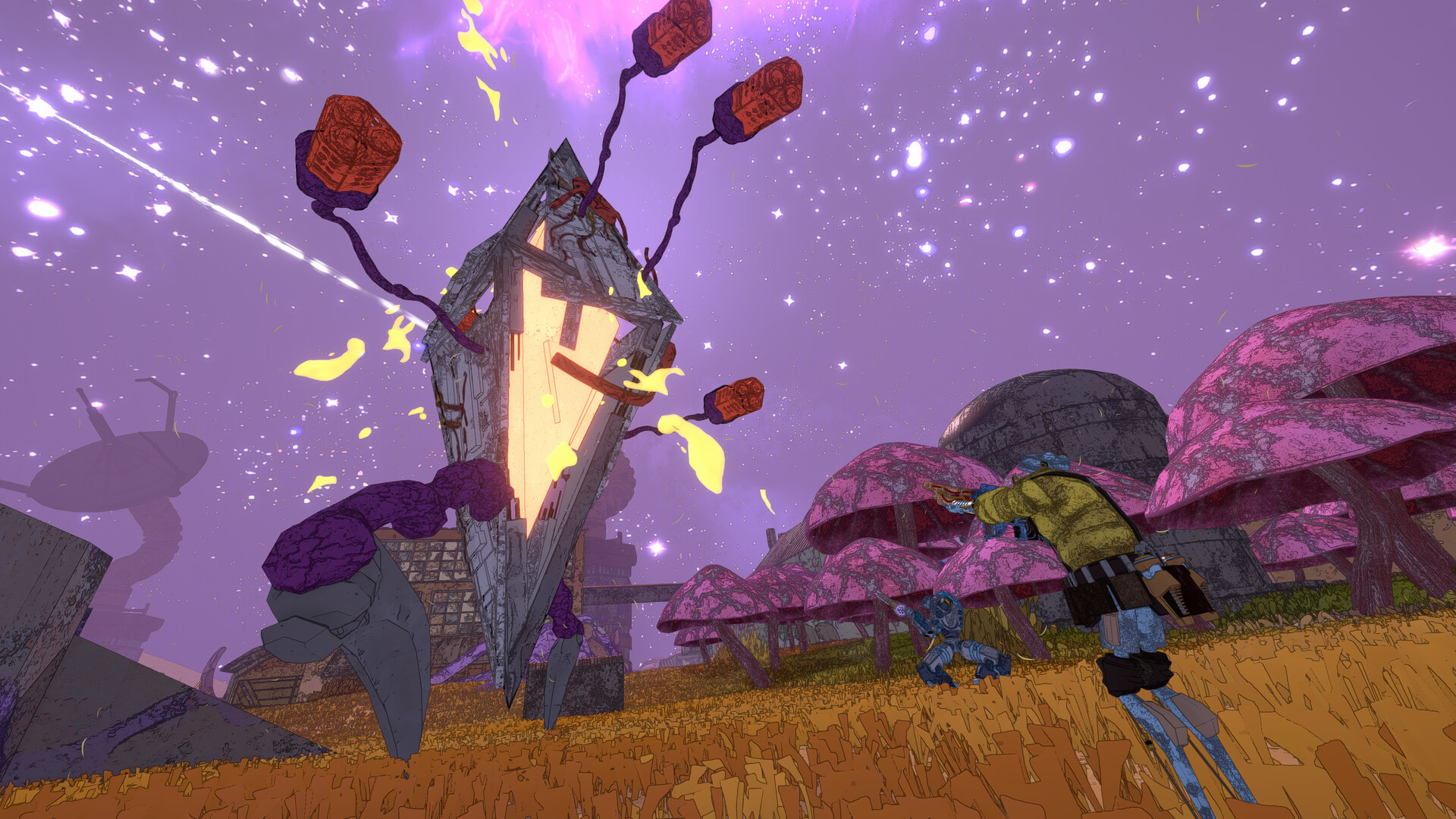
If none of the above gets you a frame rate you're happy with even on lower settings, it's worth remembering Mycopunk is built around four-player co-op first — a smoother, lower frame rate with your full squad connected will usually feel better than a higher cap playing solo against the same fungal swarm.
FAQ
Does Mycopunk support DLSS or ray tracing?
Not based on its current options menu. Hands-on testing of the PC build found only an AMD FidelityFX upscale filter and a Render Scale slider — no listed DLSS or ray-tracing toggle. This is unconfirmed to change with the 1.0 update since Pigeons at Play hasn't published 1.0 patch notes yet.
Why does my controller feel slow in Mycopunk?
The default controller look sensitivity is low out of the box. Raise it in the Controls tab, and be aware that look speed is tied to your frame rate, so a stable frame rate cap makes the sensitivity feel more consistent.
Will my Early Access settings carry over to the 1.0 version?
Unconfirmed. Pigeons at Play hasn't publicly detailed whether settings, saves or progress carry over from Early Access into the October 20, 2026 1.0 release.
What are Mycopunk's official minimum and recommended PC specs?
Per Steam's listing, minimum is a GeForce GTX 960, Radeon R9 380 or Arc A380 with 8GB RAM for roughly 1080p/30 FPS on low settings; recommended is a GeForce RTX 2080, Radeon RX 5700 XT or Arc A750 for roughly 1080p/60 FPS on high settings.
Official resources

Ana writes the step-by-step tutorials: settings, controls, configs and the systems games never explain properly. Every tutorial is tested on the version named at the top of the page, with the official patch notes linked so you can check what changed.