
Path of Exile 2: Best PC Settings, Controls and Performance Guide
Path of Exile 2 best PC settings guide: display, upscaling and lighting options, plus controller setup ahead of its December 11 free-to-play relaunch.
Path of Exile 2 is still technically in Early Access, but it won't be for much longer. Grinding Gear Games confirms on the game's own Steam page that it is "leaving Early Access on December 11 2026 PST" and going free-to-play the same day, which means a wave of new characters — and new PCs — are about to load into Wraeclast. Whether you're a returning Early Access exile or installing it for the first time, getting the display, upscaling and controller options right now saves you from fumbling through menus mid-boss-fight later.
This guide walks through every setting worth touching, in roughly the order the in-game menus actually present them, plus the one controller step the game won't do for you automatically. If you also want the full picture of what changes on launch day itself, keep everything new in the December 11 relaunch open on a second screen while you work through the settings below.
01Display, Resolution and Renderer Settings
Start in the Display tab. Set Display Mode to Fullscreen rather than Borderless — Path of Exile 2's engine hands off more consistently to Fullscreen, and it's the configuration most PC settings coverage recommends for stable frame pacing. Pick the native Resolution of your monitor, leave Renderer on DirectX 12 (the only renderer the current build lists), and turn V-Sync on if you see screen tearing during fast skill effects — off if you'd rather chase the lowest input latency.
Further down, you'll find separate Foreground FPS cap and Background FPS cap sliders. Leaving both uncapped is fine on a desktop with good cooling; on a laptop, capping the background rate stops the game from pointlessly rendering at full tilt while you're alt-tabbed into a trade window or a currency spreadsheet.
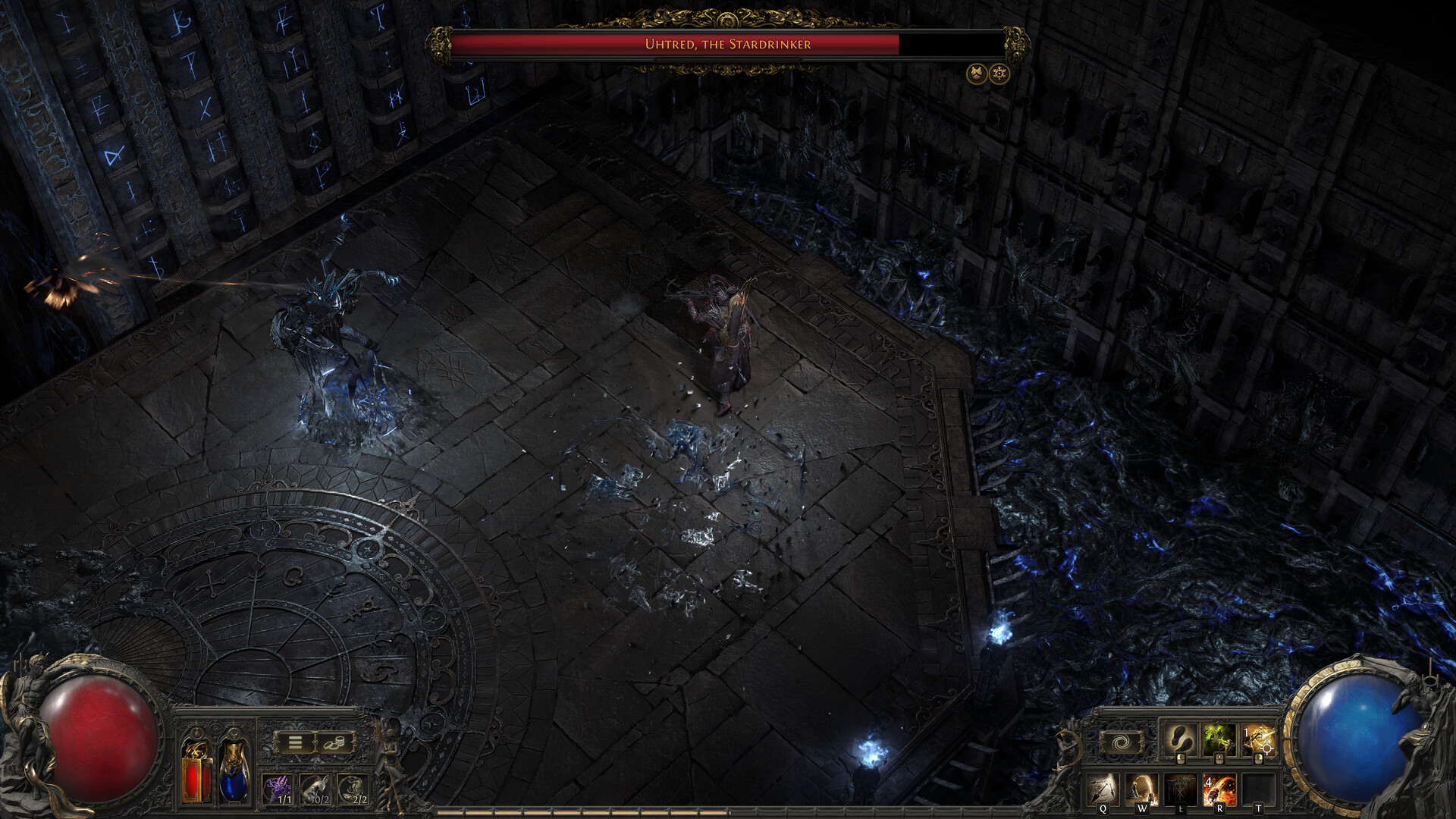
02Upscaling: NIS, DLSS, FSR and XeSS
The Upscaling dropdown in the Display tab defaults to NIS (NVIDIA Image Scaling), which works on any GPU but is the softest-looking of the options on offer. If you're on an RTX card, switching to DLSS and setting it to Quality mode is the easiest upgrade in the entire settings list — it reads noticeably sharper than NIS at the same internal resolution. AMD and Intel owners aren't locked out: FSR and XeSS are both listed as selectable upscaling modes too, though neither has gotten the same attention from Grinding Gear Games as DLSS, so treat their image quality as a work in progress rather than a guaranteed win over native rendering.
Whichever upscaler you land on, pair it with a resolution scale around 70-80% rather than running it at its most aggressive setting — Path of Exile 2's particle-heavy skill effects are exactly the kind of busy, high-contrast detail that upscalers struggle to reconstruct cleanly at low internal resolutions. If an area still feels soft after switching upscalers, raise the scale a notch before touching anything else; it's a cheaper fix than dropping a quality tier elsewhere.
Match the upscaler to the GPU actually in your PC rather than whichever option sits at the top of the list: DLSS only runs on NVIDIA's RTX line, FSR is the only one of the four with any real cross-vendor support, and XeSS leans on Intel Arc hardware for its best results even though the dropdown lets any GPU select it. Picking the wrong one for your card won't crash anything, but you'll be comparing against a worse implementation than the one actually built for your hardware.
03Lighting, Shadows and the Settings That Actually Cost FPS
The Advanced settings tab is where your frame rate actually lives or dies. Lighting can be set to full "Shadows and global illumination" or dropped to shadows only; the GI pass is the single most expensive visual feature in the game, so switching it off is the first thing to try if you're chasing frames in crowded maps or six-player co-op parties. Shadow + GI quality and Sun shadow quality both scale independently from High down to Low, and dropping them rarely changes how readable combat is, since most of what you're tracking in a fight — your character, enemy telegraphs, ground effects — isn't shadow-dependent.
Dynamic resolution is worth leaving off if you have a defined FPS target in mind via Target frame rate, since the two features are solving the same problem in different ways and fighting each other tends to produce more visible resolution swings, not fewer. Engine multithreading should stay on regardless of your CPU core count — there's no visual trade-off to disabling it, only a performance one.
04Setting Up a Controller Before You Start a Map
Path of Exile 2 has full controller support, including officially listed DualShock 4, DualSense and Xbox pads, plus third-party X-input controllers — Steam lists "Full controller support" among the game's own store page categories. The catch is that it won't auto-detect a pad mid-session the way some games do. You need to flip the input method over before you load into a hideout or a map, not while you're already standing in one.
How to Switch Path of Exile 2 to Controller Input
- 1From the main menu or inside a hideout, open Gear, then go to the Input tab.1 min
- 2Set Input Method to Controller. The game won't swap over mid-map, so do this before you load in.1 min
- 3Select your connected pad from the Controller Device list — DualShock 4, DualSense and Xbox controllers are officially supported, along with third-party X-input pads.1 min
- 4If the on-screen icons don't match your pad, open the Controller Prompt Art menu and pick the layout for your controller.1 min
- 5Before heading into a map, walk around and fire off your bound skills to confirm the stick and trigger mapping feels right.2 min
If you only play with mouse and keyboard, none of this applies — but it's worth knowing the option exists, especially with a wave of console-curious players about to try the game for the first time after December 11.

05Is Path of Exile 2 Steam Deck Verified?
Yes. Valve's own compatibility checker lists Path of Exile 2 as Verified for Steam Deck, with its default controller configuration rated fully functional, on-screen button glyphs matching the Deck's hardware, interface text legible at the Deck's resolution, and the default configuration itself rated performant out of the box. If you're planning to play on a handheld, you can trust the default settings rather than hand-tuning every slider before your first map.
06Two New Classes Arrive With 1.0: Shadow and Duelist
Settings aside, December 11 is bringing enough new systems that your existing control scheme may need a second look. Grinding Gear Games' own store page describes two entirely new classes landing with the full release. The Shadow "lurks unseen, using daggers, traps, and shades to bring down his foes," built around Stealth — a mechanic the developer says is "unlike any stealth mechanic you've seen before." While you're in Stealth, monsters can't see you until you close to short range, and staying hidden empowers your dagger skills with extra bonuses. The Shadow also wields Traps as a second weapon type: you prepare them while stealthed, then trigger them automatically as you strike, and they detonate in throw order so you can chain them into combos. At release, the Shadow has two Ascendancy classes, the Assassin and the Infiltrator.
The Duelist is described as "a skilled swordsman, relying on speed, precision, and well-timed strikes to overwhelm his opponents," and introduces Stances as a brand-new system: Ready Stance empowers your sword skills in its own way, and upgrading it unlocks the harder-hitting Sand or Blood Stances for deadlier combinations. The Duelist gets two Ascendancies of its own in 1.0, the Knight and the Master-at-Arms. Both classes add fresh keybinds for stance-switching and trap-placement on top of your existing skill bar, which is one more reason to confirm your input method and button prompts now rather than during a crowded launch-week queue.
07What Else Changes for Early Access Owners
Beyond the two classes, Grinding Gear Games' Steam FAQ confirms the 1.0 update completes the campaign with Acts 5 and 6, adds 24 new areas, 18 new unique bosses and over 20 new Champion Rare encounters, plus a new Challenge League. Early Access purchases carry over into the 1.0 release at no extra cost, and from December 11 the game is free-to-play for everyone else, same as the original Path of Exile. A new Challenge League typically means a fresh economy and a clean slate of characters, as it has with every previous Path of Exile league launch, so don't expect your current Early Access stash to simply follow you into whichever league structure 1.0 ships with.
None of that changes the settings advice above — if anything, a bigger game with two more Acts, two new classes and a new league makes it more worth getting your display, upscaling and input setup right now, before launch-day crowds make server queues the only thing you're waiting on.
FAQ
When does Path of Exile 2 leave Early Access?
December 11, 2026 (PST), according to Grinding Gear Games' own Steam page — the same day the full release goes free-to-play.
What's the default upscaler, and should I change it?
NIS (NVIDIA Image Scaling) is on by default in the Upscaling menu. DLSS, FSR and XeSS are also listed as options, and matching the one built for your GPU brand generally looks sharper than the NIS default.
Do I need to set up my controller before starting a map?
Yes. Path of Exile 2 has full controller support for DualShock, DualSense, Xbox and X-input pads, but you switch Input Method to Controller in the Gear menu before loading in — it won't detect a pad automatically mid-session.
Is Path of Exile 2 Steam Deck Verified?
Yes — Valve's compatibility checker rates it Verified, with a fully functional default controller layout and a default configuration that's already rated performant.
Official resources

Ana writes the step-by-step tutorials: settings, controls, configs and the systems games never explain properly. Every tutorial is tested on the version named at the top of the page, with the official patch notes linked so you can check what changed.

