
THE FINALS: Best PC Settings, Controls and Accessibility Guide
THE FINALS' PRIME TIME update reworked destruction and the HUD, so here's how to retune graphics, mouse, controller and accessibility settings.
THE FINALS has looked and played differently since Season 12, PRIME TIME, landed on October 20, 2026. Embark Studios rebuilt the destruction model, retouched three Arenas, and reworked the HUD and menus, and the weekly balance passes since then (most recently Update 12.2.0) keep nudging weapon tuning on top of it. None of that breaks your old settings file, but it does mean a config you set up a year ago is no longer the best one for how the game runs and reads today. Here's what to change, and why, across graphics, bindings, controller feel, and the accessibility tools Embark actually ships.
01Why Your Settings Deserve a Second Look After PRIME TIME
PRIME TIME's headline change is destruction, not a new weapon or map rotation: Embark's own patch notes describe "gradual structural damage, dynamic building collapses, improved explosion physics and new debris pile," plus "enhanced smoke and gas systems." That's more geometry breaking apart, more particles in the air, and more objects for your GPU to simulate in the middle of a firefight, on top of the remastered Monaco, Seoul, and Skyway Stadium Arenas. The same update also shipped a redesigned HUD and menus with, in Embark's words, "customizable Quick Settings for a smoother experience." If you haven't opened the settings gear icon since before October 20, there are new toggles waiting and old assumptions about frame pacing that no longer hold once a building starts coming down around you.
The redesigned Quick Settings panel is the part of this update most players will skip past without noticing, but it's worth a look specifically because it's new: Embark built it so you can adjust common options mid-session without digging through the full menu, which matters more now that a destruction-heavy Arena can shift how a setting feels mid-match. Treat the PRIME TIME menu rework as a reason to re-open settings you'd normally never revisit, not just the graphics tab.
02Best Graphics Settings for Smooth Frame Rates
Embark's published PC requirements are the most reliable baseline for where to start. The official minimum spec is a Core i5-6600K or Ryzen 5 1600, a GeForce GTX 1050 Ti or Radeon RX 580, and 12 GB of RAM on Windows 10 64-bit with DirectX 12; the recommended spec steps that up to a Core i5-9600K or Ryzen 5 3600, a GeForce RTX 2070 or Radeon RX 5700 XT, and 16 GB of RAM. If your rig sits closer to the minimum tier, treat that as a floor rather than a target now that destruction and smoke are doing more work per fight — the heavier collapse and particle simulation in PRIME TIME Arenas is exactly the kind of moment that exposes a GPU that was only just clearing the old bar.
The practical takeaway is to benchmark after every major update rather than trusting a configuration you haven't touched in months. Drop into the Arena you play most (Monaco and Skyway Stadium both got heavier this season) and watch your frame rate during an actual multi-team fight with buildings breaking, not just while walking around an empty lobby — that's where the new destruction and smoke systems actually cost performance, and it's the only honest test of whether your current settings still hold up.
Resolution and any upscaling technology your graphics card supports remain the single biggest performance lever in almost any modern shooter, THE FINALS included, and they're worth testing before you start turning individual quality sliders down one by one. It's a faster way to claw back frame rate without sacrificing the visual clarity you need to spot an enemy through smoke or falling debris, which is precisely the situation PRIME TIME's destruction model throws at you more often than previous seasons did.
03Mouse and Keyboard Bindings Worth Rechecking
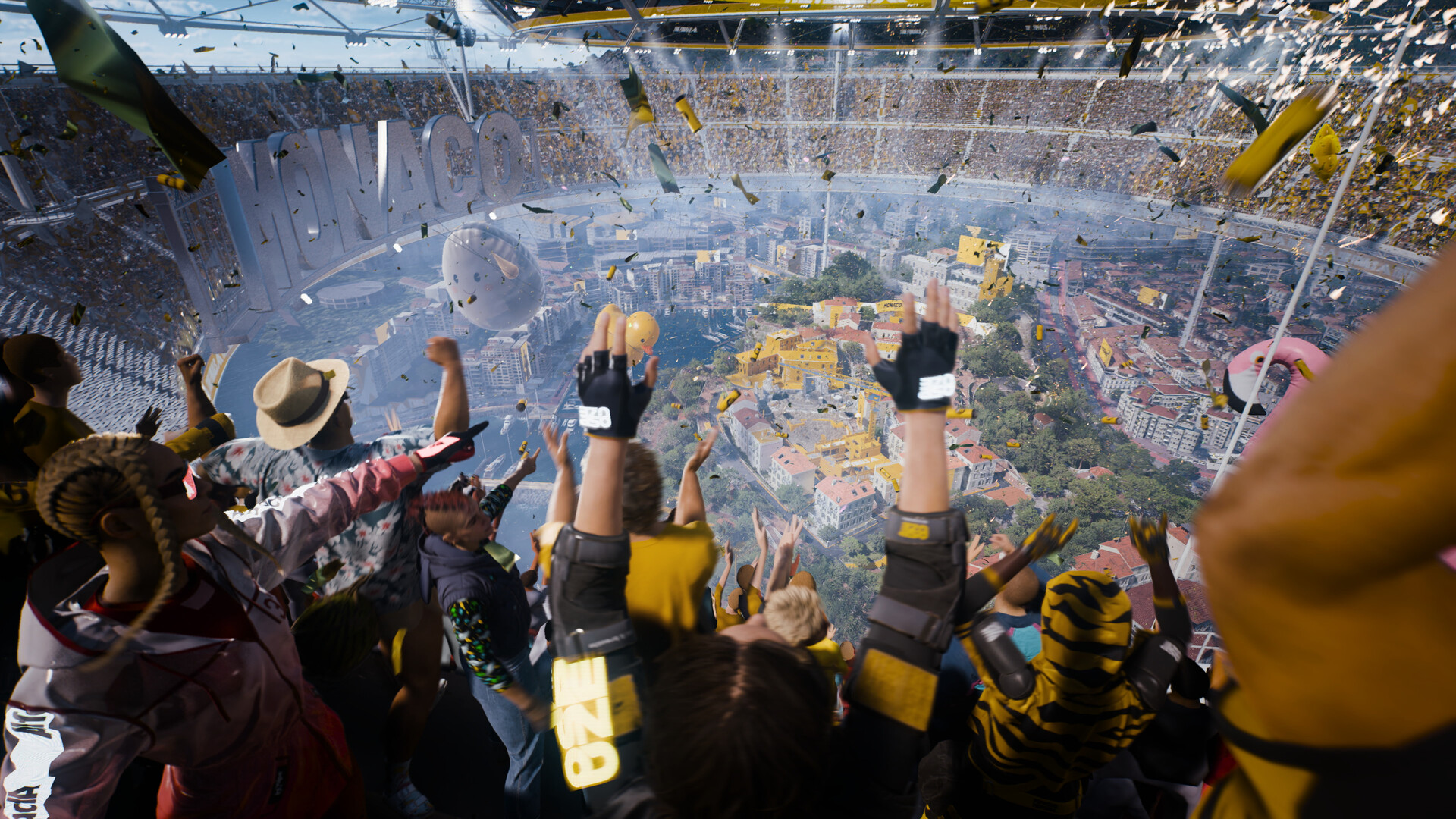
Key bindings live under the gear icon in the top-right of the menu, then Settings, then Mouse and Keyboard, then Key Bindings — Embark's own support documentation confirms that's the exact path, separate from the Controller tab. It's worth opening that screen even if you haven't rebound anything before, because THE FINALS layers a lot onto the default scheme: gadget and specialization keys, the ping wheel, and voice or quick-chat shortcuts all sit on top of movement and weapon swapping. If your muscle memory is still built around an older season's HUD, reread your bindings list once rather than relying on what you remember being where.
The other thing worth doing after any patch with weapon or gadget changes, like this week's Update 12.2.0 tuning pass, is making sure nothing you rely on mid-fight — melee, gadget throw, ping — got left on an awkward key from a previous rebind. A five-minute pass through the full list after a balance update costs less than fumbling for a keybind in the middle of a cashout steal.
It's also worth separating your "always on" keys from situational ones. Gadget throw, melee, and ping get used in nearly every fight, so they should sit somewhere your hand reaches without looking; voice lines, emotes, and the social wheel can afford to live further out on the keyboard. Revisiting that split after a season with new Playstyles and gadgets, like PRIME TIME's Infiltrator kit for Light, is a cheap way to make sure your layout still matches how you actually play rather than how you played two seasons ago.
04Controller Settings and Sensitivity on PC
THE FINALS lists full controller support on its Steam page, including DualSense and DualShock controllers, so console-style play on PC is officially supported rather than a workaround. Controller bindings are managed separately from mouse and keyboard, under Settings, then Controller, then Controller Bindings, per Embark's own support article. If you're switching into THE FINALS from another shooter, don't assume your old sensitivity curve carries over cleanly — the game's three distinct body types (Light, Medium, Heavy) move and aim-walk at different speeds, so a sensitivity that feels right on a Heavy can feel sluggish or twitchy the moment you switch to Light.
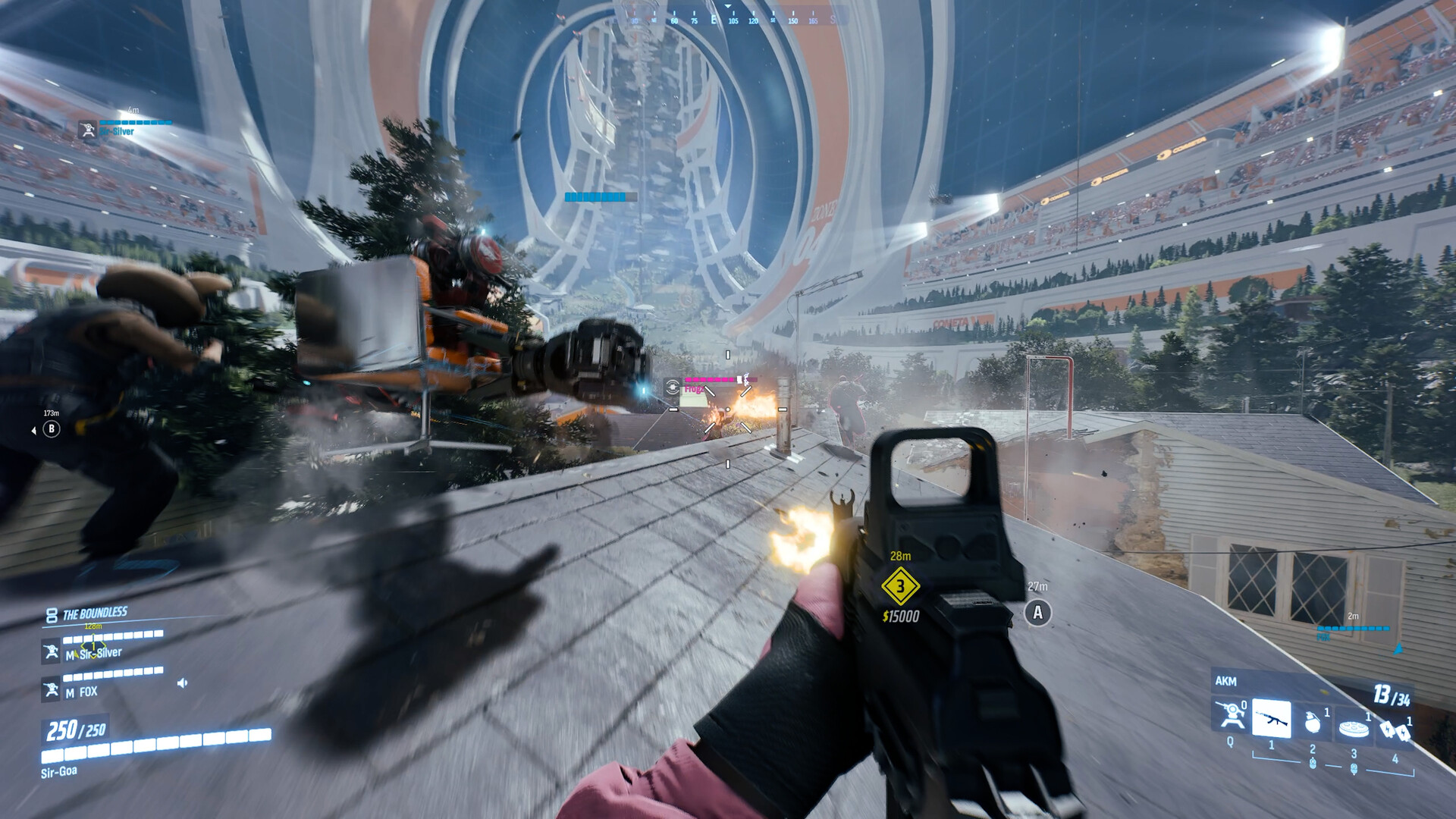
Spend a few matches in a lower-stakes mode after any sensitivity change before taking it into Ranked. The destruction overhaul also means more of your aim time now involves tracking targets through collapsing cover rather than static sightlines, so a sensitivity tuned purely for flat, open engagements may need another pass.
05Accessibility Options Most Players Skip
Embark's Help Center documents a genuine accessibility suite, not just a token toggle, and it's worth knowing it exists even if you don't need it yourself. Colorblind mode is available from the Accessibility screen with adjusted color schemes for deuteranopia, tritanopia, and protanopia. Subtitles can be turned on from the same screen, with adjustable background opacity and text size for legibility. Button remapping is explicitly built to accommodate "permanent, temporary, or situational motor impairments," which is a more flexible framing than most competitive shooters offer — it's the same remapping screen you'd use for ordinary preference changes, just designed to go further. All of it sits under the gear icon, then Settings, then Accessibility.
None of these options require you to accept worse readability as a trade-off. Colorblind mode and the subtitle opacity slider exist precisely so you don't have to choose between playing comfortably and seeing what's happening in a destruction-heavy Arena where smoke, debris, and enemy silhouettes can blend together even for players with typical color vision. If you've never opened the Accessibility screen because you assumed it wasn't built for you, PRIME TIME's busier visual load is as good a reason as any to check what's actually there.
06Set Up Your Settings in Six Steps
If you're doing a full pass after PRIME TIME rather than tweaking one thing at a time, this is the order that avoids retracing your steps.
Set Up Your Settings in Six Steps
- 1Click the gear icon in the top-right corner first — PRIME TIME added a redesigned Quick Settings panel for commonly changed options, so start there before diving into the full Settings menu.1 min
- 2In the Video tab, match your display's native resolution and test your GPU's upscaling option before adjusting anything else — it's the single biggest frame-rate lever after a destruction-heavy update like this one.2 min
- 3Drop into Monaco or Skyway Stadium and watch your frame rate during an actual multi-team fight with buildings breaking, not an empty lobby — that's the only way to see what PRIME TIME's destruction actually costs you.3 min
- 4Go to Settings, then Mouse and Keyboard, then Key Bindings, and recheck gadget, melee and ping keys — new Playstyles like the Infiltrator add keys that may not fit your old layout.3 min
- 5If you're on a DualSense or DualShock controller, open Settings, then Controller, then Controller Bindings, and retest sensitivity on each body type — Light, Medium and Heavy all move at different speeds.3 min
- 6Open Settings, then Accessibility, to enable colorblind mode, adjust subtitle opacity and text size, or remap buttons for motor-impairment needs — all built into the game, not an afterthought.2 min
07What Update 12.2.0 Changed, and Why It Still Matters for Your Setup
Update 12.2.0, this week's balance pass, isn't a settings update on its own, but it's a reminder of how often THE FINALS' weekly cadence touches the things your settings interact with. This round increased the AKM's ammo count, buffed the Chimera-XB's damage and fire rate, and reworked the FCAR into a slower-firing, harder-hitting weapon, all aimed at giving Medium better odds against the now-175 HP Light class. Embark's own patch notes call these "tweakable" changes deployed without a full client patch, with more Medium-focused balance due in 12.3. None of that demands a graphics change, but a weapon that recoils or fires differently is exactly the kind of thing that makes a six-month-old mouse sensitivity suddenly feel wrong — it's worth testing your aim settings against the reworked weapons in a practice match rather than assuming nothing changed.
Store Update 12.2 This week we’re bringing a refreshed Store, more info about TGM26 and some balance changes. You still have a few more days to redeem any tickets you may have left before the Frights Galore Event closes! 🪦 Check out the full Patch notes here 👇
— THE FINALS (@reachthefinals) on X
08Watch the PRIME TIME Overview Before You Tweak Further
If you want the full picture of what changed before deciding what to adjust, Embark's own PRIME TIME gameplay trailer is the fastest way to see the new destruction, the remastered Arenas, and the HUD rework in motion rather than reading about them. The full season details are also on the official THE FINALS site.
FAQ
What are the official minimum and recommended PC specs for THE FINALS?
Embark Studios lists a Core i5-6600K or Ryzen 5 1600, a GTX 1050 Ti or RX 580, and 12 GB RAM as the minimum, with a Core i5-9600K or Ryzen 5 3600, an RTX 2070 or RX 5700 XT, and 16 GB RAM as recommended. Both require DirectX 12.
Does lowering settings hurt visibility during destruction-heavy fights?
Testing your GPU's resolution and upscaling option first, before lowering individual quality settings, tends to preserve more visual clarity for spotting enemies through smoke and debris than cutting every slider at once.
Is THE FINALS fully playable with a controller on PC?
Yes. Embark Studios lists full controller support on Steam, including DualSense and DualShock controllers, with bindings managed separately from mouse and keyboard under Settings, then Controller, then Controller Bindings.
How do I turn on colorblind mode or adjust subtitles?
Open the gear icon, then Settings, then Accessibility. Colorblind mode supports deuteranopia, tritanopia and protanopia color schemes, and subtitles have adjustable background opacity and text size.
Official resources

Ana writes the step-by-step tutorials: settings, controls, configs and the systems games never explain properly. Every tutorial is tested on the version named at the top of the page, with the official patch notes linked so you can check what changed.

