Dynasty Warriors 3 Remastered: Best PC Settings and Controls
Get DYNASTY WARRIORS 3: Complete Edition Remastered running smoothly on PC with the graphics, control, and accessibility settings that matter at launch.
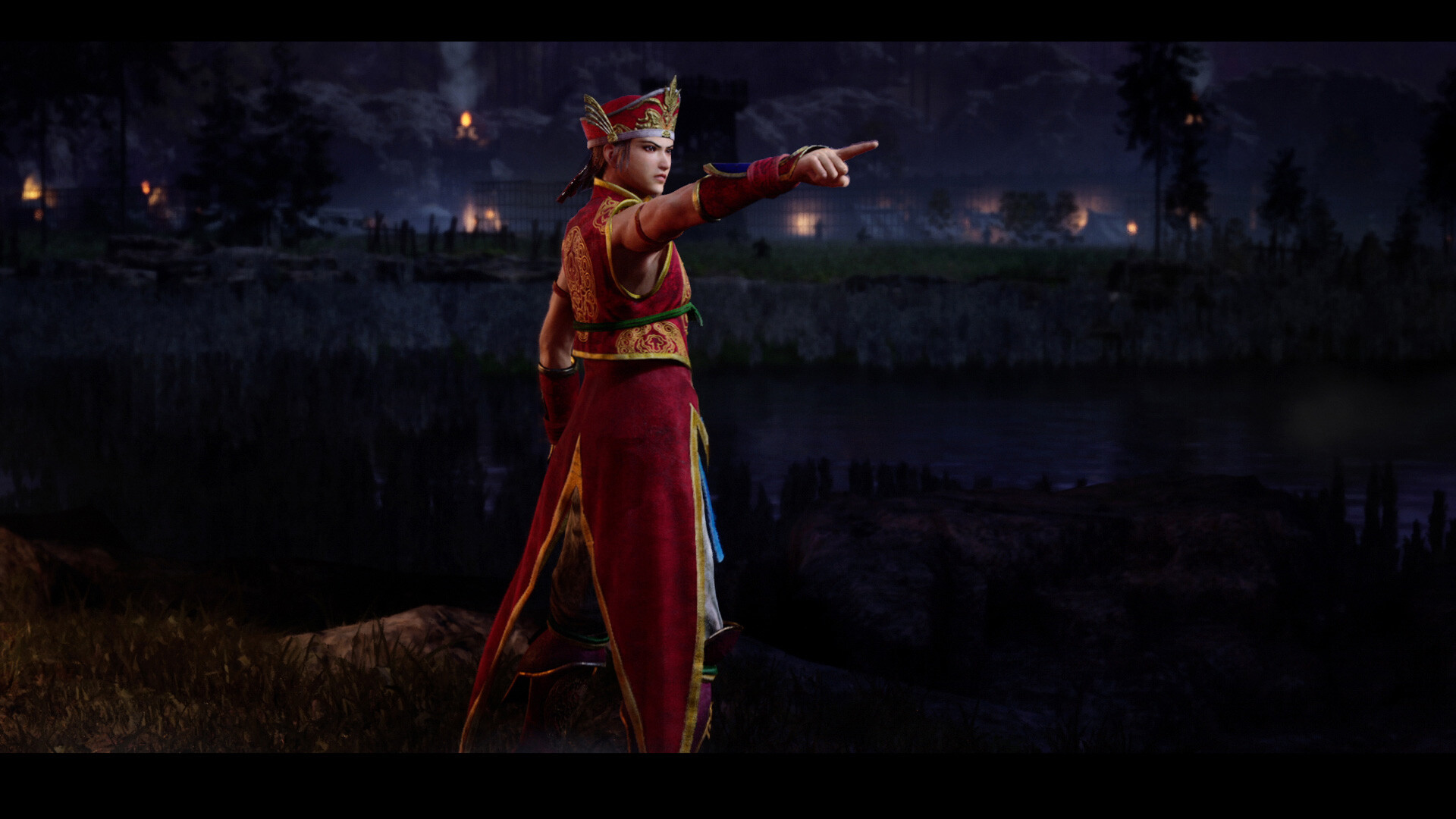
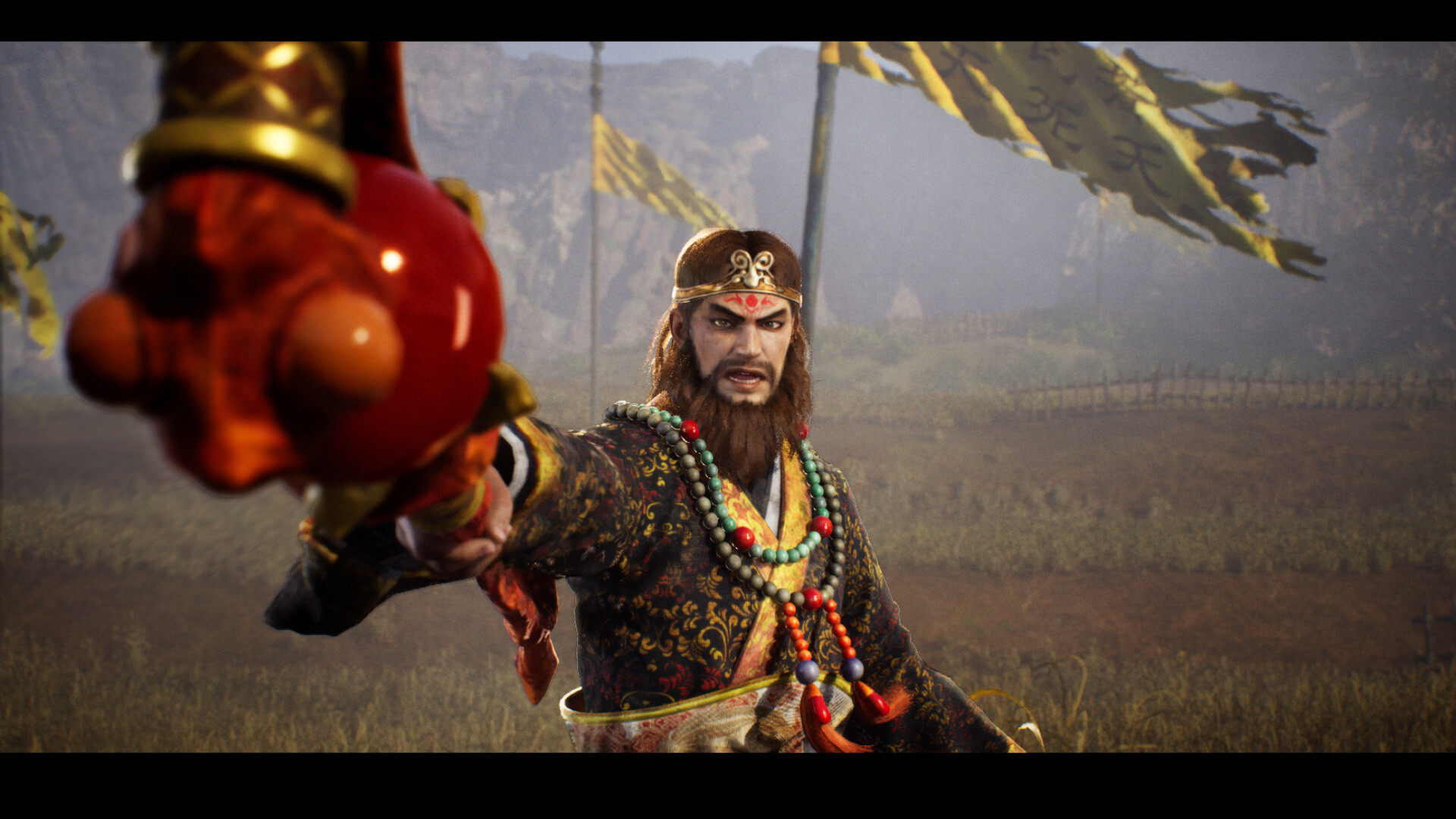
DYNASTY WARRIORS 3: Complete Edition Remastered launched on Steam on October 1, rebuilding the PS2-era 1-vs-1,000 hack-and-slash on Unreal Engine 5 with the Xtreme Legends expansion folded in. If you're jumping into the 40-plus officer roster for the first time, a few menu changes decide whether you get a locked 60fps brawl or a stuttery mess, and whether the controls feel like 2004 or like a modern musou game. None of this is hidden behind a wiki or a config file — it's all in the settings menu KOEI TECMO shipped, you just have to know which toggles matter. Here's what to change before your first battle.
01Check Your PC Specs Before You Dive In
KOEI TECMO's own Steam page lists two tiers, and the gap between them is bigger than the file size suggests. The minimum spec (Core i7-8700 or Ryzen 7 2700X, 16GB RAM, a 6GB-VRAM GTX 1060/RX 5600 XT class card) is rated for only 30fps at 1080p, and only with graphics quality dropped to Low and upscaling turned on. The recommended spec (Core i7-10700K or Ryzen 7 3700X, 16GB RAM, an RTX 3060 or RX 6700 XT) targets 60fps at 1080p with quality set to High, still with upscaling enabled. Either way, plan on leaving upscaling on — this remaster was built assuming it's active, not as a crutch for weak hardware. The install itself needs 60GB of SSD space; a mechanical drive will work but will stretch load times between officer battles, since Unreal Engine 5's asset streaming leans on fast random reads more than the original PS2 game ever did. Both tiers assume Windows 11 64-bit and DirectX 12 — there's no DirectX 11 fallback, so older Windows 10 installs that haven't been tested against this build should expect to update first rather than troubleshoot blind.
02Classic Settings or Normal Settings: Pick One First
Before you touch sliders, the game asks you to choose between Classic Settings and Normal Settings — the remaster's way of letting Dynasty Warriors 3 veterans play it exactly like the PS2 original while giving newcomers KOEI TECMO's own recommended remaster experience by default. Which specific combat values each option changes isn't broken down in the official materials beyond that framing, but Normal Settings is the one the studio points new players toward. Pick Normal Settings unless you specifically want the 2004 experience back — you can't easily toggle individual pieces, so decide up front rather than fighting the controls for an hour before realizing which mode you're in. It's a menu-level choice rather than a hidden config value, which at least means you don't need a third-party tool or an .ini edit to switch it later if your first pick doesn't feel right.
03The Graphics Settings That Actually Move Your Frame Rate
With 40+ officers and hundreds of soldiers on screen simultaneously, this remaster leans harder on CPU-bound crowd rendering than on raw pixel-pushing, which changes which sliders are worth your time. Graphics Quality (the Low/High preset tied to the official spec sheet above) is the single biggest lever — it scales enemy density and effects detail together rather than individually, so there's no point hunting for a hidden "crowd count" slider. If you're hovering near minimum spec, drop Graphics Quality to Low and keep upscaling on rather than splitting the difference on a custom mix; the preset is tuned as a pair with the resolution scaler, and running Low with upscaling off defeats the point of lowering it. HDR is available and safe to enable on a calibrated display since it doesn't carry the performance cost of a true ray-traced renderer. If you still see dips during the biggest multi-officer clashes, your CPU is almost certainly the bottleneck, not your GPU — this is a case where overclocking or checking background Windows processes helps more than another graphics tweak.
04Controls, Combos, and the Accessibility Options Worth Flipping On
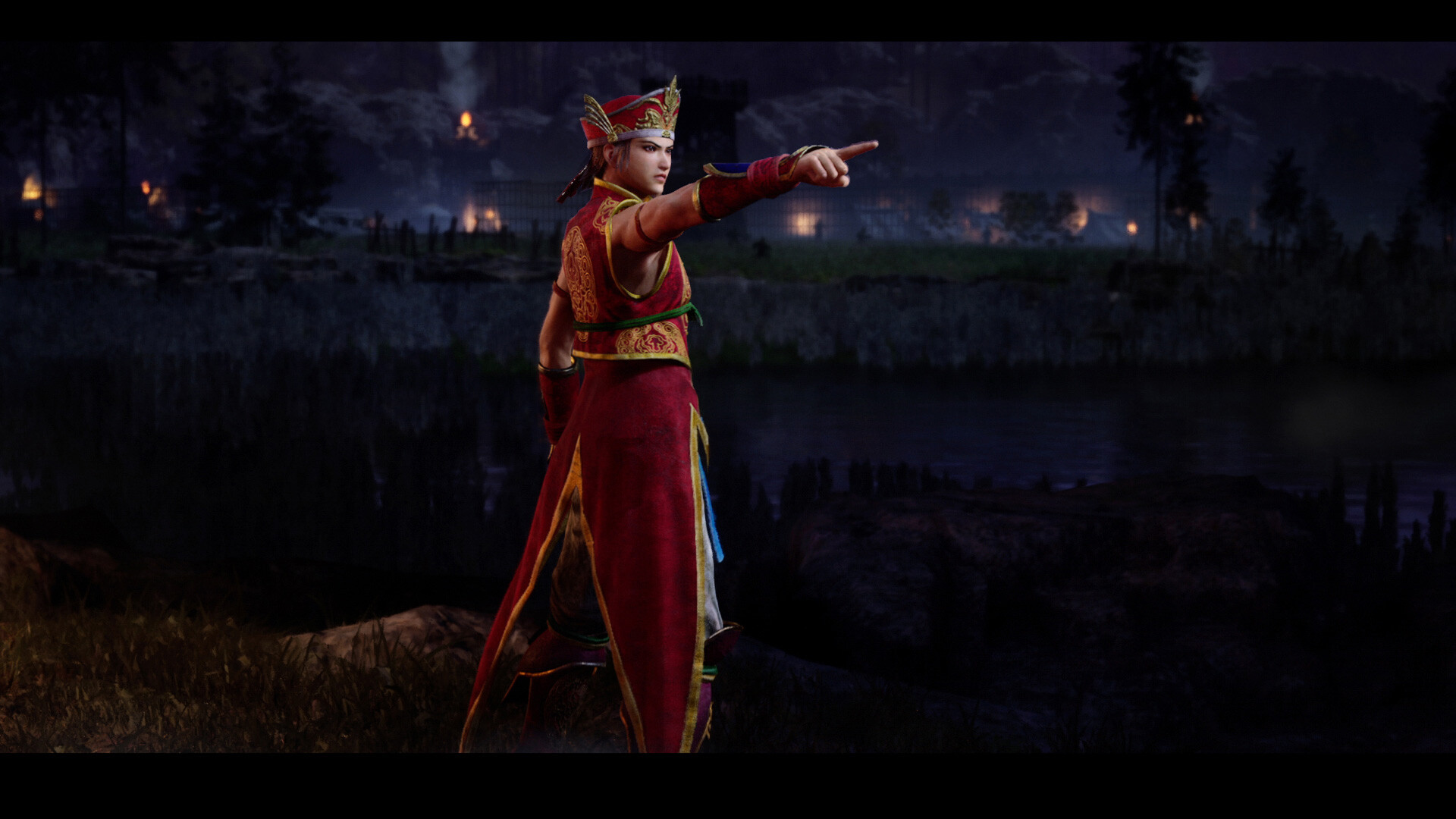
Full controller support and Steam Input API support mean DualSense and DualShock pads map correctly out of the box, and keyboard-and-mouse is a legitimate second option if you'd rather bind combos to easy-reach keys than learn a new controller layout. Two settings buried in the accessibility menu are worth turning on immediately regardless of input device. "Playable without Timed Input" removes the reaction-window requirement from Perfect Power Guard and other timing-based prompts, which is the single biggest difficulty spike for players coming from turn-based or slower action games — it doesn't weaken your damage output, it just removes the fail state for reacting late. Custom Volume Controls let you pull down the constant battlefield chatter independently of music and sound effects, which matters more here than in most action games given how much voiced dialogue triggers during a single stage. If you plan to lean on Weapon Fusion's forged loadouts, it's worth opening the keybind menu once up front and checking that your weapon-switch input doesn't overlap with your dodge or guard button on whichever device you picked — a full rebind screen is available for both pad and keyboard, so there's no reason to fight an awkward default for forty-plus officers' worth of playtime.
How to Set Up Dynasty Warriors 3 Remastered on PC
- 1Pick Normal Settings for the studio-recommended remaster experience, or Classic Settings if you want the closest match to the PS2 original. This is a menu toggle, not a hidden config value.1 min
- 2Set Graphics Quality to Low with upscaling on if you're near the minimum spec, or High with upscaling on if you're near the recommended spec. Don't mix a custom blend of the two presets.1 min
- 3Turn on HDR for a calibrated HDR monitor or TV. It doesn't carry the performance cost of a ray-traced renderer, so there's no frame rate tradeoff to weigh.1 min
- 4Flip this accessibility option on if you're new to timing-based guard and counter prompts. It removes the fail state for reacting late without reducing your damage output.1 min
- 5Pull battlefield voice chatter down independently of music and effects so dialogue doesn't drown out callouts during a stage.1 min
- 6Open the keybind screen and move your weapon-switch input off any key that overlaps your dodge or guard button, especially if you plan to use Weapon Fusion loadouts.2 min
- 7Check that Steam Cloud saves are enabled before you reinstall onto a different drive or switch PCs mid-campaign.1 min
05Difficulty and Save Settings Worth a Second Look
Adjustable Difficulty is listed separately from the Classic/Normal toggle, and the two are worth not confusing with each other — difficulty governs enemy aggression and damage, while Classic/Normal governs which overall experience you're playing. The remaster also adds new mechanics on top of the PS2-era moveset, including an Evasion maneuver and a Perfect Power Guard counter; KOEI TECMO hasn't officially described either as exclusive to one settings mode, so if a stage feels unfair in a way that seems like a bug rather than a design choice, check your difficulty rung first before assuming something's broken. On the save side, Steam Cloud sync is supported, so progress carries across machines automatically without you needing to manually back up a save folder — worth confirming is turned on before you reinstall onto a new drive mid-campaign.
06Split-Screen Co-op Setup on PC
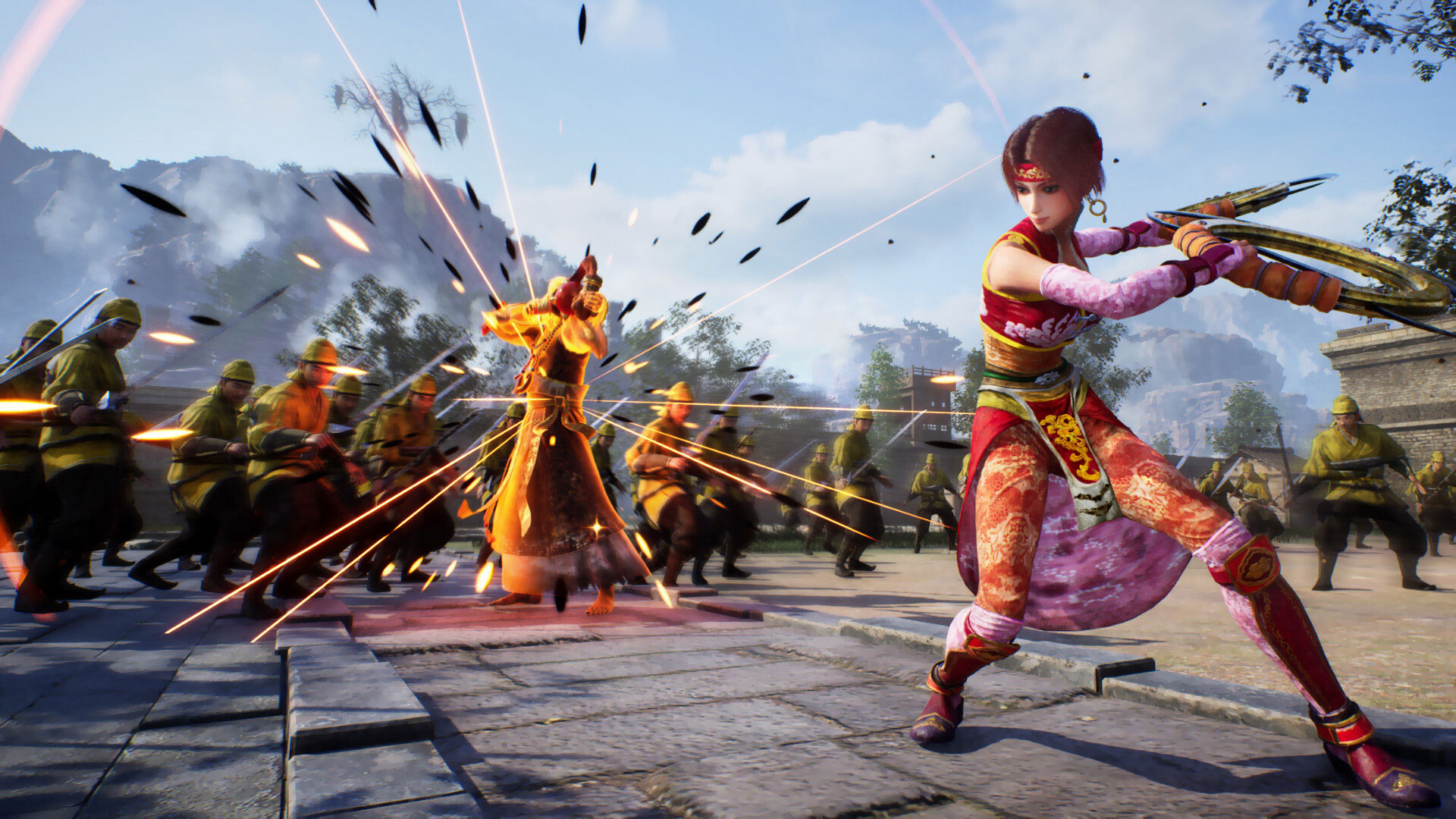
The remaster carries over offline two-player split-screen alongside online co-op, and it works on a single PC with two controllers connected — there's no second Steam account or second copy required for local play. Drop the Graphics Quality preset one tier below what you'd run solo before starting a split-screen session; rendering two cameras' worth of the same 1,000-soldier battlefield roughly doubles the GPU cost even though the CPU-side enemy count doesn't change. If your partner is on a pad and you're on keyboard and mouse, that mixed-input setup works without extra configuration, but confirm each profile's control scheme (Classic or Normal) matches before you start, since the game applies this as a shared session setting rather than per-player.
07Troubleshooting Stutters and Crashes at Launch
Day-one Unreal Engine 5 titles routinely stutter on a fresh shader cache, and this one is no exception — expect the first 10-15 minutes after a settings change to feel rougher than the rest of your session while shaders compile in the background. Avoid changing Graphics Quality mid-session repeatedly for this reason; let a change settle for a full stage before judging it. If you hit a hard crash rather than a stutter, update your GPU driver to the newest stable release before anything else — a day-one Unreal Engine 5 launch is exactly the kind of title GPU vendors target with fresh driver profiles — and verify your file integrity through Steam if the crash repeats after that. As of launch day, KOEI TECMO has not published a dedicated PC patch note page separate from the general release notes, so treat any fix beyond the official minimum/recommended spec guidance above as unconfirmed until the studio posts one.
For background on where this cast and these stages originally came from, the original Dynasty Warriors 3 remains the baseline this remaster is rebuilding scene-for-scene, which is worth a skim if you're new to the series and wondering why the roster skews so heavily toward Shu, Wei, and Wu officers.
“If this game isn't successful, there won't be a next one, so we're looking forward to your support.”Tomohiko Sho, Producer, Omega Force
FAQ
What are the minimum and recommended PC specs for DYNASTY WARRIORS 3: Complete Edition Remastered?
Minimum is a Core i7-8700 or Ryzen 7 2700X, 16GB RAM, and a 6GB-VRAM GTX 1060/RX 5600 XT-class GPU, rated for 30fps at 1080p on Low quality with upscaling on. Recommended is a Core i7-10700K or Ryzen 7 3700X, 16GB RAM, and an RTX 3060 or RX 6700 XT, rated for 60fps at 1080p on High quality with upscaling on. Both require Windows 11 64-bit, DirectX 12, and 60GB of storage.
Should I play on Classic Settings or Normal Settings?
Normal Settings is KOEI TECMO's recommended default for most players and applies the studio's remaster-era adjustments. Classic Settings is aimed at series veterans who want the closest match to the original PS2 release. It's a menu toggle you can revisit later, not a one-time irreversible choice.
Does the PC version support split-screen co-op?
Yes. Offline two-player split-screen works on a single PC with two controllers connected, alongside online co-op, with no second Steam account or second copy required.
Can I use a DualSense or DualShock controller on PC?
Yes. The game lists full controller support and Steam Input API support, with DualSense and DualShock controller support confirmed on its Steam page, alongside standard keyboard-and-mouse controls.
Is there a PC-specific patch yet?
Not as of launch day. KOEI TECMO had not published a dedicated PC patch note page separate from the general release notes at the time of writing, so treat any fix beyond the official spec guidance as unconfirmed until the studio posts one.
Official resources

Ana writes the step-by-step tutorials: settings, controls, configs and the systems games never explain properly. Every tutorial is tested on the version named at the top of the page, with the official patch notes linked so you can check what changed.