Final Fantasy Resonance: Best PC Settings and Controls
Final Fantasy Resonance launches today on PC with Steam Deck Verified status — here are the best graphics, control and performance settings.
Final Fantasy Resonance is out today on PC, PS5, Xbox Series X|S, Switch and Switch 2, and the PC release comes with a full options menu, Steam Deck Verified status and a free demo whose save data carries straight into the full game. Before you load up your first save, it's worth spending five minutes in the settings menu — the default configuration is tuned conservatively, and a few quick changes make a real difference on both a gaming PC and a handheld.
01Demo Save Carryover and What Changes at Launch
If you already played the free demo, which covers the opening chapters, your save file carries straight into the full release on the same platform — there's no need to start a fresh file just because launch day arrived. If you're coming to the full game cold, Square Enix's own listing still points new players toward the demo first: it's a useful way to confirm your settings and performance before committing to the full purchase, since every graphics option carries over identically between the two builds.
02Minimum and Recommended PC Specs
Square Enix's own Steam listing lays out two tiers, both built around Windows 11 and DirectX 12. The minimum spec targets 1080p at 30 FPS on the "Low" preset; the recommended tier is aimed at 1080p and 60 FPS on the "Highest" preset.
| Requirement | Minimum (1080p/30, Low) | Recommended (1080p/60, Highest) |
|---|---|---|
| OS | Windows 11 | Windows 11 |
| CPU | AMD Ryzen 3 2300X / Intel Core i3-8100 | AMD Ryzen 5 2500X / Intel Core i3-8100 |
| RAM | 8 GB | 8 GB |
| GPU | AMD Radeon RX 6400 / Intel Arc A580 / Nvidia GTX 1650 | AMD Radeon RX 5500 XT / Intel Arc A580 / Nvidia GTX 1650 |
| Storage | 15 GB | 15 GB |
The small jump between tiers is worth noting: RAM and storage don't move at all, and the CPU ask only climbs on the AMD side. In practice, HD-2D games like this one lean on CPU-side particle and lighting work more than raw GPU horsepower, so if you're near the recommended CPU tier but short on GPU, you'll likely still land at a stable 60 FPS by trimming shadow quality and anti-aliasing before touching the resolution scale.
03Best Graphics Settings for Final Fantasy Resonance
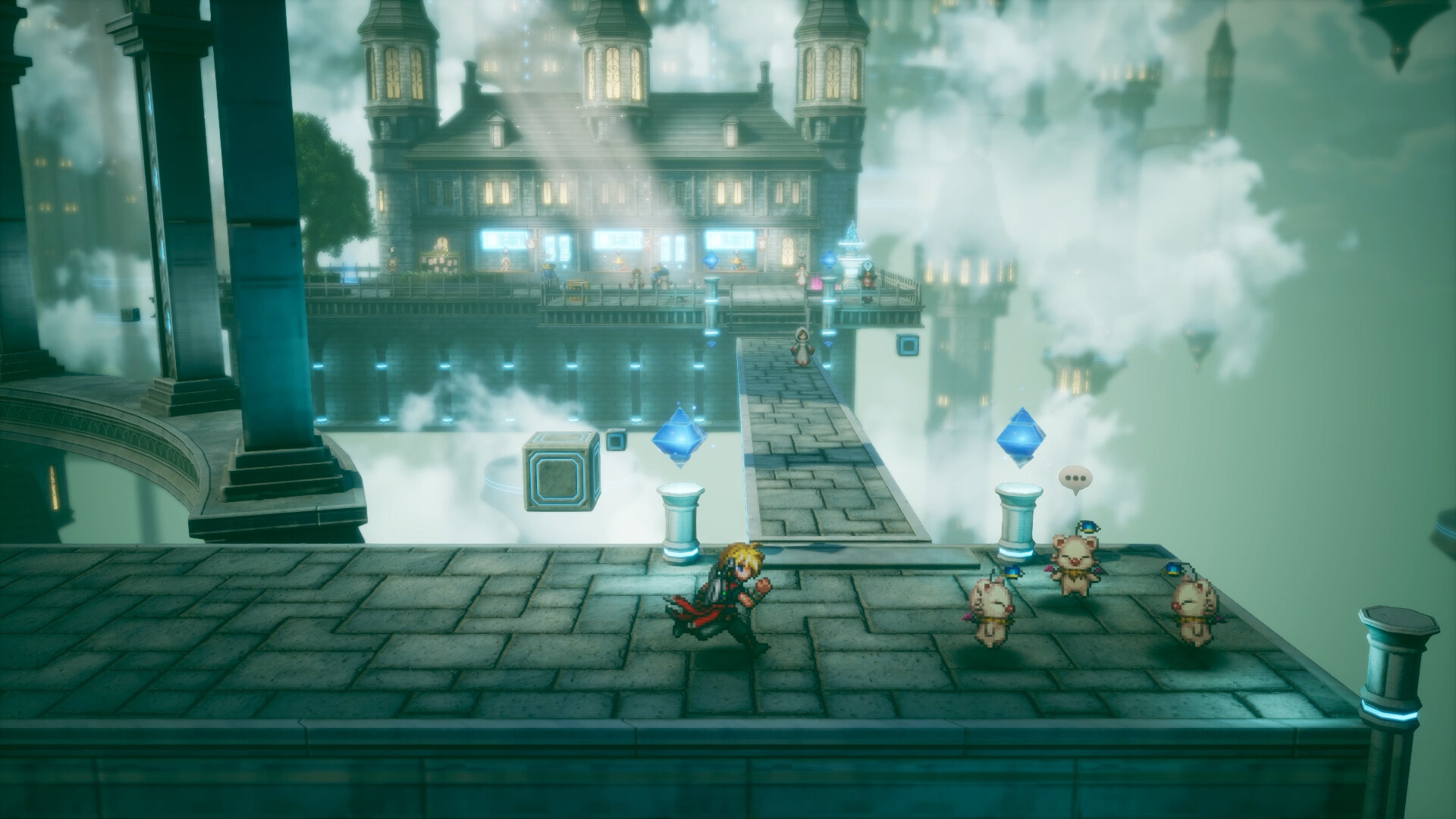
The PC graphics menu covers resolution, texture quality, post-processing, anti-aliasing and shadow quality, plus a separate display section for windowed, fullscreen or borderless mode. For a diorama-style HD-2D game, the highest-impact sliders aren't the ones you'd expect from a 3D action game:
- Texture quality: leave this on its highest setting whenever you clear the recommended-spec VRAM bar — HD-2D character sprites and backdrops are pre-rendered at high resolution, and this is the setting that keeps them crisp.
- Anti-aliasing: the tilt-shift depth-of-field look that defines the HD-2D style already does a lot of edge-softening on its own, so dropping AA one notch from its default is one of the cheapest frame-rate wins if you're GPU-limited.
- Shadow quality: the second-cheapest win. Battle scenes use dynamic shadows on characters and Vision summons; stepping this down rarely changes the read of a fight but frees up meaningful headroom on cards near the minimum spec.
- Post-processing: bloom and color grading carry a lot of the game's visual identity, so treat this as the setting you protect last, not first.
04Display, Brightness and Frame Rate Settings
Borderless mode is the safest default for alt-tabbing on a multi-monitor desktop, while exclusive fullscreen squeezes out the most consistent frame pacing if you're running a single display and chasing the recommended spec's 60 FPS target. The options menu also includes an FPS limiter and a V-Sync toggle — turn V-Sync on if you see screen tearing after uncapping the limiter, and leave it off if you've got a variable refresh rate monitor and want the lowest input latency for real-time dodges.
Brightness runs on its own 0-10 slider (default 5); because so many dungeons and the overworld map lean on dim, lantern-lit palettes, pushing it up one or two notches is worth doing on an SDR monitor before you assume a shadowed puzzle room is "supposed" to be that dark.
05Best Control Bindings and Camera Settings
Keyboard and mouse players get full rebinding, organized into four separate contexts — General, Field, Battle and Event — so a key you free up on the overworld won't silently conflict with a battle shortcut. Rebindable actions include movement and sprint, menu shortcuts, the quest tracker and mini-map, the Mysidia Radar exploration tool, battle speed, Limit Bursts, multicasting, the Libra enemy-info lookup, and the Auto, Log and Skip functions. The game also ships with full controller support, DualSense-specific input, Steam Input API support and a dedicated keyboard-only option, so you're not locked into a gamepad even for the real-time movement sections.
Camera sensitivity for both mouse and gamepad runs from 1 to 10 and defaults to 5 — for the field-exploration camera, dropping it to 3 or 4 makes it much easier to line up the platforming jumps and hidden-item prompts without overshooting, while battle camera pans are less sensitive to this slider since most of a fight plays out through fixed character portraits rather than free camera movement.
06Steam Deck and Handheld Performance
Valve's own compatibility testing lists Final Fantasy Resonance as Steam Deck Verified and Steam Machine Verified ahead of launch. The default controller configuration is fully functional out of the box, the on-screen controller glyphs match the Deck's own buttons, interface text stays legible at handheld viewing distance, and the default settings profile is rated as performant without any manual tuning. The two flagged caveats are that first-time setup needs an active internet connection and that an external controller isn't recognized as the primary input device, so pair any Bluetooth pad before you dock rather than after.
If you're running this on Steam Deck or another handheld like the ROG Ally, the texture-quality and anti-aliasing trade-off above still applies — a 2D-style game with this much pixel detail benefits more from a sharp texture setting than from a high internal resolution on a small screen, so it's worth nudging resolution scale down a step before you touch textures. Battery life on handhelds will also swing noticeably with the FPS limiter, so capping to 30 FPS on battery and reserving the uncapped or 60 FPS option for when you're docked is a reasonable default until you've tested your own unit's thermals.
07Setting Up Final Fantasy Resonance on PC: A Quick Checklist
If you're coming in from the demo or booting the full game cold, running through these steps once will save you from re-tuning settings mid-dungeon later.
PC Setup Checklist
- 1Install the latest driver from AMD, Intel or Nvidia before your first launch — day-one DirectX 12 titles are noticeably more stable on current driver branches.2 min
- 2Compare your CPU and GPU against Square Enix's minimum and recommended lists so you know whether to start on the Low or Highest preset.1 min
- 3Pick borderless if you multitask across monitors, or exclusive fullscreen for the steadiest frame pacing on a single display.1 min
- 4Cap the limiter to your monitor's refresh rate and only enable V-Sync if you notice screen tearing.1 min
- 5Open the four control contexts — General, Field, Battle and Event — and remap anything that clashes with your usual layout before your first fight.3 min
- 6Drop the field camera to 3 or 4 on the 1-10 scale if you're overshooting jumps and item prompts while exploring.1 min
- 7Keep texture quality high and trim shadows or anti-aliasing first if you need extra frame-rate headroom.2 min
08Accessibility and Quality-of-Life Options
Beyond graphics and controls, the options menu groups in a handful of quality-of-life toggles worth knowing about before your first long session: autosave, separate text and voice language selection, adjustable text speed, cutscene playback behavior, controller vibration, cursor memory between menus, sprint type, encounter-sensor visibility on the field, airship camera direction, an additional landing marker for airship travel, cursor restriction and confirm-button behavior. Audio is split into five independent sliders — Master, Music, SFX, Voice and Ambience — each running 0-10 and defaulting to 10, so if you want dialogue to stand out over the game's HD-2D orchestral score, pulling Music down two or three notches is a quick fix.
Difficulty is also adjustable after the fact: Square Enix's own Steam listing confirms the game carries an "Adjustable Difficulty" tag alongside "Playable without Timed Input," so if the real-time dodge-and-counter prompts in battle aren't clicking for you, you can soften them without restarting a save. The same listing confirms a dedicated "Keyboard Only Option," which is worth knowing if you'd rather skip a gamepad entirely — every rebindable action across the General, Field, Battle and Event contexts maps cleanly to a keyboard layout rather than assuming a controller as the default input. If you're still deciding how deep to go on your first run, the early-game build and Vision breakdown in our Final Fantasy Resonance early-game guide pairs well with the settings above.
FAQ
Is Final Fantasy Resonance Steam Deck Verified?
Yes. Valve's own compatibility testing rates it Steam Deck Verified and Steam Machine Verified, with a fully functional default controller layout and a performant default settings profile out of the box.
Does my demo save carry over to the full game?
Yes — Square Enix's official listing confirms demo save data carries over to the full release on the same platform, so you don't need to restart.
What are the minimum PC requirements for Final Fantasy Resonance?
A 64-bit Windows 11 PC with an AMD Ryzen 3 2300X or Intel Core i3-8100, 8 GB RAM, a GPU around an AMD Radeon RX 6400, Intel Arc A580 or Nvidia GTX 1650, DirectX 12 and 15 GB free storage, targeting 1080p at 30 FPS on Low.
Can I play Final Fantasy Resonance with keyboard and mouse only?
Yes. The PC version lists a dedicated Keyboard Only Option on Steam, and every control context — General, Field, Battle and Event — supports full keyboard rebinding.
Can I change the difficulty after starting?
Square Enix's Steam listing tags the game Adjustable Difficulty, and battles are playable without timed input, so you can soften real-time prompts without restarting your save.
Official resources

Ana writes the step-by-step tutorials: settings, controls, configs and the systems games never explain properly. Every tutorial is tested on the version named at the top of the page, with the official patch notes linked so you can check what changed.