Minecraft Dungeons II: Best PC Settings and Controls at Launch
Minecraft Dungeons II's PC settings default to a blurry look and click-to-move controls — here's how to fix both and set up co-op the right way.
Minecraft Dungeons II launched on September 29, 2026, and if you jumped in on PC without checking the options menu first, you've probably already hit two surprises: the game looks softer than it should, and your W key does nothing. Neither is a bug you need to live with, and neither is explained anywhere in the game itself. Here's what's actually going on, what you can fix from the settings menu, and what you're stuck with by design.
01Minecraft Dungeons II System Requirements: Can Your PC Run It
Before touching any sliders, check where your hardware lands. According to the game's Steam store page, the minimum spec is a 64-bit install of Windows 10 (build 1703 or newer), an Intel Core i3-8100 or AMD Ryzen 3 2200G, 8 GB of RAM, and a GPU with at least 2 GB of VRAM — an NVIDIA GeForce GTX 1050 or AMD Radeon RX 560 or better, running on DirectX 11.
The recommended spec roughly doubles that: an Intel Core i5-8400 or AMD Ryzen 5 2600 or higher, 16 GB of RAM, and a 6 GB card such as the GeForce GTX 1060 or Radeon RX 580. Minecraft Dungeons II doesn't support DLSS, FSR or any other upscaler at launch, so if you're near the minimum spec, the resolution and display options below matter more than usual — there's no frame-generation safety net to lean on.
The PC version launched at $29.99 for the standard edition, with a $49.99 Deluxe Edition that bundles in future DLC, and it's included on Xbox Game Pass from day one if you'd rather try it before buying outright. Whichever edition you pick, the settings and control quirks below are identical — none of them are tied to which version you own.
02Why Minecraft Dungeons II Looks Blurry by Default
This is the first thing most PC players notice, and it isn't your monitor, your GPU drivers, or a one-off bug. Players comparing builds on the game's Steam discussion boards traced the issue to the internal render resolution: Minecraft Dungeons II can default to rendering at roughly 60-80% of your output resolution and upscaling from there, instead of rendering at a full 100%. The result is the soft, slightly smeared look people are reporting, independent of texture quality or anti-aliasing settings.
There's no slider for this in the in-game settings menu. The fix that's circulating among players involves editing the game's Unreal Engine configuration file directly and adding a line to force full resolution rendering — not something the game walks you through, and not an officially documented option, so treat it as a community workaround rather than a supported setting. If you'd rather not touch config files, the practical alternative is running at a higher output resolution than your monitor's native one, which reduces how visible the internal upscaling is at the cost of performance.
03Movement and Controls: There's No WASD, and That's by Design
If you're coming from a twin-stick shooter or an action RPG like Diablo, you'll expect to walk with WASD and aim or interact with the mouse. Minecraft Dungeons II doesn't work that way. Players confirmed on the official Steam discussion boards that movement is click-to-move only — you click where you want your hero to go, the same scheme the original Minecraft Dungeons used — and there is no toggle anywhere in the settings to switch to keyboard-driven movement. Several long-time players flagged this as a deliberate carryover from the first game rather than an oversight, so don't spend time hunting for a hidden option; it isn't there.
If click-to-move isn't for you, a controller is the better fit. Minecraft Dungeons II lists partial controller support on Steam, and the control scheme maps more naturally to a gamepad's left stick and face buttons than it does to a keyboard. Plug one in before you start your first run rather than fighting the mouse-driven default for an hour and assuming something's broken.
04Best Display and Performance Settings for Launch
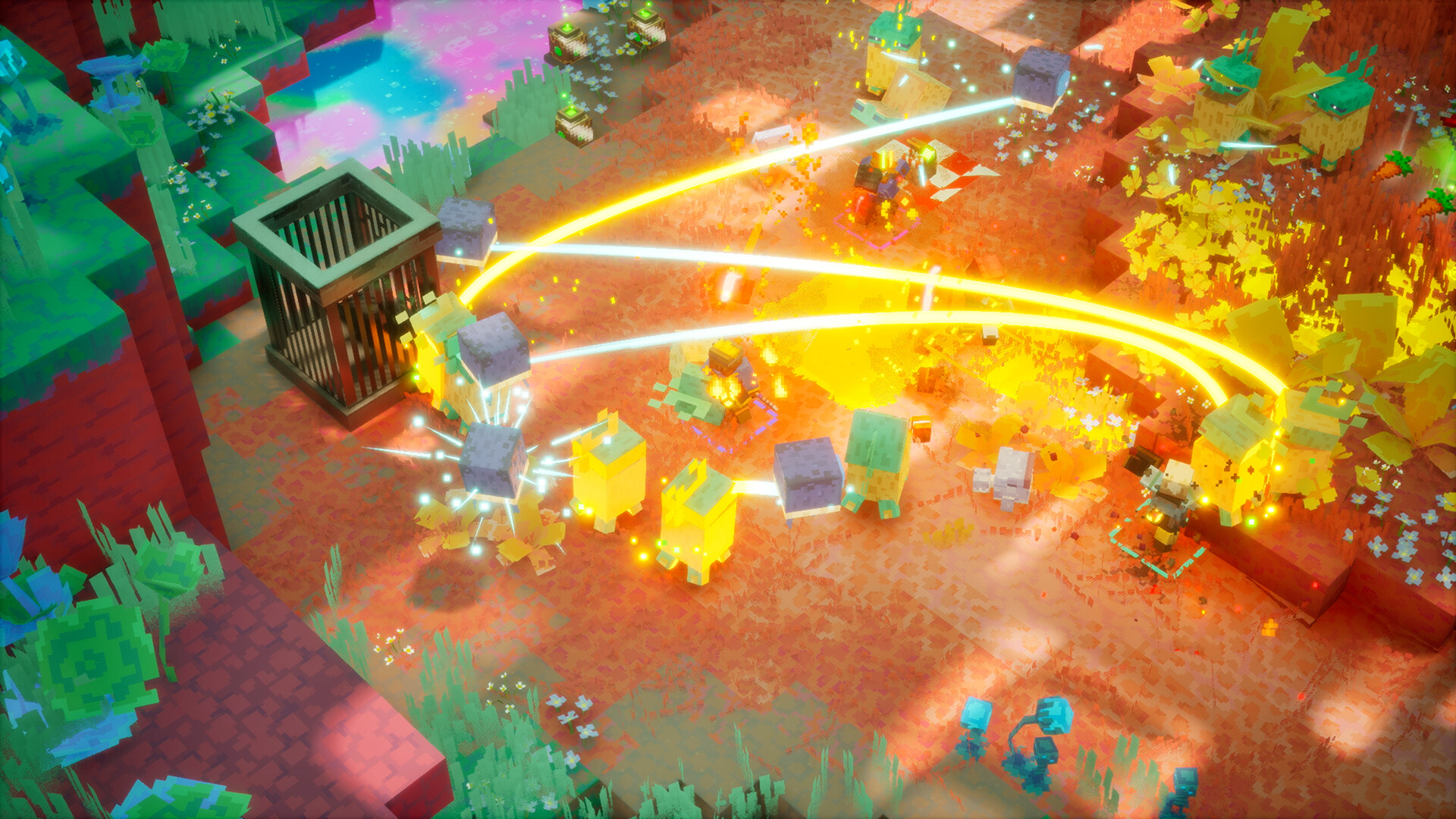
With no upscaling and a render-resolution quirk already working against clarity, keep the rest of your setup simple. Run in the game's fullscreen display mode rather than windowed or borderless — it gives the renderer the most consistent frame pacing and avoids extra compositor overhead from Windows. Set your resolution to your monitor's native resolution as a baseline, then only drop it if you're at or near the minimum spec and seeing stutter.
Cap your frame rate to match your monitor's refresh rate instead of leaving it uncapped. Minecraft Dungeons II throws dozens of enemies and particle effects on screen at once during boss fights and Sift encounters, and an uncapped frame rate that dips unevenly will feel worse than a steady, capped one. If you're on the recommended spec or better, you have headroom to push texture and effects quality up gradually and watch for frame time spikes during crowded fights rather than quiet exploration — that's where a mid-range card will show its limits first.
Settings Setup Checklist
- 1Compare your CPU, RAM and GPU against the minimum (i3-8100/Ryzen 3 2200G, 8GB RAM, GTX 1050/RX 560) and recommended (i5-8400/Ryzen 5 2600, 16GB RAM, GTX 1060/RX 580) specs on Steam before changing anything else.2 min
- 2Set the display mode to fullscreen instead of windowed or borderless for the steadiest frame pacing.1 min
- 3Match the in-game resolution to your monitor's native resolution as a baseline before lowering it.1 min
- 4Set the frame rate limit to your monitor's refresh rate rather than leaving it uncapped, since the game has no DLSS or FSR support to fall back on.1 min
- 5If the picture looks soft, either accept it, bump your output resolution above native to mask the internal upscaling, or use the community Engine.ini workaround at your own risk — there's no official in-game slider for it.3 min
- 6If click-to-move isn't for you, connect a controller before starting your first run instead of fighting the mouse-driven default.2 min
05Setting Up Co-op: Couch, Online and Mixed Play
Minecraft Dungeons II supports a party of up to four players, and according to both the game's official Minecraft Dungeons II page and an Xbox Wire breakdown of the Sift dimension, you can mix and match how your group connects: couch co-op with split-screen on the same PC, online co-op over the internet, mixed co-op combining local and remote players in the same session, or matchmaking if you want to team up with strangers instead of a set group.
Steam also lists the game under Cross-Platform Multiplayer and Remote Play Together, so a PC player can group up with friends on Xbox, PlayStation or Switch without anyone needing to own the game on the same storefront. If you're setting up a mixed session, get everyone on the same difficulty expectations before you start — Minecraft Dungeons II scales encounters for your party size, and a four-player group walking into content built for a solo run (or vice versa) is the fastest way to have a bad first session.
06Accessibility and Audio Settings Worth Turning On
Minecraft Dungeons II ships with a wider accessibility toolkit than the original game, and it's worth a pass through the menu before your first real run rather than after you've already hit a frustrating fight. Steam's accessibility tags for the game confirm adjustable text size, color alternatives and contrast controls for players who need higher-visibility UI, custom volume controls with separate stereo and surround sound output, subtitle options, and a "playable without timed input" mode for anyone who wants to remove reflex-based pressure from combat.
The game also ships with full audio support in English, French, German, Japanese, Portuguese (Brazil), Simplified Chinese, Spanish (Latin America) and Swedish, alongside text support in several more languages — worth checking if you'd rather play in something other than your system's default language, since it isn't always set automatically on first launch.
None of these options are something the game prompts you to look at before your first dungeon, so they're easy to miss entirely if you're rushing to start a run. If you're playing with a group that includes anyone sensitive to flashing effects or fast timed prompts, it's worth checking this settings area together before your first session rather than mid-fight.
07Known Issues to Watch For at Launch
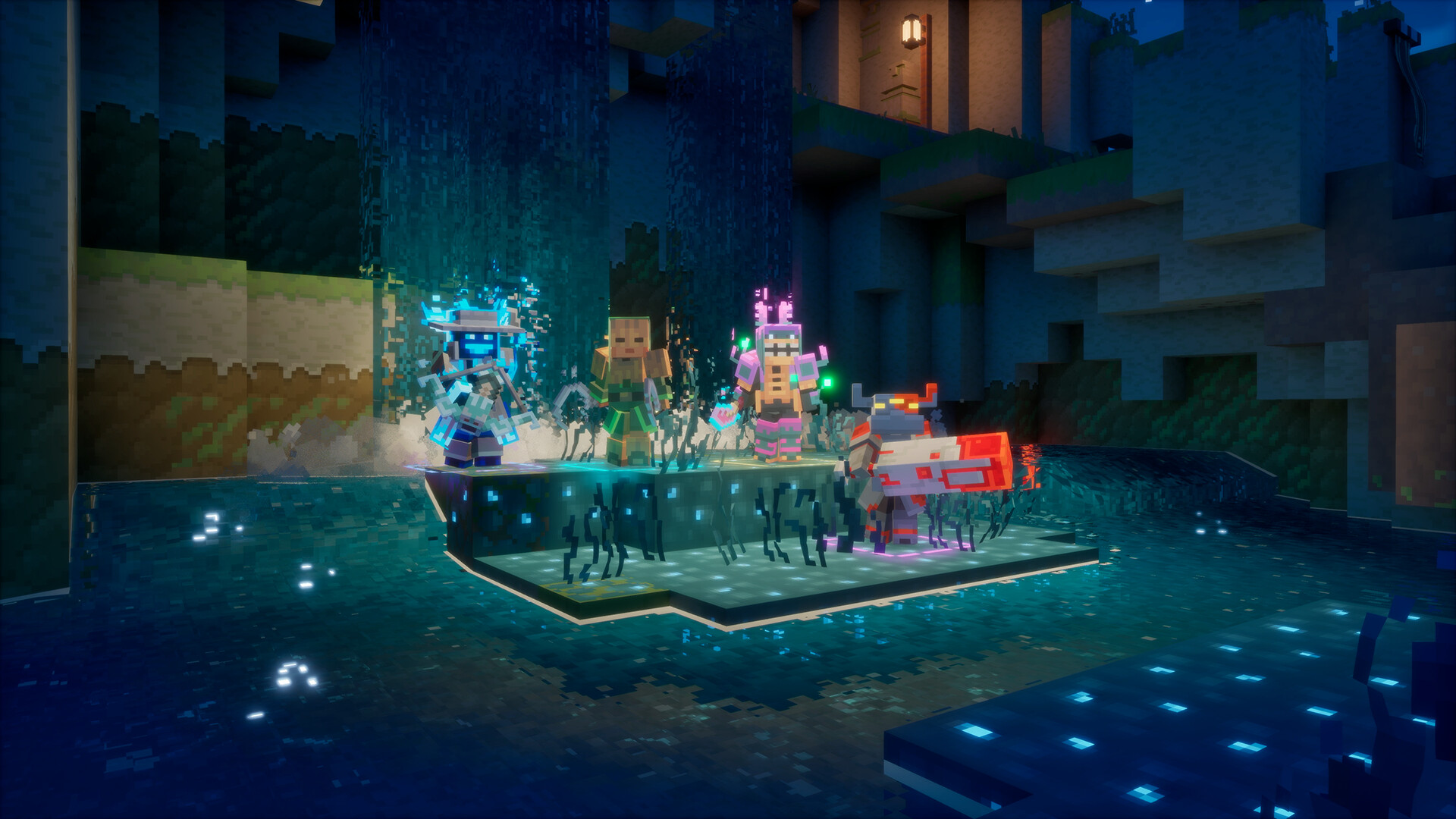
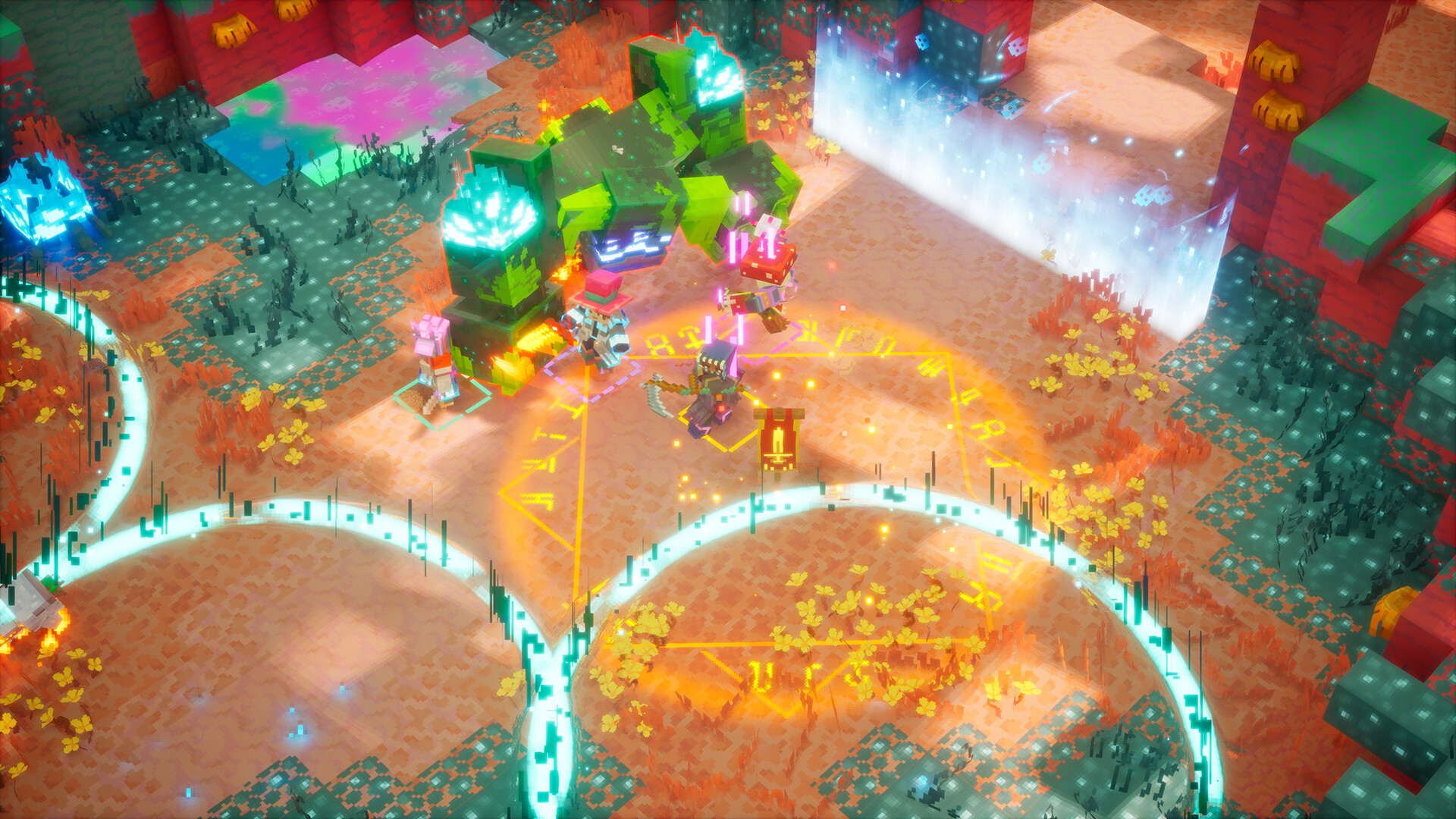
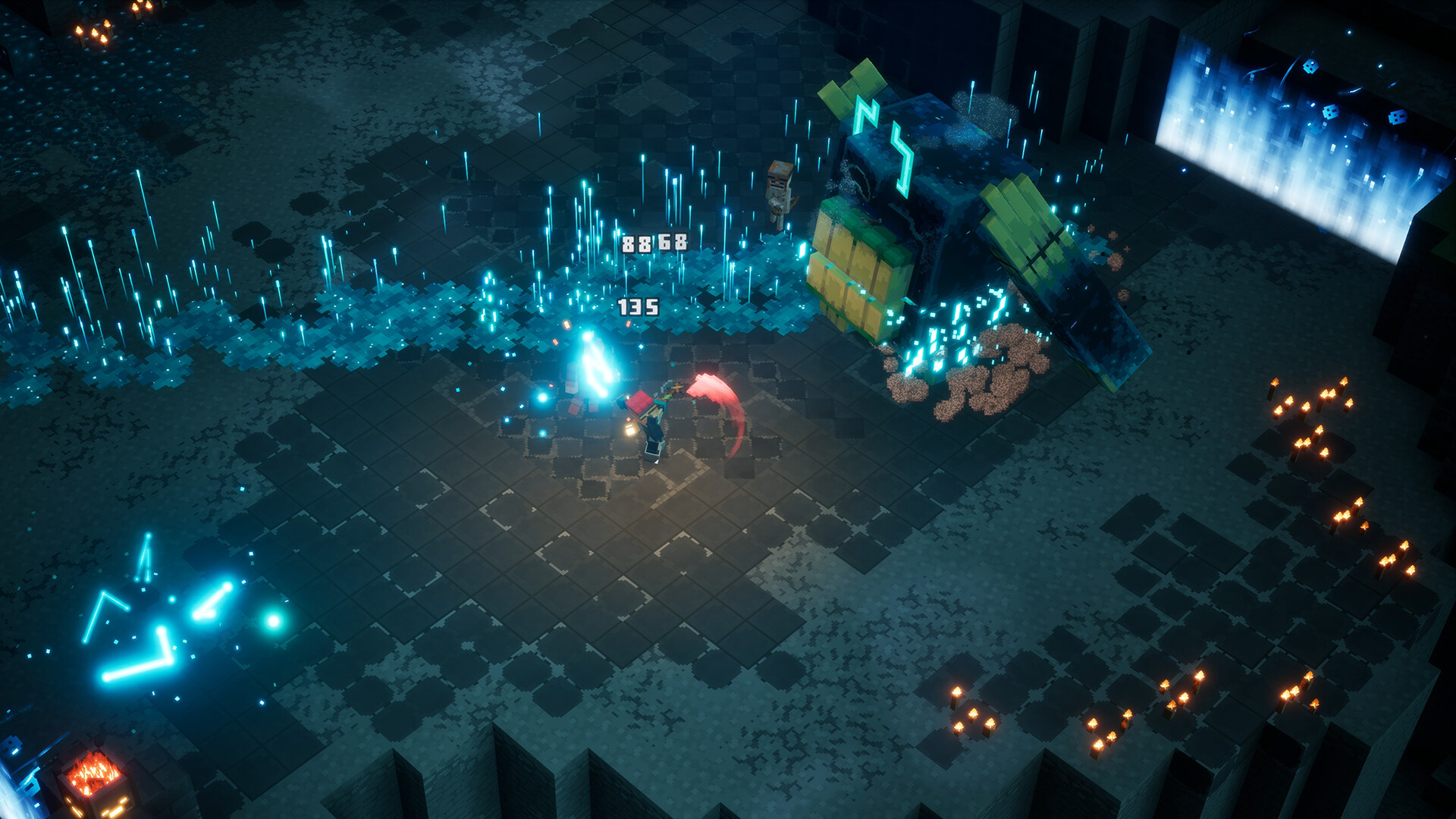
Beyond the resolution and control quirks above, players have flagged a handful of visual bugs on the Steam discussion boards in the first few days post-launch: dense particle effects — the Frost Crescent enchantment's spray in particular — rendering as dithered or grainy noise instead of a clean cloud, along with scattered reports of stretching on equipped capes and wall decorations. None of these have an official fix or acknowledgment from Mojang Studios as of launch, so they're worth labeling as unconfirmed, open issues rather than something wrong with your own setup. If you hit them, you're not alone, and there isn't currently a settings change that resolves them.
None of this should scare you off the Sift — Minecraft's first new dimension in over a decade is the reason most people are booting this up in the first place. Get your resolution and frame cap sorted, plug in a controller if click-to-move isn't for you, and you'll spend your first session fighting illagers instead of fighting your settings menu.
FAQ
Does Minecraft Dungeons II support WASD movement?
No. Movement is click-to-move only, the same scheme the original Minecraft Dungeons used, and players have confirmed on the Steam discussion boards that there's no setting to switch it to WASD.
Why does Minecraft Dungeons II look blurry on PC?
The game can default to rendering internally at roughly 60-80% of your output resolution and upscaling from there. There's no in-game slider to change this; the community workaround involves editing the game's Engine.ini configuration file, which isn't an officially supported setting.
What are the PC system requirements for Minecraft Dungeons II?
Minimum is a 64-bit Windows 10 install, Intel Core i3-8100 or AMD Ryzen 3 2200G, 8GB RAM and a 2GB GPU like the GTX 1050 or RX 560. Recommended is an i5-8400 or Ryzen 5 2600, 16GB RAM and a 6GB GPU like the GTX 1060 or RX 580.
How many players can play Minecraft Dungeons II co-op?
Up to four players, combining couch co-op, online co-op, mixed local-and-remote sessions, or matchmaking with strangers, and the game supports cross-platform play between PC, Xbox, PlayStation and Switch.
Does Minecraft Dungeons II support controllers on PC?
Yes, Steam lists partial controller support, and a gamepad maps more naturally to the game's combat than mouse-driven click-to-move does.
Official resources

Ana writes the step-by-step tutorials: settings, controls, configs and the systems games never explain properly. Every tutorial is tested on the version named at the top of the page, with the official patch notes linked so you can check what changed.