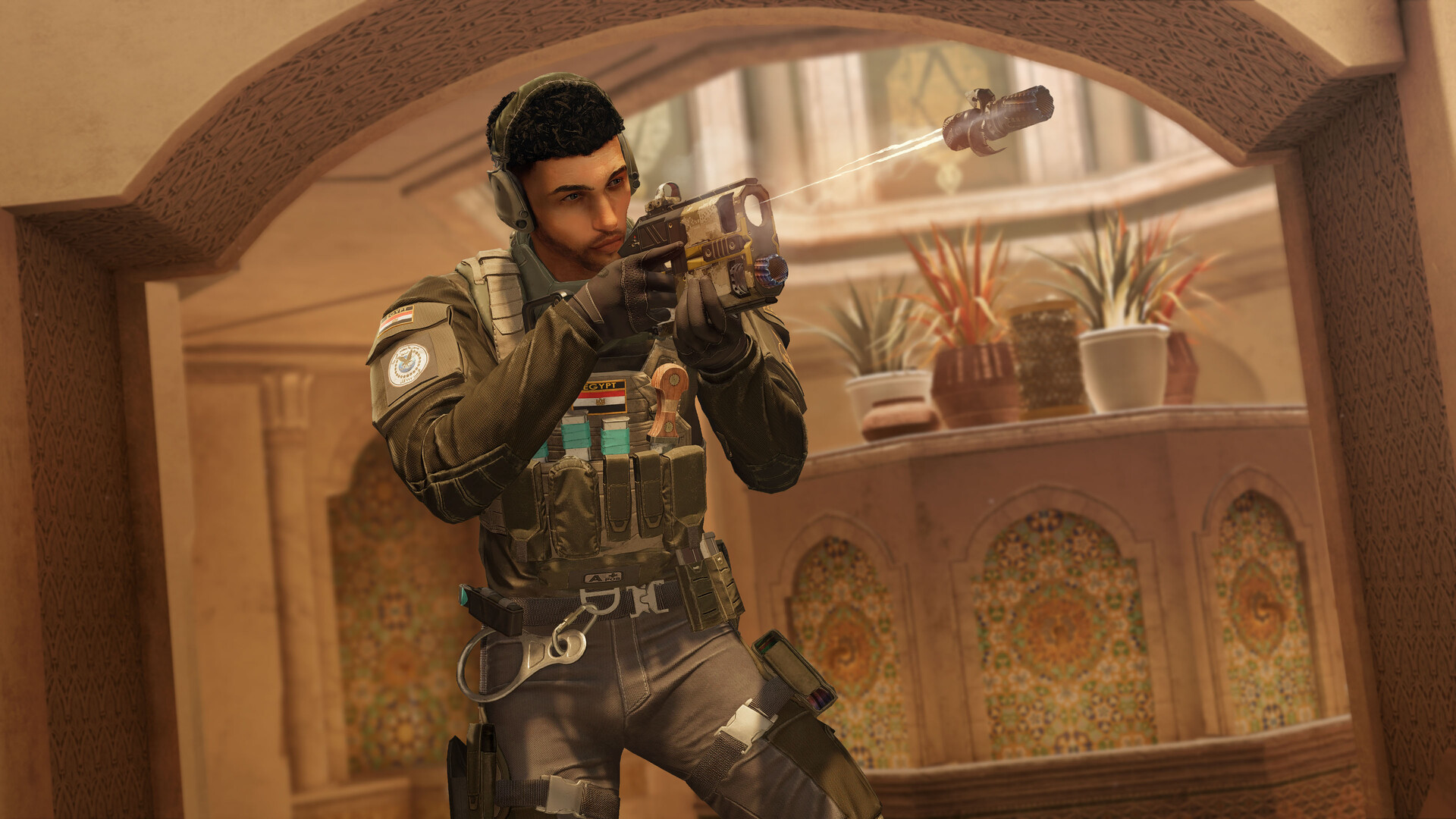
Rainbow Six Siege: Best PC Settings and Controls for Y11S3.1
Rainbow Six Siege's Y11S3.1 update rebalances Buck, Castle and Thermite — here are the graphics, audio and control settings worth changing now.
Rainbow Six Siege doesn't slow down for anyone. Ubisoft shipped the Y11S3.1 refinement patch on September 22, 2026, quietly rebalancing six operators and two shotguns without touching the core meta, and the season around it — Year 11 Season 3: Operation Split Fire — is still fresh enough that most players haven't revisited their settings since Noor arrived. If your sensitivity, audio and graphics options were tuned for last season, it's worth a quick pass before you queue Ranked again.
This guide walks through the settings that actually matter on PC right now: what to set for frame rate and clarity, how to hear gadgets and footsteps through Siege's dense sound design, where sensitivity and ADS scaling go wrong, and which keybinds are worth remapping around the current operator pool. None of this requires a full reinstall or a new PC — just ten minutes in the options menu.
01What Changed in Y11S3.1 (and Why Your Settings Need a Look)
Y11S3.1 is a refinement patch, not a full season drop — Ubisoft's own patch notes describe it as "small adjustments meant to polish gameplay details, improve consistency, and enhance quality of life without shifting the meta." The headline changes: Buck's Skeleton Key now holds 36 rounds (up from 31), Castle's Armor Panel takes 10 melee hits to break instead of 9, Fenrir's F-NATT Dread Mine reaches max gas range in 1.9 seconds (down from 2), Maestro's Evil Eye battery now lasts 9 seconds instead of 8, Thermite's Exothermic Charge deals 220 damage (up from 200), and Sledge's breaching hammer swings in 0.8 seconds instead of 1. On the weapon side, the M1014 (Ace, Castle, Pulse, Thermite) now deals 30 damage instead of 28, and the SPAS-15 (Caveira, Thunderbird) jumped from 24 to 26.
The patch also closed 18 bugs, including compass misalignment, incorrect spawn locations, interaction issues between Noor's Horus Lance and several operators, Montagne's shield failing to retract properly, and Alibi's Prisma decoys facing the wrong direction. None of that requires a settings change on its own, but faster hammer swings and a longer-reaching Dread Mine both reward players who can react a fraction of a second sooner — which is exactly what dialed-in audio and sensitivity settings buy you.
02Display and Graphics Settings for Max FPS
Siege rewards frame rate and clarity over eye candy, especially with faster gadget timings now live. Match your resolution to your monitor's native resolution rather than rendering below it — Siege's upscaling doesn't hide blur well at long angles. Leave V-Sync off; it adds noticeable input delay that outweighs any screen tearing you'll notice mid-round. Cap your frame rate at or slightly below your monitor's refresh rate rather than leaving it uncapped, since wildly fluctuating frame times hurt recoil control more than a flat, lower cap does.
For graphics quality, texture quality and texture filtering can stay high — they cost little GPU time and help you read gadgets at range. Ambient occlusion, and anti-aliasing are the settings worth lowering first if you need headroom, since they're the most GPU-intensive for the least gameplay benefit. Keep effects like environmental destruction and lighting on at least medium; Siege's whole identity is destructible walls and floors, and dropping that too far can make some breach points harder to read.
03Audio Settings: Footsteps, Gadgets and Night Mode
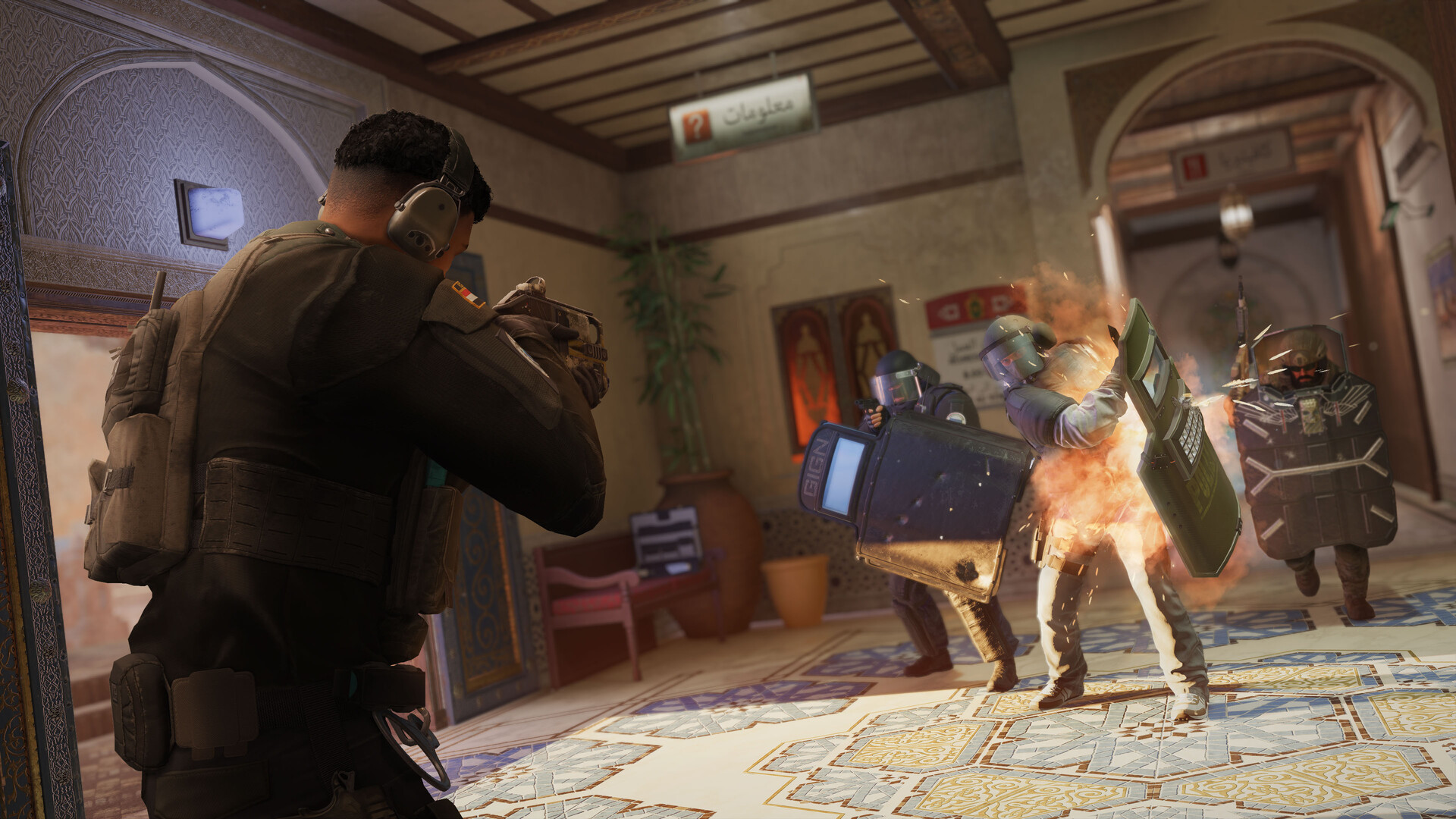
Siege is built around sound cues — footsteps, reloads, gadget deployment, drone beeps and rappelling all telegraph enemy position before you see anything. Setting Dynamic Range to its lowest option (sometimes labeled a night-mode style setting) compresses the gap between quiet and loud sounds, which makes footsteps and gadget placement easier to pick out without blowing out your ears on gunfire. From there, treat music and voiceover volume as optional: many competitive-minded players drop music and menu music to zero and keep voiceover low, since neither helps you locate an enemy and both can mask the cues that do.
If you play with a headset, make sure any Windows-level spatial audio enhancements are disabled rather than layered on top of Siege's own audio engine — double processing tends to smear directional cues rather than sharpen them. Test your audio setup in a custom game with bots before relying on it in Ranked; a few minutes of walking around and listening for footsteps at different distances tells you more than any settings screenshot.
04Mouse Sensitivity and ADS Settings
Siege separates hipfire sensitivity from aim-down-sights sensitivity, and the Advanced ADS Sensitivity option (which lets you set a different multiplier per scope/zoom level) is worth turning on the moment you install the game. Without it, a single ADS multiplier is forced to compromise between 1x red dots and 4x-plus scopes, and it will feel wrong on one or the other.
There's no universal "correct" sensitivity, but there is a reliable way to find yours: pick a DPI you're comfortable with (400 or 800 are common starting points because they divide cleanly), then adjust in-game horizontal and vertical sensitivity until a consistent, repeatable wrist-and-arm motion swings your crosshair from one shoulder-height target to another without over- or under-shooting. Once hipfire feels right, tune each ADS multiplier scope-by-scope in a shooting range rather than copying a number from a settings list — your monitor size, mousepad and grip all shift what "right" feels like.
05Keybinds and Gadget Wheel Setup
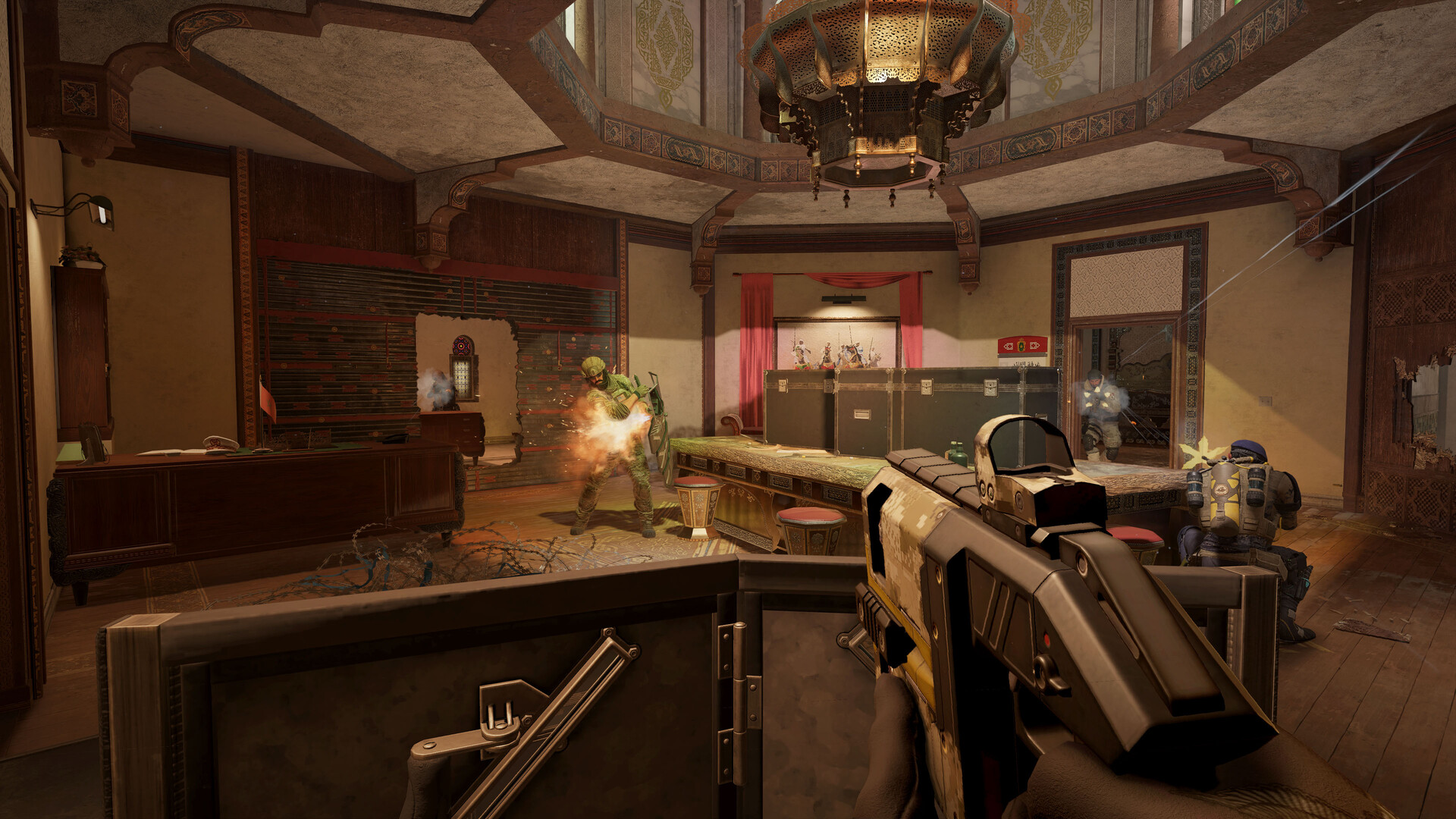
Default keybinds are workable but rarely optimal once you're playing gadget-heavy operators regularly. A few changes make the current operator pool noticeably smoother:
- Bind lean left and lean right to easily reachable side buttons or Q/E if you don't already use them for gadgets — leaning around Castle's tougher Armor Panels and other reinforced cover is now slightly more valuable with his melee-hit change.
- Set your gadget wheel to open on hold rather than toggle if you find yourself accidentally leaving it open mid-fight; the reverse is true if you prefer to select gadgets without holding a button down under pressure.
- Rebind ping to a thumb button if your mouse has one — with Fenrir's faster Dread Mine and Maestro's longer-lasting Evil Eye both demanding quicker team callouts this patch, a ping you don't have to reach for pays off.
- Keep gadget-specific fire and detonate binds distinct from your primary fire button wherever the game allows it, especially for timer-based devices like Fenrir's or Maestro's, so a stray click mid-fight doesn't waste a cooldown.
Quick Settings Checklist After Y11S3.1
- 1Update your GPU driver and let Steam or the Ubisoft launcher verify game files before touching any in-game settings, since a stale driver can make later FPS tuning pointless.2 min
- 2Match resolution to your monitor's native resolution, turn V-Sync off, and cap frame rate at or just under your refresh rate.1 min
- 3Keep textures and texture filtering high, then lower ambient occlusion and anti-aliasing first if you need more frame rate headroom.2 min
- 4Set Dynamic Range to its lowest option, drop music and menu music volume, and disable any Windows-level spatial audio layered on top of the game.2 min
- 5Turn on Advanced ADS Sensitivity, pick a comfortable DPI, then tune hipfire and each scope's ADS multiplier separately in the shooting range.3 min
- 6Rebind lean left/right, ping and any gadget-specific fire or detonate actions so they don't overlap with your primary fire button.2 min
06Accessibility, Crossplay and Bug Workarounds After Y11S3.1
If you play with friends across platforms, double-check your crossplay and input-based matchmaking options after any patch — a refinement update is exactly the kind of release that can silently reset a toggle. Siege's accessibility menu also covers colorblind modes, subtitle sizing and a full remap of every action, which is worth a look even if you don't think you need it; the colorblind filters in particular change how clearly certain gadget effects and UI elements read against Siege's darker maps.
On the bug side, Y11S3.1's fixes for compass misalignment and spawn location issues were reported problems for some players in the prior patch, so if you were working around either with a manual compass check or a custom loadout screen habit, it's safe to drop that workaround now. Squad connectivity fixes also shipped this patch; if you were previously avoiding party queue because of drops, it's worth testing again before writing it off long-term.
The Operation Split Fire launch trailer above is a useful reminder of what changed at the start of the season even if you've been playing through it: Noor's Horus Lance is built specifically to counter shield operators, which is part of why several of this patch's bug fixes targeted shield interactions and why leaning binds are worth the five seconds it takes to set them up.
Keep an eye on Ubisoft's official patch notes page through the rest of Y11S3 — refinement patches like 3.1 tend to land every few weeks, and each one can quietly shift which sensitivity or audio tweak is worth prioritizing next. Bookmark it, and treat your settings menu the same way you'd treat your loadouts: worth revisiting every time the game under it changes.
FAQ
When did the Y11S3.1 patch release for Rainbow Six Siege?
Ubisoft rolled out the Y11S3.1 refinement patch on September 22, 2026, adjusting Buck, Castle, Fenrir, Maestro, Thermite, Sledge and two shotguns without changing the overall meta.
Do I need new settings just because of a refinement patch?
Not necessarily, but small changes like Sledge's faster hammer swing and Fenrir's quicker Dread Mine reward players whose audio and sensitivity are already dialed in, so it's a good checkpoint to retest them.
What is Advanced ADS Sensitivity in Rainbow Six Siege?
It's the option that lets you set a separate aim-down-sights multiplier for each scope or zoom level instead of one multiplier for all of them, and it's worth enabling before you touch any specific numbers.
Does Rainbow Six Siege support cross-platform play?
Yes, and crossplay and input-based matchmaking toggles live in the same settings menu — worth rechecking after any patch, including Y11S3.1.
Where can I read the full Y11S3.1 patch notes?
Ubisoft publishes them on the official Rainbow Six Siege news page, linked in the official links below.
Official resources

Ana writes the step-by-step tutorials: settings, controls, configs and the systems games never explain properly. Every tutorial is tested on the version named at the top of the page, with the official patch notes linked so you can check what changed.
