The Witcher 3 Remastered: Best PC Settings After Patch 5.01
Get the right PC settings for The Witcher 3 Remastered after Patch 5.01 — ray tracing, DLSS, dynamic resolution, and performance fixes explained.
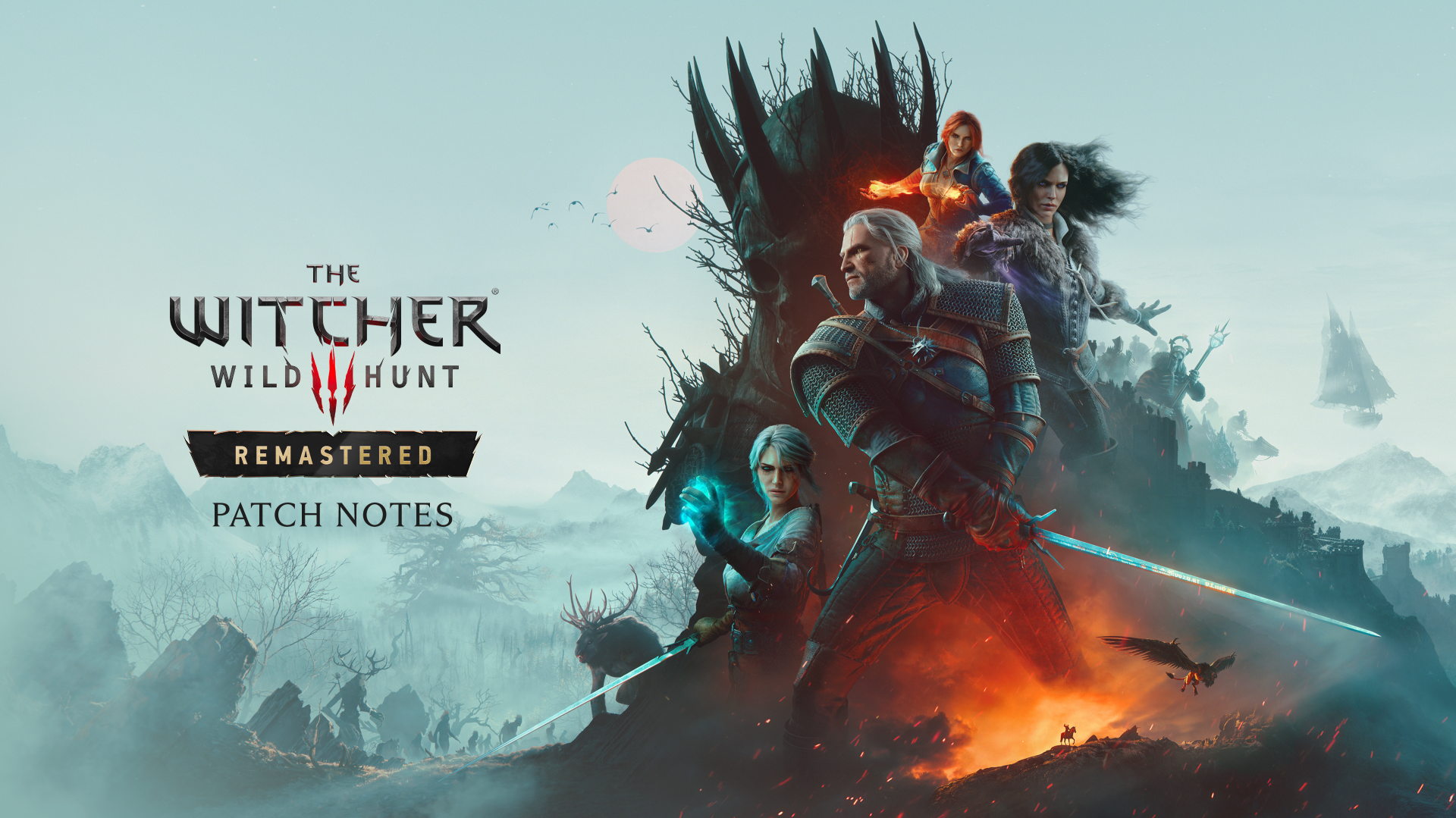
Patch 5.01 for The Witcher 3: Wild Hunt — Remastered landed on October 8, 2026, and it quietly resets several settings you may have spent hours tuning. If your game looks softer than it did last week, your ray tracing options grayed out, or GTAO keeps reverting every time you relaunch, the patch is almost certainly why. Here's how to get your PC settings back to where you want them, using only what CD Projekt RED's own patch notes confirm changed.
01What Patch 5.01 Actually Fixes on PC
According to the official patch notes on thewitcher.com, Patch 5.01 targets five PC-specific issues. Dynamic Resolution Scaling now defaults to off instead of on. Switching graphics presets could previously turn on DLSS or XeSS even on GPUs that don't support them, and that's fixed. GTAO Quality no longer resets after a restart. The game could occasionally select the wrong GPU on multi-GPU systems, which is also corrected. CD Projekt RED also says it made "visual adjustments" to Ray Tracing and Path Tracing, alongside improvements to bloom, tone mapping, and character lighting, though it doesn't spell out exactly which sliders moved.
None of that is cosmetic noise. If you built a settings profile around the Remastered update's launch defaults, Patch 5.01 can quietly override part of it, which is why your first move after updating should be a full pass through the graphics menu rather than assuming your old profile still holds.
02Confirm Your Hardware Matches the Remastered Requirements
Before touching individual sliders, check where your rig sits against CD Projekt RED's current Steam listing. The minimum spec calls for a Core i5-8400 or Ryzen 5 2600, 12GB of RAM, and a GeForce GTX 1660, Radeon RX 5500 XT 8GB, or Arc A580 with 6GB of VRAM — that tier gets you a playable game with ray tracing off. The recommended spec steps up to a Core i7-8700K or Ryzen 5 3600X, 16GB of RAM, and an RTX 2060 Super, Radeon RX 6600 XT, or Arc B580 with 8GB of VRAM, which is roughly the floor for ray tracing at 1080p-1440p with an upscaler doing the heavy lifting. Both tiers assume a 64-bit Windows 11 install and 60GB of SSD space.
If you're sitting right at minimum spec, don't start with ray or path tracing at all after this patch — confirm the base game runs clean first, then layer ray tracing back in once you know your baseline frame rate.
03Fix Dynamic Resolution Scaling, DLSS and XeSS After Updating
Dynamic Resolution Scaling (DRS) now ships off by default, which is a deliberate change, not a bug — CD Projekt RED says it was causing visual artifacts and could display the wrong state after you changed anti-aliasing modes. If you liked DRS keeping your frame rate stable on a lower-end card, you'll need to switch it back on manually in Display settings rather than assuming it carried over your old preference.
The DLSS and XeSS fix is more about prevention than something you need to act on: the patch stops the game from enabling either upscaler, or other GPU-specific settings, on hardware that doesn't support them. If you were previously able to toggle DLSS on an unsupported card and it looked wrong or crashed, that option should no longer appear at all after updating. On supported Nvidia, Intel, and AMD cards, go into Graphics settings and manually reselect your upscaler and quality mode (Quality, Balanced, or Performance) — don't assume the patch preserved your exact choice, since presets were part of what got touched.
04Dial In Ray Tracing and Path Tracing for Your GPU
Patch 5.01's ray and path tracing changes aren't detailed setting-by-setting in the official notes, which means the safest approach is to re-select your tier rather than trust whatever the patch left active. As a baseline that matches the Steam hardware tiers above:
- GTX 1660 / RX 5500 XT / Arc A580 (minimum spec): keep ray and path tracing off. This tier is built for rasterized lighting at 1080p.
- RTX 2060 Super / RX 6600 XT / Arc B580 (recommended spec): ray-traced global illumination and ambient occlusion are the first options worth enabling, with your upscaler set to Quality or Balanced to hold a stable frame rate at 1080p-1440p.
- RTX 3080-class and above: full ray tracing, and path tracing if you want the most accurate lighting, become realistic at 1440p with DLSS Quality — path tracing is the heaviest setting in the game and will still ask a lot of any single GPU.
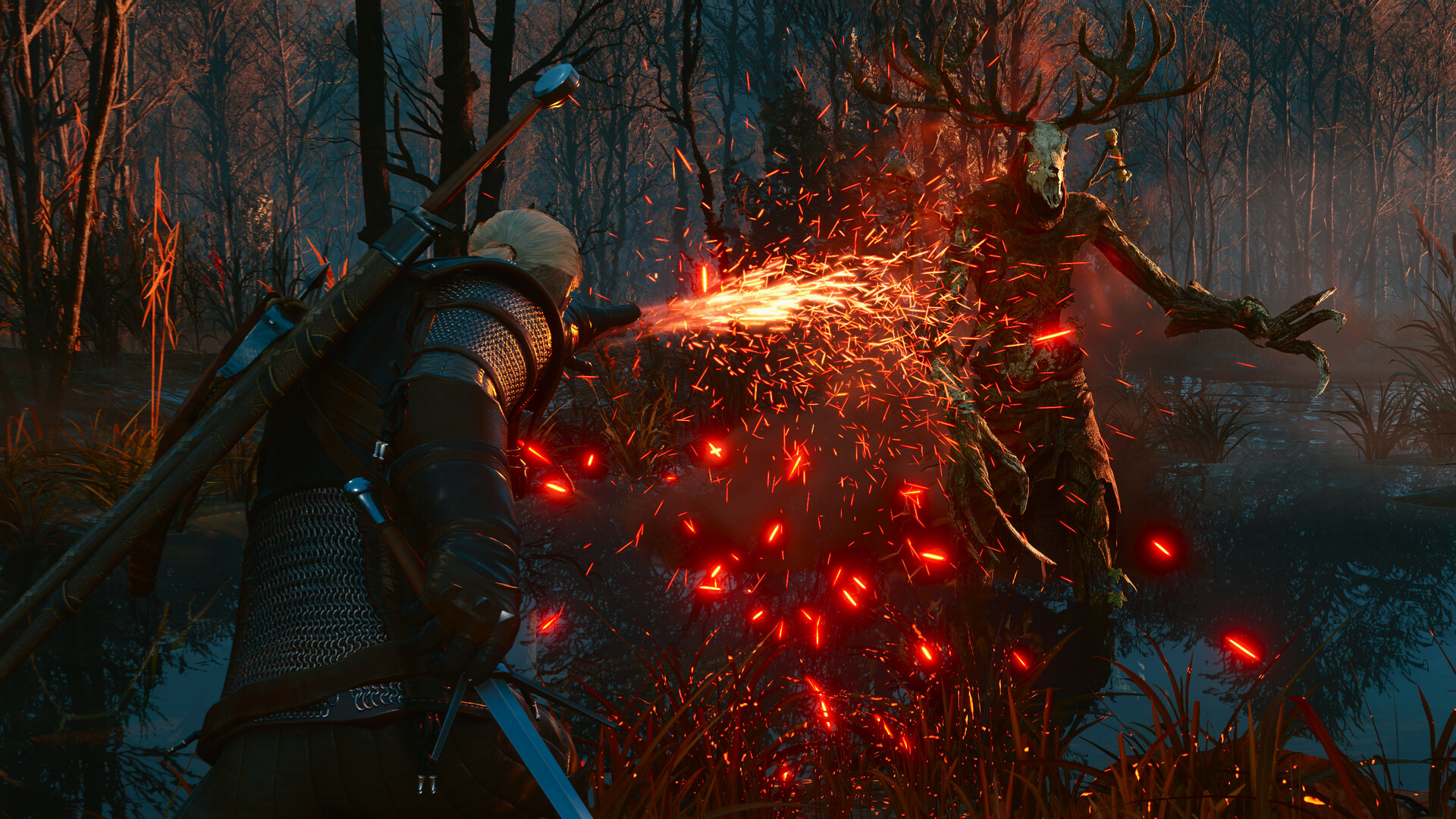
Whichever tier you're on, change one ray tracing option at a time and watch the frame counter for a minute of normal play rather than a static menu screen — the patch notes mention tone mapping and character lighting were also adjusted, so a combination that looked right before Patch 5.01 can read slightly differently now even with the same sliders.
05Clean Up GTAO, Bloom and the Rest of the Visual Fixes
GTAO Quality — the ambient occlusion setting that shades contact points between objects — previously reset to its default every time you relaunched the game. That's fixed in 5.01, so whatever level you set now (Low, Medium, High, or Ultra) should actually stick. Set it once, relaunch the game to confirm it held, and you shouldn't need to touch it again until the next major patch.
Bloom and tone mapping also received adjustments CD Projekt RED hasn't itemized in detail, so if either looked blown-out or flat before updating, it's worth nudging them again rather than assuming your old values still apply. If you're still seeing stutter or artifacting that the official notes don't mention, a deeper look at its remaining graphics quirks is worth bookmarking alongside the steps below, since it tracks issues the patch notes themselves don't fully resolve.
06Step-by-Step: Rebuild Your Settings After Patch 5.01
Patch 5.01 Settings Checklist
- 1Launch Steam, GOG, or the Epic Games Store and let The Witcher 3: Wild Hunt — Remastered fully update before touching any settings — several fixes below only apply once the patch has actually installed.2 min
- 2Open Display settings and confirm Dynamic Resolution Scaling is set the way you want — Patch 5.01 switches its default to off, so re-enable it manually if you relied on it for frame rate stability.1 min
- 3Set your output resolution and, if you're on a variable-refresh display, your frame rate cap or V-Sync mode before moving on to upscaling — this is the baseline everything else below is tuned against.2 min
- 4In Graphics settings, manually choose DLSS, FSR, or XeSS and its quality mode (Quality, Balanced, or Performance) rather than trusting the preset — the patch removed the ability for unsupported GPUs to enable these at all.2 min
- 5Turn on ray-traced global illumination and ambient occlusion if you're on an RTX 2060 Super-class card or better, or enable full path tracing on RTX 3080-class and above; keep both off on minimum-spec hardware.3 min
- 6Set GTAO Quality to the level you want, then relaunch the game once to confirm it holds — this is the setting Patch 5.01 specifically fixes from resetting on restart.2 min
- 7Compare bloom and tone mapping at a couple of settings in a bright outdoor area and a dark interior, since CD Projekt RED adjusted both without detailing exact values in the patch notes.2 min
- 8Fight a monster and sail a boat for a few minutes — dodge timing, stamina drain, and boat handling all changed in 5.01, so your settings and muscle memory are both worth confirming in motion.2 min
07Controls and Camera Settings Still Worth Revisiting
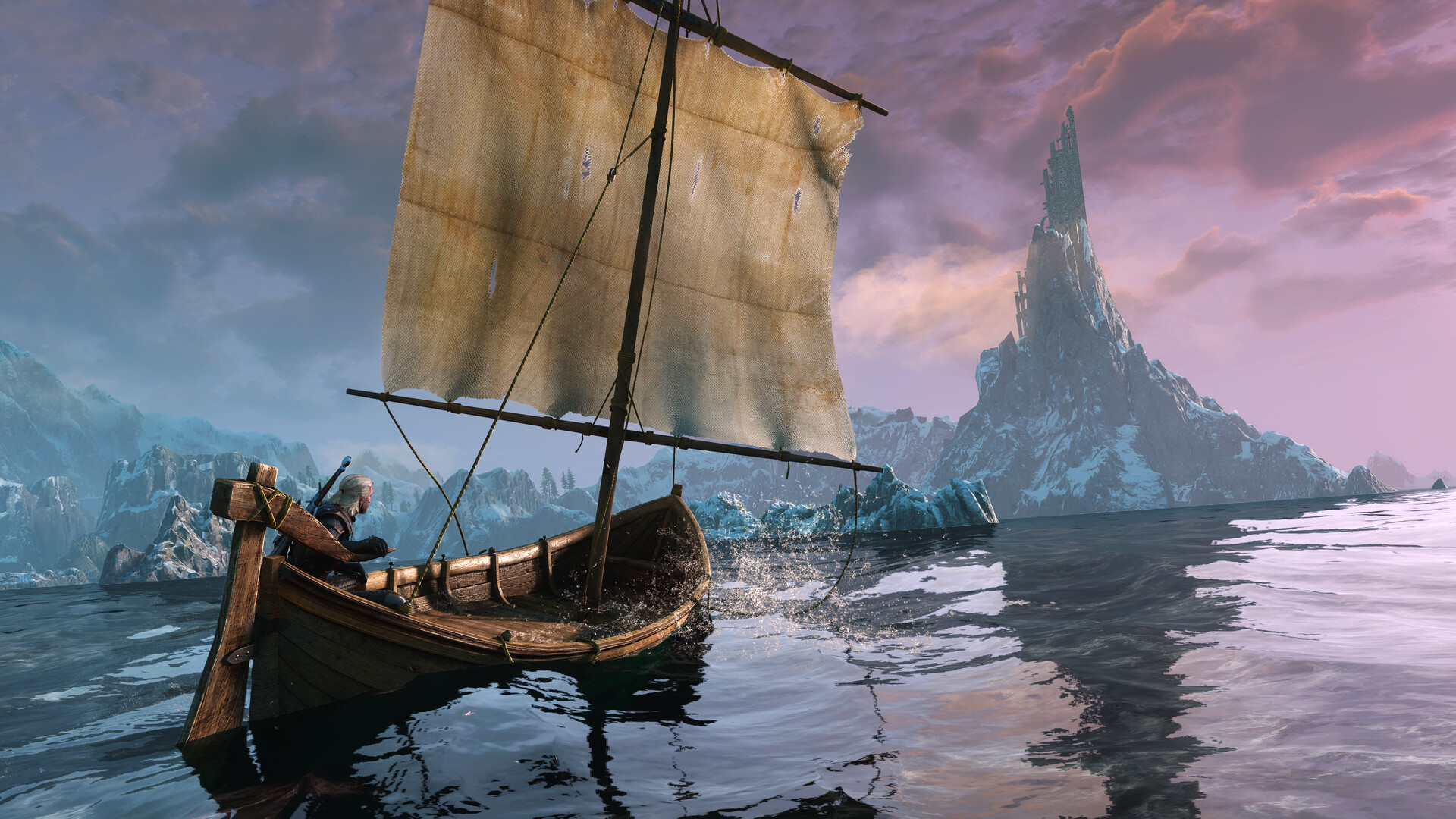
Patch 5.01 isn't just a graphics patch. CD Projekt RED's notes list several gameplay-feel fixes that affect how the game responds to input, and they're easy to miss if you only check the Display tab. Dodge responses, which some players reported as delayed, are fixed. Stamina no longer fully drains when you sprint and dodge in the same motion, which changes how aggressively you can chain evasive moves in combat. Bombs can no longer be thrown accidentally when that control option is disabled, and boats — which could previously move on their own and ignore terrain — now handle the way they're supposed to.
None of these require you to change a setting, but they do mean muscle memory you built around the old behavior (holding back on dodge-spam to manage stamina, for instance) is worth re-testing rather than assuming it still applies. If you remap controls, it's a good moment to also check your camera sensitivity and aim-assist values, since a input or physics patch is exactly when those can feel different even though nothing in the menu changed.
FAQ
Do I need to manually turn Dynamic Resolution Scaling back on after Patch 5.01?
Yes, if you want it. CD Projekt RED's patch notes confirm Dynamic Resolution Scaling now defaults to off, which it says fixes artifacting and incorrect display states — it won't re-enable itself based on your pre-patch setting.
Why did GTAO Quality keep resetting before this patch?
The official notes don't give a root cause, only that GTAO Quality "no longer resets to default after a restart" as of Patch 5.01. Set it once post-patch and it should hold through future sessions.
Can I use ray tracing on a GTX 1660 or RX 5500 XT?
You can enable it, but CD Projekt RED's own minimum spec for Remastered is built around rasterized lighting at that tier. Ray tracing is realistic starting around an RTX 2060 Super, RX 6600 XT, or Arc B580, per the recommended requirements on Steam.
Does Patch 5.01 fix DLSS or XeSS activating on unsupported GPUs?
Yes. The patch notes specifically list this as fixed — switching graphics presets, or manually enabling settings your card doesn't support, should no longer be possible after updating.
Is there a separate Patch 5.01 update for Nintendo Switch 2?
Unconfirmed as of publication. Multiple outlets report CD Projekt RED's community team describing a Switch 2-specific update as still in development, but we haven't verified an official, named statement to that effect — treat it as pending rather than released.
Official resources

Ana writes the step-by-step tutorials: settings, controls, configs and the systems games never explain properly. Every tutorial is tested on the version named at the top of the page, with the official patch notes linked so you can check what changed.