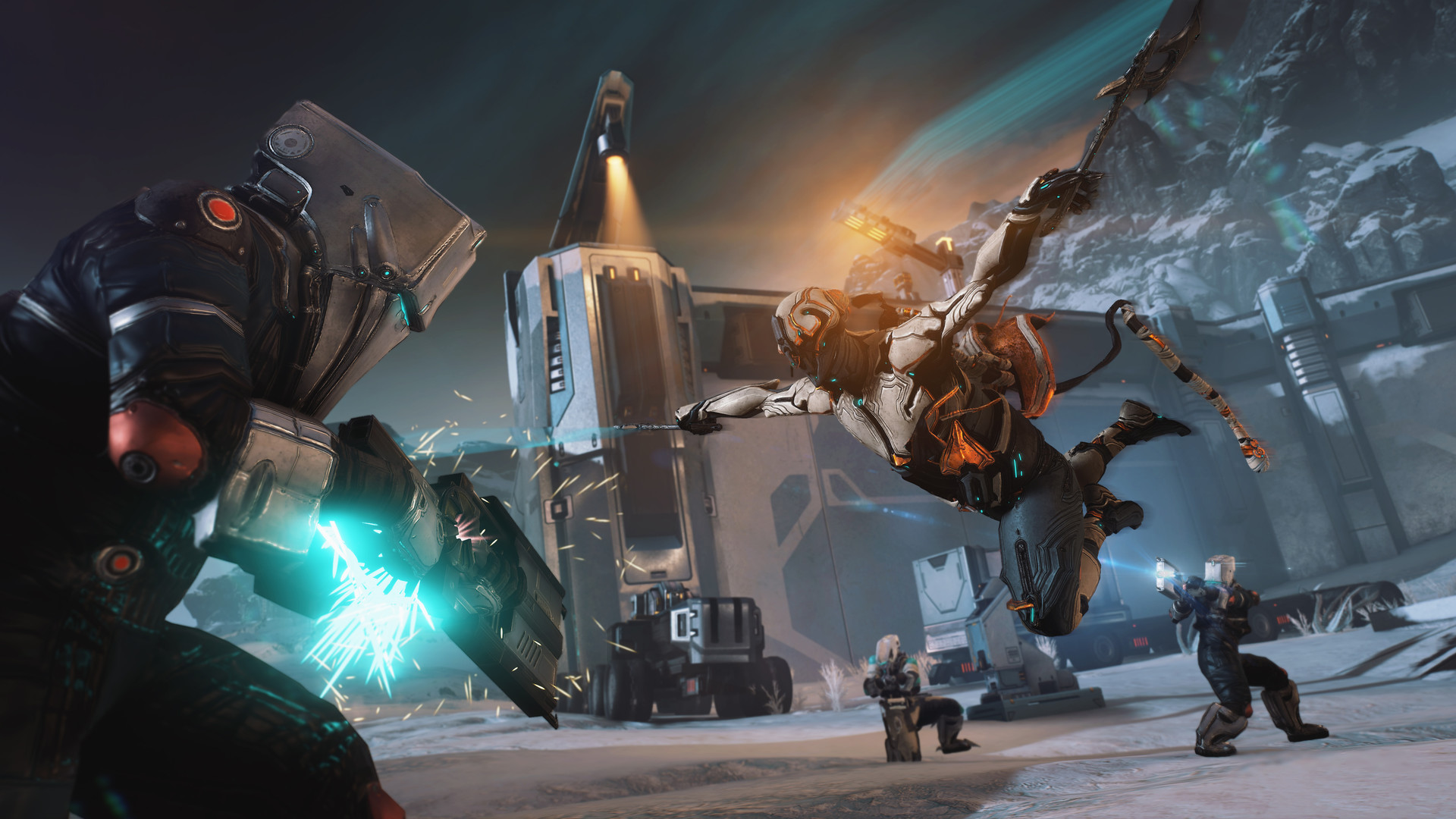
Warframe: Best PC Settings for The Icebind and Update 44.1
Warframe's Update 44.1 adds The Icebind's brutal six-player missions. Here's every PC setting, shader fix, and accessibility option worth adjusting first.
Update 44.1.0 landed on PC on October 7, dropping The Icebind into Warframe for free alongside the rest of Iceblade of Narin. It's a six-player, squad-only mission with no public matchmaking, Level 999+ enemies, and no self-revives, and it layers randomized modifiers called Binds on top of that. The Icebind didn't ship with Update 44 itself — Digital Extremes delayed it past the September 23 Iceblade of Narin launch for extra development time, which is part of why it's landing as its own dot release rather than folded quietly into a hotfix. Before you ring a Cryobell with five other Tenno, it's worth spending ten minutes in Options making sure your PC settings match what the mode actually demands.
01What The Icebind Actually Throws At You
Each Cryobell rolls a mission type (Survival, Mobile Defense, Excavation, or Disruption), a location, an enemy faction, and three Binds pulled from a pool of 40: 23 Personal Binds that apply to you regardless of what the squad votes for, 5 Mission Binds that change the level's theme, and 12 Tactical Binds that alter loadouts or play. Every run also carries Digital Extremes' standing Empowered Enemies modifier: Health, Shields, and Armor rise 200%, plus another 100% per squad member up to a maximum of 800%, with a higher Eximus spawn chance on top. Downed Tenno leave a Tombstone instead of self-reviving, and the bleedout timer shortens with each revive down to a 5-second floor.
Getting in requires Angels of the Zariman and Whispers in the Walls finished, plus either Elite Deep Archimedea or Elite Temporal Archimedea unlocked. Full mechanical detail is in the official Update 44.1.0 patch notes. None of it changes what settings exist in Warframe's Options menu, but it changes which of those settings are worth touching before you queue.
02What You're Actually Playing For
Three Cryobells form each week, reset Sunday at midnight UTC, and up to six can be stockpiled — but you can only complete three missions per week, and a Cryobell isn't consumed until your squad actually extracts. Finish one and you're guaranteed a Riven Splicer and a Crested Frozen Key; up to three optional Side Objectives per run (Lockbox, Cryothermia, Indomitable Ice, Entropy Orb, and Signal Chain) each hand every squad member a Frozen Key of their own. Keys get opened afterward in Melica's Glacial Laboratory, and a Crested Frozen Chest guarantees a chunk of Kuva — 7,500, 17,500, or 100,000 — plus a pull from a table that includes Riven Transmuters, Omni Forma, and Archon Shards. That's a meaningful payout for roughly 10 to 15 minutes of mission time, which is exactly why a settings-related wipe near extraction stings more here than in most other Warframe content.
03Confirm DirectX 12 and Your Storage Are Actually Set Up
Warframe's DirectX 12 path needs Windows 10 version 20H2 or later, or Windows 11 — anything older falls back to DirectX 11, which still runs the game but misses the renderer the current graphics options are tuned around. Check Options > Display for which API you're on, and if you're still on DirectX 11 for compatibility reasons, know that's a deliberate fallback, not a bug. Warframe's listed minimum spec also calls for 75 GB of free space with a broadband connection required at all times; Update 44's own notes separately cite roughly 7.8–8 GB per-platform download sizes for recent patches, so leave headroom before a big Mainline update like this one lands on your drive.
04Turn High Shader Quality Back On
If you'd switched off the High Shader Quality toggle under Options > Graphics > Advanced at some point, it's worth flipping back on now. Update 44.1.0's patch notes list a fix for "metallics looking plastic when High Shader Quality is off" along with a repair for skins appearing light gray when tinted black — both Metal Shader issues Digital Extremes says are still being worked through. If plastic-looking metal or washed-out black tints were the reason you'd disabled it, this patch is the one to retest it on.
05Tame the Visual Clutter Before a Bind Stacks Up
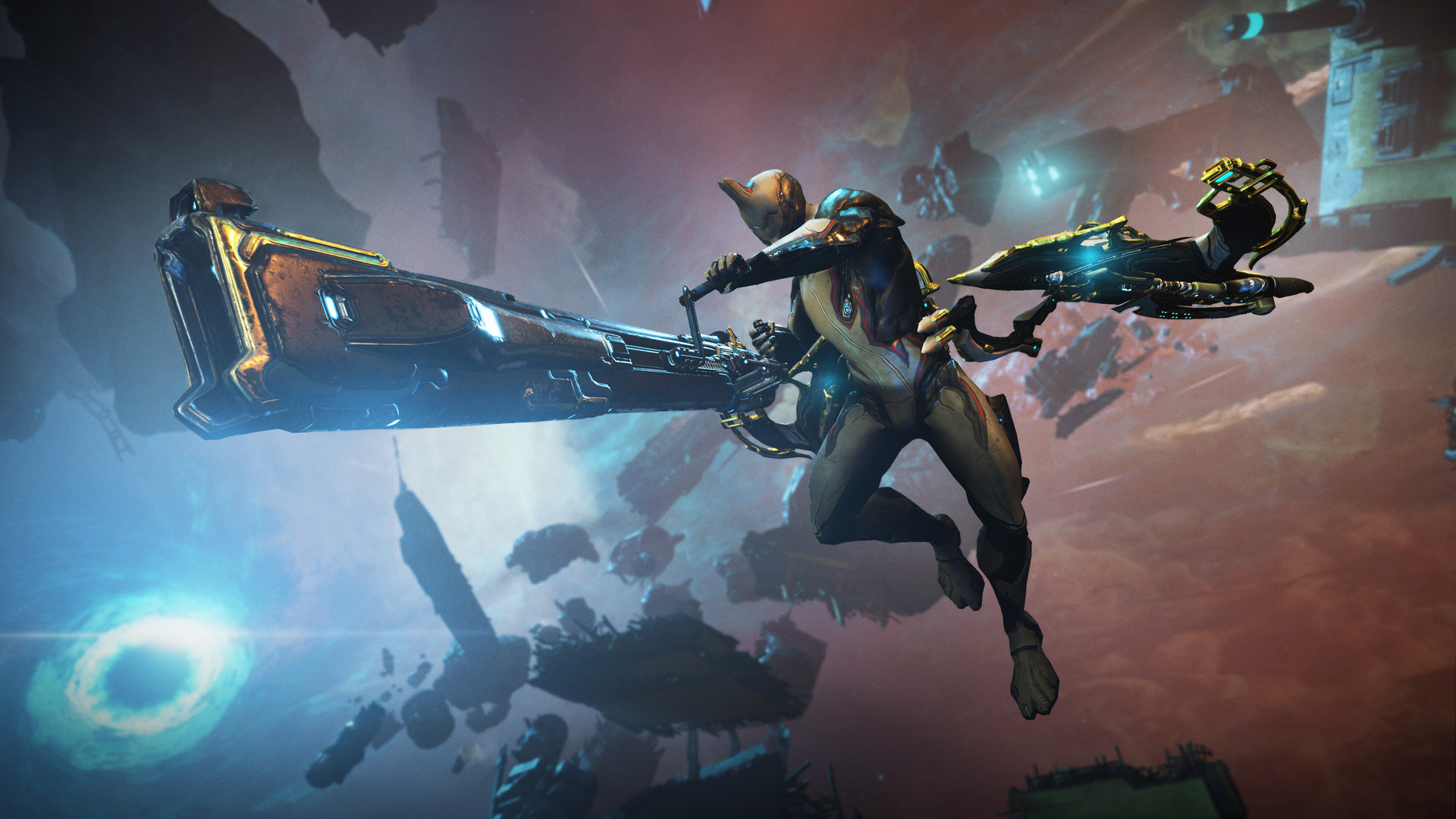
The patch notes name every Bind — Entropic Overload, Cumulonimbus, Parasitic Light, Static Siphon, and the rest — but don't describe exactly what each one does to your screen, so treat "more particles and lighting effects than a normal mission" as the safe assumption rather than guessing which specific Bind is the culprit. Combined with five other Warframes' ability effects and an Empowered Eximus spawn rate, that adds up fast. In Options > Graphics, dropping Particle System Quality and GPU Particles a notch, lowering Visual Effects Intensity, and switching on Reduce Teammate Visual Effects (all confirmed settings in Warframe's own Options reference) keeps the fight readable without touching anything that affects your frame budget as heavily as shadow or reflection quality does.
06Lock In Frame Pacing and Accessibility Options
With self-revives gone and the bleedout timer shrinking after every teammate pulls you up, a frame hitch at the wrong second is a worse problem in The Icebind than in a normal Steel Path run. Set Max Framerate to match your display or leave it unlimited if you're chasing every frame, turn Vertical Sync off to cut input lag, and set Dynamic Resolution to Auto so a frame-rate dip during an Empowered Eximus swarm scales resolution down automatically instead of cratering your FPS outright. If you need more headroom, Warframe supports FSR 2.2, FSR 3.1, and DLSS 4 on RTX cards — Quality mode is the safer starting point before dropping to Balanced. Reduce Frame Latency is also worth enabling if you're on a controller or care about input responsiveness during Tactical Binds that restrict your loadout.
The Icebind also throws new enemy types at you — Grineer, Corpus, Infested, The Murmur, and Orokin squads are all possible depending on the Cryobell — alongside purple minimap waypoints for the mission's optional Side Objectives that disappear if you don't reach them fast enough. Screen Shake, Recoil Type (Camera, Reticle, or Reduced), and Color Blind Compensation with adjustable Filter Strength are all sitting under the Video tab's accessibility section. None of them are new to this update, but if you haven't touched them before, a six-player Empowered fight with three active Binds is exactly the kind of chaotic screen where they start to matter.
07Run Through This Checklist Before Your First Cryobell
Here's the order worth doing it in, start to finish. The table below is the short version — the settings named in it are all confirmed options inside Warframe's own Video and Graphics tabs, not third-party guesses.
| Setting | Where | Why for The Icebind |
|---|---|---|
| High Shader Quality | Graphics > Advanced | Re-enable after the 44.1.0 metal/tint fix |
| Visual Effects Intensity / Reduce Teammate Visual Effects | Graphics | Keeps a six-player Bind-stacked fight readable |
| Dynamic Resolution: Auto | Advanced | Absorbs frame dips during Empowered Eximus swarms |
| Vertical Sync: Off, Reduce Frame Latency: On | Display / Advanced | Cuts input lag with no self-revive as a safety net |
| Color Blind Compensation, Recoil Type, Screen Shake | Video (Accessibility) | New enemy factions and fast side-objective windows |
Your Icebind Settings Checklist
- 1Open Options > Display and confirm you're running DirectX 12 (needs Windows 10 20H2+ or Windows 11). If you're stuck on DirectX 11, check your OS version first — that's the real blocker, not a graphics bug.2 min
- 2In Graphics > Advanced, turn High Shader Quality back on if you'd switched it off. Update 44.1.0 fixed the plastic-looking metal and gray-tinted black skins that bug used to cause.1 min
- 3Drop Particle System Quality and GPU Particles one notch, reduce Visual Effects Intensity, and switch on Reduce Teammate Visual Effects so a six-Warframe, Bind-stacked fight stays readable.3 min
- 4In Advanced, set Dynamic Resolution to Auto so a frame-rate dip during an Empowered Eximus swarm scales down automatically instead of tanking your FPS outright.1 min
- 5Under Display and Advanced, switch Vertical Sync off and Reduce Frame Latency on to cut input lag — useful with no self-revive backing you up.1 min
- 6If frame rate is still tight, enable FSR 2.2, FSR 3.1, or DLSS 4 (RTX only) at Quality mode under the Upscaling tab before dropping to Balanced.2 min
- 7Under Video, set Color Blind Compensation and Filter Strength if needed, and choose a Recoil Type and Screen Shake level that keeps the new enemy types and purple Side Objective waypoints easy to track.2 min
08What Digital Extremes Says About the Difficulty
The Icebind wasn't built as easy content. Community Director Megan Everett has been direct about who it's for.
“The Icebind is definitely content designed for players seeking a challenge.”Megan Everett, Community Director, Warframe
Digital Extremes walked through the mode's mechanics ahead of launch in an official Dev Workshop video, covering the mission structure and Bind system in more depth than the patch notes alone.
None of these settings will carry you through a Level 999+ Empowered fight on their own — that's still down to your build and your squad. But with Binds, no self-revives, and a shrinking bleedout timer stacked against you, a stable frame rate and a readable screen are the difference between a Tombstone and a Crested Frozen Chest. Run the checklist once, save your preset, and the only thing left to vote on is which Cryobell your squad is brave enough to ring.
FAQ
When did The Icebind launch, and is it free?
The Icebind arrived October 7, 2026 as part of free Update 44.1.0, alongside the rest of Iceblade of Narin. No purchase is required beyond unlocking the access quests.
Do I need special PC settings just for The Icebind?
Update 44.1.0's patch notes don't add any new graphics or control options. The settings worth adjusting are existing ones in Warframe's Options menu that matter more because of how demanding and unforgiving the mode is.
Can I play The Icebind solo?
No. It's a six-player, squad-only mode with no public matchmaking at launch, formed through the Ring the Cryobell screen.
What are Binds?
Randomized modifiers drawn from a pool of 40 — 23 Personal, 5 Mission, and 12 Tactical — that each Cryobell rolls three of, changing loadouts, mission themes, or individual player conditions for that run.
How often can I play The Icebind?
Three Cryobells form each week and reset Sunday at midnight UTC, with up to six stockpiled at once. You can complete three missions per week, and a Cryobell isn't consumed until your squad successfully extracts.
Official resources

Ana writes the step-by-step tutorials: settings, controls, configs and the systems games never explain properly. Every tutorial is tested on the version named at the top of the page, with the official patch notes linked so you can check what changed.