Moonlighter 2: Best PC Settings and Controls After Hotfix 1
Moonlighter 2’s Hotfix 1 adds a DirectX 11/12 toggle, full keybind remapping and Steam Deck presets – here is every PC setting worth changing today.
Moonlighter 2: The Endless Vault left Early Access on September 2 with a rough launch week: crashes, stutter, and a Steam Deck experience that needed a special config just to hold together. Digital Sun's Hotfix 1, released September 10, is the first real pass at fixing that, and it changes what you should actually have ticked on in the settings menu. Here is every option worth touching, starting with the one Hotfix 1 added.
01What Hotfix 1 Changed on PC
The headline change in Hotfix 1 is a new renderer option: you can now pick between DirectX 11 and DirectX 12 from the Graphics tab. Digital Sun has been explicit that this isn't a cosmetic toggle - the studio says many of the crashes and performance issues reported since 1.0 launch trace back to which API the game was defaulting to on a given system, and the fix is to let you pick the one that behaves on your hardware rather than forcing one path on everyone.
Everything else in Hotfix 1 is stability work rather than new settings, but it's worth knowing what got fixed if you were avoiding certain fights or areas because of it. On the combat side, Digital Sun patched a crash caused by stacking the Wound and Ignite perks together, fixed spearhead projectiles freezing in midair against the boss Will, and corrected several enemies - including Senda and the CH4 Turret - not reacting properly to gadget and tase damage. On the progression side, the patch fixes a crash right after a certain main quest, a freeze on the loading screen during the Tresna tutorial, a duplicated Babyl that could block Spark from becoming reachable, and a spot in Kalina where players could fall out of the map entirely. None of that adds new sliders, but it does mean fewer of the crashes that used to force you into lower settings or a full restart just to finish a run.
02DirectX 11 or DirectX 12: Which One to Pick
There's no universal right answer here - that's the entire reason Digital Sun added the option instead of just picking one for everyone. The practical approach is to test both on your own rig rather than trust a blanket recommendation, since the studio's own patch notes frame this as a per-system fix rather than a straightforward "newer API is better" situation. Follow the steps below to make the swap and judge it for yourself.
How to Switch Between DirectX 11 and DirectX 12
- 1From the pause menu in a dungeon or town, or from the title screen before loading a save, select Settings to open the options menu.10 sec
- 2Switch to the Graphics tab, where Hotfix 1 added the new Renderer option alongside the existing anti-aliasing and upscaling controls.10 sec
- 3Set Renderer to DirectX 12 to test the newer path first, or drop it to DirectX 11 if that's where your crashes or frame drops are happening.10 sec
- 4Confirm the change and fully restart Moonlighter 2 - a renderer swap won't take effect until the game reloads.1 min
- 5Load into a dungeon floor with several enemies on screen, since that's where the stutter and crashes were most common at 1.0 launch, and watch for hitches over a few minutes of combat.5 min
- 6If the new renderer performs worse or you still see crashes, flip back to the other DirectX option - Digital Sun built the toggle specifically because the better choice varies by GPU and driver.10 sec
03Default Keybinds You Can Change
Moonlighter 2 ships with full remapping on both keyboard/mouse and controller, and unlike the original Moonlighter, there's no locked "pro" controller layout you're stuck with. Exact default key assignments can shift between patches, so treat the table below as what you can rebind from the Controls tab rather than a fixed layout - check your own Controls menu for the current defaults on your install.
| Action | Rebindable On | Notes |
|---|---|---|
| Attack | Keyboard/Mouse and Controller | Melee weapon swing |
| Special | Keyboard/Mouse and Controller | Weapon-specific special move |
| Roll | Keyboard/Mouse and Controller | No stamina cost - safe to bind somewhere you'll hit often |
| Backpack Smash | Keyboard/Mouse and Controller | Rupture-exclusive launcher; give it its own key |
| Gun Aim | Keyboard/Mouse and Controller | Acts as a second stance, not a modifier |
| Potion | Keyboard/Mouse and Controller | Shown with remaining sips in the dungeon HUD |
| Map | Keyboard/Mouse and Controller | Dungeon and town map |
| Inventory | Keyboard/Mouse and Controller | Backpack management |
| Pendant | Keyboard/Mouse and Controller | Emergency escape from a dungeon back to town |
| Vendor Fast Travel | Default: Hold F on keyboard | Teleports to that vendor when standing near them in Tresna |
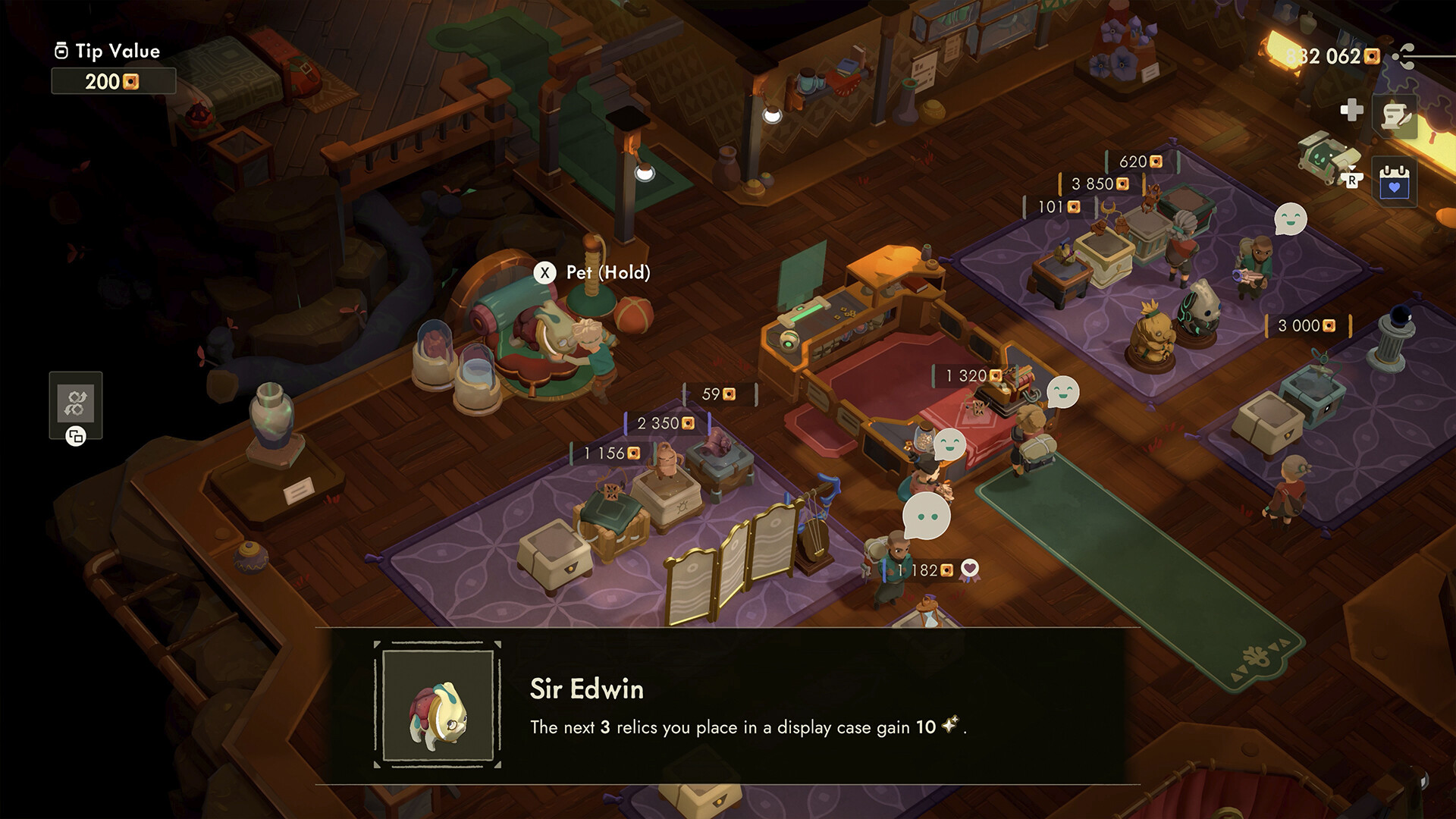
A few of these are worth setting deliberately instead of leaving on default. Backpack smash is easy to fat-finger if it shares a row with your other combat inputs, so give it its own key rather than stacking it next to attack or special. Gun aim works as a second stance rather than a modifier, so treat it like a separate weapon slot when you're choosing a binding rather than trying to layer it onto your melee keys. And since roll has no stamina cost in this game, there's no reason to put it somewhere awkward to protect a resource bar that doesn't exist - bind it somewhere you can hit reflexively, because you'll be using it constantly in dungeons.
04Best Graphics Settings for a Stable Frame Rate
The graphics menu itself is intentionally sparse compared to most modern releases, and that hasn't changed with Hotfix 1. There's no HDR toggle exposed, and the main visual lever is the anti-aliasing/upscaling setting, which lets you choose between FSR3 (with a Balanced or Quality upscaling preset) and FXAA. Combined with the new DirectX 11/12 renderer choice covered above, that's the bulk of what you can actually tune - this is a stylized, flat-shaded action-RPG rather than a technically dense open world, so Digital Sun has kept the options list short on purpose rather than burying you in sliders.
If you're chasing sharper image quality over raw upscaling performance, FXAA tends to look cleaner than FSR3 at Balanced in Moonlighter 2's flat-shaded dungeons, at some cost to frame rate - worth testing both on your setup, since the difference is more visible here than it would be in a game with heavier post-processing to mask upscaling artifacts.
05Steam Deck and Handheld Settings
On Steam Deck specifically, Moonlighter 2 runs in a dedicated Deck mode that automatically applies a lower, Digital Sun-tuned configuration rather than exposing the full PC settings list. If you do want to hand-tune it, Steam Deck players in the game's own community discussions report success running Graphics on Low with Anti-aliasing set to FSR3 and Upscaling on Balanced or Quality - broadly in line with what the automatic Deck preset already targets, so there's limited headroom beyond it. Community handheld testing outside the game's own channels has also suggested a 40 FPS frame cap paired with FXAA as a smoother-feeling alternative to the 60 FPS default on Deck-class hardware; treat that specific combination as unconfirmed by Digital Sun and test it yourself before committing to it, since menus in particular can still dip below your target regardless of the cap you choose.
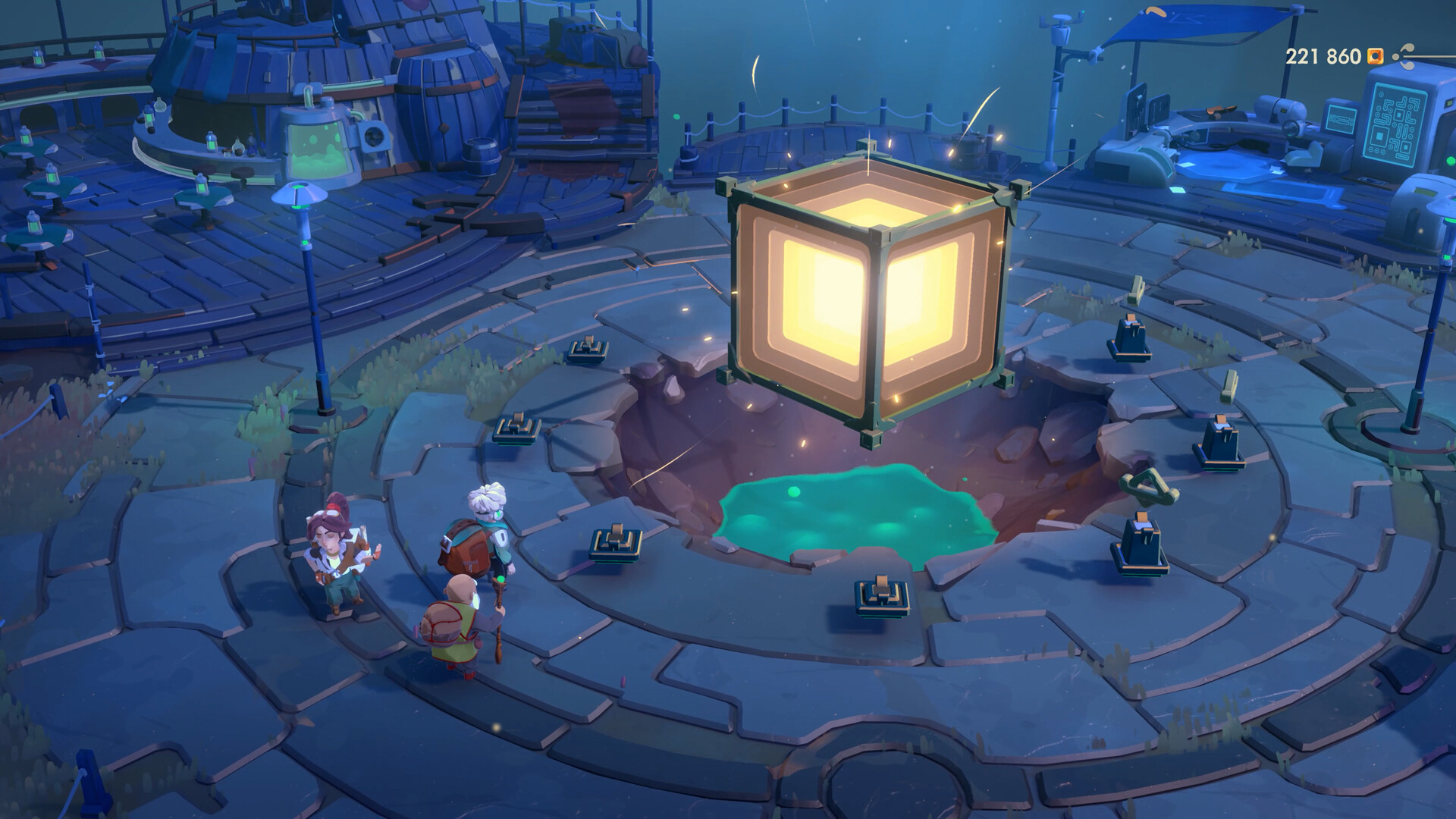
The game also supports 16:10 resolutions natively, which matters if you're playing on Deck, ROG Ally, or another handheld with a taller-than-16:9 screen - you shouldn't need to force an aspect ratio through a launch option to fill the display correctly. Cloud saves are also supported across the platforms Moonlighter 2 ships on, which is worth confirming is enabled if you're bouncing a save between a Deck, a desktop PC, and a console.
06Quality-of-Life Settings Worth Changing
Beyond the renderer and remapping, a couple of smaller toggles are easy to miss on a first pass through Settings. Controller hotplug is on by default, so button prompts switch automatically between keyboard/mouse and controller icons based on whichever device you last touched - useful if you play docked with a controller and undock to a keyboard, but worth knowing about if you see prompts flicker unexpectedly between input types when a second device is connected. If you're primarily on mouse and keyboard, it's worth spending a couple of minutes in the Controls tab up front: the game's combat was built with a controller in mind first, and while every action is fully rebindable, the Codex, shop, and backpack screens tend to feel faster with a mouse regardless of which device you fight with.
07Known Issues and Troubleshooting
If you're still seeing crashes after applying Hotfix 1, Digital Sun's own patch notes ask players to fill out the studio's bug report form rather than just posting in Discussions, since that's how the team is tracking what's left after the DirectX fix. The renderer swap is the first thing to try if you're crashing consistently in one specific area, since that was the primary lever Hotfix 1 pulled for stability - and it costs nothing but a restart to test. Digital Sun has continued shipping platform-specific stability work since the DirectX fix landed on PC, too: a Switch 2 stability patch followed a few days after 1.0 launched, with the studio saying explicitly that more fixes were still on the way.
The stability patch for Switch 2 is available now! Please update the game for a smoother Moonlighter 2 experience. It took a little longer than we’d hoped, but we’re glad you can enjoy the game in a better way. We’ll keep working on further improvements! 💚
— Digital Sun (@DigitalSunGames), Sept 4, 2026 on X
If neither DirectX option clears up a specific crash, updating your GPU driver is the next step Digital Sun and the community both point to before assuming it's a game-side bug worth reporting through the official form.
FAQ
Does Moonlighter 2 support DLSS or frame generation?
Not as a listed setting. The anti-aliasing/upscaling option only offers FSR3 (with a Balanced or Quality preset) and FXAA; Nvidia DLSS is unconfirmed as of Hotfix 1.
Can I remap controller buttons in Moonlighter 2?
Yes. Every action - attack, special, roll, backpack smash, gun aim, potion, map, inventory and pendant - can be rebound separately on keyboard/mouse and on a controller, with no locked "pro" layout.
Does Moonlighter 2 have HDR support?
No. As of Hotfix 1 the graphics menu has no HDR toggle, so HDR display owners should rely on their monitor or TV's own HDR emulation if they want it.
Should I use DirectX 11 or DirectX 12 after Hotfix 1?
Digital Sun added the option because the more stable choice depends on your hardware. Test DirectX 12 first, and fall back to DirectX 11 if you still see crashes or stutter.
Do I need to change any settings on Steam Deck?
Not usually. Moonlighter 2 auto-applies a Steam Deck-tuned config with graphics set low and FSR3 upscaling on Balanced or Quality; only override it manually, via the SteamDeck=0 %command% launch option, if you're chasing a specific result and know what you're doing.
Official resources

Ana writes the step-by-step tutorials: settings, controls, configs and the systems games never explain properly. Every tutorial is tested on the version named at the top of the page, with the official patch notes linked so you can check what changed.