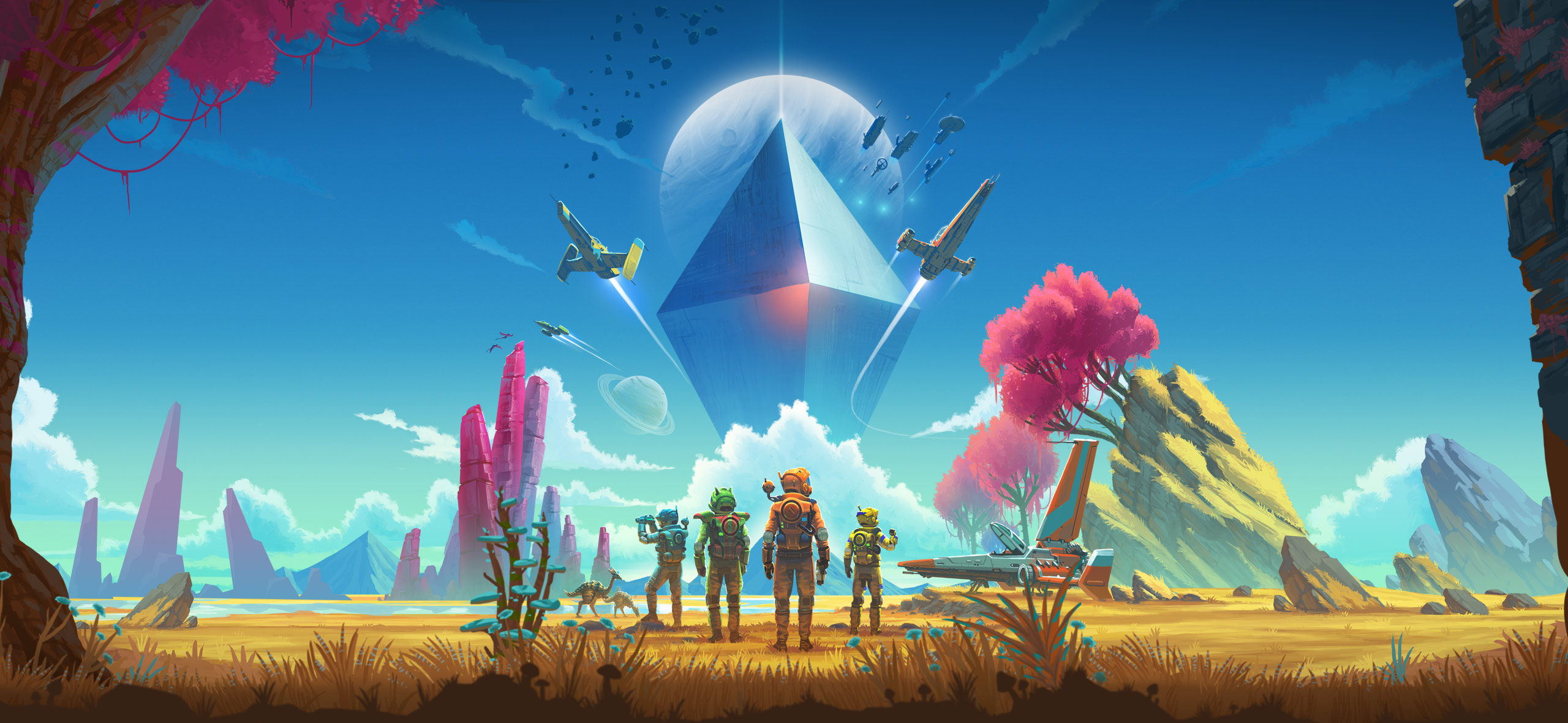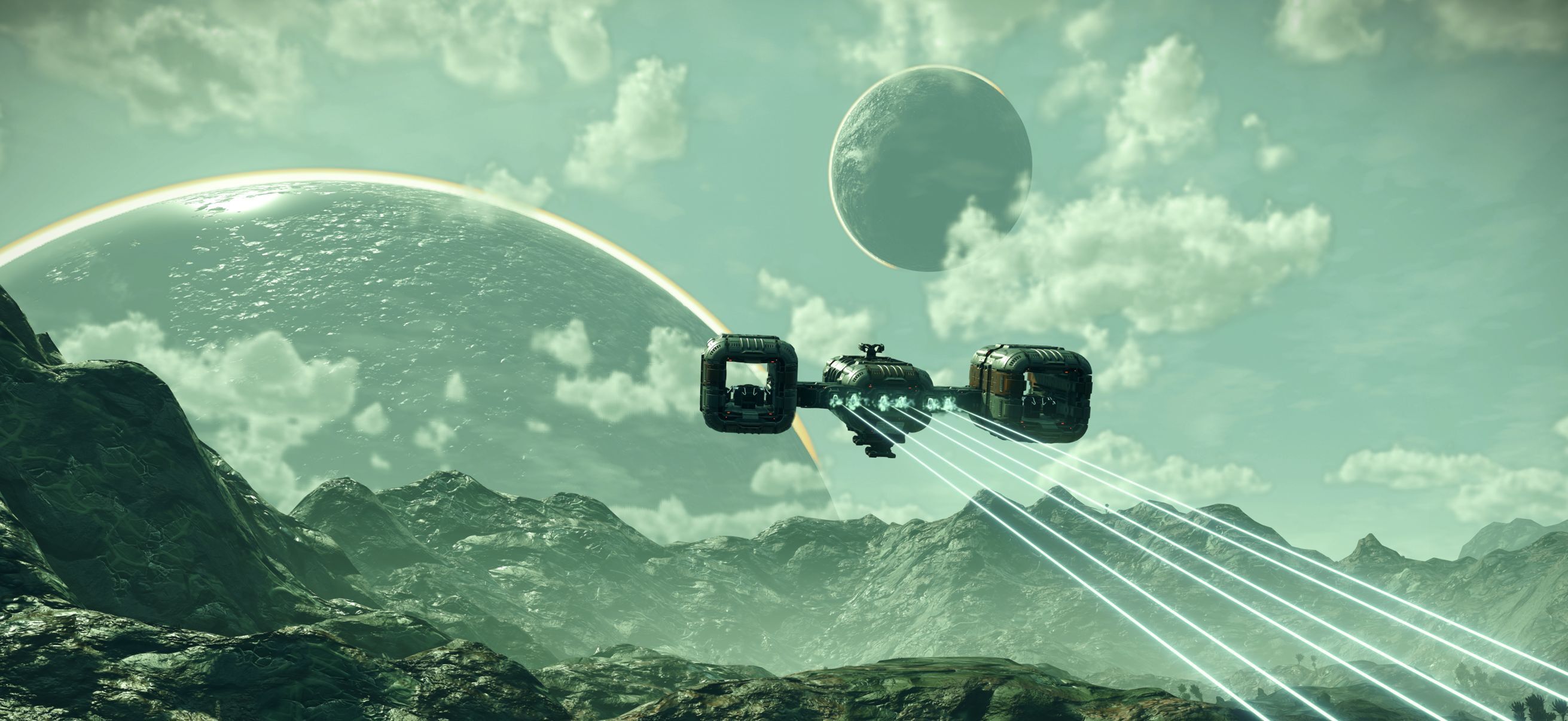
No Man's Sky: Best PC Settings and Graphics Guide for Cosmos
No Man's Sky's Cosmos update piles more into deep space, so revisit your PC settings now — dial in upscaling, shadows and motion blur for a smooth run.
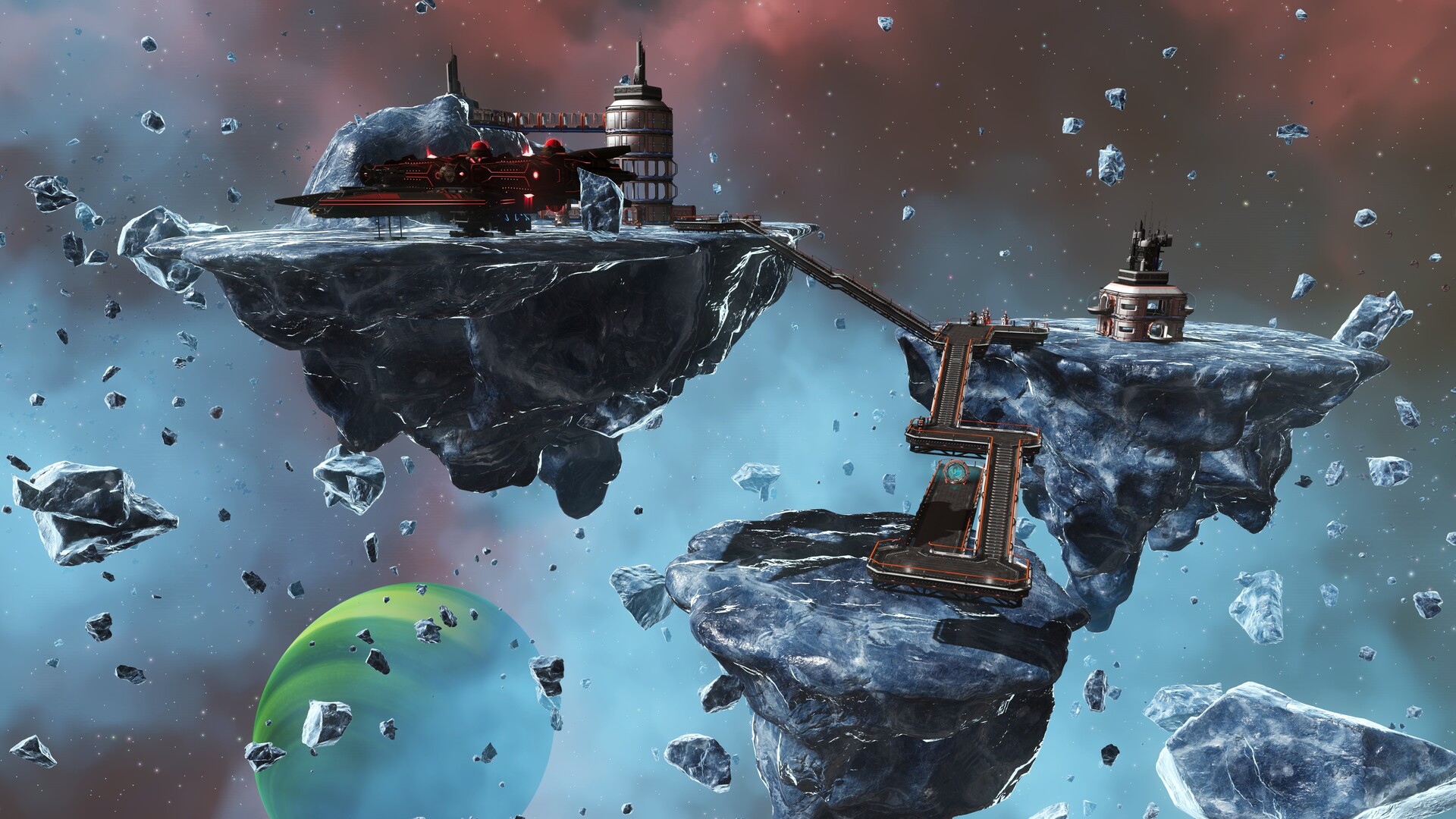
No Man's Sky's Cosmos update rebuilt the thing the game is named after. Deep space now holds asteroid belts, drifting hulks you can salvage, infested outposts, and orbital bases you can build without ever touching a planet. That is a lot of new geometry, particle work and lighting for your GPU to chew through, and it landed on top of a graphics menu that already had more sliders than most PC players ever touch. If your settings have not changed since before September 9, they are worth a second look now.
Hello Games shipped Cosmos as update 7.0, then followed it with hotfixes 7.01, 7.02 and 7.03.1, the last of which fixed a white screen hang some players hit after the update. None of those patches touched the graphics options themselves, so everything below still applies to the build you are running today. This guide walks through the settings worth touching first, what each one actually costs you, and a few starting points by hardware tier so you are not guessing.
01Why Cosmos Changes the Settings Math
Before Cosmos, the heaviest scenes in No Man's Sky were usually crowded planetary bases or storms on hostile worlds. Cosmos adds a second category: deep space itself. Space hulks are large, detailed derelicts with their own interior geometry, asteroid belts render dozens of tumbling rock meshes at once, and a populated Space Station Alliance system means more players' bases and ships can be visible in the same instance as yours. None of that shows up as a single "Cosmos Quality" toggle. It is spread across the same Planet Quality, Volumetric Effects and Reflections sliders you already had, which is exactly why settings that ran fine in Voyagers-era space can start dropping frames around a hulk or a busy station today.
Sean Murray, founder of Hello Games, put the scale of the change plainly when Cosmos launched.
“Space is such a huge part of No Man's Sky, but space itself has remained largely unchanged in all our ten years of updates!”Sean Murray, Founder, Hello Games
That "space has remained largely unchanged" framing matters for settings too — the update did not add a new graphics tier so much as it made the existing sliders work harder in an area of the game most players had set once and forgotten.
02Start With Display, Resolution and Upscaling
Set Window Mode to Fullscreen rather than Borderless if you are not running a second monitor — it gives the game exclusive access to the GPU and avoids the small overhead Windows adds to borderless windows. Pick your native resolution, then decide how you want to hit your frame rate target: through native rendering, or through an upscaler.
No Man's Sky's Anti-Aliasing menu covers both TAA and upscaling in the same list. On Nvidia hardware, DLSS at Quality or Balanced gives the cleanest image of the available modes and is worth trying before you touch anything else. On AMD, Intel Arc, or older Nvidia cards, FSR is the default upscaler in the game's built-in presets, and FSR Balanced is a reasonable middle ground when you need more headroom around a busy station. Frame Generation is also in that menu now, but treat it as optional rather than a first move — it multiplies whatever base frame rate you are already getting, so it will not fix a scene that is genuinely GPU-bound, and it adds a small amount of input latency on top. Get your real frame rate stable first, then decide if you want Frame Generation on top of it.
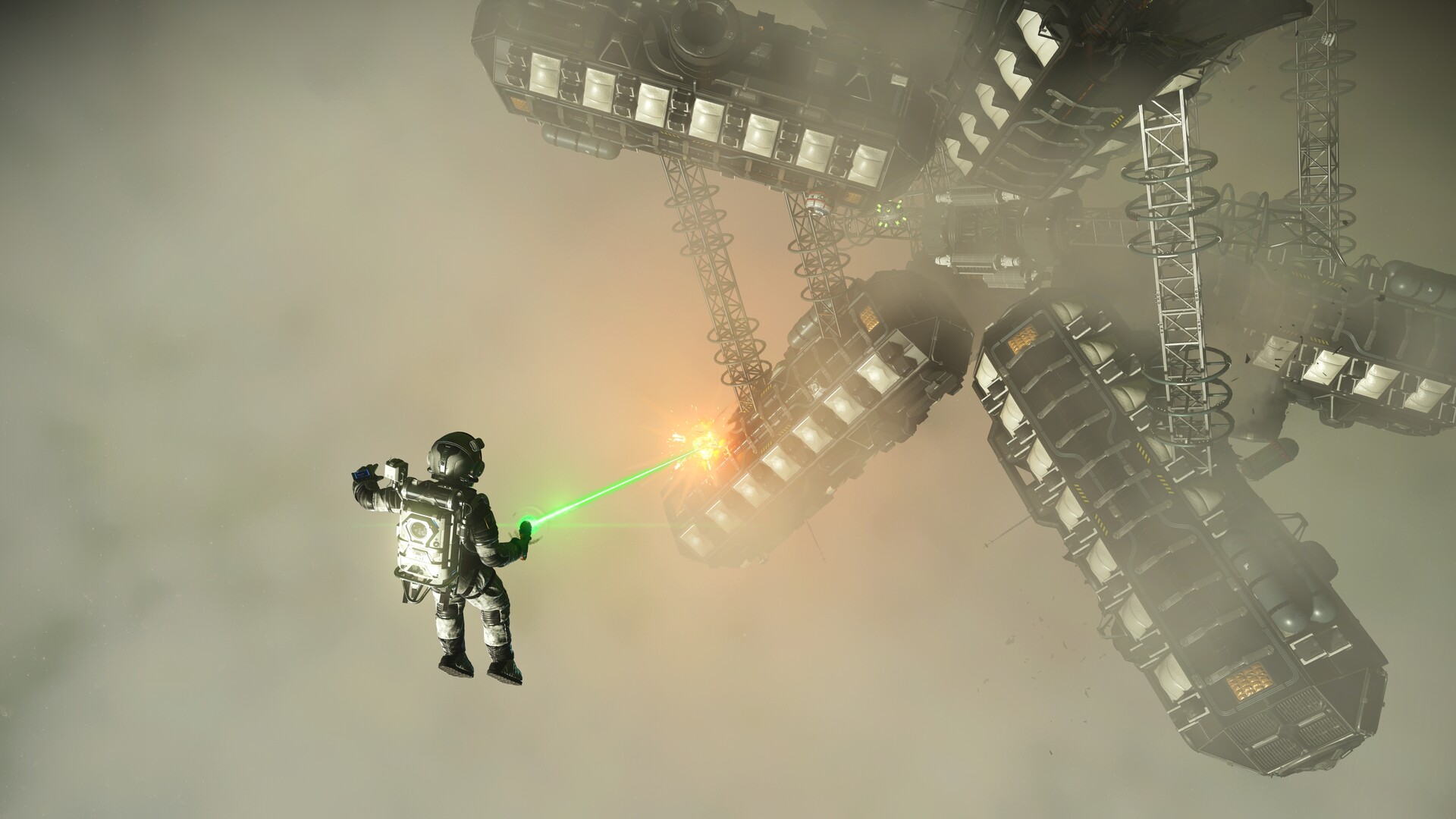
If you play on AMD or Intel graphics and rely on FSR, pair it with V-Sync off rather than the in-game toggle — the in-game V-Sync option adds noticeably more input lag than forcing V-Sync through your GPU driver's control panel instead, and around a crowded hulk you will feel that lag before you feel any screen tearing.
03The Graphics Settings That Actually Cost You Frames
Planet Quality, GTAO and Volumetric Effects are the three sliders doing the most work in Cosmos's new deep-space areas, because they govern how much detail renders on asteroid surfaces, hulks and the nebula-style fog around some points of interest. Dropping Planet Quality from Ultra to Enhanced is one of the cheapest frame rate gains available and is barely noticeable while flying, since you are rarely standing still to inspect terrain detail in space. GTAO one step down from Ultra behaves the same way — ambient occlusion is subtle at a distance, and space combat rarely gives you time to study shadow detail in corners.
Reflections and Water Quality matter less once you are away from planets, so if most of your Cosmos time is spent in orbital bases and deep space rather than back on your home world, it is safe to drop both a notch without losing much. Shadow Quality is the exception worth being careful with — dropping it too far makes distant hulks and station modules pop in visibly as you approach, which is more distracting in a slow-moving space scene than it would be on a planet's surface.
04Textures, Base Complexity and VRAM
Texture Quality is a VRAM setting more than a frame rate setting. At 1440p, Ultra textures want somewhere in the 8 to 10 GB range depending on how much else you have loaded, which matters more now that Cosmos adds new station and hulk textures to whatever planet, base and ship assets you already had streamed in. If you are on an 8 GB card, drop Texture Quality to High before you touch anything else — it frees VRAM headroom without the visible softness that comes from dropping Planet Quality or Terrain Tessellation.
Base Complexity is worth starting at Ultra rather than cutting it early, especially now that orbital bases exist. It governs how much of other players' base and station decoration renders around you, and cutting it too aggressively can make a busy Alliance station look empty or cause parts to pop in as you get close, which is more jarring than a texture quality drop. If you do need to claw back performance later, treat Base Complexity as one of the last sliders you touch rather than one of the first.
Terrain Tessellation still matters for planetary surfaces even if you are spending more time in space post-Cosmos. Enhanced rather than Ultra is a small, mostly invisible saving, and Animation Quality is worth bumping to Enhanced if you regularly play in busy multiplayer sessions, since it directly affects how smoothly other players' ships and characters move around you.
How to Retune Your Graphics Settings for Cosmos
- 1From the main menu or in-game pause screen, go to Options > Graphics. Changes apply immediately, so you can test each slider while flying near a space station.1 min
- 2Choose Fullscreen, your native resolution, and pick DLSS Quality/Balanced on Nvidia or FSR Balanced on AMD and Intel before touching any quality slider.2 min
- 3Move both from Ultra to Enhanced. This is the cheapest frame rate gain in the whole menu and is hard to notice while moving.1 min
- 4On 8 GB cards, set Texture Quality to High; on 10 GB or more, Ultra is safe even with Cosmos's added station and hulk textures.1 min
- 5Keep it at Ultra so Alliance stations and other players' bases don't pop in or look empty around you; only lower it last if you're still short on frames.1 min
- 6Set Motion Blur to roughly 40-50, turn on NVIDIA Reflex if available, and set Anisotropic Filtering to x16 for sharper distant textures at almost no cost.2 min
05Motion Blur, V-Sync and the Extras Worth Turning Off
Motion Blur ships with a default strength around 180, which is heavier than most players want once they actually look at it in motion — a value in the 40 to 50 range keeps a sense of speed during flight without smearing the new asteroid fields and hulks you are supposed to be looking at. It has no measurable frame rate cost either way, so this is purely a clarity preference rather than a performance one.
Post-Processing is one of the few settings worth leaving on Ultra regardless of your hardware tier — the difference between High and Ultra here is mostly in sun shafts and depth of field, and testing has repeatedly found no real frame rate gap between the two. HDR is the same story: it is a personal preference toggle with no meaningful performance cost, so set it based on whether your display actually supports it well rather than as a performance lever.
If you are on Nvidia, turn on NVIDIA Reflex and leave it on. It reduces render queue latency, which is a free improvement with no visual trade-off, and it is worth pairing with Anisotropic Filtering set to x16 rather than the lower presets, since AF has one of the smallest performance costs of any setting in the entire menu relative to how much sharper distant textures look.
06Quick Presets by Hardware Tier
If you are on an RTX 4070-class card or better, or the AMD equivalent, you can run Ultra across the board and only need to touch Motion Blur and V-Sync for preference reasons. Enable DLSS Quality or FSR Quality if you are chasing a high refresh rate target rather than settling for native rendering.
On a mid-range card, drop Planet Quality, GTAO and Reflections to Enhanced, keep Texture Quality at Ultra if you have 8 GB of VRAM or more, and run DLSS or FSR at Balanced. That combination holds up well even in a crowded Alliance station, which is the single heaviest scene type Cosmos has added.
On older or entry-level hardware, start with Texture Quality at High, Planet Quality and Water Quality at High, GTAO and Volumetric Effects at Enhanced, and set your upscaler to Performance mode with Max FPS capped to match your monitor. Leave Base Complexity at Ultra as described above and only lower it if you are still short of your target frame rate after everything else.
Whatever tier you land in, keep Multithreaded Rendering on if the option is available on your system — there is no real downside to it, and it lets the CPU keep feeding the GPU during the busier deep-space scenes Cosmos introduced.
No Man's Sky Cosmos 📋Own A Space Station 🤝Alliances 🛰️Orbital Bases 📡Space Hulks 🚀Anniversary Expedition 🗺️Star Map 💎Deep-Space Looting 🪨Asteroid Belts 🦠Infested Outposts ☀️The Sun 🧙♀️Dev Commentary 🧲Tractor Beam ❄️Ice Fields 🪐Outposts ⛰️Improved Terrain 🔫Shipbreaking
— Sean Murray (@NoMansSky), Sept. 9, 2026 on X
FAQ
Does the Cosmos update require a better PC?
No official minimum spec change came with Cosmos, but the new deep-space content — space hulks, asteroid belts and populated orbital bases — is heavier than most pre-Cosmos space scenes, so settings that ran smoothly before may need a small adjustment now.
Should I use DLSS, FSR or native rendering?
Use DLSS Quality or Balanced if you have an Nvidia RTX card, since it gives the cleanest image of the available upscalers. On AMD, Intel Arc or older Nvidia hardware, FSR Balanced is the better starting point and is already the default in the game's built-in presets.
Is Frame Generation worth turning on?
Only after your base frame rate is already stable. Frame Generation multiplies your existing frame rate rather than fixing a GPU-bound scene, and it adds a small amount of input latency, so treat it as a final step rather than a first move.
My game hangs on a white screen after Cosmos — is that a settings problem?
No. That issue was a bug, not a settings issue, and Hello Games fixed it in patch 7.03.1. Make sure your game is fully updated before troubleshooting your graphics settings.
Which single setting saves the most performance around space stations?
Planet Quality and GTAO dropped from Ultra to Enhanced give the biggest, least noticeable frame rate gain in busy Alliance stations and around space hulks, ahead of texture or shadow changes.
Official resources

Ana writes the step-by-step tutorials: settings, controls, configs and the systems games never explain properly. Every tutorial is tested on the version named at the top of the page, with the official patch notes linked so you can check what changed.