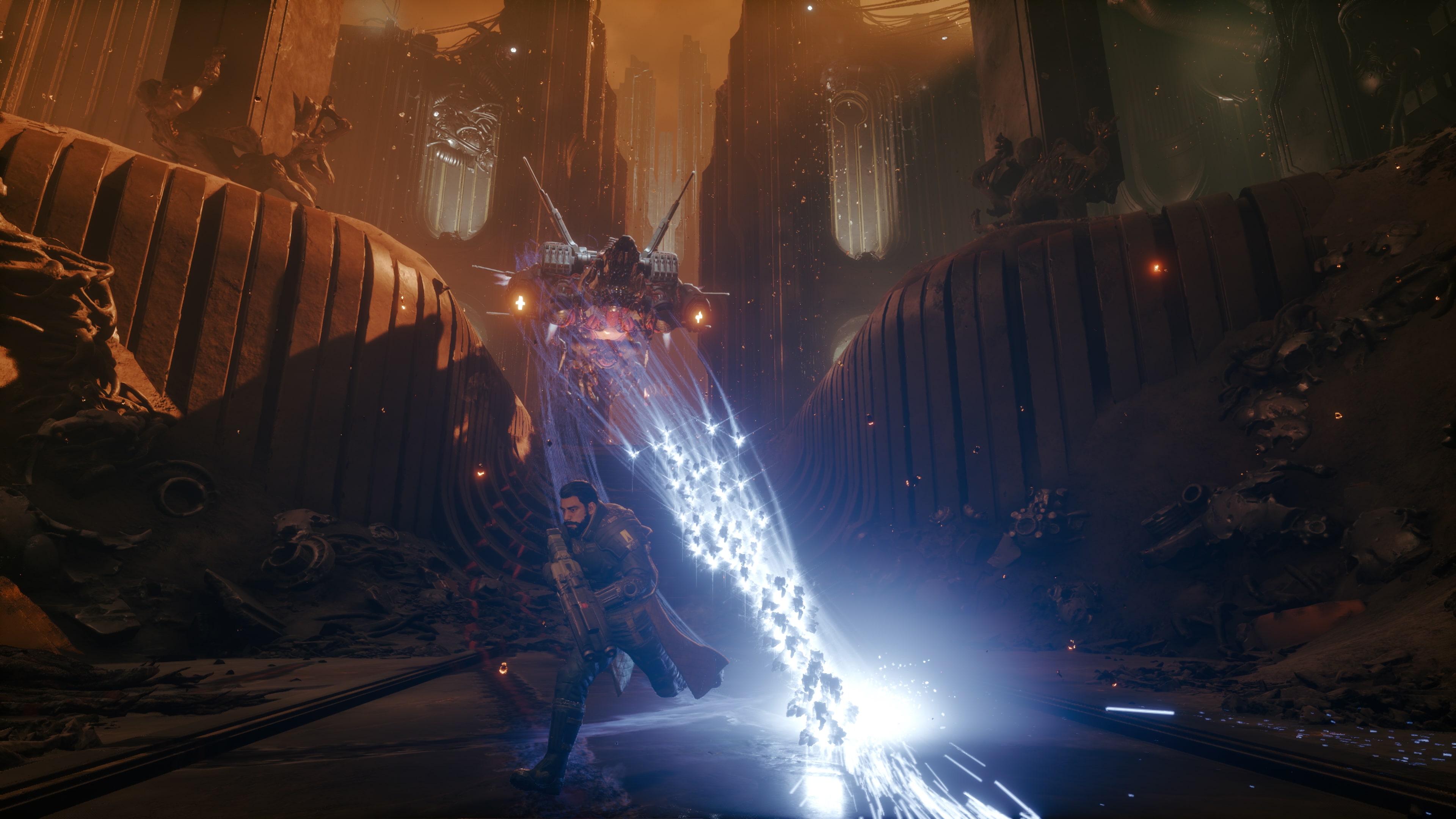
Saros Zenith Update: Best Accessibility Settings and Controls
Saros's free Zenith update adds Slow Game Speed, Auto-fire and Motion Sensor Aiming settings. Here's how to turn on every new accessibility option.
Housemarque's Saros picked up its biggest content drop yet on October 19, 2026 with the free Zenith update, and most of what changed lives in the settings menu. The PS5 exclusive launched back on April 30, 2026 to generally favorable reviews, but its bullet-hell combat intimidated plenty of newcomers from the start. Alongside a new boss-rush mode and a New Game+ layer, Housemarque used Zenith to add a set of accessibility options built specifically to make Carcosa's combat easier to read and control without touching the difficulty of the enemies themselves. If you bounced off Saros for feeling too chaotic, or you just want tighter control before chasing a leaderboard spot, this is the settings pass to run through first.
None of this requires a new save or a difficulty downgrade. Every option below sits in the regular Options menu and can be toggled mid-run, so you can test one setting at a time and back out of anything that doesn't feel right. The same menu still holds everything that existed before Zenith, so nothing you've already configured gets reset.
How to Turn On Saros's New Zenith Settings
- 1From Passage or the pause screen, head into Options to find the new accessibility settings Housemarque added alongside Zenith.1 min
- 2Enable the toggle, then choose how much the game slows and whether it should kick in automatically during combat or only when you switch it on by hand.1 min
- 3Switch on Auto-fire so Arjun shoots automatically whenever you're aimed at a hostile — useful if holding a button down for long fights is uncomfortable.1 min
- 4Turn on Motion Sensor Aiming for finer aim control, then layer your own remaps on top using the existing button remapping menu.2 min
- 5Before a run, choose Protection Modifiers to ease the difficulty or Trial Modifiers to raise it — Zenith adds 10 of each.2 min
- 6If you've cleared Saros once, visit the Armor Matrix at Passage to unlock Eclipse Layers nodes and confirm you've hit the Modifier threshold.2 min
01How Slow Game Speed Actually Works
Slow Game Speed is the headline accessibility addition in Zenith, and it's worth understanding exactly what it touches before you turn it on. According to Housemarque's own patch notes, the setting slows the game down so you have more time to read enemy attack telegraphs and track incoming projectiles — but the attacks themselves are unchanged. Nothing about an Overlord's pattern gets easier; you just get a larger window to decide whether to jump, dash, shield or parry.
You get two layers of control over it. First, a slider for how much the game slows down, so you can dial in a small reaction buffer or a much more generous one. Second, a choice between manual and automatic activation: manual means you hit a button to slow things down whenever you want, while automatic kicks the effect in on its own whenever hostile projectiles are closing in on you, then releases it once the threat clears. Start with automatic if you're still learning enemy patterns — it removes the extra step of remembering to toggle it mid-fight.
Housemarque has been explicit that this isn't a difficulty slider in disguise. The Overlords and standard hostiles throw the same attacks at the same speed; Slow Game Speed only changes how much time you personally get to process and respond to them. That distinction matters if you're chasing Overlord Rush leaderboard times later, since the setting won't inflate your score or make an Overlord easier to read for anyone watching a replay — it only affects your own moment-to-moment reaction window.
02Setting Up Auto-Fire Without Losing Control of Reloads
Auto-fire does exactly what it sounds like: once it's switched on, Arjun fires his equipped weapon automatically whenever you're aimed at a hostile, instead of requiring you to hold or tap a trigger. Housemarque built it for players who find it uncomfortable to hold a button down for long stretches, and the side effect is one less input to juggle while you're dashing and shielding through a firefight.
The setting stops short of automating everything, though. Reloading stays entirely manual, and a perfect reload still demands a well-timed button press — so turning Auto-fire on won't quietly boost your damage output or your Corruption management, it just frees up your trigger finger.
“If there is one piece of advice I'd give players of Saros, it would be "Keep moving".”Abebe Tinari, Saros: Zenith Design Lead, Housemarque
03Motion Sensor Aiming and Remapping Your Buttons
Zenith also adds a new Motion Sensor Aiming option that lets you fine-tune your aim using the DualSense controller's motion sensor on top of stick input, and it stacks with Saros's existing button remapping menu rather than replacing it. If you've already remapped dash, shield or parry to buttons that feel more natural, nothing about Zenith forces you to redo that work — the new options sit alongside it.
A practical combo worth trying: keep remapping for your core dodge inputs, turn on Motion Sensor Aiming for finer target tracking, and layer Slow Game Speed on top if your reflexes still need the extra window. None of these settings conflict with each other, so there's no reason to pick just one.
04Choosing Carcosan Modifiers to Match Your New Settings
Zenith roughly doubles your options for tuning run difficulty through Carcosan Modifiers, adding 10 new Protection Modifiers and 10 new Trial Modifiers. Protection Modifiers make a run easier and more forgiving — one of Housemarque's own favorites, Corruption Melee Enhancement, converts the Corruption built up from enemy hits into bonus damage on your next melee strike instead of just chipping away at your Integrity. Trial Modifiers do the opposite: Hostile Regeneration, for instance, lets stunned enemies recover quickly unless you finish them with a melee hit, forcing you to stay aggressive.
If you're easing into Saros with the new accessibility settings turned on, lean on Protection Modifiers first. Once Slow Game Speed and Auto-fire feel natural, start mixing in Trial Modifiers — Saros now has 25 Trial Modifiers to choose from, and you'll need to stack several of them to hit the threshold Eclipse Layers requires. Modifiers stack on top of whatever accessibility settings you've already turned on, so a cautious loadout might pair two or three Protection Modifiers with Slow Game Speed on automatic, while a more confident one leans on Trial Modifiers with Auto-fire doing the busywork so you can focus on positioning.
05Getting Eclipse Layers Ready After You Clear Saros
Eclipse Layers is Saros's New Game+ system, unlocked through new nodes in the Armor Matrix back at Passage once you've cleared the main game. Each Layer is a harder version of Carcosa with altered rules, and before you can enter one you have to build a Carcosan Modifier loadout that clears a minimum threshold — which means taking on enough Trial Modifiers to qualify, on top of whatever Protection Modifiers you want for balance.
There's a visual payoff for pushing your settings further: during Eclipse Layers, Arjun wears a golden Crown that grows larger the more Trials you've stacked and the higher your Modifier Balance climbs. It's also tied to Visions, a set of 12 collectible murals scattered through Carcosa — some need a higher Crown level before you can actually read their text, so a heavier Trial Modifier loadout isn't just about bragging rights.
Before you step into your first Layer, it's worth double-checking the same settings you tuned earlier. A harder version of Carcosa with a stacked Modifier loadout is exactly where Slow Game Speed on automatic earns its keep, and if you're still getting used to the controller's motion input, this is a good point to confirm Motion Sensor Aiming is dialed in rather than discovering it mid-fight against a tougher enemy spread.

06Overlord Rush: The Settings Worth Checking Before a Run
The other major Zenith addition is Overlord Rush, a boss-gauntlet mode accessed through the Primary Unit at Passage. It strips away exploration and throws you straight at Carcosa's Overlords in a timed race, with an online leaderboard that tracks your results. The "Incursion" and "Ascension" Sets each line up three Overlords and run around 10 minutes; "Totality" chains all eight Overlords from across the game into one continuous gauntlet. You'll need an internet connection and a signed-in PlayStation account to see leaderboard scores, and you can filter the global rankings by Main Weapon if you want to measure yourself against players using your favorite gun instead of the whole field.
Before you queue up a Totality run, it's worth running through the settings above in order: confirm Slow Game Speed is tuned the way you want, decide whether Auto-fire should stay on for a gauntlet this long, and lock in your button remaps so you're not fighting the controls on top of eight Overlords in a row. If Carcosa's bosses still feel overwhelming at this point, it's worth checking out another game's approach to its toughest boss fight for a sense of how differently a tower-defense roguelike handles the same problem, then come back to Overlord Rush with fresh ideas.

FAQ
Is the Saros Zenith update free?
Yes. Housemarque released Zenith on October 19, 2026 as a free update for every Saros owner on PS5 and PS5 Pro — no purchase required.
Does Slow Game Speed make enemies weaker?
No. Housemarque's own patch notes say enemy attacks stay the same; the setting only gives you more time to read and react to them.
Does Auto-fire handle reloading too?
No. Auto-fire only fires your weapon automatically while you're aimed at a hostile — reload timing, including perfect reloads, is still entirely manual.
What do I need to play Overlord Rush?
An internet connection and a signed-in PlayStation account, since the mode's global leaderboards and Main Weapon filters run online.
How many Trial Modifiers does Saros have after Zenith?
Zenith adds 10 new Trial Modifiers, bringing the total to 25 to choose from when building a Carcosan Modifier loadout for Eclipse Layers.
Official resources

Ana writes the step-by-step tutorials: settings, controls, configs and the systems games never explain properly. Every tutorial is tested on the version named at the top of the page, with the official patch notes linked so you can check what changed.