AION 2: Best PC Settings, Controls and Keybinds Guide
AION 2's November 4 update retooled its palette UI and Power Shard auto-use. Here's how to set your graphics, controls and keybinds correctly.
AION 2's global version has been live on PC since October 5, and NC has not slowed down since. A November 4 maintenance pass touched the palette UI, Abyss Outland timing and a new combat auto-use option, on top of everything else the Steam release buries inside a settings menu that never explains itself. If you're still flying on default options from launch week, there's a better setup waiting for you.
This guide walks through every settings category that actually matters on PC: control mode, camera, key bindings, graphics and upscaling, and the quality-of-life options NC keeps adding without much fanfare. None of it requires add-ons or config file edits — it's all sitting in the in-game Settings cogwheel, just spread across tabs most players never open.
01What Changed in AION 2's Settings Menu on November 4
NC's November 4 maintenance update made two changes that land directly in the settings menu. First, the color palette used for Customization, the Closet, and Settings > Chat Text Color now has a Standard Color Code field, so you can type in a known hex-style code instead of hunting for a shade on the wheel; a Previous Color Code field also lets you re-enter codes you used before the patch. Second, Settings > Combat > Auto Use > Item gained a "Power Shard chain use" toggle — turn it on and the game burns through your Power Shards of the same grade back to back, prioritizing non-tradable ones first, without ever stepping up to a higher grade on its own.
The same patch also delayed Abyss Outland entry windows by ten minutes, adjusted poison miasma timing in that mode, and tweaked how Stealth and Invincibility Potions behave mid-fight. None of that lives in a settings tab, but it's worth knowing before you walk into Abyss Outland expecting last week's schedule.
📢Daeva Bootcamp: 3 Million Clears Achieved!🎉 Hey Daevas! We are excited to see how hard everyone is working to meet our Ludra milestones! Check your in-game mailbox💌 for the first three dungeon clear milestone rewards! - 500,000 ✅ - 1,250,000 ✅ - 3,000,000 ✅ - 5,000,000
— AION 2 (@Aion2Official) on X
02Choosing Your Control Mode and Camera Settings
Settings > Combat > Controls has a toggle near the top labeled [PC] Control Mode, which switches between the AION 2 default scheme and a legacy AION 1 layout. If you played the original Aion years ago, AION 1 mode will feel instantly familiar; everyone starting fresh should stay on AION 2 mode, since every current keybind guide and most in-game tooltips assume it.
Camera and targeting options live under the Graphics tab, in a Camera/Direction section — this is where you'll find camera perspective, view distance, camera shake and move speed. One option worth flipping early is Search Direction: setting it to Front of Camera means your auto-target search follows where you're actually looking instead of your character's facing, which matters a lot once you're fighting in the air during flight combat.
03Rebinding Keys Without Breaking Your Muscle Memory
Key Settings is its own tab inside Settings, split into General, Menu, Quickslot and Marker sub-tabs. General covers movement and combat actions, Menu covers interface shortcuts, Quickslot lets you remap your action bars independently of your skill slots, and Marker handles the ping and callout keys you'll want set before your first group content.
Two bindings worth checking even if you don't plan on rebinding anything else: the slash key (/) switches control modes on the fly, and comma lets your character sit down to recover, which matters more than it sounds for solo recovery between pulls. If you ever lose the HUD entirely mid-session, the Menu sub-tab holds a Hide UI entry — community keybind lists put it on F12 by default, so check there first before assuming something's broken.
How to Set Up AION 2's PC Settings
- 1Open the main menu, click the Settings cogwheel, go to Combat > Controls, and set [PC] Control Mode to AION 2 unless you specifically want the legacy AION 1 layout.2 min
- 2Under Graphics > Camera/Direction, set Search Direction to Front of Camera so auto-targeting follows where you're looking, not your character's facing.2 min
- 3Work through the General, Menu, Quickslot and Marker sub-tabs under Key Settings. Confirm the Hide UI binding (F12 by default) and your Marker/ping keys before any group content.5 min
- 4In the Graphics tab, turn on DLSS or FSR at Quality mode first. Only drop resolution scale manually if Balanced or Performance upscaling still isn't fast enough.3 min
- 5Lower shadows and global illumination first for the biggest frame rate gain per visual cost, then drop other-player effects specifically if FPS tanks during crowded PvP like Abyss Outland.3 min
- 6In Combat > Auto Use > Item, enable Power Shard chain use (added November 4) and confirm Skill Queue is on so inputs during animation lock aren't dropped.2 min
04Best Graphics Settings for FPS and Visual Fidelity
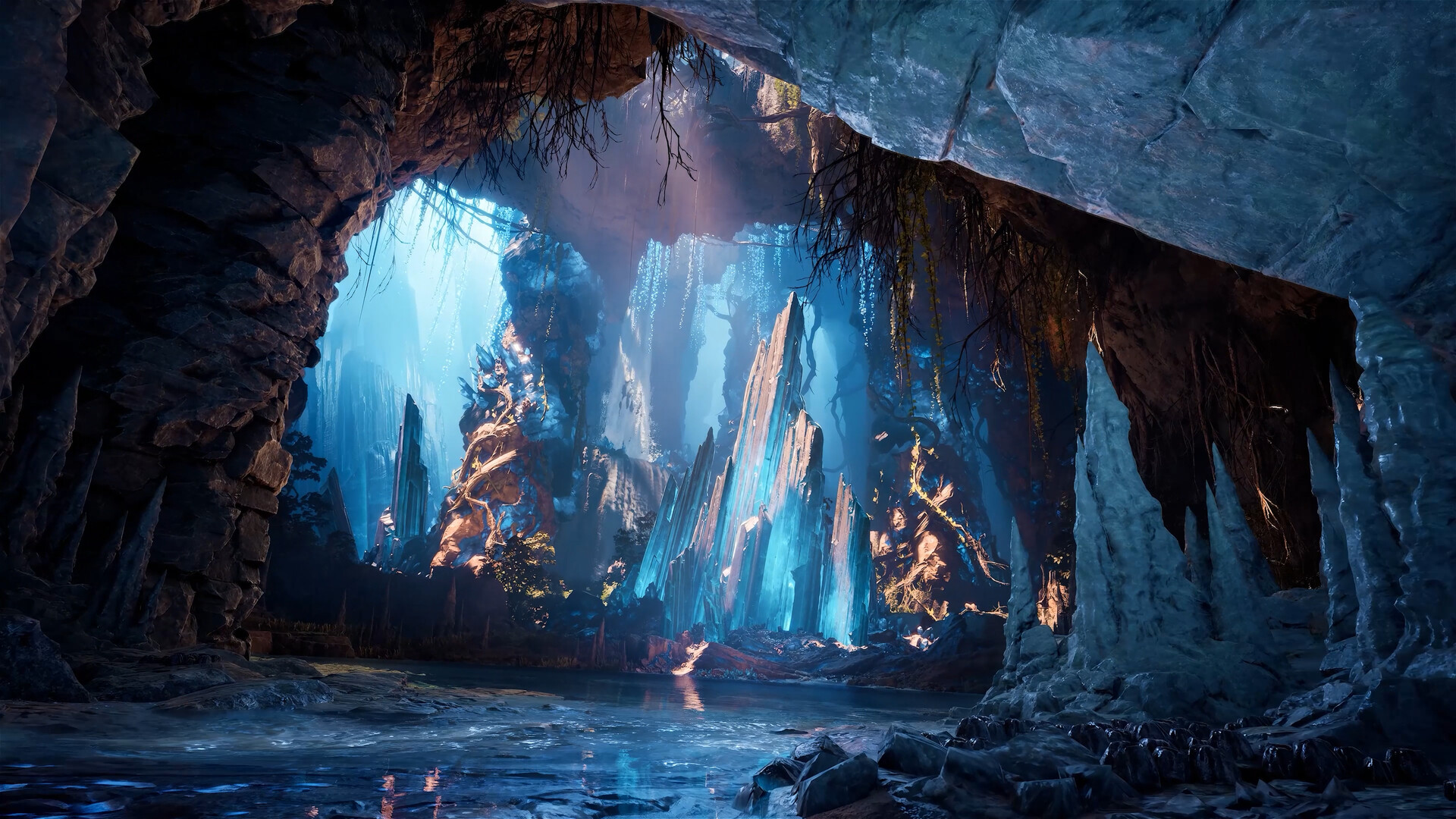
AION 2 runs on Unreal Engine 5, and its Graphics tab groups the usual heavy hitters — shadows, global illumination, reflections and other-player effects — together with an Optimize sub-tab that can auto-tune based on your hardware. If you're chasing frame rate over fidelity, work down that list in order: shadows and global illumination cost the most relative to how noticeable they are in open-world PvE, so they're the first things worth dropping a notch or two before you touch anything else.
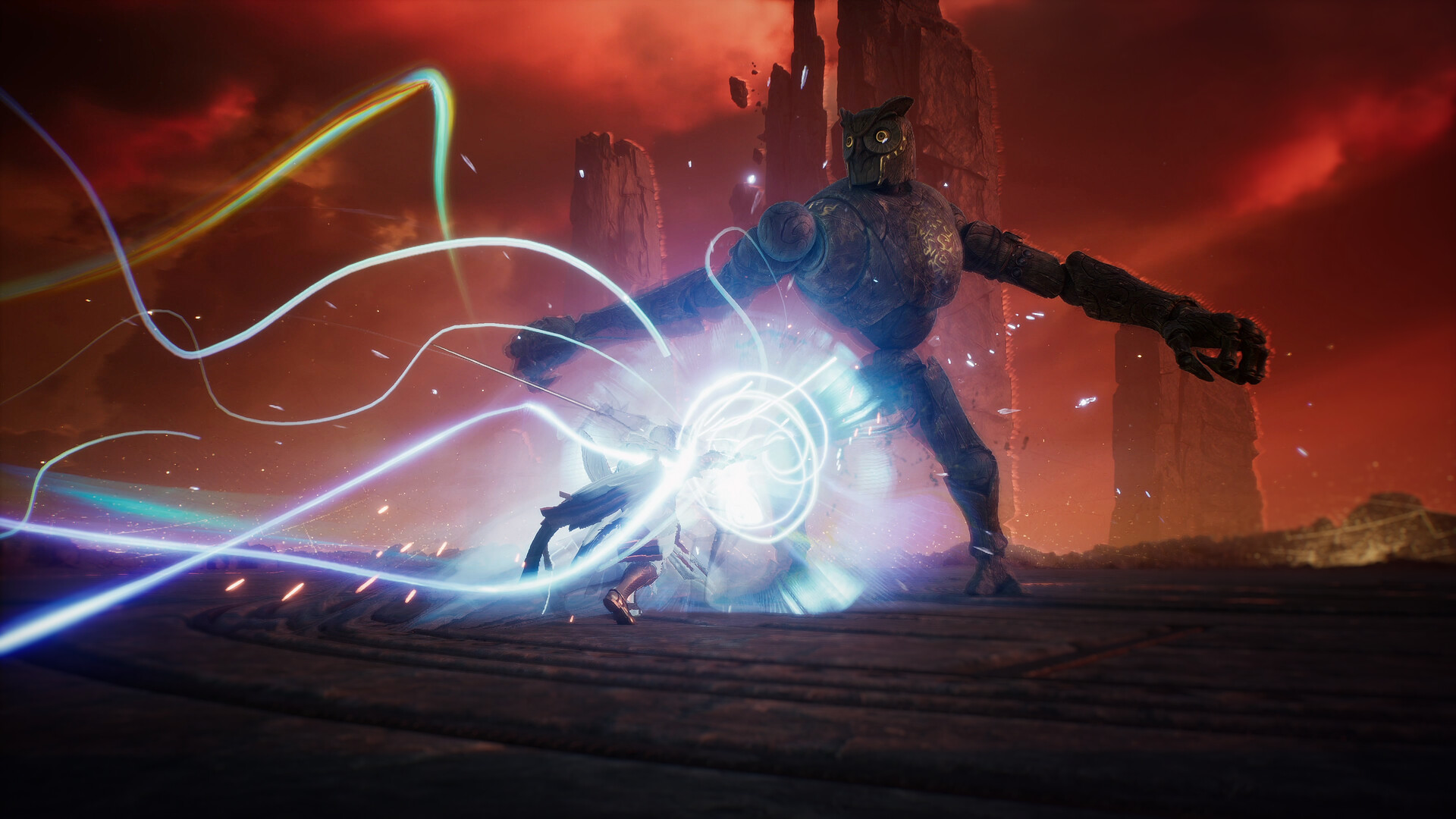
Resolution scale sits in the same tab and is worth leaving alone until you've tried an upscaler first — NC's own graphics settings are built around DLSS and FSR doing the heavy lifting rather than running native resolution. Dropping resolution scale manually before you've even tested Balanced-mode upscaling usually costs you more clarity than it saves in frame time.
Other-player effects and crowd density matter more in AION 2 than most MMOs, since faction warfare and Abyss Outland both throw dozens of Daevas into frame at once. If your frame rate tanks specifically in crowded PvP, that setting — not your main graphics preset — is usually the one to blame.
05PC System Requirements and the Preset Trap
NC's listed minimum spec for AION 2 is an AMD Ryzen 5 2600 or Intel Core i5-10500, 8GB of RAM and an NVIDIA GTX 1050 Ti with 4GB of VRAM, on Windows 10 or 11 with DirectX 12. The recommended spec steps up to a Ryzen 7 3700X or Core i7-11700, 16GB of RAM and an RTX 2070 with 8GB of VRAM. Either way, budget 100GB of free disk space, and NC specifically recommends an SSD — load times and streaming hitches on a mechanical drive are noticeably worse in an open world this large.
There's a detail buried in the official requirements that's easy to miss and genuinely useful: NC's own notes say that if you're running at FHD (1080p) resolution, you need to set your graphics preset to Very Low on minimum-spec hardware, or Low on recommended-spec hardware, just to guarantee compatibility. That's not a performance suggestion — it's a stability one. If you're on a GTX 1050 Ti or similar and the game is stuttering or crashing at a higher preset, dropping to Very Low first is the troubleshooting step NC itself points to before you touch anything else.
06DLSS 4.5, FSR 4 and NVIDIA Reflex on PC
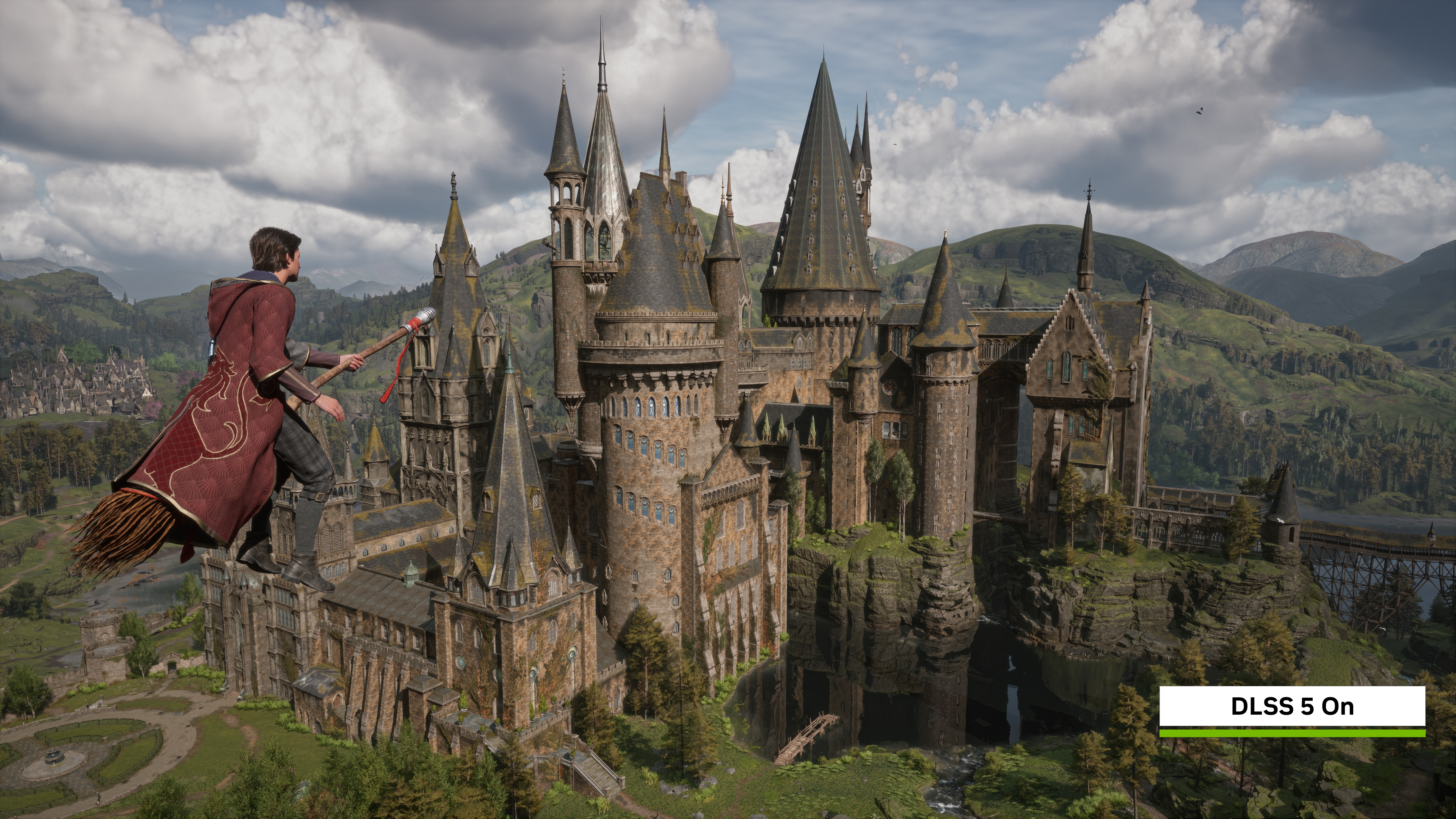
NC and NVIDIA's own GeForce announcement confirm AION 2 shipped with DLSS Frame Generation and NVIDIA Reflex support at global launch, with DLSS Multi Frame Generation following in December. AMD FSR support arrived earlier on the Korean service and carried over into the global build, so RTX 50-series and non-RTX owners both have an upscaling path worth turning on before you touch anything else in the Graphics tab.
In practice, that means your first graphics decision should be picking an upscaler mode, not a resolution. Quality mode is the safer starting point on anything from an RTX 3060 up; Balanced or Performance modes are there for lower-end cards or anyone chasing a locked 60 fps during Abyss Outland's crowded PvP windows, where frame time spikes hit hardest.
07Auto-Use, Palette Colors and Other Quality-of-Life Fixes
Beyond the new Power Shard chain-use toggle, Settings > Combat > Auto Use is worth a full pass if you haven't opened it since launch — it's where most of AION 2's "why isn't my character doing the thing I told it to" problems get solved. Make sure Skill Queue is enabled here too; without it, inputs during animation lock tend to get dropped instead of queued, which reads as lag even when your connection is fine.
The new color-code fields in the palette are a small fix but a real one if you've ever tried to match a Legion's dye scheme from a screenshot or a community color chart. Enter the known code directly in Customization, the Closet, or Settings > Chat Text Color instead of eyeballing a wheel, and you'll land on the exact shade every time.
None of these settings require you to touch a config file or restart the client — every change here lives in the Settings cogwheel, and most take effect immediately. Given how often NC has been pushing maintenance updates since the global launch, it's worth a quick re-check of Combat > Auto Use and the Graphics tab after every patch; new toggles have landed there twice in the last month alone.
FAQ
Does AION 2 support a controller on PC?
No. AION 2 ships as a keyboard-and-mouse MMORPG on PC, and NC has not announced any console release or official controller support.
What does the new Power Shard chain use option do?
Added in the November 4, 2026 update, it's found under Settings > Combat > Auto Use > Item. Turning it on makes your character automatically use Power Shards of the same grade back to back, non-tradable ones first, without ever escalating to a higher grade on its own.
Is DLSS 4.5 available in AION 2 right now?
NVIDIA's own GeForce announcement confirms AION 2 launched globally with DLSS Frame Generation and NVIDIA Reflex support, with DLSS Multi Frame Generation scheduled to follow in December. AMD FSR support is also available.
Why does my FPS crash specifically during Abyss Outland PvP?
Other-player effects and crowd density settings matter more there than anywhere else in the game, since Abyss Outland throws dozens of Daevas into the same frame. Lowering that setting specifically, rather than your overall graphics preset, is usually the fix.
What's the minimum PC spec for AION 2?
NC lists a Ryzen 5 2600 or Core i5-10500, 8GB RAM and a GTX 1050 Ti with 4GB VRAM as the minimum, with 100GB of free disk space and an SSD recommended.
Official resources

Ana writes the step-by-step tutorials: settings, controls, configs and the systems games never explain properly. Every tutorial is tested on the version named at the top of the page, with the official patch notes linked so you can check what changed.