Apex Legends: Best PC Settings and Controls for Marked Split 2
Apex Legends' best PC settings and controls for Marked Split 2: video options, sensitivity, FOV and the EA Javelin anti-cheat changes explained.
Split 2 of Apex Legends: Marked has been live since September 15, and if you haven't touched your PC settings since launch, you're leaving performance and visibility on the table. Respawn also quietly changed how the game treats your hardware this season — Apex moved its PC anti-cheat from Easy Anti-Cheat to EA Javelin Anticheat on September 29, and a second wave of controller-detection enforcement rolled out alongside the Marked Midseason patch notes. None of that changes your frame rate, but it changes what you should and shouldn't plug into your PC before you start tweaking sliders.
Everything below is pulled from EA's own support documentation for Apex Legends, cross-checked against the current Steam build. Treat these as a tested starting point, not gospel — Respawn itself says there's no single correct sensitivity or graphics preset, only what lets you see enemies first and react fastest. That applies whether you're jumping in fresh this Split or you've got thousands of hours and just haven't opened the options menu since you built a new PC.
01The Video Settings EA Actually Recommends
Apex's base Video tab is short, and EA's own settings guide keeps it simple:
- Display Mode: Full Screen on a single monitor; Windowed if you're running more than one.
- Aspect Ratio and Resolution: leave both on your monitor's default rather than forcing a lower render resolution.
- Brightness: nudge it up slightly from default — Apex's indoor lighting and smoke effects can hide players at the stock level.
- Field of View: 90–110, see below for why.
- Sprint View Shake: minimal, or off entirely if camera shake makes you nauseous while sliding and climbing.
Resist the urge to run a lower internal resolution to chase FPS. EA's guidance is to drop the advanced settings first, because a scaled-down resolution makes enemies harder to spot at range — exactly the problem you're trying to solve. On Field of View specifically: Apex starts everyone at 70 by default, and EA's own guidance is blunt about the trade-off — a higher FOV shows more of your surroundings, but distant objects and enemies shrink in your view at the same time. That's why most competitive players land in the 90–110 range instead of maxing the slider out; past that point you're trading away the ability to spot people at range for peripheral vision you mostly don't need indoors.
02Push the Advanced Settings for Competitive Performance
This is where most of your FPS and your visual clarity actually come from. EA's own recommended starting point for competitive players:
- V-Sync: Disabled, unless you're seeing screen tearing.
- Nvidia Reflex: Enabled if you're on an Nvidia card — it trims input latency with no visual cost.
- Adaptive Resolution FPS Target: Disabled unless you're getting frequent FPS drops.
- Anti-Aliasing: None.
- Texture Streaming Budget: Low or Medium.
- Texture Filtering: Bilinear Filtering.
- Ambient Occlusion Quality, Volumetric Lighting, Dynamic Spot Shadows: Disabled.
- Sun Shadow Coverage, Sun Shadow Detail, Spot Shadow Detail, Model Detail, Effects Detail: Low across the board.
- Impact Marks: Low or Disabled.
- Ragdolls: Low.
EA's own reasoning here is worth repeating: running lower graphics settings doesn't just raise your FPS, it frees up your streaming budget so the engine can react faster, which translates into quicker response times mid-fight. If your rig can comfortably hold a high frame rate with some settings raised, Adaptive Supersampling is the one slider EA suggests bumping back up — it sharpens the image without reintroducing the performance cost of full anti-aliasing.
03Mouse Sensitivity and DPI, From Scratch
There's no official "correct" sensitivity in Apex Legends, but EA's support page does define rough bands if you're starting from zero:
- Low sensitivity: 0.5–2.5
- Medium sensitivity: 2.5–3.5
- High sensitivity: 3.5–5
Your mouse's DPI changes how any of those numbers actually feel — 400, 800 and 1600 DPI are the most common settings, and a higher DPI generally pairs with a lower in-game sensitivity multiplier. If you're not sure where to start, EA's suggested competitive baseline is:
- Mouse Sensitivity: 3.0–5.0
- ADS Sensitivity Multiplier: 1.0
- Mouse Acceleration: Off
- Mouse Invert and Lighting Effects: personal preference, no competitive consensus either way
Test any change in the Firing Range before trusting it in a match — shoot a row of stationary targets from a distance, then track a moving dummy, then try flicking between two widely spaced targets. If one of those three feels noticeably worse than the others, your sensitivity is probably off for that style of fight.
Hardware matters more than most sensitivity debates give it credit for. EA's own guidance for improving aim on PC specifically recommends a mouse that's light and comfortable to grip, a wired connection over wireless where possible to cut down on latency, and a proper mousepad rather than a bare desk — none of which costs you anything in the settings menu, but all three show up in how consistent your tracking feels over a long session.
04Controller Settings, and What Javelin Changed About Using One
On controller, EA points to a "4-3" setup as a common competitive baseline: Look Sensitivity at 4 (above default) and Look Sensitivity (ADS) left at the default 3. Pair that with a Linear response curve if you want your stick input to translate directly and consistently — the trade-off is that it also makes stick drift more obvious. If you're newer to the game, EA recommends sticking with the default Classic curve, which has slower initial input and more stickiness, making your aim steadier while you learn.
Where this gets more complicated is the controller-detection system Respawn expanded alongside the Marked Midseason patch. The patch notes confirm new systems now flag unauthorized controller hardware or software on PC, PlayStation, Xbox, and Nintendo Switch 2, with action and potential bans for anyone who trips them — Respawn's notes specifically say playing on console doesn't exempt you from enforcement. That's aimed at devices like XIM adapters, Cronus Zen and Strikepack-style input converters, not at a standard controller plugged in through Steam Input or the EA app. If you're using a normal wired or wireless pad with stock firmware, none of this should touch you; if you're running anything that remaps, filters or automates inputs, it's worth checking Respawn's published device list before you queue Ranked.
Separately — but on the same theme — Apex's PC build switched its anti-cheat engine entirely on September 29, moving from Epic's Easy Anti-Cheat to EA's own Javelin Anticheat. EA says the switch doesn't require any BIOS changes or Secure Boot on Apex specifically — you download the update, launch the game once, and the migration happens automatically. If Apex is refusing to launch and you haven't restarted since before September 29, that's the first thing to try.
https://t.co/NuDv0t4R0o
— ApexLiveComms (@ApexLiveComms), October 8, 2026 on X
05Audio and EQ Settings for Footstep Callouts
Apex doesn't ship with a dedicated "competitive audio" preset, but EA's own equalization advice is straightforward: in Settings > Audio, push Master Volume and Sound Effects Volume to their maximum, then pull down anything that competes with footsteps and gunfire — Dialogue Volume, Music Volume and Lobby Music Volume are the three EA names directly. None of this requires third-party software or a special headset profile; it's a two-minute pass through sliders you already have.
How to Set Up Apex Legends on PC
- 1Open Settings > Video and set Display Mode to Full Screen (Windowed if you run multiple monitors), leave Aspect Ratio and Resolution on your monitor's default, and set Field of View between 90 and 110.2 min
- 2Switch to the Advanced tab and set Anti-Aliasing to None, Texture Streaming Budget to Low or Medium, Ambient Occlusion and Volumetric Lighting to Disabled, and Shadow/Model/Effects Detail to Low. Enable Nvidia Reflex if you have an Nvidia GPU.3 min
- 3On mouse, start around 3.0–5.0 sensitivity with a 1.0 ADS multiplier and Mouse Acceleration off. On controller, try Look Sensitivity 4 / ADS Sensitivity 3 with a Linear response curve, or stick with Classic if you're new.3 min
- 4Go to Settings > Audio and push Master Volume and Sound Effects Volume to maximum, then lower Dialogue Volume, Music Volume and Lobby Music Volume so footsteps and gunfire stand out.2 min
- 5Launch the game once if you haven't since September 29 — Apex automatically switches you from Easy Anti-Cheat to EA Javelin Anticheat on PC, no Secure Boot or BIOS changes required.1 min
- 6Shoot stationary targets from range, track a moving dummy, then flick between two widely spaced targets to confirm your new sensitivity and FOV actually feel right before queuing Ranked.3 min
06What Split 2 of Marked Changed, and Why It Matters for Your Setup
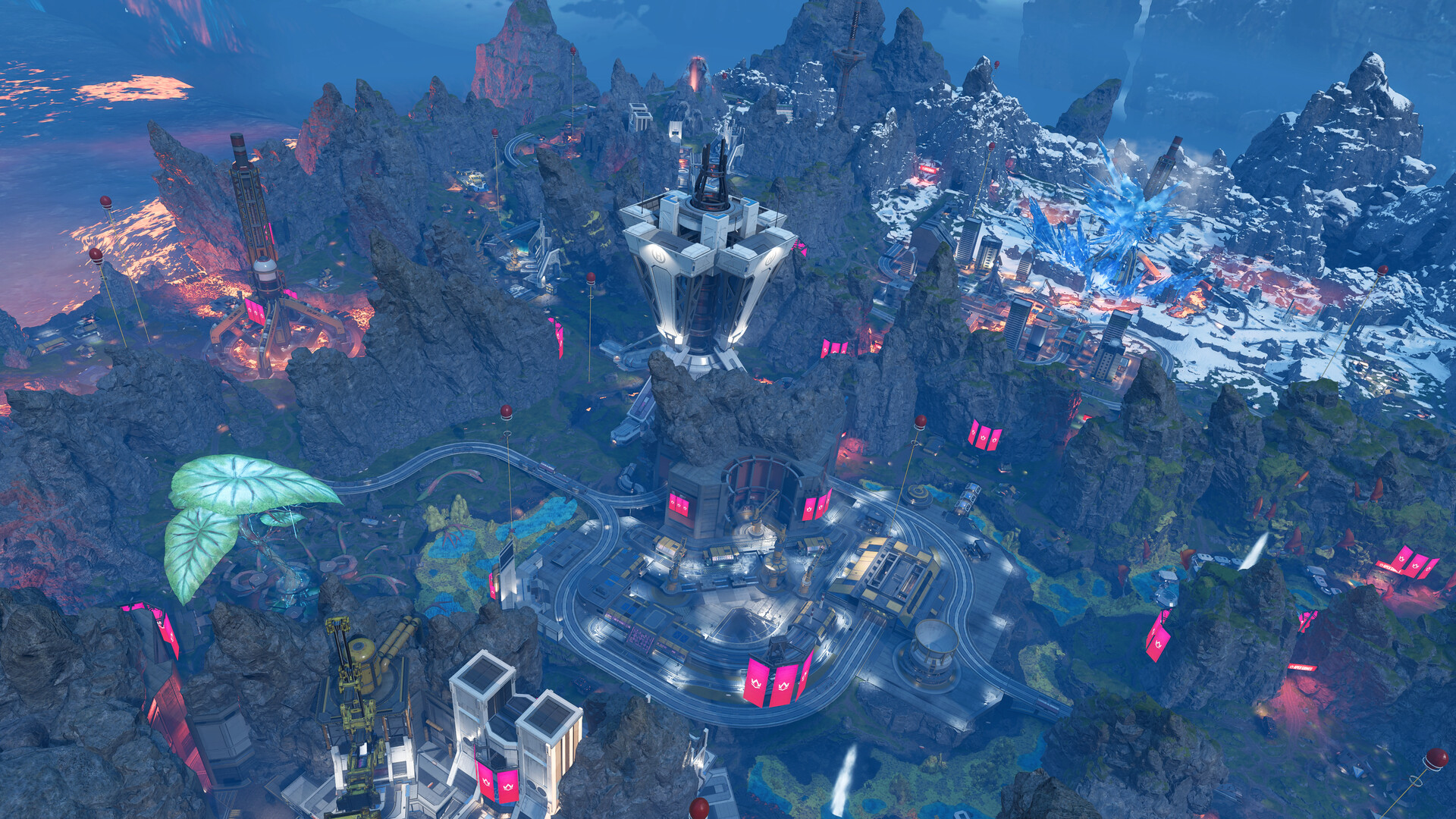
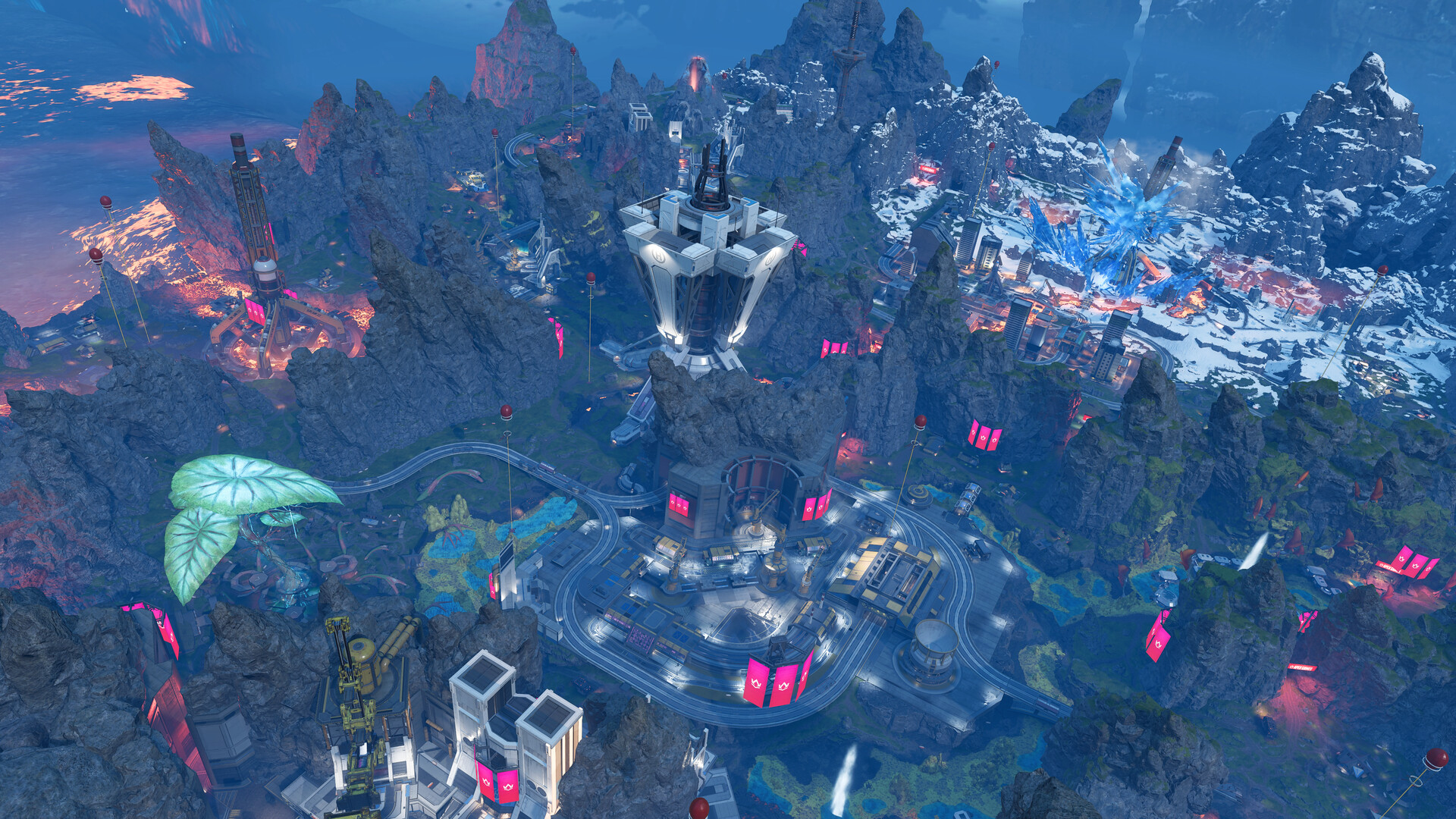
The settings above hold regardless of balance patches, but it's worth knowing what you're actually loading into. Split 2's Marked Midseason update reworked three Legends outright — Conduit, Fuse and Catalyst all got new kits and Level upgrades — while Axle took a hard nerf across his Nitro Gate speed, Ultimate HP and cooldown. On the weapon side, the Triple Take, Bocek Compound Bow, Sparrow's Quiver and Charge Rifle all got buffed, and loot bins now hold more healing, ammo and amps on average with fewer empty pulls. Respawn also pushed over 150 map quality-of-life fixes, most of them on World's Edge, which is back in both the Pubs and Ranked map rotation alongside Olympus and Broken Moon.
None of that demands a settings change on its own, but a reworked Catalyst with a 15-second tactical cooldown and more reinforced doors, or an Axle who can no longer stun-lock a push, changes the pace of close-range fights — which is exactly where a mistuned ADS sensitivity multiplier or a laggy audio mix costs you the most. If you haven't revisited your settings since before Split 2 launched in mid-September, this patch is as good a reason as any to run through the checklist above.
FAQ
What's the best FOV for Apex Legends on PC?
EA's own guidance suggests 90–110 as a competitive starting point, up from the default of 70. Going higher shows more of your surroundings but makes distant enemies appear smaller, so most players land in that range rather than maxing the slider.
Should I turn on V-Sync in Apex Legends?
No, unless you're seeing screen tearing. EA recommends leaving V-Sync disabled by default, since it adds input latency that outweighs the benefit for most setups.
Why does Apex Legends keep flagging my controller?
Respawn expanded controller-detection enforcement during the Marked Midseason patch to catch unauthorized hardware or software like input converters and macro devices. A standard controller running through Steam Input or the EA app shouldn't trigger it; anything that remaps or automates inputs might.
Do I need to change any PC settings for EA Javelin Anticheat?
No. EA says Apex specifically doesn't require Secure Boot or BIOS changes for the September 29 migration — you just need to download the update and launch the game once for it to switch over automatically.
What's a good starting mouse sensitivity for Apex Legends?
EA's own ranges put low sensitivity at 0.5–2.5, medium at 2.5–3.5 and high at 3.5–5, with a competitive starting point around 3.0–5.0 and a 1.0 ADS multiplier. Your mouse DPI (commonly 400, 800 or 1600) will change how any of those numbers feel.
Official resources

Ana writes the step-by-step tutorials: settings, controls, configs and the systems games never explain properly. Every tutorial is tested on the version named at the top of the page, with the official patch notes linked so you can check what changed.