&w=1920)
Battlefield 6 Proximity Chat: How to Turn It On and Mute Players
Battlefield 6's Update 1.4.3.0 adds Proximity Chat to REDSEC Battle Royale. Here's how to turn it on, swap channels, and mute anyone you hear.
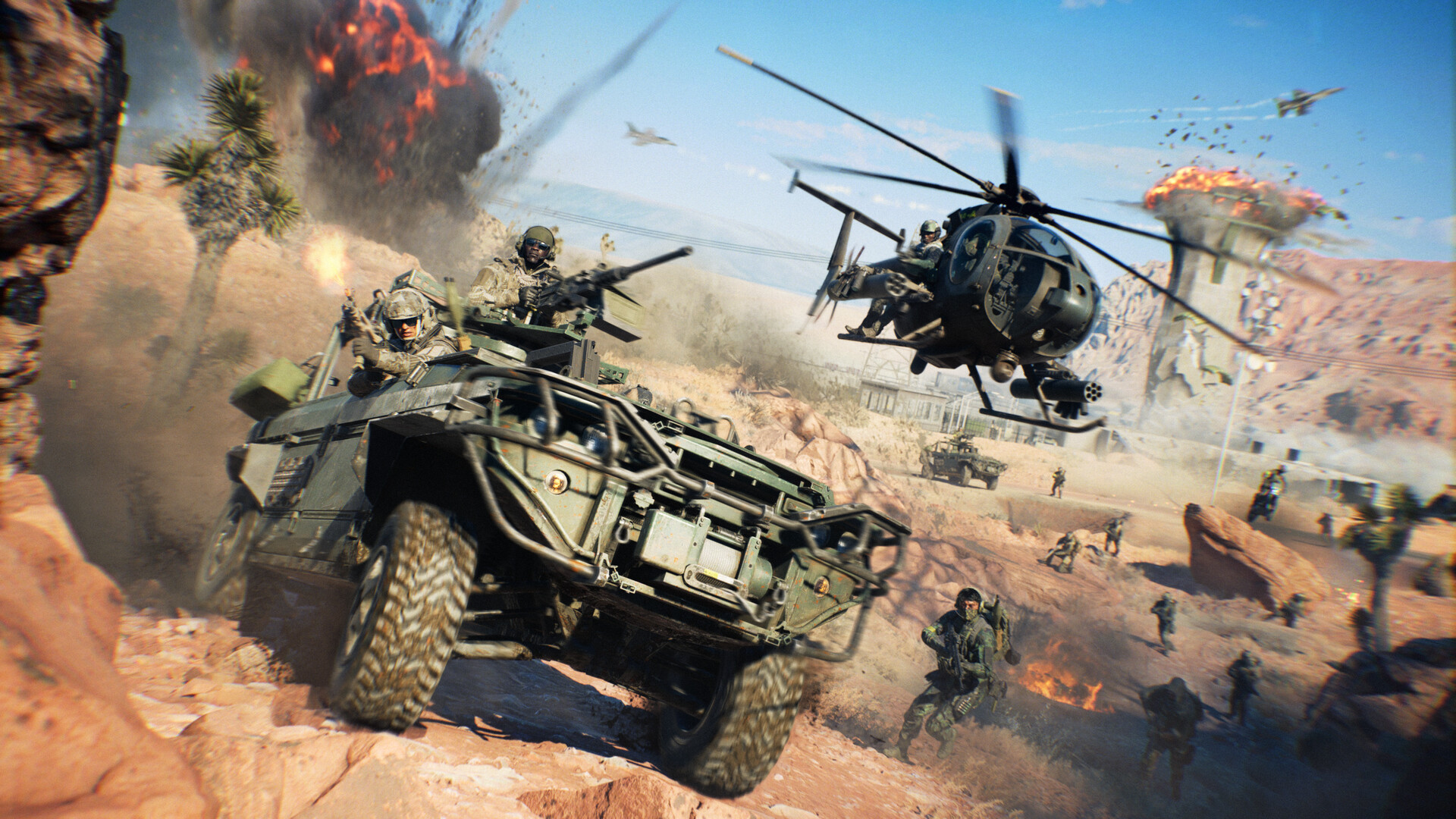
Battlefield 6's Update 1.4.3.0 shipped alongside Season 4: Tidal Strike on September 15, and the headline addition for anyone who plays solo or with strangers is Proximity Chat. It is the first time Battlefield 6 has let you hear the players fighting around you instead of only your own squad, and it arrives with a handful of new options that are not obvious unless you go looking for them. On top of the voice feature, the same update quietly reworks a Picture-in-Picture optics setting that a lot of players never realized existed. This walkthrough covers exactly where those settings live, how the feature behaves in a match, and how to shut individual players up when you need to.
01What Proximity Chat Changes in Battlefield 6
Proximity Chat is opt-in positional audio: who you hear depends on where they are relative to you, and the sound itself is shaped by the environment. A teammate shouting from the next room sounds different than one standing next to you in the open, walls muffle voices, and being inside a vehicle changes what filters through. Up to four nearby players can come through at once; if a fifth speaks, the game mutes the extra voice temporarily and shows a UI message telling you a channel is full.
For now, Proximity Chat is limited to Battlefield REDSEC's Battle Royale, not core Multiplayer. EA's patch notes for 1.4.3.0 frame this as a real-world test: audio range, clarity, and moderation tools are all still being tuned, and the studio has said the feature could be switched off temporarily while it works out problems. That matters for how you should treat the settings below. Nothing here is locked in for the rest of the game's life; expect ranges, the four-player cap, and even which modes carry Proximity Chat to keep changing as Season 4 continues and the feature eventually makes its way toward core Multiplayer.
02How to Turn Proximity Chat On or Off
Proximity Chat defaults to on in REDSEC, but you do not have to keep it that way. Here is the full setup, start to finish.
How to Set Up and Control Proximity Chat
- 1Launch Battlefield 6 or Battlefield REDSEC and let the client finish downloading Update 1.4.3.0; Proximity Chat and the rest of Season 4: Tidal Strike will not appear on an older build.2 min
- 2Proximity Chat is currently limited to Battlefield REDSEC's Battle Royale mode, so queue into a match there rather than core Multiplayer.1 min
- 3Hold down the Commo Rose input to bring up the ping wheel; the Proximity Chat controls now sit directly below it.10 sec
- 4Look for the on/off switch below the wheel and confirm it is set the way you want before you drop into a firefight.10 sec
- 5Select the toggle to flip Proximity Chat globally; turning it off only removes the positional layer, your squad's Game voice chat keeps working.5 sec
- 6Use the same Commo Rose menu to switch channels on the fly, for example dropping into Proximity Chat to call out a nearby enemy, then back to squad chat.5 sec
- 7Open the scoreboard during a match to see a list of players you have recently heard through Proximity Chat, including people outside your squad.10 sec
- 8Select a name from that list to open the EA Connect pop-up, then choose mute for an instant local silence, or block to carry the decision into future matches.15 sec
03Swapping Channels Mid-Match
The quick toggle below the Commo Rose is not just an on/off switch, it is also how you swap between voice channels without digging into a menu while someone is shooting at you. Hold the Commo Rose open and you will see the current channel state alongside your usual ping options, so you can drop into Proximity Chat to call out a nearby threat, then flip back to squad-only chat for coordinating a push. It is a small addition, but on PC in particular it saves you from alt-tabbing out to Discord or hunting through the pause menu settings mid-firefight.
04Muting, Reporting, and Blocking Through the Scoreboard
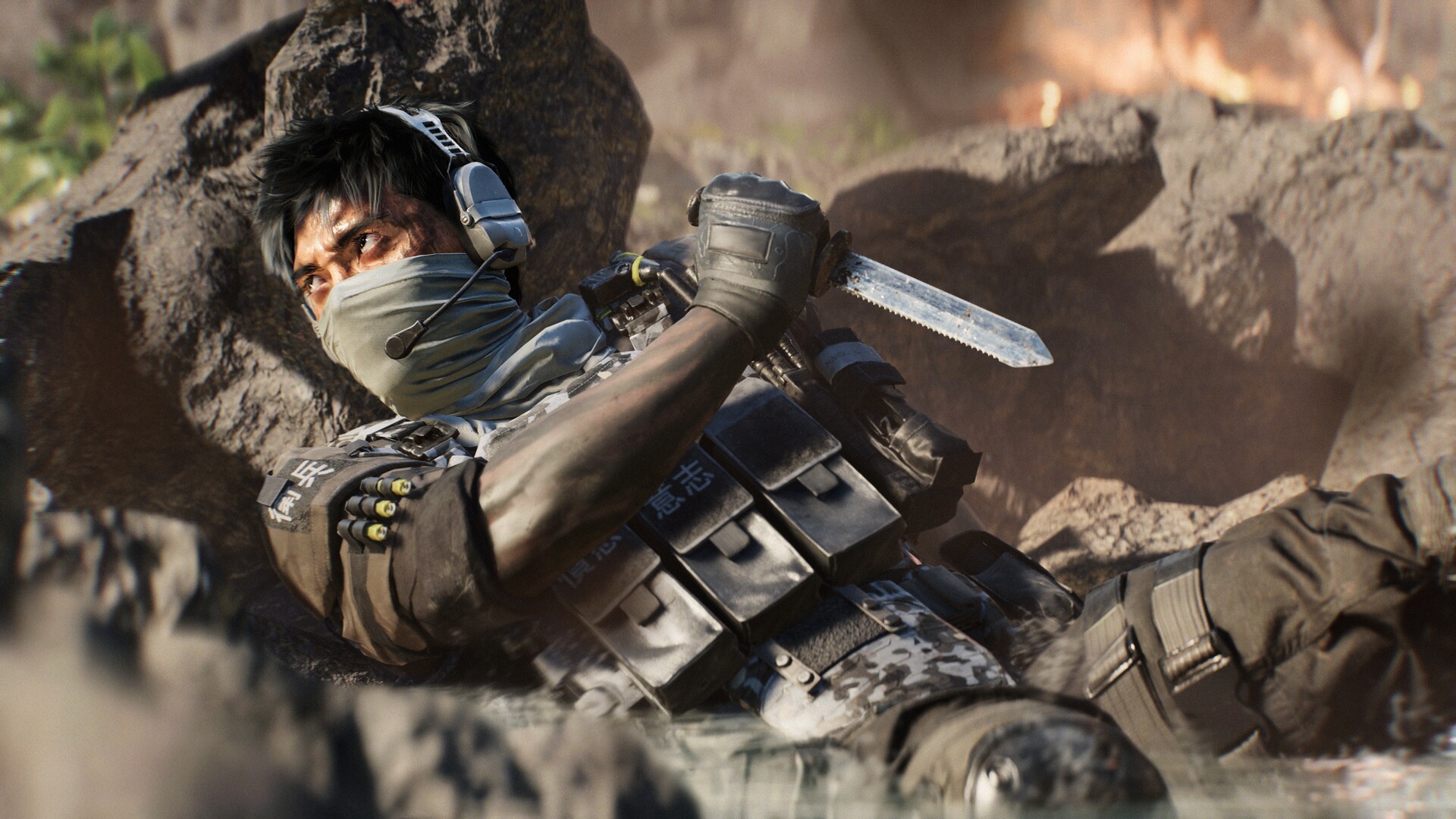
Because Proximity Chat can put you next to complete strangers, EA built moderation directly into the scoreboard rather than burying it in the settings menu. Open the scoreboard in a Battle Royale match and you will see a list of recent players you have heard through Proximity Chat, even if they were never on your squad. Select a name and the EA Connect pop-up gives you three options: mute, report, or block. Muting is local and instant, so if someone nearby is running voice-changer spam or just being unpleasant, you can silence them without leaving the match. A block carries over to your broader EA Connect settings, so it also follows you into future lobbies with that player.
If you would rather avoid strangers on your channel entirely, remember that solo players and full parties both default back to standard Game voice chat, so your squad communication is never dependent on Proximity Chat being enabled.
05Squad Voice, Game Chat, and How They Interact
It helps to think of Battlefield 6 as running two audio layers at once now. Game voice chat is your normal squad line, unaffected by anything covered here. Proximity Chat is a second, positional layer that only picks up nearby players outside your squad. Turning Proximity Chat off does not touch your squad comms in any way, it just removes the ability to hear or be heard by people you are not partied with. That separation is deliberate: Battlefield 6 is built around organized squad play as much as open-world chaos, and the studio did not want a new social feature to interfere with the chat players already rely on to win fights.
If your squad line and Proximity Chat both sound muddy or too quiet, check the separate volume sliders under Settings, then Audio, then Voice Chat. Game Voice Volume and any Proximity Chat-specific slider added with this update sit apart from your general effects and music mixers, so turning up master volume alone will not fix a chat that is hard to hear. It is also worth confirming your push-to-talk bind, if you use one, has not been overwritten by a controller or peripheral profile update, since that is a common cause of Proximity Chat not working reports that are really just a muted mic.
“Yes we have the first iteration of Proximity Chat coming during Season 4. We are excited to get this feature into your hands, and to continue iterating on this feature alongside you.”Matthew Nickerson, Associate Gameplay Design Director, Ripple Effect
06The New Picture-in-Picture Optics Option
Update 1.4.3.0 also touches a setting that is easy to miss because it lives under Gameplay rather than Audio. Alongside a broad reticle overhaul aimed at cleaner, more readable sights, the patch adds an option to disable the Picture-in-Picture zoom window on scoped optics entirely, switching instead to a full-screen field-of-view zoom when you aim down sights. If you found the PiP window distracting, or it was costing you frames on a lower-end PC since the game renders a second view inside the scope, this is the toggle to look for under your Gameplay or Weapon settings menu. Console players should note that EA has acknowledged a separate bug causing overly thick black borders on some scopes on PlayStation 5, which the studio is tracking for a follow-up fix rather than something you can configure around right now.
07Common Proximity Chat Problems and Fixes
Most of the early reports about Proximity Chat come down to a handful of repeatable issues:
- You cannot hear anyone nearby: confirm the global toggle below the Commo Rose is actually on, and check that your in-game microphone device is still set correctly under Audio settings, since a driver update or a new headset can silently reset it.
- Voices cut out in buildings: this is expected behavior, not a bug. Walls and indoor spaces are designed to muffle or block Proximity Chat, mirroring where the speaker actually is relative to you.
- You keep hitting the four-player limit in crowded fights: that cap is intentional to keep late-game callouts from turning into noise; muted extra speakers will come through once a channel frees up as people move or die.
- A mute or block is not sticking: mutes clear at the end of a match, but blocks made through EA Connect persist. If a blocked player is still audible, double-check the block went through in your EA Connect friends and blocked list, not just the in-match pop-up.
- Proximity Chat is missing entirely: make sure you are actually in Battlefield REDSEC's Battle Royale mode and running Update 1.4.3.0 or later; the feature is not present in core Multiplayer yet, and an unapplied update is the most common reason it appears to be gone.
Because this is explicitly a testing phase, expect the exact thresholds and behavior to keep shifting through the rest of Season 4 as EA and Battlefield Studios react to feedback from Deep Six and the wider Tidal Strike playerbase.
08Should You Leave Proximity Chat On?
For solo queue in REDSEC, leaving it on is worth trying for at least a session or two: hearing an enemy squad's callouts through a wall, or a random ally warning you about a flank, adds a layer of tension that squad-only chat never had. If you are running with a full party, the practical upside is smaller since your squad line already covers coordination, and you may prefer to switch it off to cut down on noise during close-quarters fights. Either way, the setting is a single toggle away below the Commo Rose, so there is no real reason not to test both across a few matches and see which one you actually enjoy playing with.
FAQ
Is Proximity Chat available in Battlefield 6 Multiplayer yet?
Not yet. As of Update 1.4.3.0, Proximity Chat only runs in Battlefield REDSEC's Battle Royale mode; EA has said it plans to bring the feature to core Multiplayer later, pending feedback from this test.
How many players can I hear through Proximity Chat at once?
Up to four. If a fifth nearby player speaks, they are temporarily muted and a UI message lets you know a channel is full until one frees up.
Does turning off Proximity Chat affect my squad's voice chat?
No. Squad communication runs through the standard Game voice chat channel, which is unaffected by the Proximity Chat toggle below the Commo Rose.
How do I mute someone I only heard through Proximity Chat?
Open the scoreboard, find their name under recently heard players, and choose mute, report, or block through the EA Connect pop-up. Mutes are instant and local to that match.
Can Proximity Chat pick up enemies as well as allies?
Yes. Since it is based on distance and environment rather than team, you can hear enemy squads who are close enough, which is part of what this update is testing.
Official resources

Ana writes the step-by-step tutorials: settings, controls, configs and the systems games never explain properly. Every tutorial is tested on the version named at the top of the page, with the official patch notes linked so you can check what changed.