Battlefield 6 Best PC Settings: Secure Boot, TPM 2.0, and DLSS 4
Battlefield 6's best PC settings: fix Secure Boot and TPM 2.0 launch errors, match EA's four spec tiers, and turn on DLSS 4 for real frame-rate gains.
Battlefield 6 is a demanding game to run well on PC, and not just because of the settings menu. Before you ever touch a graphics slider, EA's own anti-cheat requirements decide whether the game launches at all. Here's how to get past Secure Boot and TPM 2.0 errors, pick the right settings tier for your hardware, and turn on the upscaling tech that actually moves the needle.
01Why Battlefield 6 Won't Launch Without Secure Boot and TPM 2.0
If Battlefield 6 refuses to start on your PC, the cause is almost always security, not your graphics card. EA's own "Get Ready for Battlefield 6" guide states plainly: "In order to play Battlefield 6 on PC, you must enable Secure Boot." EA ties the requirement directly to its kernel-level Javelin anti-cheat, saying the feature "allows EA's Javelin Anticheat to detect, remove and deter cheaters." Four security features are listed as required across every official spec tier: TPM 2.0 Enabled, User Secured Boot Enabled, HVCI Capable, and VBS Capable.
Start by checking where you currently stand. Search for "System Information" in the Windows Start menu, or type msinfo32 into the Run dialog, and look at the "Secure Boot State" and "Device Encryption Support" lines in the System Summary. If Secure Boot shows as "Off," you'll need to enable it in your motherboard's UEFI firmware, which also requires your Windows drive to be formatted as GPT rather than the older MBR layout. EA's guide links out to manufacturer-specific instructions for this step, since every BIOS looks a little different.
TPM 2.0 is usually a separate toggle in the same UEFI menu, sometimes listed under a brand name like Intel PTT or AMD fTPM rather than "TPM" itself. Once Secure Boot and TPM are both on, open Windows Security, go to Device Security, and confirm that Core Isolation / Memory Integrity (which corresponds to HVCI) is switched on, and that Virtualization-Based Security shows as running. If any of these four pieces are missing, Battlefield 6 will block you at launch rather than let you play with degraded protection.
02EA's Four Official PC Spec Tiers
Once the game actually launches, the next question is what kind of performance to expect from your hardware. EA publishes four official specification tiers for Battlefield 6, each built around a specific resolution and frame-rate target rather than a vague "low/medium/high" label:
- Minimum — 1080p at 30 FPS on Low settings. Needs an Intel Core i5-8400 or AMD Ryzen 5 2600, an Nvidia RTX 2060, AMD Radeon RX 5600 XT, or Intel Arc A380, 16GB of RAM, 6GB of VRAM, Windows 10, and 55GB of storage.
- Recommended — 1440p at 60 FPS on High, or 1080p at 80+ FPS on Low. Needs an i7-10700 or Ryzen 7 3700X, an RTX 3060 Ti, RX 6700 XT, or Arc B580, 16GB RAM, 8GB VRAM, Windows 11 64-bit, and a 90GB SSD.
- Ultra — 4K at 60 FPS on Ultra, or 1440p at 144 FPS on Medium. Needs an i9-12900 or Ryzen 7 7800X3D, an RTX 4080 or RX 7900 XTX, 32GB RAM, 16GB VRAM, Windows 11, and a 90GB SSD.
- Ultra++ — 4K at 144 FPS on High, or 4K at 240+ FPS on Ultra. Needs an Intel Core Ultra 285K or Ryzen 7 9800X3D, an RTX 5080, 32GB RAM, 16GB VRAM, Windows 11, and a 90GB SSD.
EA is upfront that this list isn't exhaustive, describing it as the minimum viable build for each of the game's seven in-game presets rather than a hard ceiling. All four tiers run on DirectX 12, and EA notes that the Ultra tier's 1440p target was revised down from a High preset to a Medium preset during testing, so don't be surprised if your real-world results land a shade under the listed numbers.
03Matching Your Settings to Your Hardware
With your tier identified, the fastest way to a stable result is to let the game's automatic detection pick a starting preset, then adjust from there rather than manually chasing every slider. EA specifically recommends running your GPU manufacturer's own optimization software (Nvidia App or AMD Software) alongside manual fine-tuning inside the in-game Settings menu, rather than relying on either one alone.
Two steps matter before you open the settings menu at all. First, install the latest graphics driver — EA's guidance is explicit that you should do this before first launch unless official Battlefield channels say otherwise. Second, if your hardware sits at or near the Minimum tier, turn on Hardware-Accelerated GPU Scheduling in Windows (Settings > System > Display > Graphics), which EA calls out specifically as a recommendation for lower-end builds. It won't transform a struggling system, but it reduces latency overhead at essentially no cost.
04Turning On DLSS 4, Frame Generation, and Reflex
If you're on an Nvidia GPU, the single biggest performance lever in Battlefield 6 is upscaling. Nvidia's own GeForce news post confirms the game "includes support for DLSS 4 with Multi Frame Generation, DLSS Frame Generation, DLSS Super Resolution, DLAA, and NVIDIA Reflex," and the numbers back that up. At 4K with Ultra settings, DLSS 4 Multi Frame Generation plus DLSS Super Resolution multiplies frame rates by an average of 3.8X across the RTX 50 Series, with Nvidia reporting over 470 FPS on an RTX 5090, over 330 FPS on an RTX 5080, and over 230 FPS on an RTX 5070. At 1440p the average uplift drops to roughly 3X, and at 1080p to about 2.9X, with Nvidia reporting every GPU in its tested lineup exceeding 230 FPS at that resolution.
To access this, open Settings > Display, and look for the Upscaling / Super Resolution section. Set it to DLSS, choose a quality mode (Quality for the best image at a given resolution, Performance if you need more headroom), then separately enable Frame Generation or Multi Frame Generation if your GPU supports it — Multi Frame Generation is exclusive to the RTX 50 Series. Turn on Nvidia Reflex as well; it reduces input latency rather than boosting raw frame rate, which matters more than it sounds like in a fast-paced shooter. Nvidia recommends running its dedicated Battlefield 6 Game Ready Driver to hit the figures above rather than an older driver release. If you're on AMD or Intel hardware, the equivalent FSR or XeSS toggles sit in the same Upscaling menu; pick whichever upscaler matches your GPU vendor for the cleanest result.
05Controls and Accessibility Settings Worth Checking
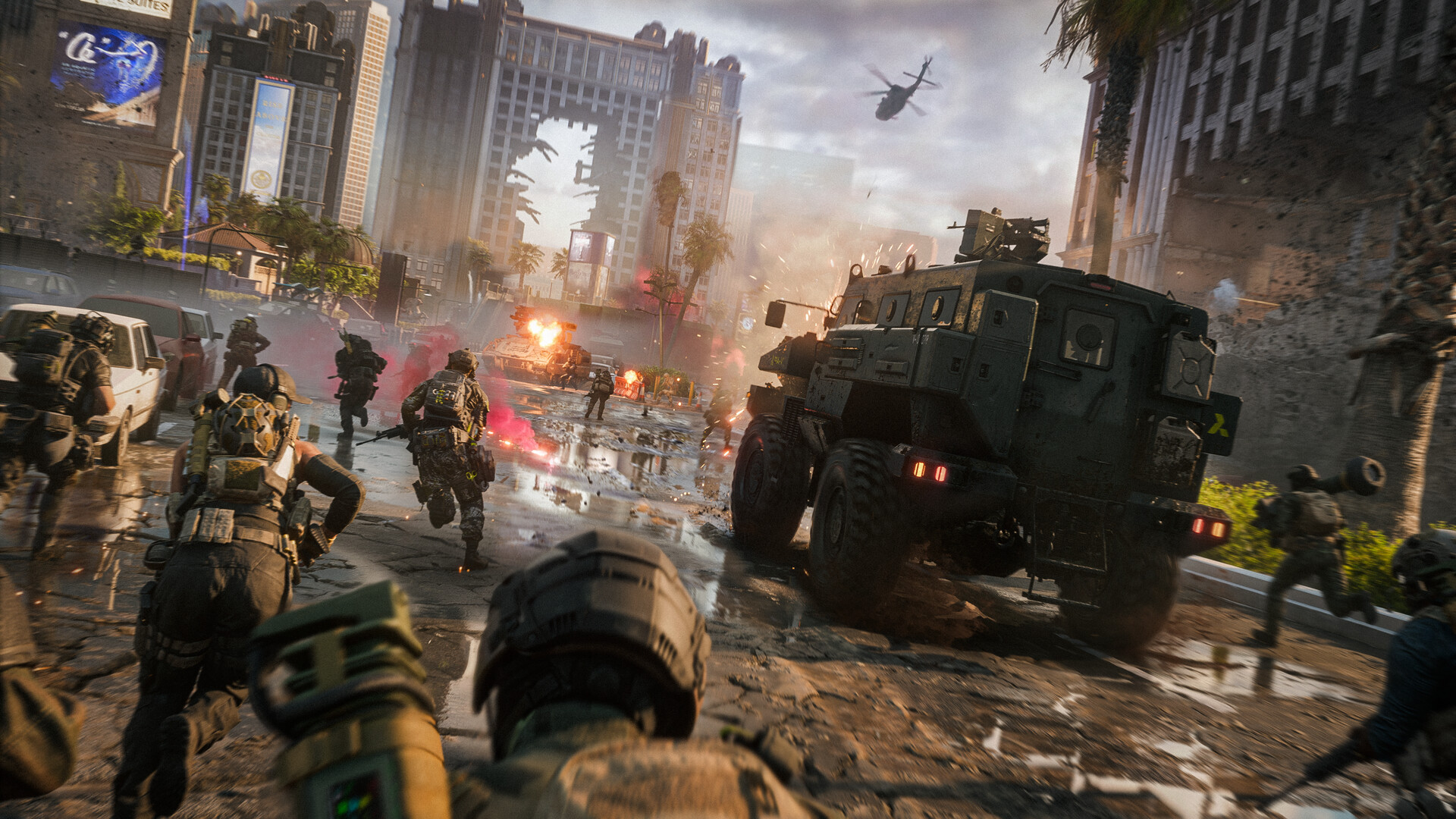
Battlefield 6 ships with full controller support, including specific DualSense and DualShock integration alongside the usual keyboard-and-mouse setup, so console-style play on PC isn't a compromise. Beyond button mapping, the game's own feature list (confirmed on its Steam store page) includes a notably deep accessibility set: Camera Comfort options for players sensitive to motion, Adjustable Difficulty, a Keyboard Only Option that removes any requirement for a controller or mouse, Color Alternatives for colorblind players, Custom Volume Controls, and separate Subtitle Options with full audio subtitle support. HDR is also listed as available for displays that support it, and it's worth enabling from Display settings if you own an HDR monitor — the brighter explosion and muzzle-flash highlights are one of the more immediately noticeable upgrades the setting provides.
If you're coming from a different shooter, spend five minutes in the control binding menu before your first real match. Core movement and gadget actions are fully rebindable, and because Battlefield 6 leans on vehicles as much as infantry combat, it's worth separately checking the vehicle-specific control scheme rather than assuming your on-foot bindings carry over cleanly.
How to Get Battlefield 6 Running Smoothly on PC
- 1Open Run (Win+R) and type msinfo32, then check the Secure Boot State and Device Encryption Support lines in System Summary. If either shows as unsupported or off, you'll need to adjust your UEFI firmware before Battlefield 6 will launch.2 min
- 2Restart into your motherboard's UEFI/BIOS (usually Del or F2 at boot), find Secure Boot under Boot or Security, and switch it on. Your Windows drive must already be formatted as GPT, not the older MBR, for this to work.5 min
- 3In the same UEFI menu, enable TPM 2.0 — on many boards it's labeled Intel PTT or AMD fTPM rather than TPM directly. Save changes and reboot into Windows.3 min
- 4In Windows, open Windows Security > Device Security and check that Core Isolation / Memory Integrity is on and Virtualization-Based Security shows as running. EA lists both as required alongside Secure Boot and TPM 2.0.2 min
- 5Compare your CPU, GPU, and RAM against EA's Minimum, Recommended, Ultra, and Ultra++ tiers to set realistic expectations before you start adjusting individual sliders.5 min
- 6Install the latest driver for your card — Nvidia's dedicated Battlefield 6 Game Ready Driver, or AMD's current Adrenalin release — before your first real session.5 min
- 7In Settings > Display, set Upscaling to DLSS (Nvidia), FSR (AMD), or XeSS (Intel), pick a quality mode, enable Frame Generation or Multi Frame Generation if supported, and switch on Reflex for lower input latency.3 min
06What Season 5 Changes for PC Settings
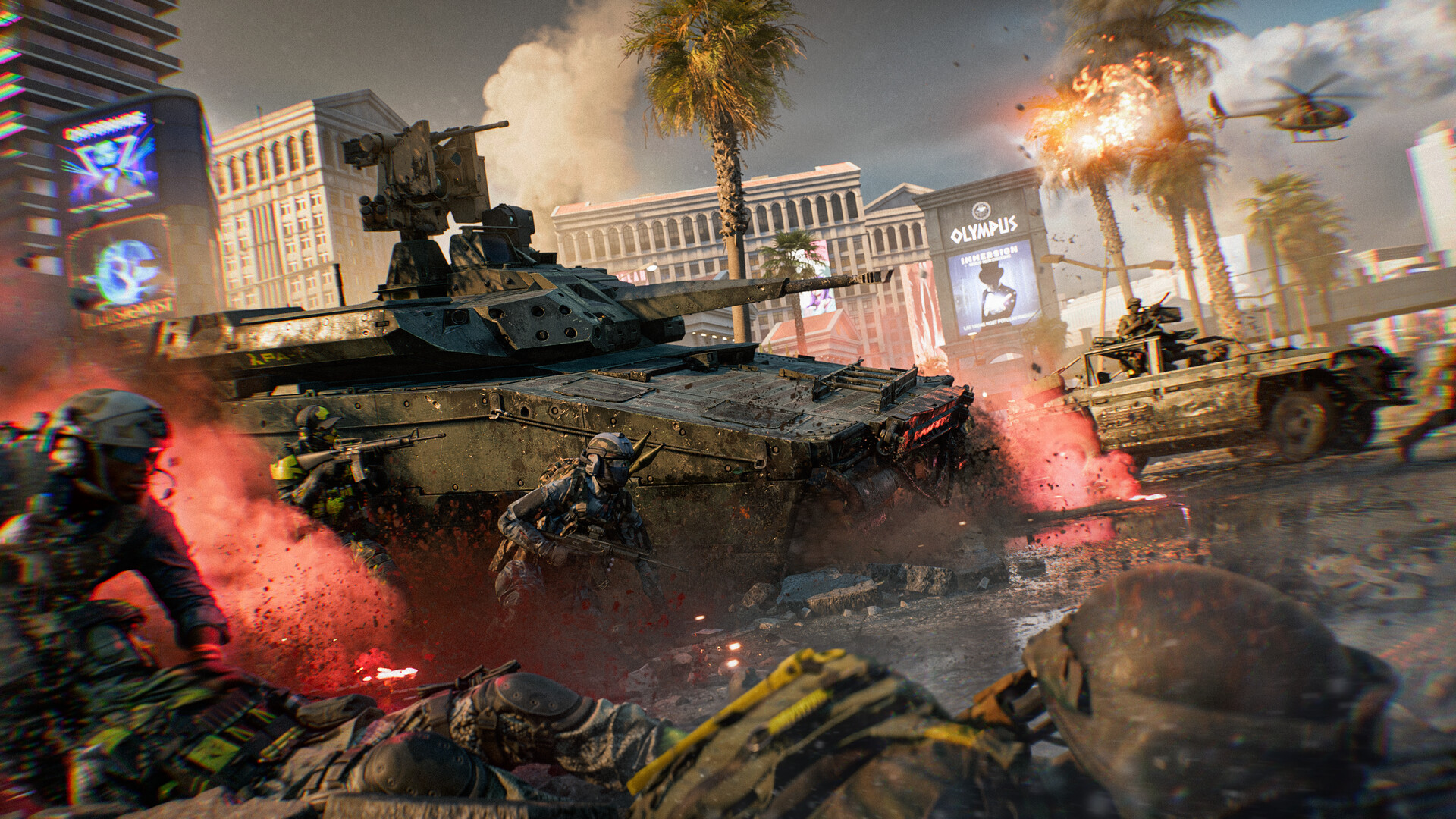
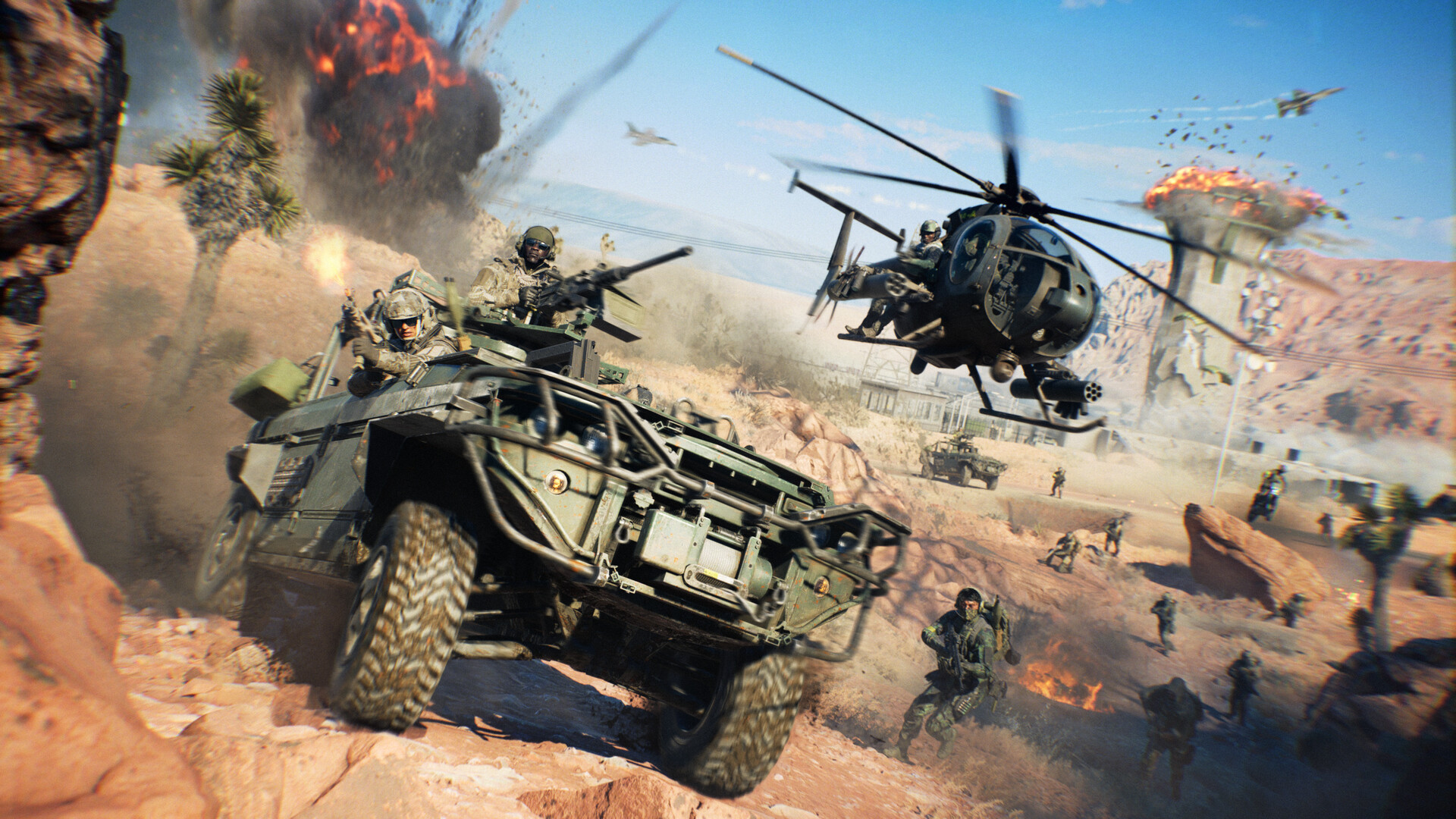
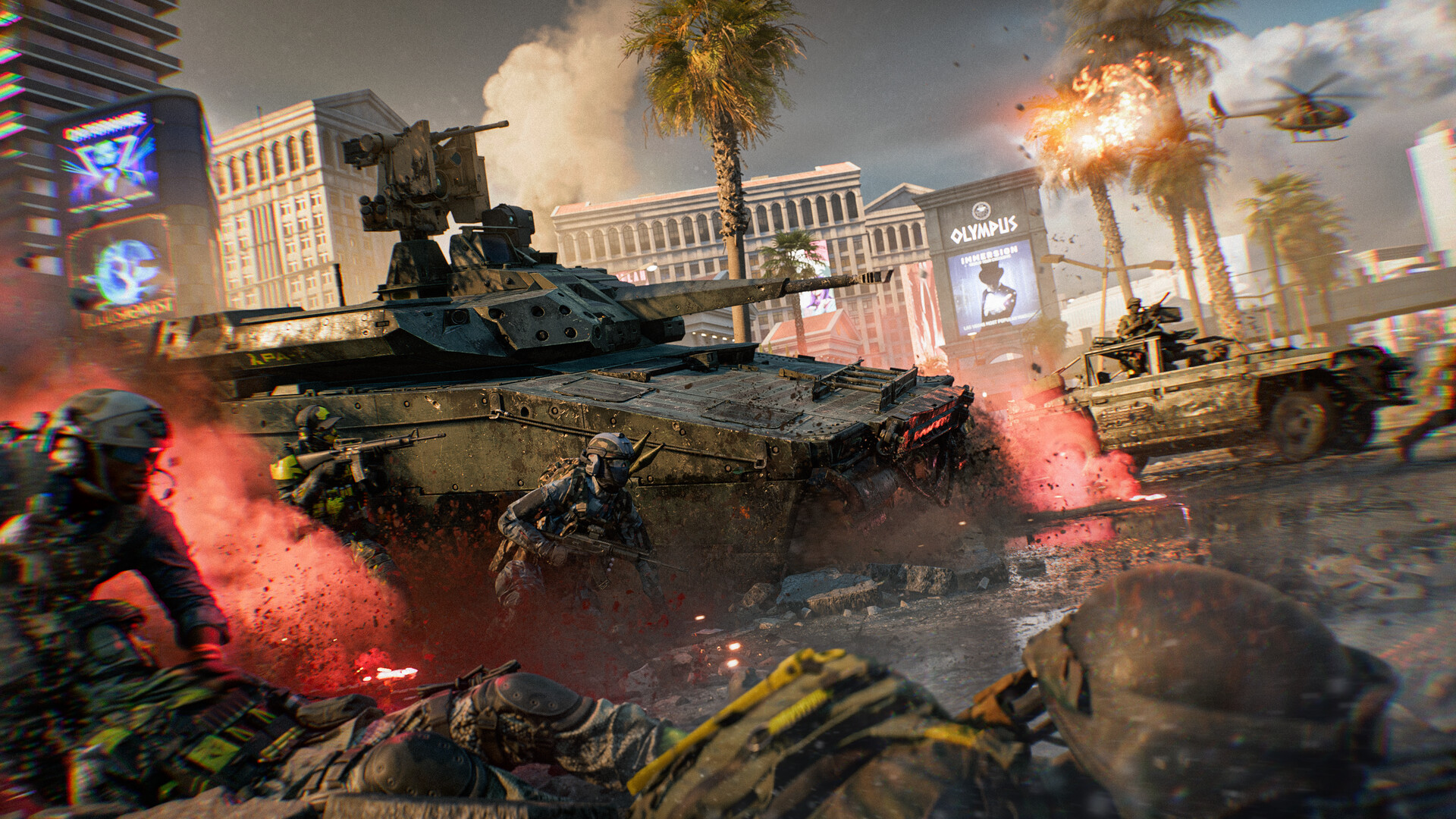
None of the above settings guidance changes with Battlefield 6's Season 5 update, which EA's own roadmap page brands "Siege of Las Vegas" and which went live October 13, 2026. The season moves combat to the Vegas Strip and Area 51, opening with two maps and adding a third later in its run, alongside new weapons and vehicles. Because Season 5 adds maps rather than overhauling the renderer or requirements, your existing spec tier and DLSS/FSR setup should carry over directly — there's no new settings category to learn, just more terrain for your current configuration to render.
That said, it's worth revisiting your upscaling quality mode once you've spent a few matches on the new maps. Dense urban terrain like the Vegas Strip tends to be more GPU-intensive than open desert, so a setup that ran comfortably on Area 51 or older desert maps may benefit from dropping one Super Resolution quality step on Strip-heavy modes.
Keep an eye on EA's official Battlefield news page for any PC-specific patch notes tied to Season 5 or its later Casino Heist and Frozen Aces content drops — security requirements and driver recommendations are the kind of thing EA tends to update quietly rather than call out in patch headlines.
FAQ
Why won't Battlefield 6 launch on my PC?
It's almost always a security setting, not your hardware. EA requires Secure Boot, TPM 2.0, HVCI, and VBS to be enabled on every spec tier because its Javelin anti-cheat depends on them — the game won't start without all four.
Can I play Battlefield 6 without enabling Secure Boot?
No. EA's own setup guide states that Secure Boot must be enabled to play Battlefield 6 on PC at all, tying the requirement directly to Javelin anti-cheat detection.
What are Battlefield 6's four PC spec tiers?
EA lists Minimum (1080p/30 FPS, Low), Recommended (1440p/60 FPS, High), Ultra (4K/60 FPS, Ultra), and Ultra++ (4K/144 FPS, High), each tied to a specific CPU, GPU, RAM, and storage combination.
Does Battlefield 6 support DLSS 4 and Frame Generation?
Yes. Nvidia confirms Battlefield 6 supports DLSS 4 with Multi Frame Generation, DLSS Super Resolution, DLAA, and Reflex, with Nvidia's own testing showing roughly a 2.9X to 3.8X frame-rate increase depending on resolution.
Does Season 5 change any PC settings or requirements?
No. Season 5's Siege of Las Vegas content adds new maps and weapons but doesn't change the official spec tiers or security requirements, so your existing settings and upscaling setup carry over.
Official resources

Ana writes the step-by-step tutorials: settings, controls, configs and the systems games never explain properly. Every tutorial is tested on the version named at the top of the page, with the official patch notes linked so you can check what changed.