Onimusha: Way of the Sword: Best PC Settings and Controls
Get the best Onimusha: Way of the Sword PC settings: DLSS 4.5 vs FSR 3.1 upscaling, graphics presets by GPU tier, and control setup for launch.
Onimusha: Way of the Sword launched on PC on September 4, 2026, and Capcom's RE Engine makes it easy to throw your frame rate away chasing every ray-traced reflection in Musashi's torchlit Kyoto. The good news is that a handful of menu changes get you most of the way to a clean, stable picture without gutting how the game looks. This guide walks through the settings that actually move the needle, presets for three GPU tiers, and the control options worth changing before your first duel with the Genma.
01Pick Your Upscaler: DLSS 4.5 or FSR 3.1
Capcom built Way of the Sword around upscaling from the start. According to the game's own Steam listing, Super Resolution is handled through NVIDIA DLSS 4.5 or AMD FSR 3.1, and Capcom's system-requirement notes are explicit that the official 30 FPS (Low preset, 1080p) and 60 FPS (Medium preset, 1080p) targets both assume upscaling is switched on, not off.
If you own an RTX card, start on DLSS 4.5 in Balanced mode; it's the cleanest of the two at medium output resolutions and handles Onimusha's foliage and particle effects without the shimmering that Performance mode introduces. AMD and older Nvidia cards should default to FSR 3.1, also on Balanced, and nudge up to Quality if your GPU has headroom to spare. Leave upscaling sharpening around the middle of its slider — pushing it to maximum over-sharpens skin and armor detail in cutscenes.
02The Graphics Settings Worth Changing
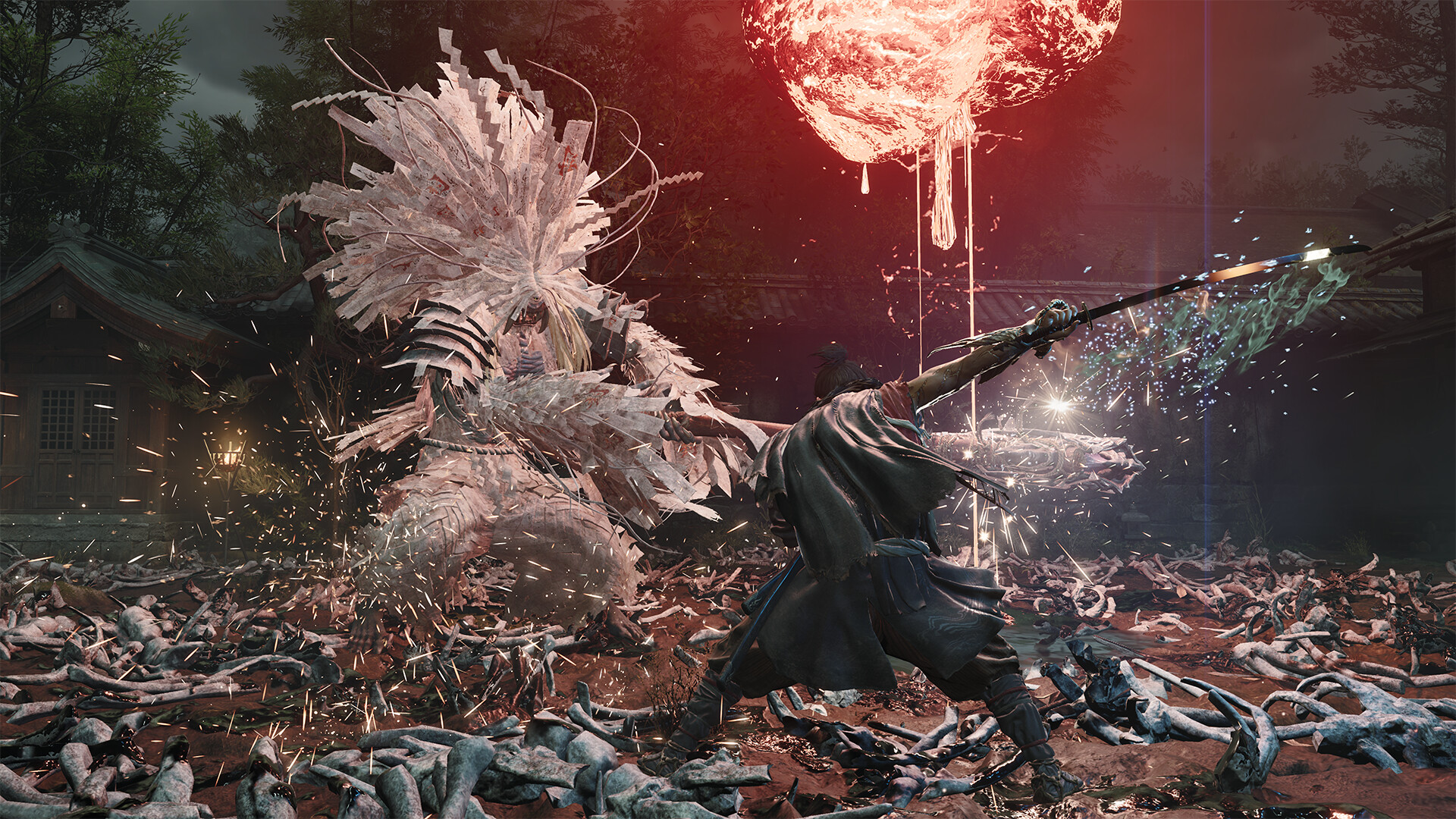
Way of the Sword's options menu splits rendering into a long list of individual sliders rather than a single quality dropdown, which is good news if you know which ones matter. Ray Tracing is the biggest cost on the list, with Off, Medium and High tiers controlling reflections and screen space reflections; outside of static cutscene shots it's the setting least worth its frame cost, especially since Onimusha leans on dense fog and torchlight that already sell the scene without ray-traced bounce light.
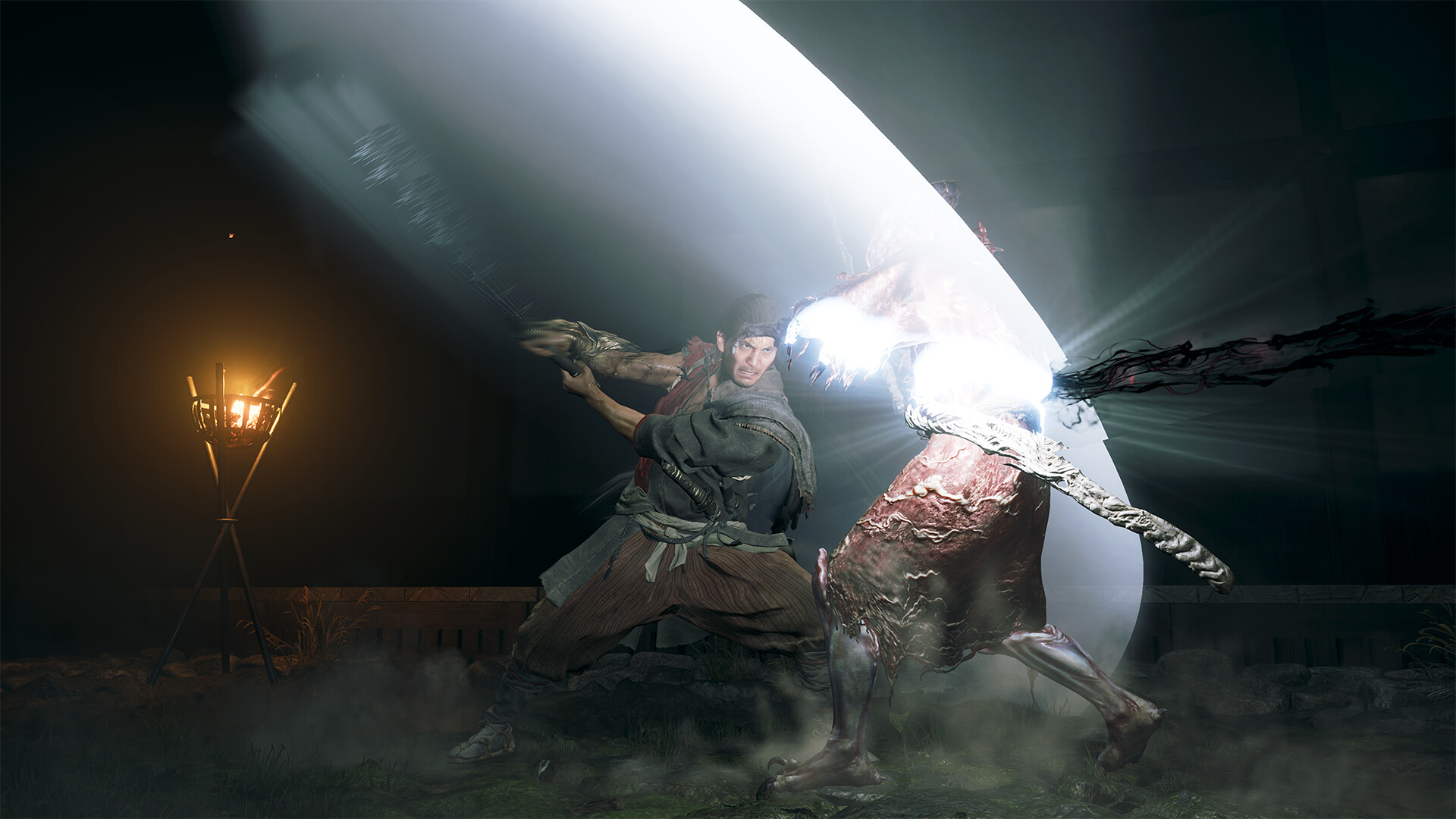
Texture Quality and Texture Filtering Quality (Bilinear up to Anisotropic 16x) are cheap to run at High even on the recommended-spec GPUs, since VRAM is rarely the bottleneck at 1080p or 1440p. Shadow Quality, Contact Shadows and Ambient Occlusion cost more and are more visible up close during sword fights, so it's worth testing High against Medium in a real combat encounter rather than a static bench screenshot. Volumetric Fog Quality and Screen Space Subsurface Scattering both affect Musashi's skin and the Genma's mist-heavy arenas; drop Volumetric Fog to Medium first if you're chasing frames, since it's one of the more expensive atmospheric settings for its visual return.
Mesh Quality, Ground Quality, Sky/Cloud Quality and Foliage Quality (plus a separate Foliage Movement toggle) round out the environmental settings. None of them swing performance as hard as Ray Tracing or Volumetric Fog, so they're safe to leave on Medium or High depending on how much headroom your card has left after the settings above.
03Recommended Presets by GPU Tier
These starting points come from testing against Capcom's own minimum and recommended specs — a GTX 1660 / RX 5500 XT class card for the floor, and an RTX 2060 Super / RX 6600 class card as the baseline recommended GPU.
- Minimum-spec GPUs (GTX 1660, RX 5500 XT): Ray Tracing Off, Texture Quality Low, Texture Filtering Medium, Mesh Quality Medium, Sky/Cloud Low, Foliage Low, Shadow Quality Low, Ambient Occlusion Low, Motion Blur and Bloom off, upscaling on Performance mode, 60 FPS cap.
- Recommended-spec GPUs (RTX 2060 Super, RX 6600): Ray Tracing Off, Mesh Quality Medium, Sky/Cloud Medium, Foliage Medium with Movement on, Ground Quality Low, Shadow Quality High, Ambient Occlusion Medium, Volumetric Fog Medium, upscaling on Balanced — a profile close to this trimmed roughly 17% off frame time compared with every slider maxed, with almost no visible difference outside of reflections.
- High-end GPUs (RTX 4070 and above): Ray Tracing Medium or High, everything else on High or Highest, DLSS 4.5 Quality mode, Volumetric Fog and Subsurface Scattering both on.
04Set Up Your Controls and HUD
Onimusha: Way of the Sword supports keyboard and mouse or a controller on PC, with full button and key remapping available in the Controls menu for both input types. If you're on a pad, two settings are worth checking before you start a Genma fight: Sprint Control can be switched from hold to Toggle so you're not fighting the stick during long runs between checkpoints, and Vibration and the button-swap options for menus and confirm prompts are there if the defaults feel backwards coming from another action game.
Dead zones exist per stick for players dealing with drift — raise the affected stick's dead zone gradually until the drift stops, and back it off again if small camera adjustments start getting eaten. Menu Cursor Speed is a separate slider from in-combat camera sensitivity, so don't assume raising one changes the other. On the display side, the Video menu includes a dedicated option to adjust the HUD for ultra-wide monitors, along with brightness calibration and a standard sRGB color space setting worth leaving alone unless you're color-managing an HDR panel.
Camera behavior is worth a second look too. Way of the Sword doesn't auto-center the camera behind Musashi the way some third-person action games do, and leaving auto-center on works against you the moment a Genma flanks you, since manual repositioning is how you line up the game's environmental parries. Most players end up nudging sensitivity a notch or two above default so the camera keeps pace with faster enemies without overshooting when you're just scanning an arena. Treat the default as a starting point, not a final answer — a setting that lets you turn and stop cleanly in a real fight beats one that looks right on paper.
05Fixing Stutter and Frame Drops
Most of the stutter reports around launch trace back to two things: shader compilation on the first run through a new area, and running without the settings tuned to your GPU's actual class. Capcom's own PC requirements page notes that frame rate "may drop during periods of excessive load," so a first pass through a busy Kyoto street being rough is expected — it typically settles once local shader caches warm up.
Before you touch a single in-game slider, make sure the basics outside the game are in order: install the current GPU driver rather than whatever shipped before launch day, confirm Resizable BAR is enabled in your motherboard's BIOS if your GPU and CPU support it, and set your Windows power plan to High Performance while you're benchmarking. None of that is Onimusha-specific, but a stutter that looks like a game bug is frequently a stale driver or a laptop quietly running on its battery-saving profile. Once those are ruled out, change one graphics slider at a time and note the frame-time impact — Way of the Sword's options menu is granular enough that stacking five changes at once makes it hard to tell which one actually helped.
Quick PC Setup Checklist
- 1Grab the current WHQL driver for your GPU before launching; day-one drivers routinely fix specific stutter and crash reports.5 min
- 2Turn on upscaling in Balanced mode — Capcom's own performance targets assume it's on, not off.1 min
- 3Disable Ray Tracing and Volumetric Fog before touching anything else; they cost the most for the least visible payoff outside cutscenes.2 min
- 4Test High versus Medium during actual combat, not a static screenshot, since both are far more visible up close.3 min
- 5Switch Sprint Control to Toggle, adjust dead zones if you notice drift, and disable camera auto-center for cleaner parries.3 min
- 6Adjust a single slider, play a short combat section, and check the frame-time impact before moving to the next one.5 min
06Why the Demo Felt Easy — and What Capcom Says Changes at Launch
If you played the free demo before launch and found the difficulty underwhelming, that was intentional, not a settings problem. Capcom's producer addressed the feedback directly ahead of release.
“We've heard the feedback that the demo felt too easy for some people. First, the demo is just a slice of the early part of the story. Also, we really wanted you to enjoy a variety of Musashi's actions, so we intentionally equipped him with some late-game skills.”Akihito Kadowaki, Producer, Capcom
The message came alongside the studio's usual pre-launch video output — for a broader look at how the finished combat system holds together, Capcom's official trailer is worth watching before you touch a single graphics slider.
Thanks to everyone who has played the Onimusha: Way of the Sword demo so far! Here's a short message from Producer Kadowaki regarding the difficulty that some players have expressed. https://t.co/x2cmrysJnj
— Onimusha: Way of the Sword (@OnimushaGame), June 8, 2026 on X
Between the difficulty note and the settings above, the practical takeaway is the same: don't judge Way of the Sword's challenge or its performance ceiling off the demo build. Musashi's late-game skill set in that early slice masked both the difficulty curve and some of the heavier effects work the full game leans on once the Genma stop holding back.
FAQ
Does Onimusha: Way of the Sword support DLSS and FSR?
Yes. Capcom's official system requirements confirm Super Resolution upscaling through NVIDIA DLSS 4.5 or AMD FSR 3.1, and the game's official 30/60 FPS targets both assume upscaling is switched on.
Why did the demo feel so easy?
Producer Akihito Kadowaki said the demo intentionally equipped Musashi with some late-game skills so players could try a variety of his moves, and that bosses and regular Genma are tougher in the full game.
What are the minimum and recommended PC specs?
Minimum is a Core i5-8400 or Ryzen 3 3100 with a GTX 1660 (6GB) or RX 5500 XT (8GB) and 16GB RAM for 30 FPS on Low at 1080p with upscaling. Recommended is a Core i5-10400 or Ryzen 5 3600 with an RTX 2060 Super (8GB) or RX 6600 (8GB) for 60 FPS on Medium at 1080p with upscaling, per Capcom's Steam listing.
Can I remap controls on PC?
Yes, keyboard and mouse and controller inputs both support full button and key remapping in the Controls menu, alongside separate camera sensitivity and dead zone sliders.
Is Onimusha: Way of the Sword on Steam Deck or other handhelds?
Capcom's official requirements list Windows 11 and DirectX 12 as the PC baseline. There's no official handheld certification confirmed at launch, so treat Steam Deck compatibility as unconfirmed until Valve or Capcom verify it.
Official resources

Ana writes the step-by-step tutorials: settings, controls, configs and the systems games never explain properly. Every tutorial is tested on the version named at the top of the page, with the official patch notes linked so you can check what changed.