Marvel Rivals: Best PC Settings for Season 10's XeSS 3 Update
Marvel Rivals Season 10 adds Intel XeSS 3 Frame Generation and Xe Low Latency — here's how to set them up plus the graphics and mouse settings that matter.
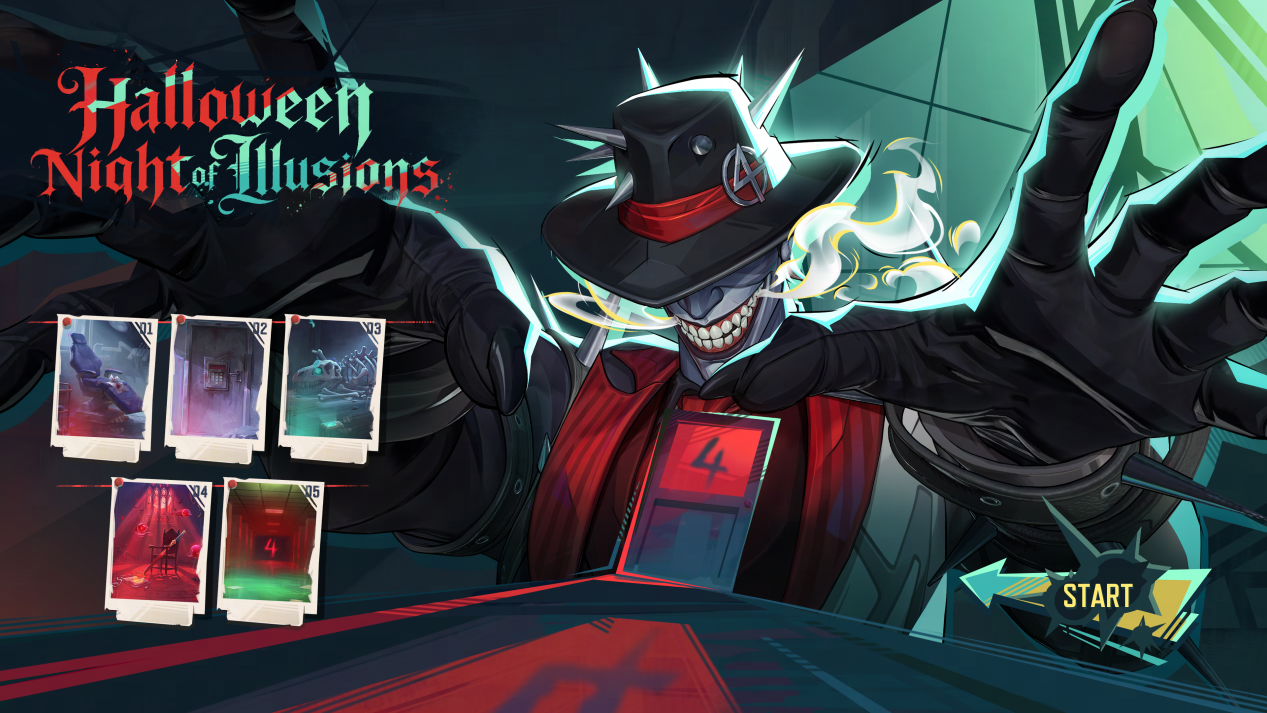
Marvel Rivals' Season 10 update, Butcher's Blasphemy, shipped on September 11 with a new villain, a Scarlet Witch rework, and one change PC players should not skip: support for Intel XeSS 3 Frame Generation and Xe Low Latency (XeLL). Combined with the DLSS 4.5 Multi Frame Generation NetEase added earlier this year, Marvel Rivals now leans on frame generation more than almost any other competitive shooter. That is great for fluidity and bad for input feel if you enable it blindly, so here is how to set your PC up correctly for the new season.

01What Season 10 changed on PC
The version 20260911 patch notes confirm Intel XeSS 3 Frame Generation is now built into the graphics menu. When it is enabled on a compatible Intel Arc graphics card, it inserts up to three AI-generated frames between every rendered frame to boost visual smoothness, and it is paired with Xe Low Latency technology to offset the extra input delay that frame generation normally adds. It joins NVIDIA DLSS 4.5, which added new Performance and Quality model presets and, on GeForce RTX 50 series cards, up to 6x Multi-Frame Generation. Whether AMD gets an equivalent frame-generation option is not mentioned in either patch's official notes, so treat that as unconfirmed for now and check your own Graphics tab for what Marvel Rivals actually offers on your card.
02Update your GPU driver first
Marvel Rivals' own Common Technical Issues FAQ leads with this exact advice: reinstall the latest driver for your GPU model, and use the clean-install option when the installer offers it. Frame generation features are new code paths in both the game and the driver, so an outdated driver is the single most common reason Season 10's new options either don't appear or cause stutter the moment they're switched on. Do this before touching any in-game setting.
It's also worth checking your PC still clears Marvel Rivals' official minimum and recommended specs, since Season 10's new rendering paths add extra load on top of the base game:
| Minimum | Recommended | |
|---|---|---|
| OS | Windows 10 64-bit (1909+) | Windows 10 64-bit (1909+) |
| Processor | Intel Core i5-6600K / Ryzen 5 1600X | Intel Core i5-10400 / Ryzen 5 5600X |
| Memory | 16 GB RAM | 16 GB RAM |
| Graphics | GTX 1060 / RX 580 / Arc A380 | RTX 2060 Super / RX 5700-XT / Arc A750 |
| Storage | 70 GB (SSD recommended) | 70 GB (SSD recommended) |
These figures come straight from the game's Steam store page, and Valve's own SSD recommendation matters more than usual this patch: frame generation leans on fast asset streaming to avoid tearing when it inserts extra frames, and a mechanical drive will show that as periodic hitching that no graphics setting fixes.
03Turn on XeSS 3 Frame Generation the right way
If you're on a compatible Intel Arc card, open the graphics settings and enable XeSS 3 Frame Generation together with Xe Low Latency rather than on its own — the patch notes specifically describe the two as a paired feature, with XeLL there to claw back the responsiveness that inserted frames cost you. Frame generation multiplies whatever base frame rate you're already getting, so it works best once your real, non-generated FPS is stable. If your baseline is already choppy, fix that first with the steps below; turning on frame generation over an unstable base will just make the smoothing artifacts more obvious in fast fights.
04Match your upscaler to your hardware
Marvel Rivals now ships three separate upscaling and frame-generation stacks, and picking the wrong one for your card wastes performance headroom:
- Intel Arc: XeSS 3 Frame Generation plus Xe Low Latency, added in Season 10.
- NVIDIA GeForce RTX 50 series: DLSS 4.5 with the Transformer-model Quality preset or the CNN-based Performance preset, plus up to 6x Multi-Frame Generation.
- Older NVIDIA RTX cards: DLSS 4.5 Super Resolution still applies; the high-multiplier Multi-Frame Generation mode is RTX 50-series only per the official patch notes.
- AMD and everyone else: no frame-generation option is confirmed in the Season 10 or June patch notes, so run native resolution or whatever base upscaler your Graphics tab shows and rely on the settings below for headroom instead.
Don't just turn on the highest multiplier your card supports and call it done, either. DLSS 4.5's Quality preset uses a heavier Transformer model aimed at edge detail and reduced ghosting, while Performance mode falls back to the lighter, older CNN model purely to push frame rate — pick Performance if you're chasing FPS in ranked and Quality if you're recording or streaming and care more about a clean image. The same logic applies to XeSS 3: it's a multiplier on your real frame rate, so a 40 FPS baseline that jumps to 120 FPS on screen still feels like a 40 FPS game to your mouse, just smoother to look at.
05Core graphics settings worth trimming
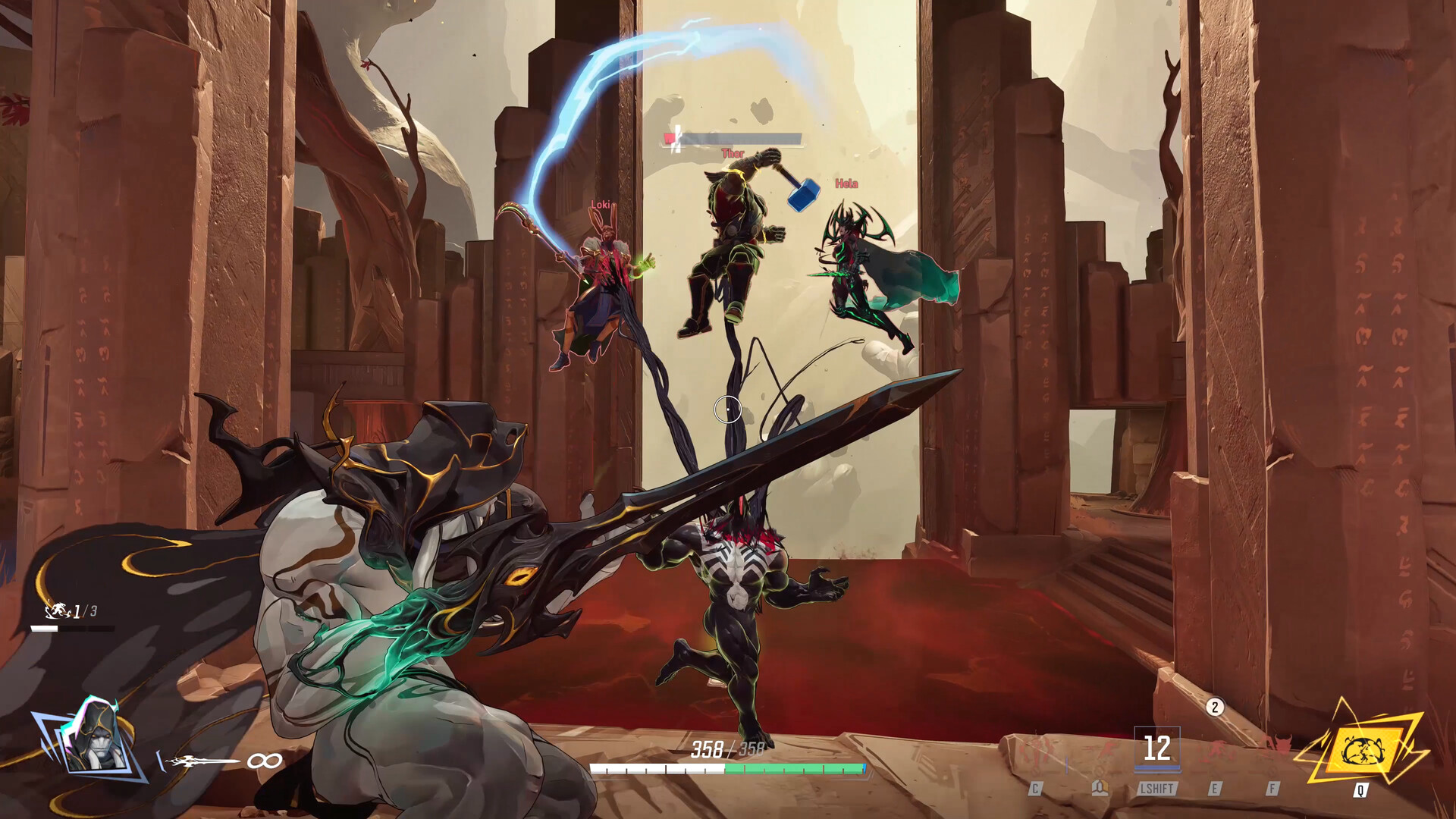
Marvel Rivals' graphics menu carries four settings that make the biggest difference once frame generation is out of the picture: Anti-Aliasing, Model Detail, Global Illumination, and Reflection Quality all have an Off (or Performance, for Model Detail) option that trades a visible amount of fidelity for a real frame rate gain in crowded team fights. In competitive lobbies where reading enemy silhouettes matters more than reflections, dropping Global Illumination and Reflection Quality to Off first is the better trade, since neither affects hit-reg or hero readability the way Model Detail does.
Also check Menu → Options → Display Settings → Frame Rate Limit. NetEase's own laptop optimization guide recommends turning this on specifically to stop your machine from running flat-out and overheating during long sessions — cap it a few frames under your monitor's refresh rate rather than leaving it uncapped.
06Fix mouse feel: turn off smoothing and acceleration
A recurring complaint since launch was that Marvel Rivals shipped with mouse acceleration and smoothing active by default. NetEase's official patch notes confirm both are now exposed as toggles under Settings → Keyboard → the Combat sub-tab, and turning them off is what most competitive players want: without acceleration, a given mouse movement always covers the same distance regardless of swipe speed, which is what makes flick shots and tracking consistent between practice and a real match.
Configure Marvel Rivals for Season 10
- 1Reinstall the latest driver for your GPU using the clean-install option before touching any Season 10 setting — outdated drivers are the top cause of missing or stuttering frame-generation options.5 min
- 2Check your CPU, GPU and RAM against Marvel Rivals' official minimum and recommended specs, and make sure the game is installed on an SSD since frame generation leans on fast asset streaming.2 min
- 3On a compatible Intel Arc card, turn both on together in the graphics menu — XeLL is there specifically to offset the input lag frame generation adds.3 min
- 4Use DLSS 4.5 Performance or Quality on GeForce cards, XeSS 3 on Intel Arc, or native resolution if neither applies — don't stack settings your hardware doesn't support.2 min
- 5Drop Global Illumination and Reflection Quality to Off first for the best fidelity-to-FPS trade in team fights.5 min
- 6Menu → Options → Display Settings → Frame Rate Limit — cap it a few frames under your monitor's refresh rate to stop overheating on long sessions.1 min
- 7Settings → Keyboard → Combat — disable both toggles for consistent, 1:1 mouse tracking between practice and real matches.2 min
- 8Add Marvel-Win64-Shipping.exe to your antivirus and Windows Defender's Controlled Folder Access, then switch the launcher's Shader Compilation Mode if you see crashes after the patch.5 min
07Laptop-specific fixes
If you're playing on a laptop, NetEase's dedicated performance guide adds three steps beyond the in-game menu: turn on Discrete Graphics Direct Mode if your laptop supports it, switch to your OS's Game Mode or a manufacturer performance mode before launching, and keep the machine well ventilated (a cooling pad helps) since sustained frame generation workloads run the GPU harder than a capped, non-generated frame rate does. On the Windows side, the same technical FAQ walks through setting Marvel-Win64-Shipping.exe to High Performance at Windows Settings → System → Display → Graphics, which stops the OS from quietly parking the game on an integrated GPU.
08Keep an eye on stability, not just fidelity
New rendering features tend to surface stability issues that pure settings tweaks can't fix, and Marvel Rivals' technical FAQ has three specific fixes worth running through in order if Season 10 feels less stable than the previous patch, rather than just slower:
- Whitelist the executable. Add ~\Marvel\Binaries\Marvel-Win64-Shipping.exe (and your full game storage path) to your antivirus, then to Windows Defender's Controlled Folder Access at Windows Security → Virus & Threat Protection → Manage Settings. A security tool scanning a freshly patched executable mid-match is a common cause of one-off freezes that look like a settings problem but aren't.
- Allow it through the firewall. Windows Defender Firewall → Allow an app through the firewall, then make sure Marvel-Win64-Shipping.exe has both private and public network access — this mostly affects matchmaking and voice, not frame rate, but it's a quick check if either drops after the update.
- Switch the launcher's Shader Compilation Mode. This is called out specifically in the official FAQ as a way to reduce crash likelihood after a patch, since Season 10's new frame-generation paths mean the game is recompiling more shaders than usual on your first few sessions.
If none of that resolves it, the same FAQ points to an in-launcher Integrity Check and Repair tool and a GPU Debug Mode you can enable specifically to gather logs for NetEase's support team — worth running before you file a ticket, since it usually speeds up the response.
For the full rundown of everything else Butcher's Blasphemy changed — Gorr's kit, the Scarlet Witch rework, and the Strategist ultimate-energy changes — NetEase's own Dev Vision recap above covers it in more detail than the settings alone can.
FAQ
Does Intel XeSS 3 Frame Generation work on NVIDIA or AMD graphics cards?
Marvel Rivals' official Season 10 patch notes describe XeSS 3 Frame Generation as working on compatible Intel graphics cards. Whether the toggle appears or functions on NVIDIA or AMD hardware isn't stated in the patch notes, so treat that as unconfirmed and check your own Graphics tab.
What are Marvel Rivals' minimum and recommended PC specs?
Per Steam, minimum is an Intel Core i5-6600K or Ryzen 5 1600X, 16GB RAM and a GTX 1060 / RX 580 / Arc A380. Recommended steps up to an i5-10400 or Ryzen 5 5600X with an RTX 2060 Super / RX 5700-XT / Arc A750, still with 16GB RAM.
Should I use DLSS 4.5 Performance or Quality mode?
Performance mode uses the lighter CNN model and is built for frame rate, so it's the better pick in ranked. Quality mode uses the newer Transformer model for finer edge detail and less ghosting, which matters more if you're recording or streaming.
Why does turning off Mouse Acceleration matter?
With acceleration on, the same mouse swipe covers different distances depending on how fast you move it, which makes flicks inconsistent. NetEase's patch notes confirm both Mouse Acceleration and Mouse Smoothing are toggleable under Settings → Keyboard → Combat, and most competitive players turn both off.
My game crashes more since the Season 10 update — what should I try first?
Update your GPU driver with a clean install, then work through Marvel Rivals' official Common Technical Issues FAQ: whitelist Marvel-Win64-Shipping.exe in your antivirus and Windows Defender, switch the launcher's Shader Compilation Mode, and run the in-launcher Integrity Check if problems continue.
Official resources

Ana writes the step-by-step tutorials: settings, controls, configs and the systems games never explain properly. Every tutorial is tested on the version named at the top of the page, with the official patch notes linked so you can check what changed.