Tales of Eternia Remastered: Best PC Settings and Controls
Tales of Eternia Remastered is out now on PC. Here's every system requirement, display option, controller setting and language choice worth checking first.
Tales of Eternia Remastered is out now on PC, and TOSE's rebuild of the 2001 PS1 classic gives you more display, difficulty and accessibility options than the original ever had. Before you load up Reid and Farah's journey between Inferia and Celestia, it's worth spending five minutes in the options menu — the defaults aren't wrong, but a few tweaks make the Aggressive Linear Motion Battle System noticeably more readable, especially if you're coming to this Tales entry for the first time.
Unlike a lot of modern remasters, this one doesn't bury its settings behind a dozen submenus. Everything that matters for a smooth PC run — the visual toggle, difficulty, Boost rates and controller support — sits within a couple of clicks of the main menu, which makes it easy to get the defaults wrong on your first launch and never realize it. Here's everything worth checking before you commit to a save file.
01System Requirements and Performance Targets
Tales of Eternia Remastered is not a demanding port. Steam's own system requirements listing gives identical hardware for both the minimum and recommended tiers — an Intel Core i3-8100 or AMD Ryzen 3 3100, 4 GB of RAM, and a GPU as modest as a GeForce GTX 650 Ti or Radeon HD 7770 — with the difference coming down to the graphics preset you run:
- Minimum: 1080p/60fps at the "Low" graphics setting, with possible frame drops in intensive scenes.
- Recommended: 1080p/60fps at the "High" graphics setting, same caveat about drops in busy scenes.
The game requires DirectX 12 and Windows 11, though Bandai Namco notes Windows 10 (version 1809 or later) will work if your GPU has at least 4 GB of VRAM. Storage is a light 8 GB. If your PC is more than a few years old, these numbers are a good reminder that this remaster leans on CPU and storage speed more than raw GPU power — an SSD will cut loading screens more than a graphics card upgrade will.
Because the minimum and recommended specs share the exact same CPU, RAM and GPU floor, there's no hardware tier where you're locked out of 60fps outright — Bandai Namco's own estimate is that both presets hold 1080p/60fps outside of "graphics-intensive scenes." If you're running close to the minimum spec, dropping the graphics preset to Low before touching resolution is the first lever worth pulling.
02Graphics Mode and SFX Mode: Pick Your Era
The headline PC-relevant feature in this remaster is the Graphics Mode and SFX Mode toggle, which lets you switch between the remastered visuals and sound effects and the original 2001 presentation at will. This isn't a one-time choice — you can swap it mid-playthrough from the options menu, so there's no wrong answer to make on your first boot.
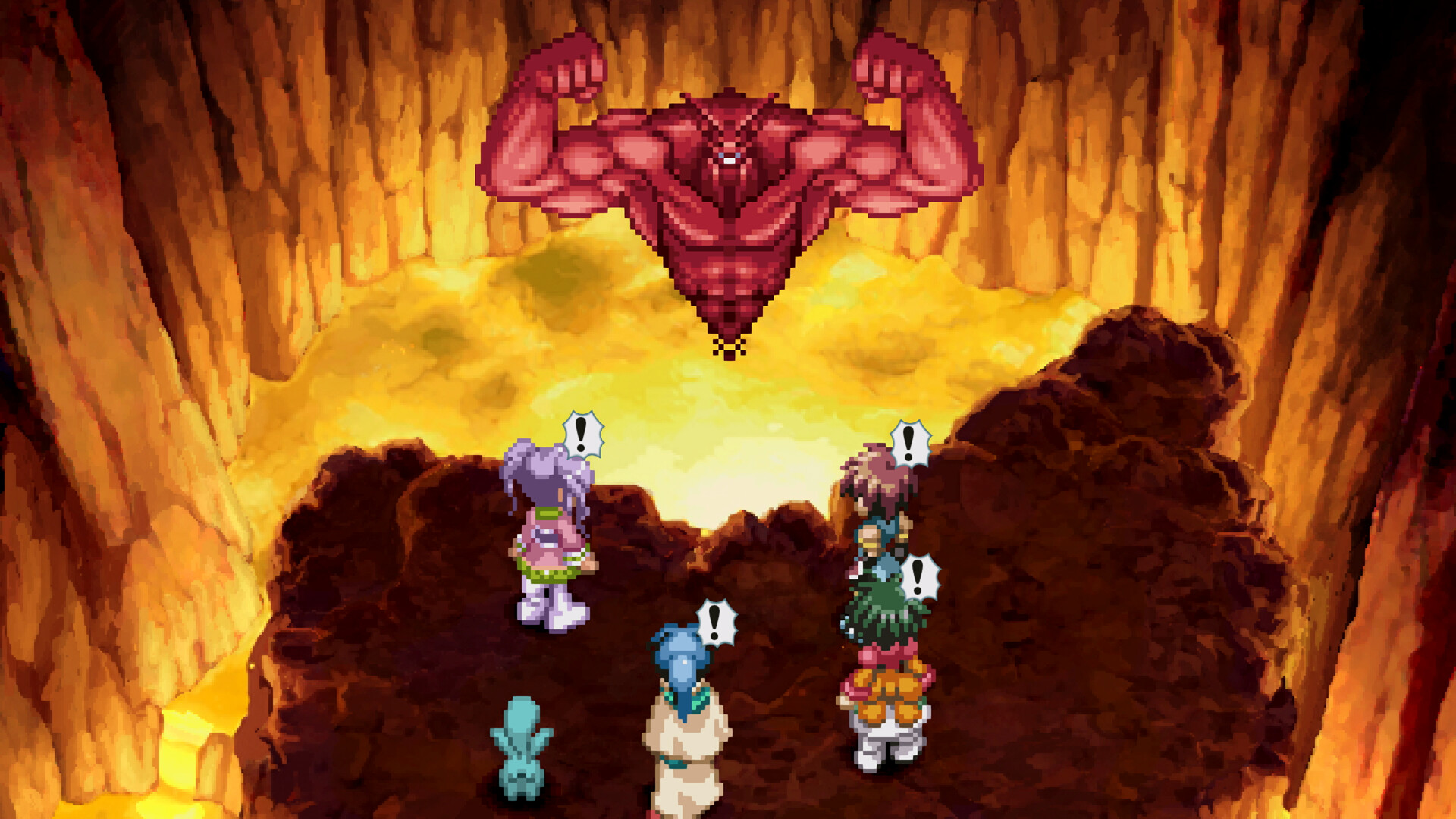
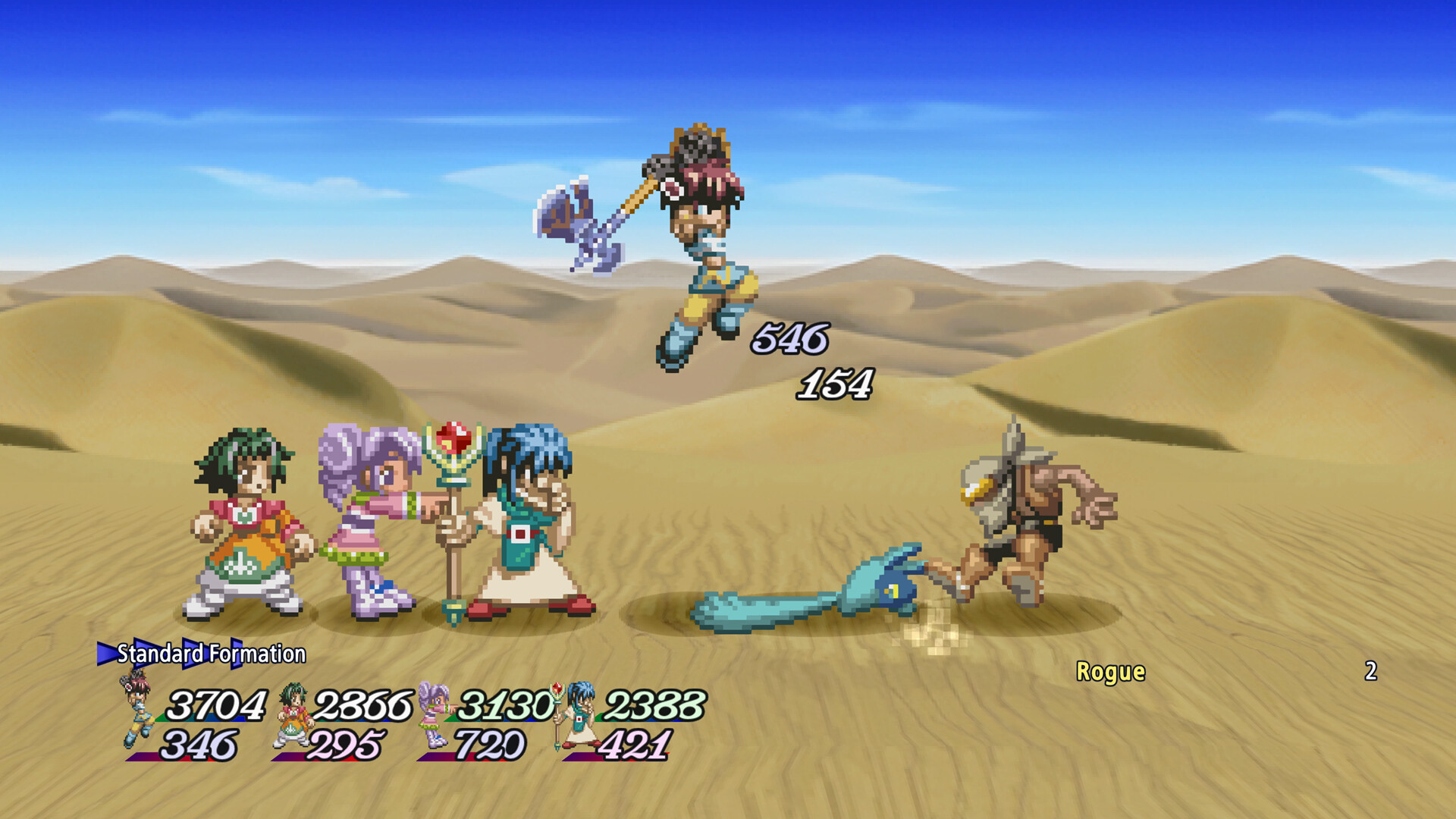
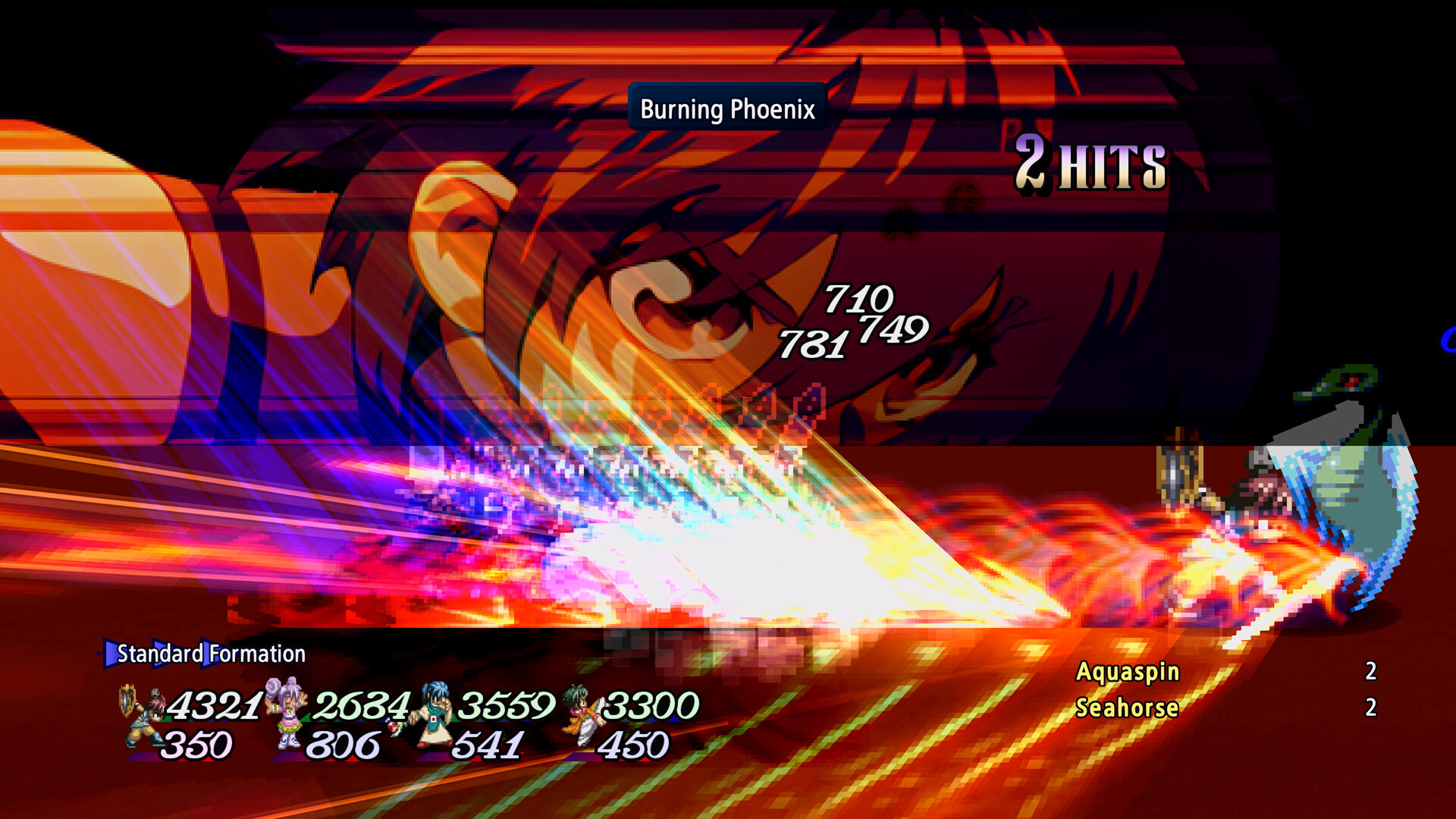
In practice, Graphics Mode smooths out the sprite work and adds modern lighting to the 3D battle backgrounds (you can see the difference clearly in spell effects like Farah's Burning Phoenix), while the original mode keeps the chunkier, more compressed PS1-era look. SFX Mode does the same for sound design. If you played the PS1 or PSP original and want that exact nostalgia hit, flip both to original; if you want the cleanest possible screenshots and streams, leave them on remastered.
03Resolution and Frame Rate
Bandai Namco's own performance targets, published ahead of launch, list the Steam version at up to 4K resolution with a 60fps target — though as with any PC release, your actual output depends entirely on your monitor and GPU rather than a fixed console target. Treat the published numbers as a ceiling, not a guarantee, the same caveat Bandai Namco itself attaches to the console figures (PS5 and Xbox Series X are both listed at up to 4K/60fps, Xbox Series S at up to 1440p/60fps, and Switch 2 at up to 4K/60fps).
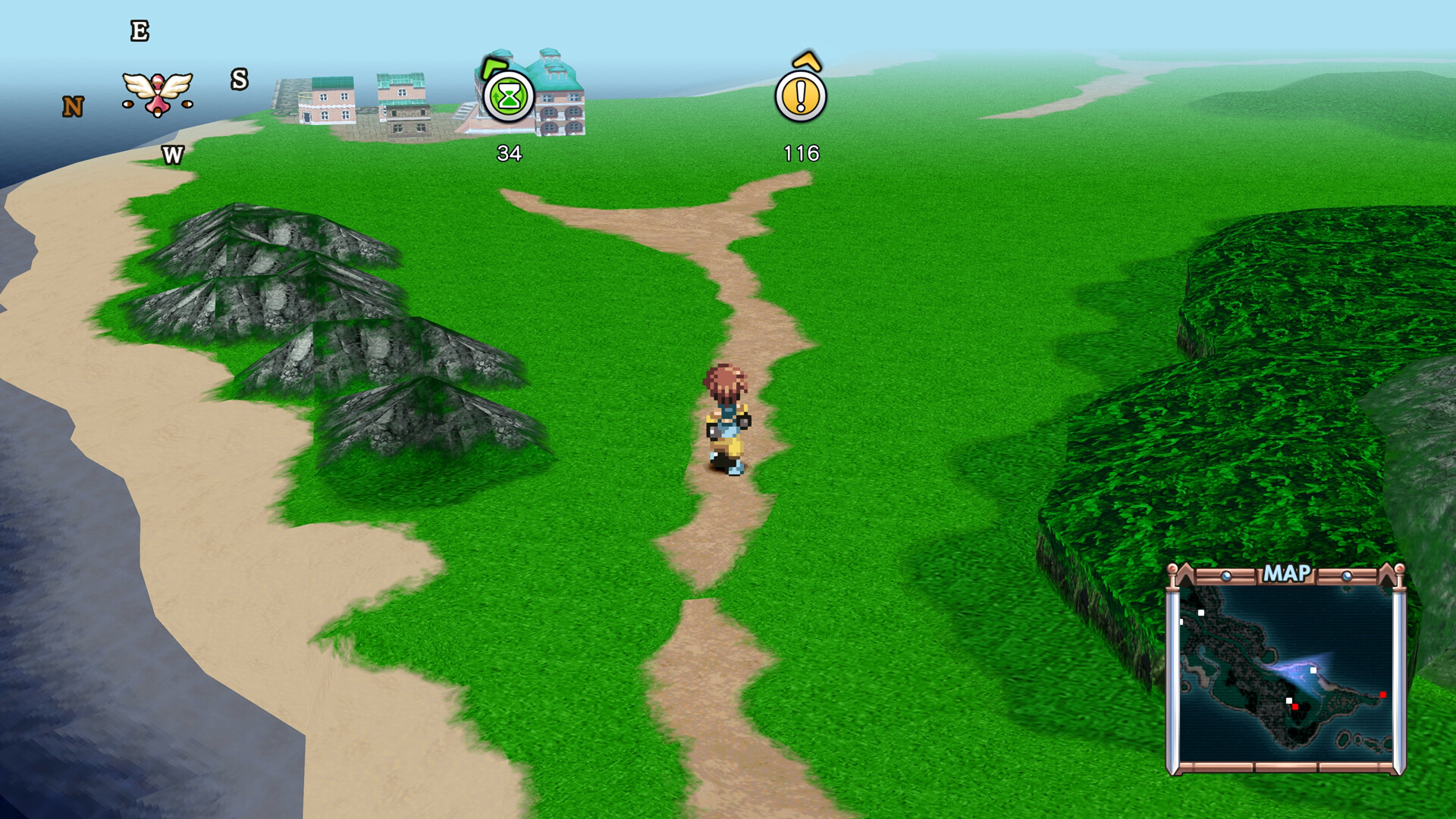
There's no in-game benchmark tool, so the practical approach is to start a new game, walk around Rasheans or the opening beach area, and watch for frame drops during travel or battle transitions before committing to your display settings for the full campaign.
04Controller and Button Setup
Steam lists Tales of Eternia Remastered with full controller support plus dedicated DualShock and DualSense prompts, so a PlayStation pad will show the correct button icons out of the box rather than generic Xbox glyphs. Keyboard and mouse play works too, but this is a traditional JRPG built around a d-pad and face buttons for menus and the ALMBS battle system, so a controller is the more comfortable default for most of the campaign.
If you're switching between a controller and keyboard mid-session — common during long RPGs — Steam Input will usually re-detect automatically. If prompts stop updating correctly, unplugging and replugging the controller or toggling Steam Input off and back on in the game's Steam properties resolves it in nearly every case.
Button remapping specifics aren't detailed on the Steam store page, so treat in-game rebinding as unconfirmed until you check the options menu yourself after your first boot — Steam's own controller configurator remains the reliable fallback if the in-game menu doesn't offer what you need.
05Difficulty and Quality-of-Life Settings
Before your first save, the new-game screen is where the remaster's biggest structural option lives: Extreme difficulty is unlockable from the start, a tier above the series-standard Normal and Hard, while a brand-new Unknown difficulty only opens up after you've finished the game once. If you're new to Eternia, starting on Normal and saving Extreme for a second run keeps the ALMBS combat from feeling punishing before you've learned your party's Arcana and combo timing.
Beyond difficulty, the settings worth checking on day one are the Boost feature, which separately adjusts experience gained and random encounter frequency — useful if you want to speed-run the story or, inversely, grind more deliberately — along with toggleable on-map destination icons, Battle Retry, Quick Recovery after knockdowns, and a high-speed Auto-mode for the battle system. None of these change the story, so there's little downside to turning on whichever combination gets you into fights faster or slower, depending on what you're after.
Quick PC Setup Checklist
- 1Confirm Windows 11 (or Windows 10 1809+) and the latest GPU driver before launching, since the game requires DirectX 12.2 min
- 2Open Options and pick Low or High graphics quality based on your GPU. Both target 1080p/60fps per Bandai Namco's own estimate.1 min
- 3Decide between the remastered look and audio or the original 2001 presentation. You can change this anytime, so don't overthink it.1 min
- 4Normal is the safest entry point for newcomers. Extreme is unlocked from the start for returning fans, and Unknown opens after your first clear.1 min
- 5Set the Boost feature's XP and encounter-rate sliders, plus destination icons, Battle Retry and Auto-mode speed to match how you want to play.2 min
- 6Connect a controller for full DualSense or DualShock prompts, or stick with keyboard and mouse, and verify your audio and subtitle language before your first cutscene.1 min
06Language and Audio Options
This is one of the more generous localization efforts in the series: the Steam listing confirms full interface, audio and subtitle support in ten languages — English, French, Italian, German, Spanish, Russian, Simplified Chinese, Traditional Chinese, Japanese and Korean. That means you can run Japanese voice audio with English subtitles, or any other combination the menu allows, without needing a separate regional build. If you imported a save or cloud profile from another region, it's worth confirming your language selection matches what you expect before your first long cutscene, since cloud saves can occasionally carry a prior region's defaults over.
Achievements and Steam Cloud are both supported, so your settings and progress should carry over cleanly between PCs as long as you let a sync finish before closing the client — the same caution worth applying to any Steam Cloud title, not just this one.
07Troubleshooting Common PC Issues
If you hit a black screen or crash on launch, start with these checks before anything more drastic: confirm Windows and GPU drivers are fully updated for DirectX 12, verify the integrity of game files through Steam's local files menu, and make sure Steam Cloud has finished syncing before you alt-tab out mid-session, since interrupting a sync is a common cause of lost progress in cross-save setups. Given how modest the official requirements are, a verify-files pass plus an updated GPU driver is the first troubleshooting step worth trying before assuming your hardware is the problem. If subtitles and dialogue ever feel out of sync, double-check the language selection in the options menu, since this remaster runs ten separate audio and subtitle languages side by side.
The June announcement trailer above is still the best single overview of what changed in this remaster if you want a refresher before diving into the options menu — Bandai Namco hasn't published a separate PC-focused features trailer since.
FAQ
What are the PC system requirements for Tales of Eternia Remastered?
Steam lists an Intel Core i3-8100 or AMD Ryzen 3 3100, 4 GB RAM, a GeForce GTX 650 Ti or Radeon HD 7770, DirectX 12 and Windows 11 for both the minimum and recommended tiers, with the difference coming down to the Low or High graphics preset.
What's the difference between Graphics Mode and SFX Mode?
Graphics Mode toggles between the remastered visuals and the original 2001 presentation, and SFX Mode does the same for sound effects. Both can be switched at any time from the options menu.
Does Tales of Eternia Remastered support controllers on PC?
Yes. Steam lists full controller support with dedicated DualShock and DualSense button prompts, alongside standard keyboard and mouse controls.
What difficulty should new players start on?
Normal is the safest starting point. Extreme is available from the start for a tougher run, and the new Unknown difficulty only unlocks after finishing the game once.
How many languages does the PC version support?
Ten, with full interface, audio and subtitle support in English, French, Italian, German, Spanish, Russian, Simplified Chinese, Traditional Chinese, Japanese and Korean.
Official resources

Ana writes the step-by-step tutorials: settings, controls, configs and the systems games never explain properly. Every tutorial is tested on the version named at the top of the page, with the official patch notes linked so you can check what changed.